
![Ford Bronco [PACK]](https://temp2.modland.net/i/6abb8bc6ce51c/0_modland.jpg)



5/5,
2
votes
Description
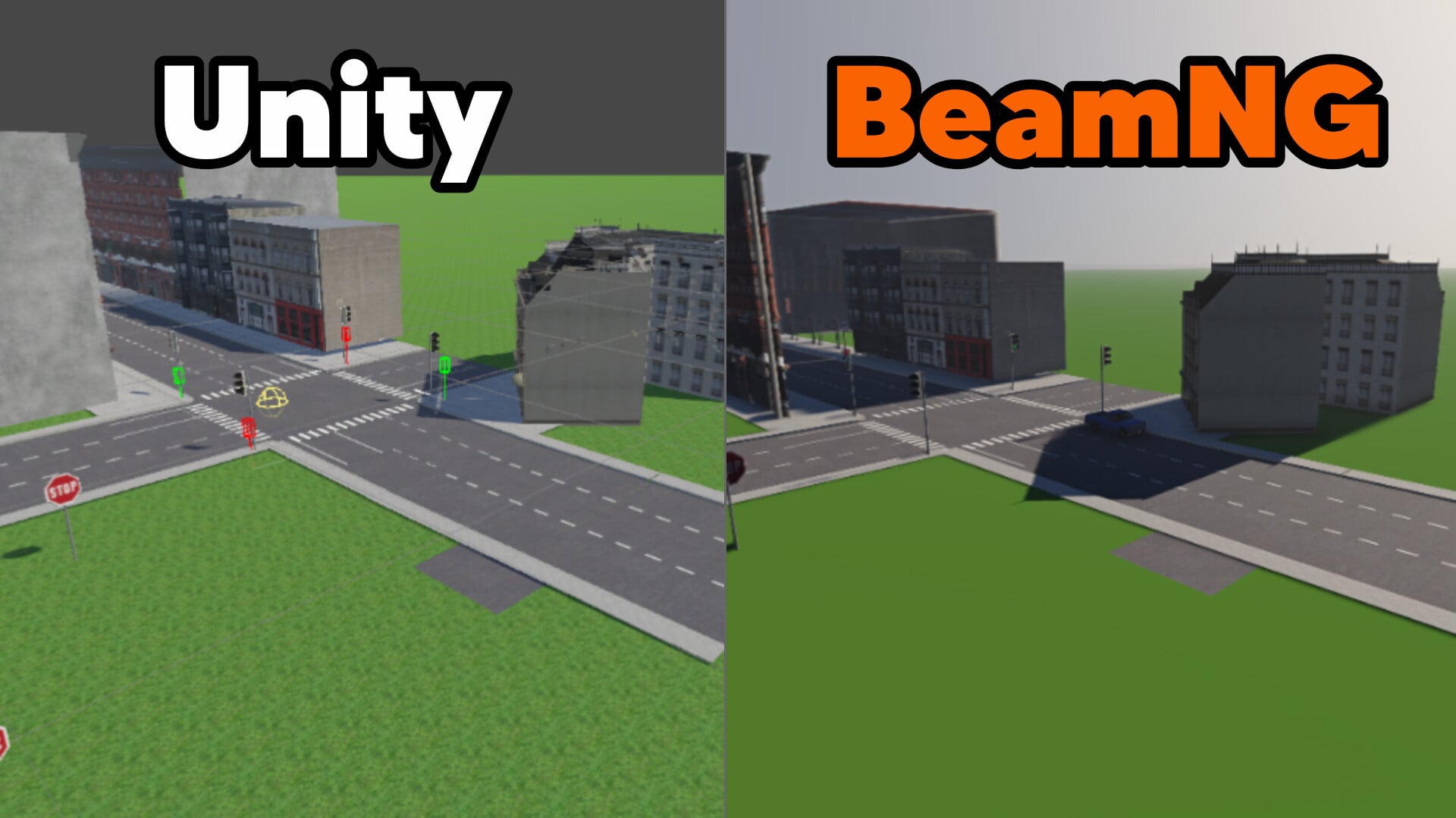
Unity to BeamNG is a Unity Editor extension that exports Unity scenes to BeamNG.drive level mods. The exporter creates a ZIP file that can be installed in BeamNG.drive.
Features
- Scene and Mesh Export: Export Unity scenes and static meshes as COLLADA (.dae) files.
- Generate BeamNG-compatible TSStatic collision.
- Preserve object positions and rotations.
- Terrain Export: Convert Unity terrain height data to BeamNG .ter format.
- Merge terrain data during export and support terrain hole masks.
- Materials and Textures: Export materials and PNG textures.
- Support UV tiling, alpha blending for road markings and emissive maps.
- Roads and AI Navigation: Generate DecalRoads along road centerlines.
- Support manually placed points, modular road pieces and Road Architect splines.
- Create road networks intended for AI traffic and navigation.
- Traffic Lights: Create basic traffic light intersections with configurable timing cycles and automatic light switching via Lua script.
- Spawn Points: Define custom spawn points using Unity GameObjects.
Installation Instructions
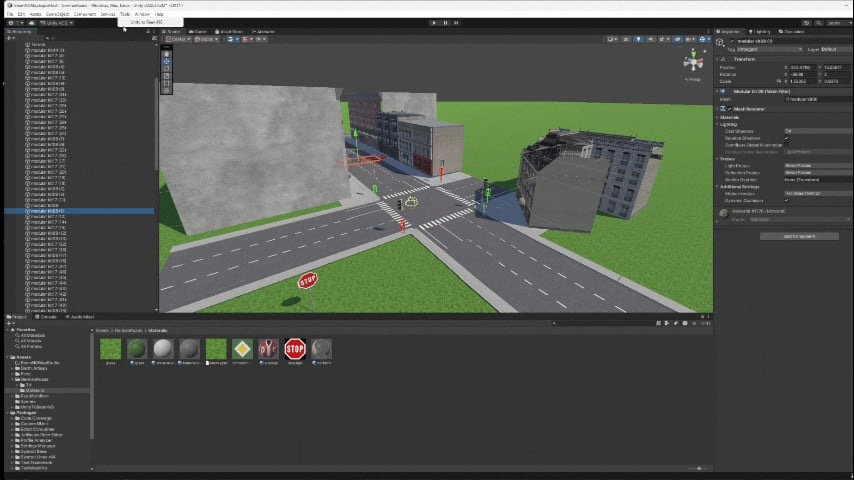
The GIF below shows the export workflow in Unity.
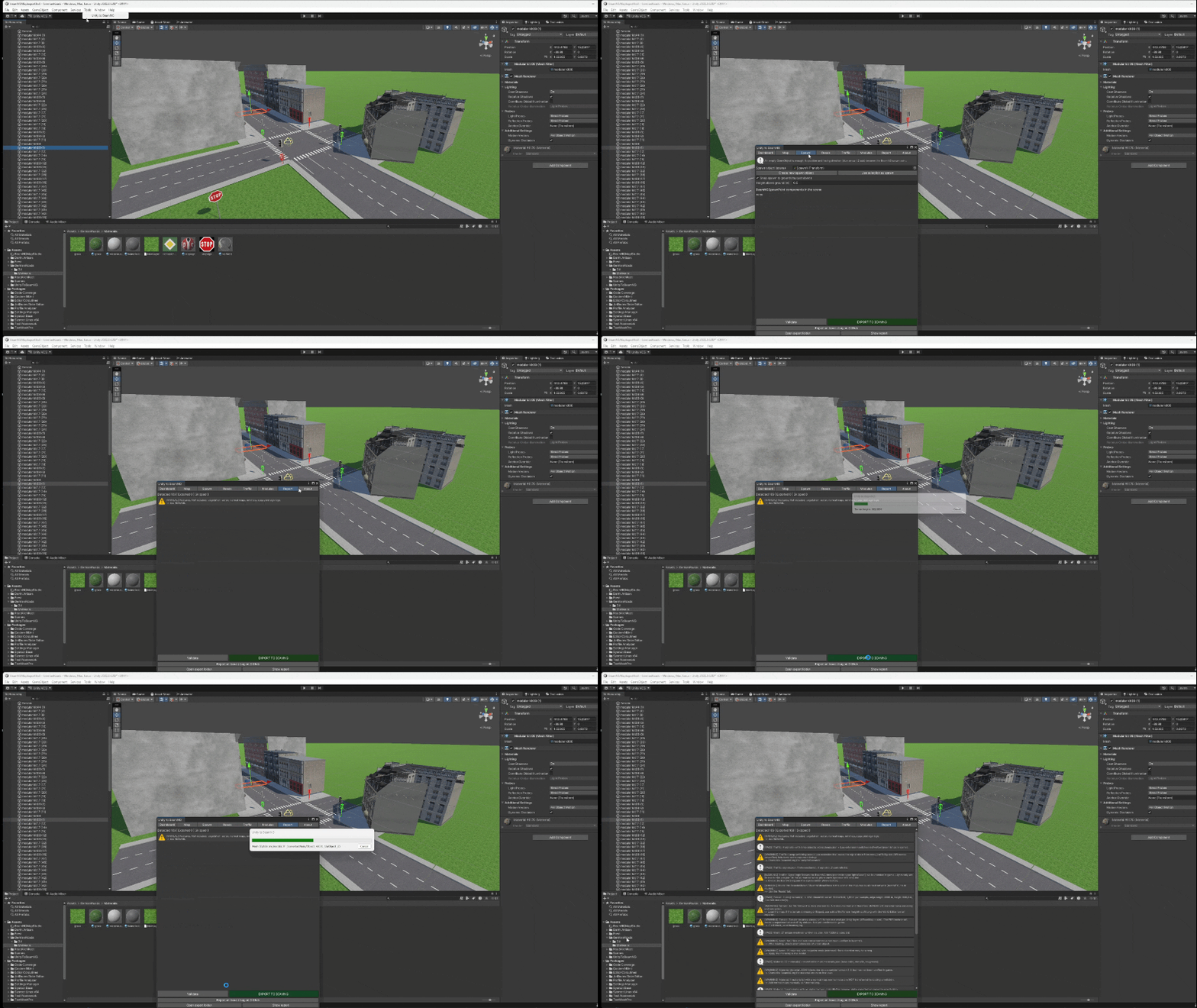
1. Open your Unity project. Import or copy the UnityToBeamNG folder into your project's Assets directory.
2. Open the exporter through Tools > Unity to BeamNG.
3. Configure the export settings for your map.
4. Click EXPORT TO BEAMNG.
5. Wait for the export to finish and locate the generated ZIP file.
6. Copy the ZIP file into your BeamNG.drive mods folder.
7. Launch BeamNG.drive and check the exported level.
Requirements:
- Unity 2022.2 or newer.
- Read/Write access enabled in mesh import settings where required.
- BeamNG.drive to test the exported level.
Unity to BeamNG is a Unity Editor extension that exports Unity scenes to BeamNG.drive level mods. The exporter creates a ZIP file that can be installed in BeamNG.drive.
Features
- Scene and Mesh Export: Export Unity scenes and static meshes as COLLADA (.dae) files.
- Generate BeamNG-compatible TSStatic collision.
- Preserve object positions and rotations.
- Terrain Export: Convert Unity terrain height data to BeamNG .ter format.
- Merge terrain data during export and support terrain hole masks.
- Materials and Textures: Export materials and PNG textures.
- Support UV tiling, alpha blending for road markings and emissive maps.
- Roads and AI Navigation: Generate DecalRoads along road centerlines.
- Support manually placed points, modular road pieces and Road Architect splines.
- Create road networks intended for AI traffic and navigation.
- Traffic Lights: Create basic traffic light intersections with configurable timing cycles and automatic light switching via Lua script.
- Spawn Points: Define custom spawn points using Unity GameObjects.
Installation Instructions
The GIF below shows the export workflow in Unity.
1. Open your Unity project. Import or copy the UnityToBeamNG folder into your project's Assets directory.
2. Open the exporter through Tools > Unity to BeamNG.
3. Configure the export settings for your map.
4. Click EXPORT TO BEAMNG.
5. Wait for the export to finish and locate the generated ZIP file.
6. Copy the ZIP file into your BeamNG.drive mods folder.
7. Launch BeamNG.drive and check the exported level.
Requirements:
- Unity 2022.2 or newer.
- Read/Write access enabled in mesh import settings where required.
- BeamNG.drive to test the exported level.
External Download Links:
Direct Download Links
About Mod
| Latest Version | 0.4.2 |
| Game | BeamNG.drive |
| Category | Maps |
| Game Version | 0.40.x |
| Downloads | 41 |
| Forum Thread | Visit forum thread |
| Created | 2 days ago |
You Might Also Like »
0 Comments
There are no comments. Be first to comment!