Starter.exe error in Car City Driving: Solution to the problem!
-lg_modland.jpg)
-lg_modland.jpg)
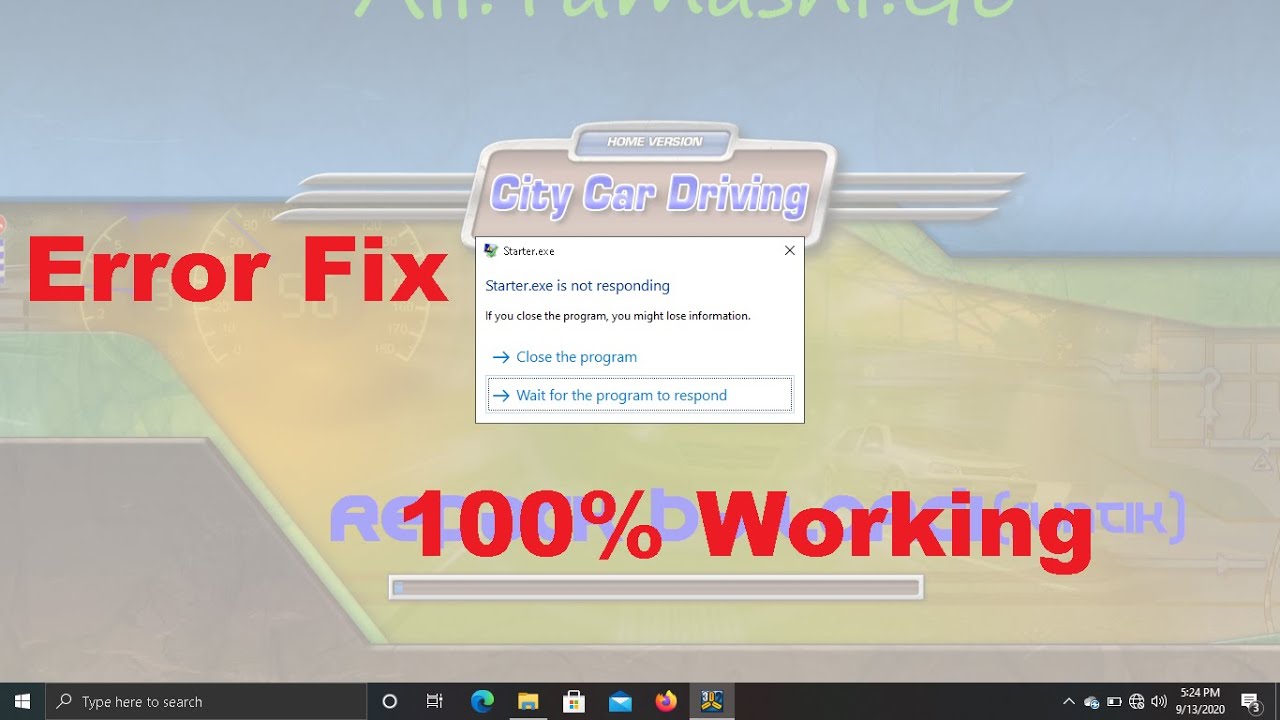
An error with the name Starter.exe in Car City Driving is encountered by many users. Most often it appears during startup, when the car is running fast or during a career, when the picture begins to lag noticeably. It will open a small window with something like this: «nD3D11Texture::CreateFromFile(): Unable to load file 'texturesdds:characters/pedestrians/oldman6_diff.tga.dds'»
There is a fix! And it’s simple enough! Just carefully follow the instructions with screenshots below. Consider 2 ways to solve this error. If one does not work, you can try the second way.
Method 1
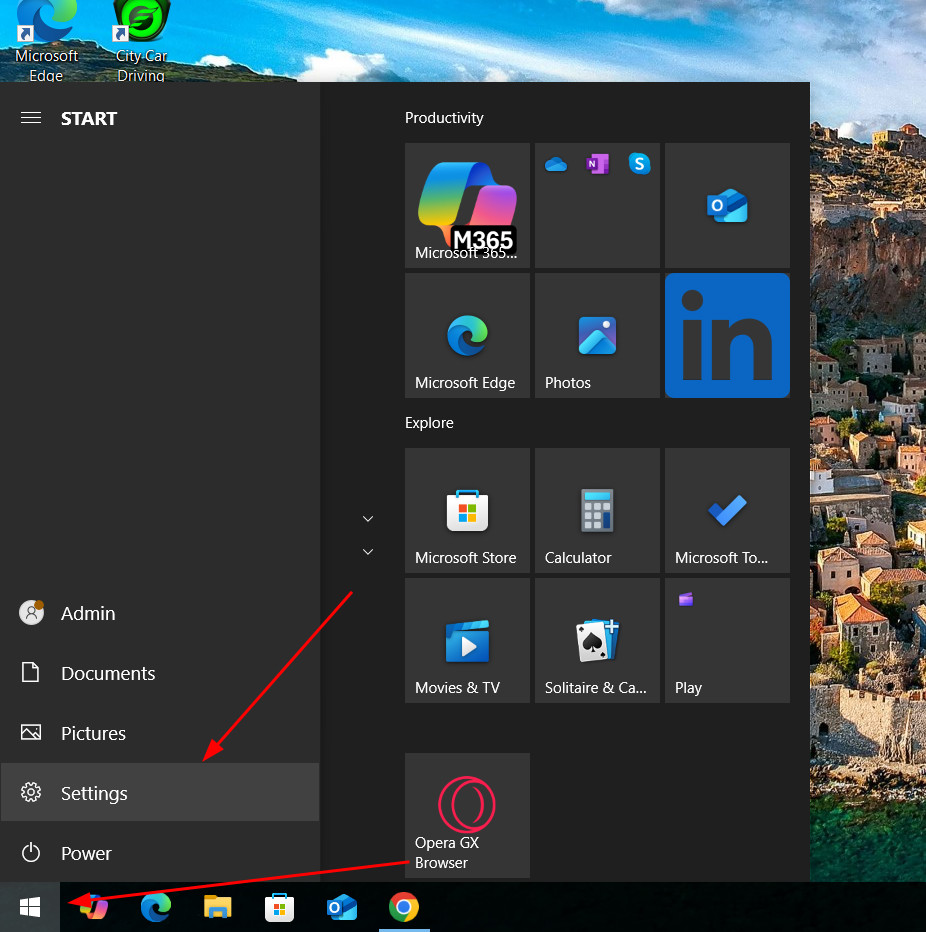
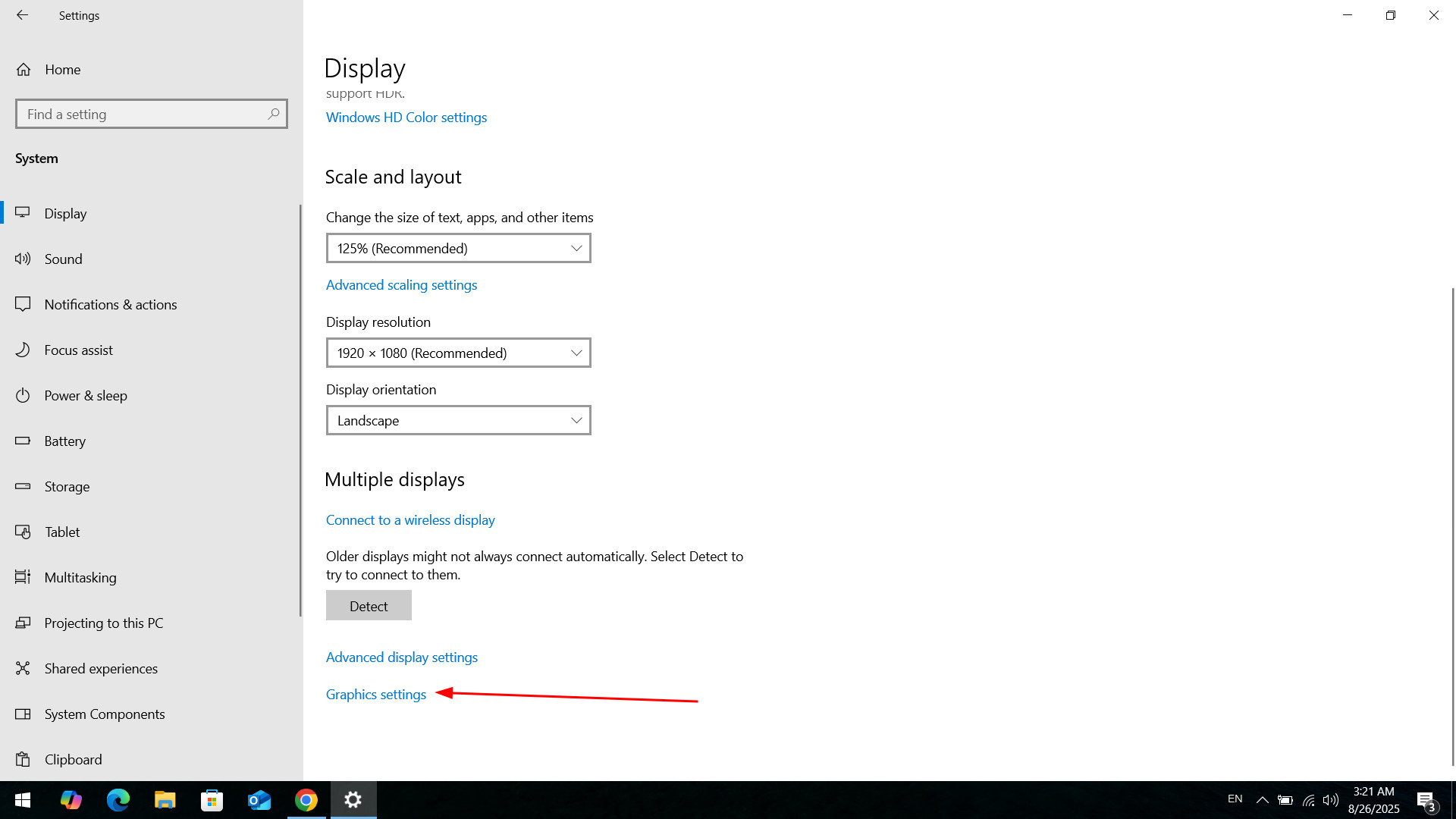
The first step is to go to system settings.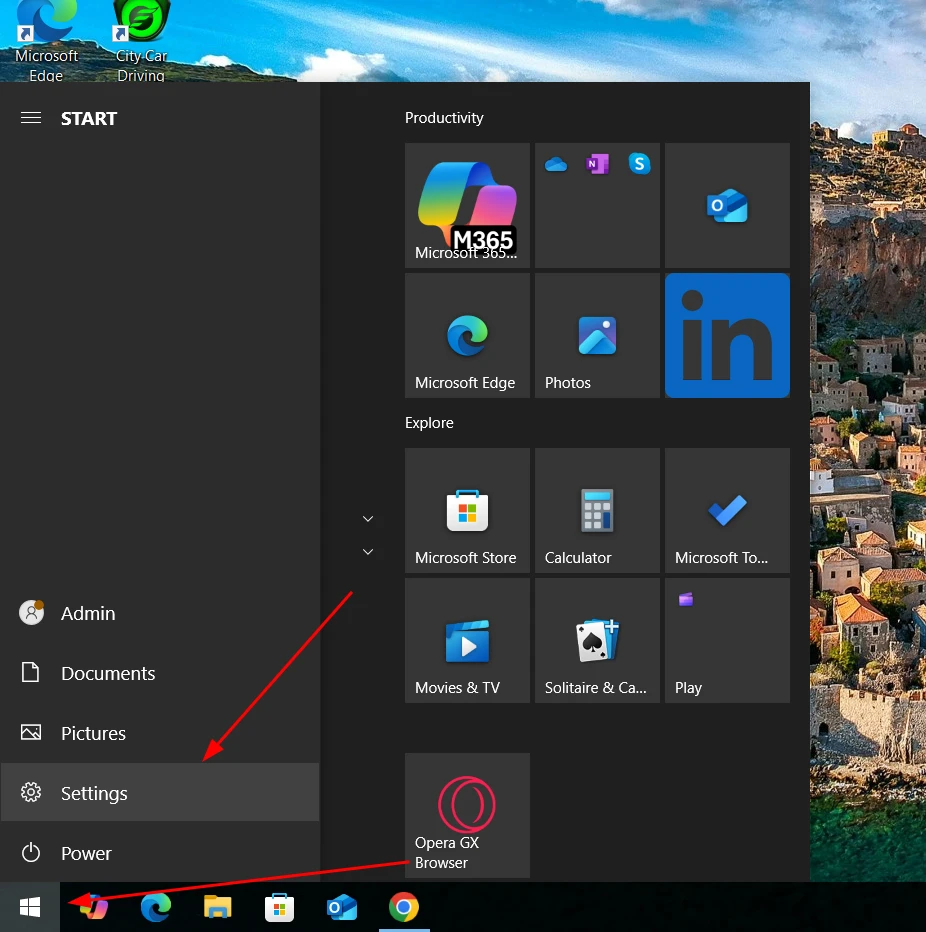
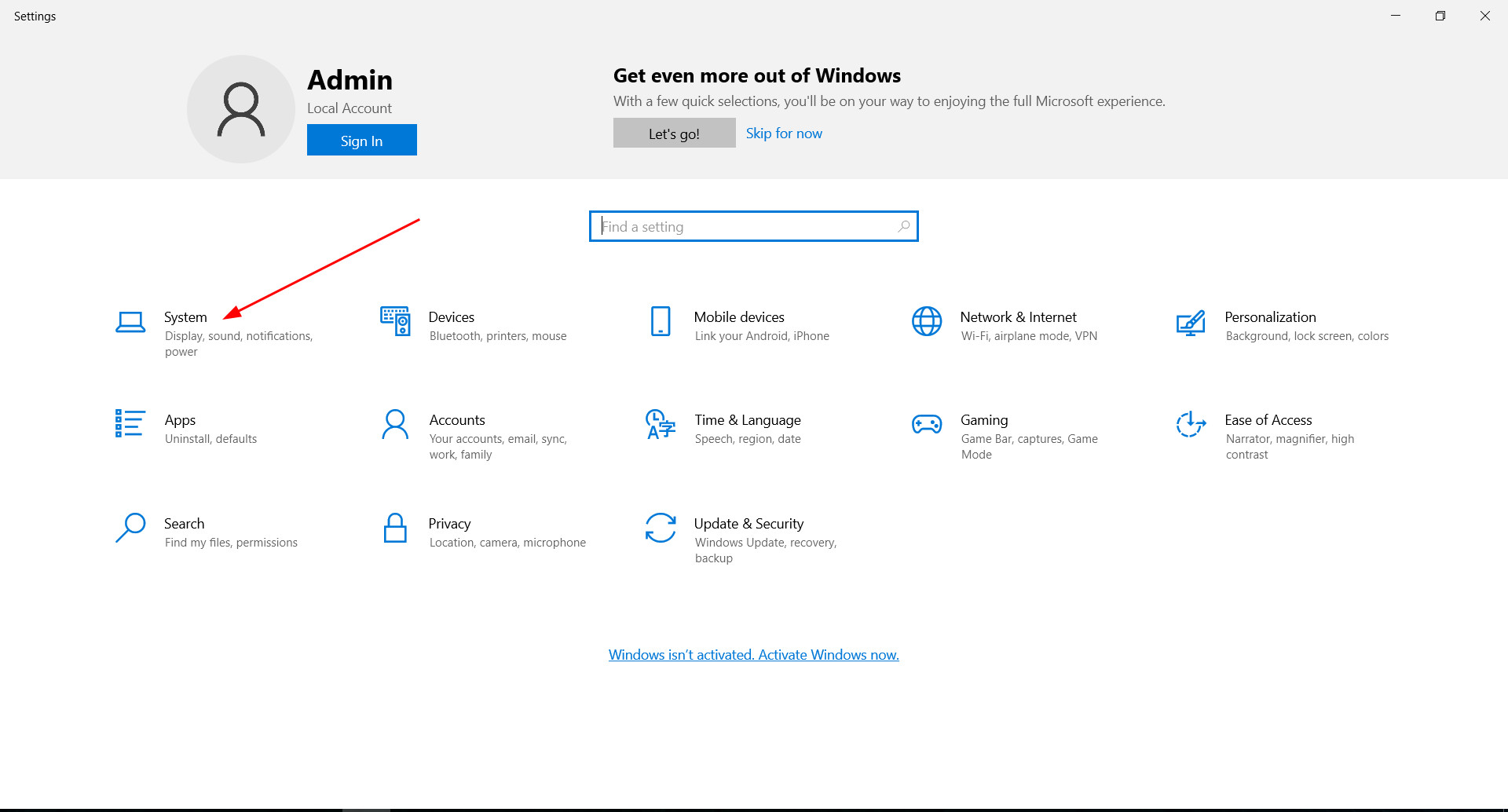
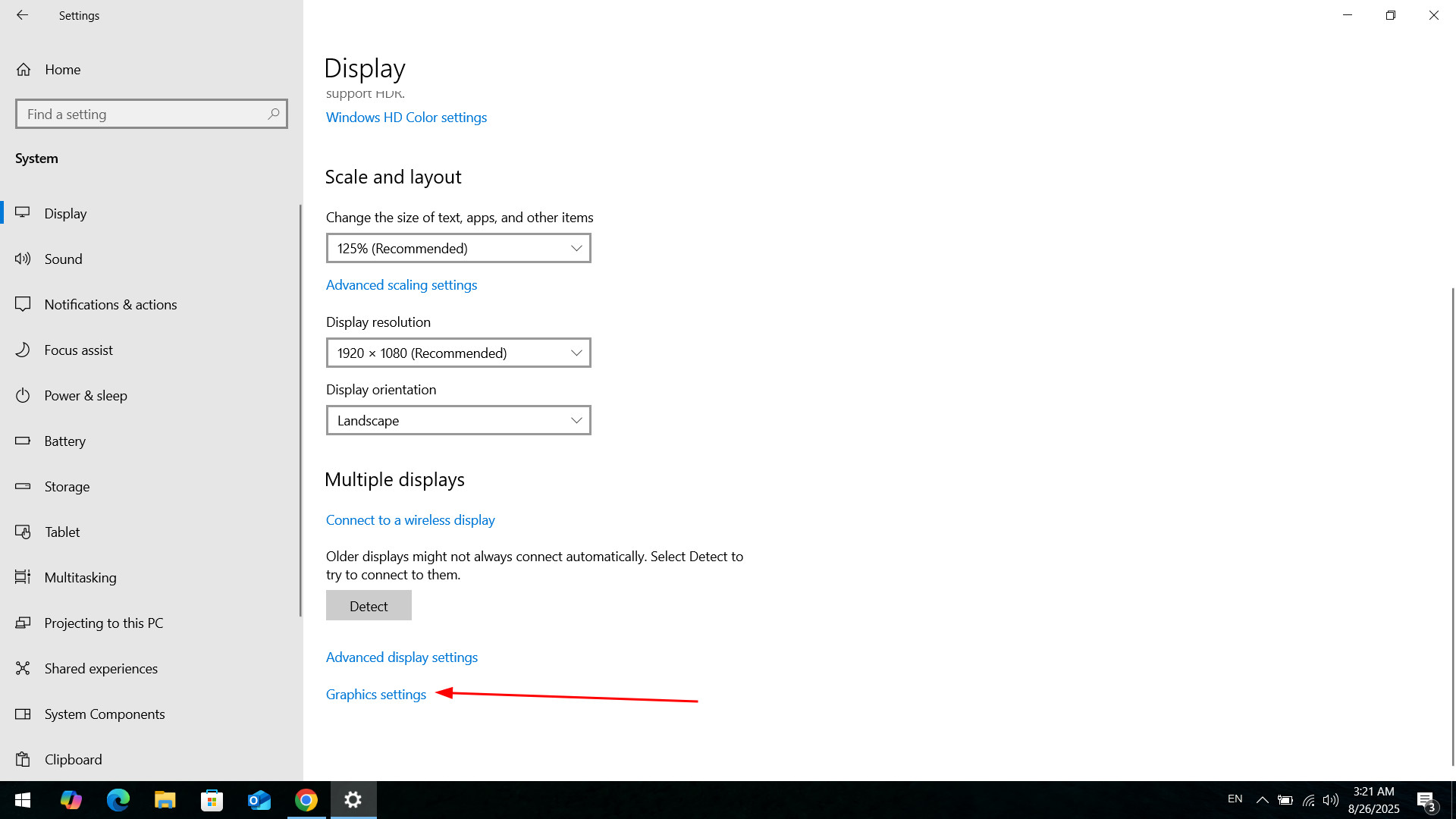
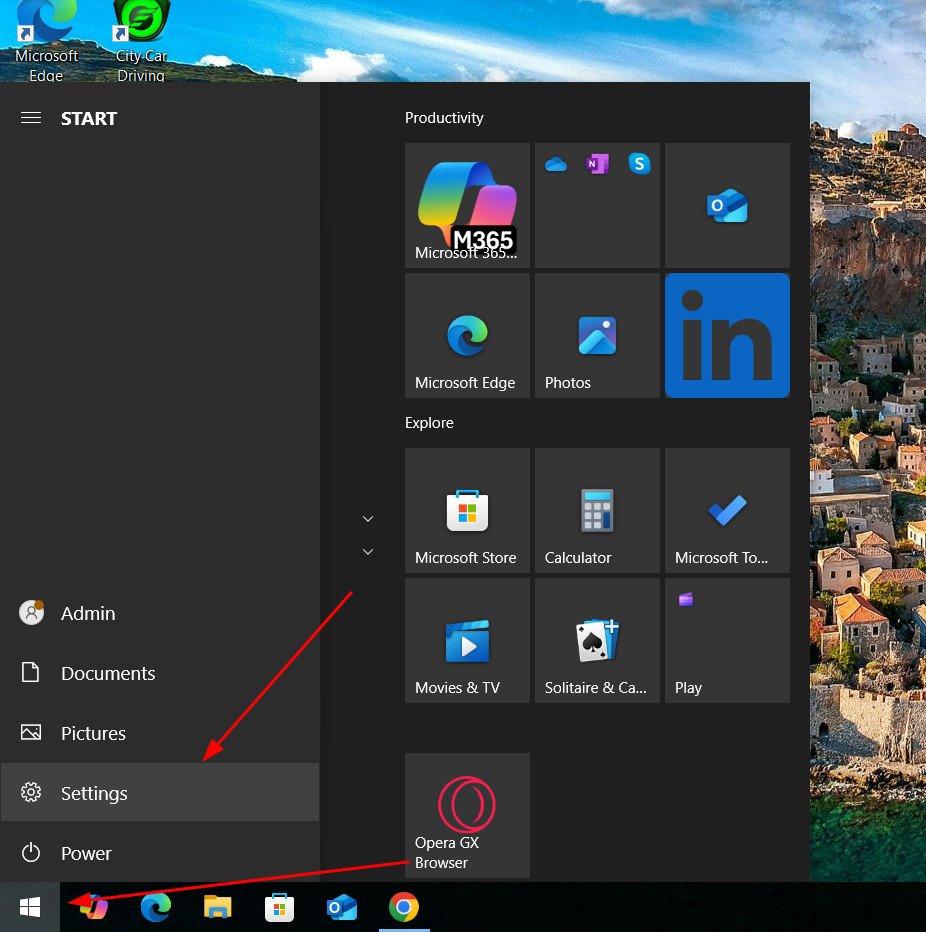
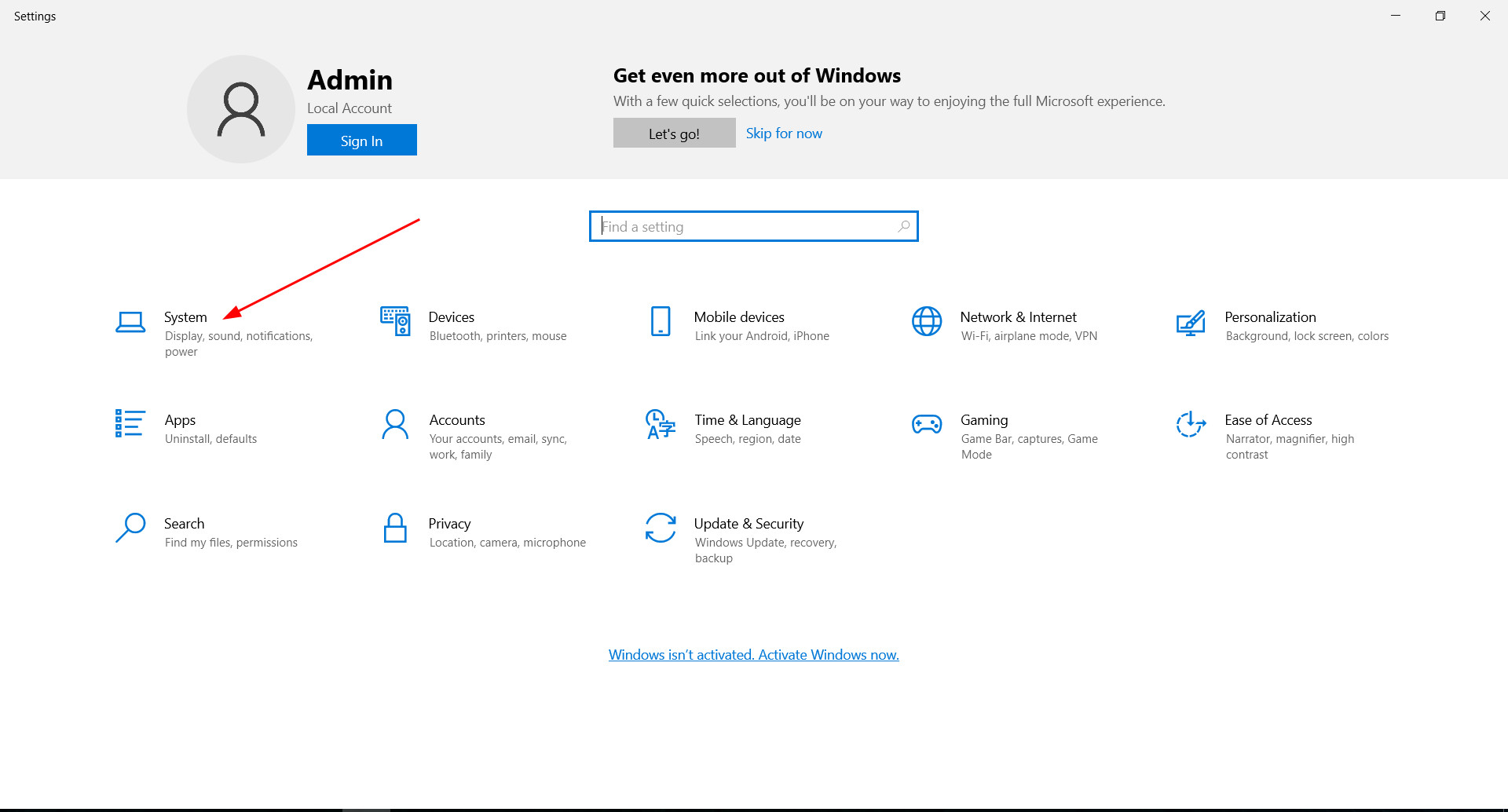
From the Start menu you need to open Settings, then select System and Display.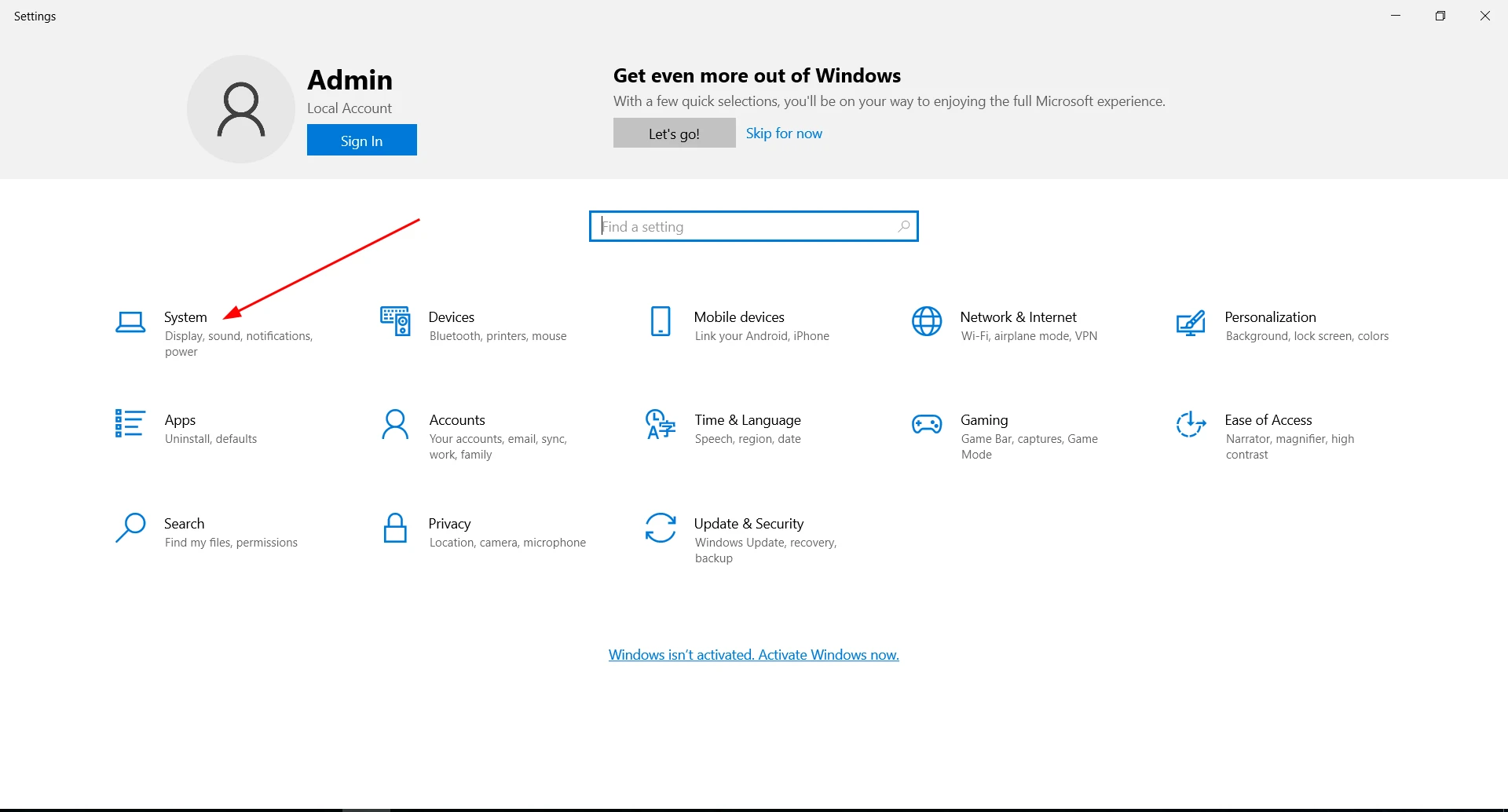
At the bottom of the page you will find «Graphics settings». This is what you need.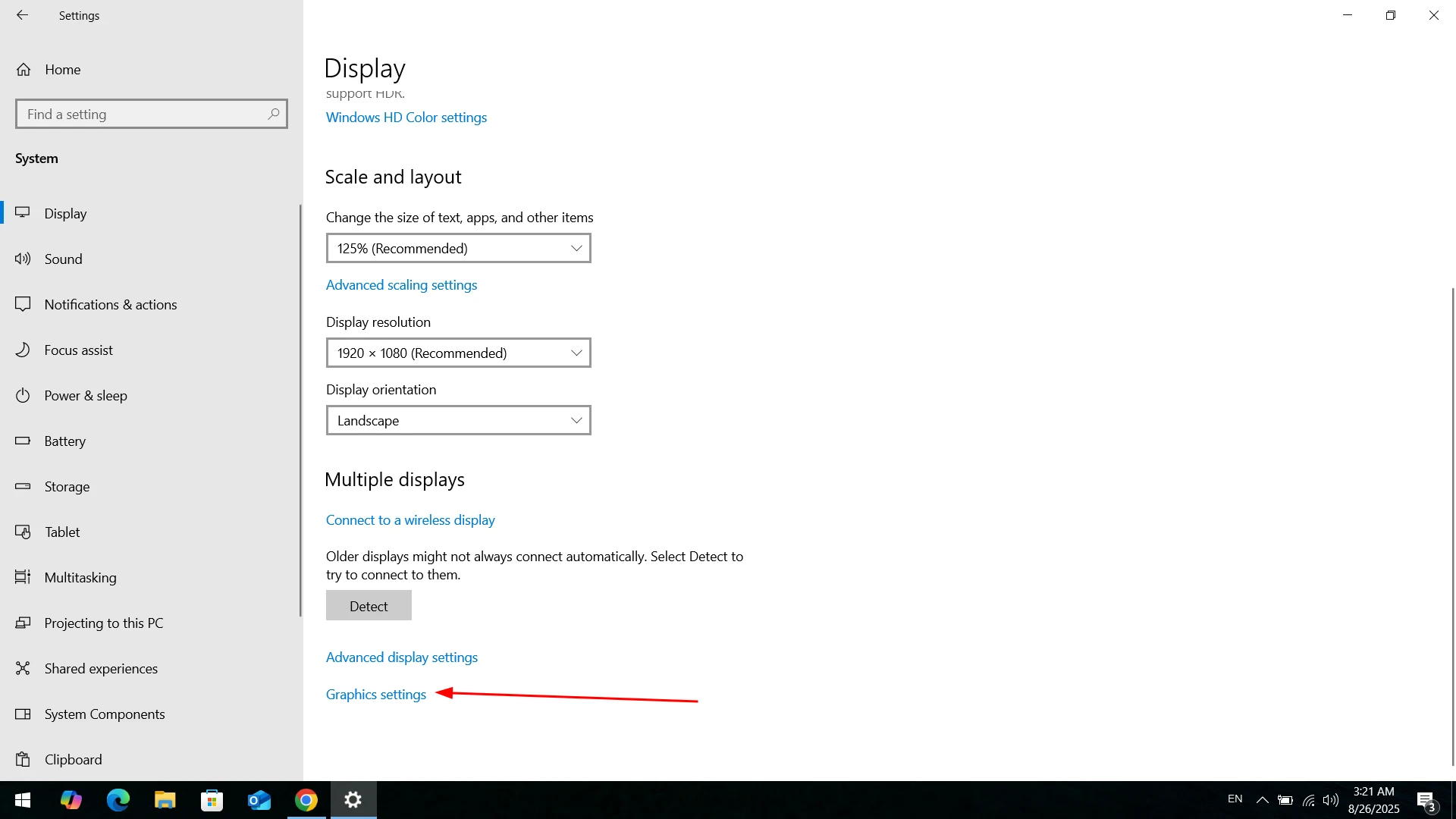
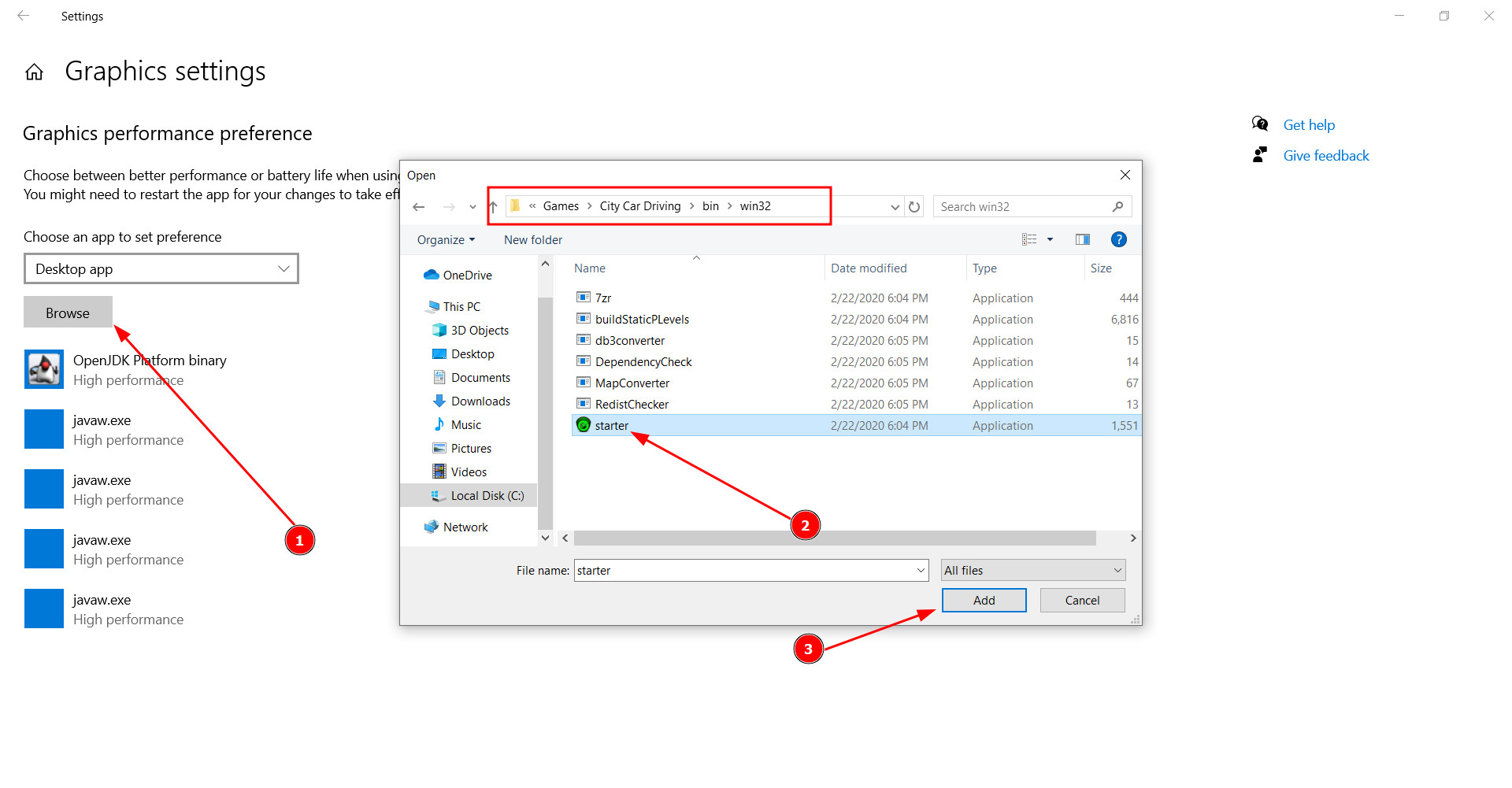
The second step is adding a game to the list.
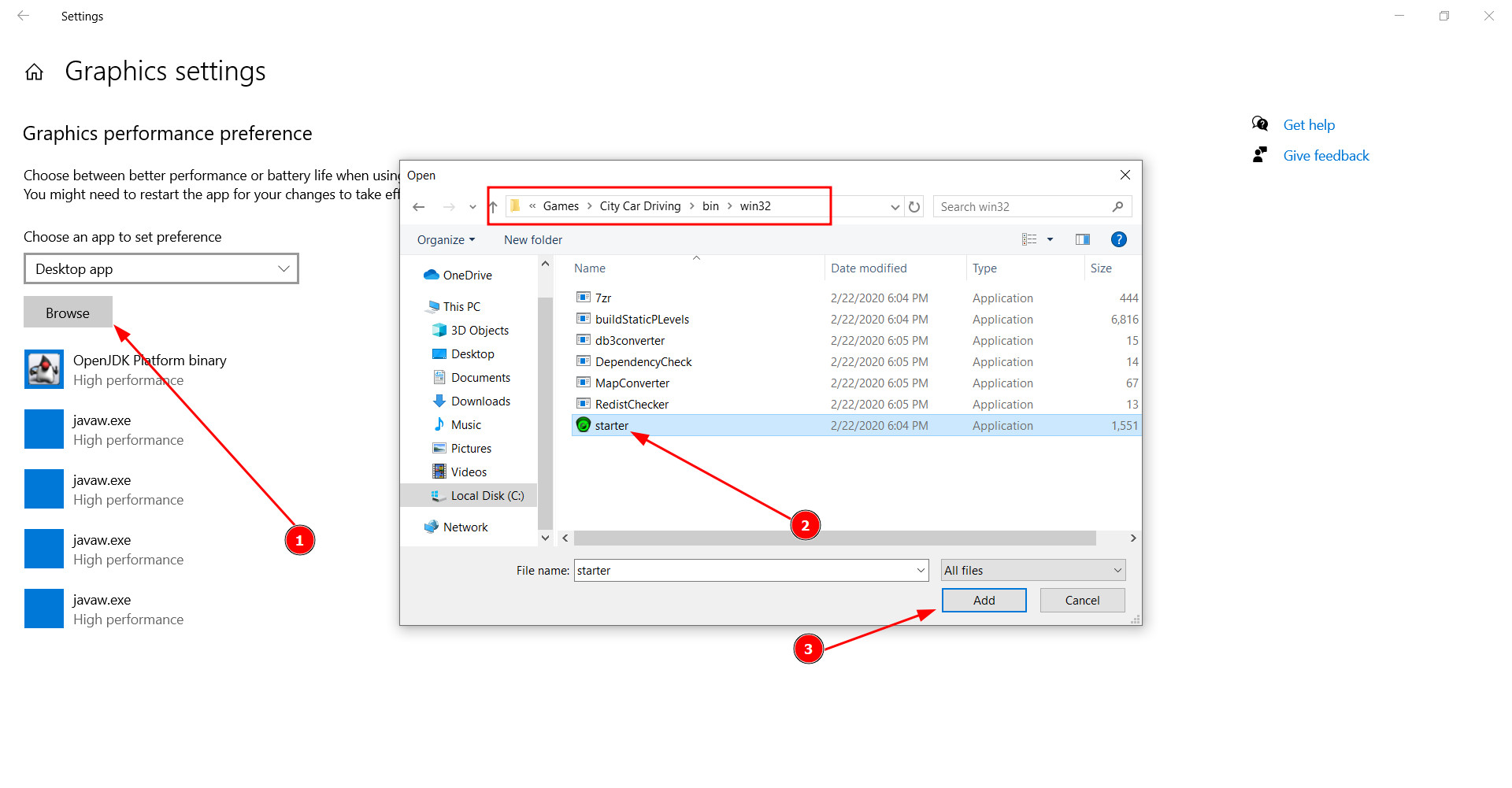
In the graphics settings, find the application type «Classic».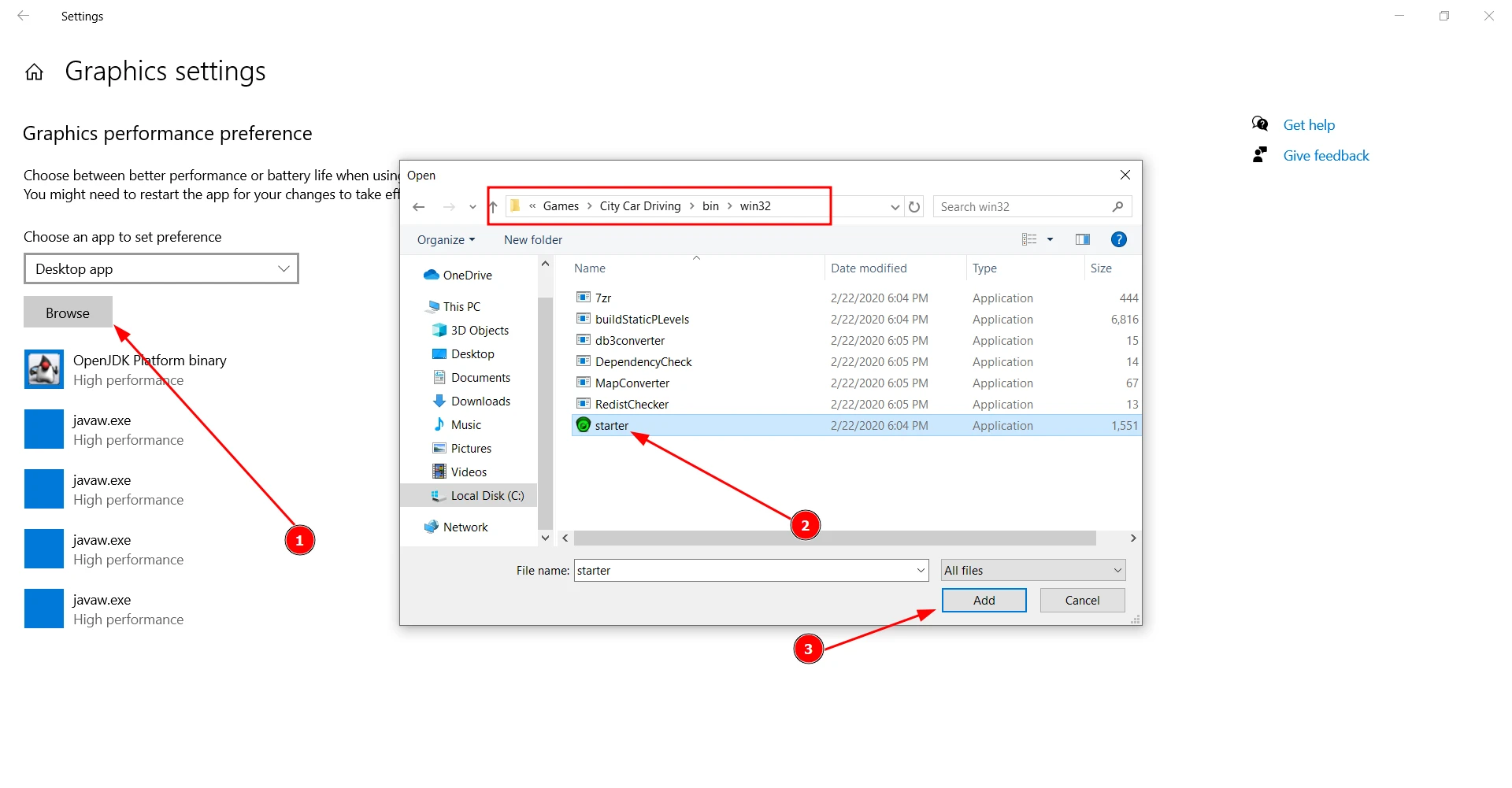
After that, click on «Browse» and specify the path to the installed game. It usually looks like this:
C>Games>Car City Driving>Bin>Win32
You need to find the starter.exe file in the folder and add it.
The third step is performance setting.
After adding an application to the list, you need to click on it and set «High performance», then save the changes.
Method 2
In this method there will be a little more actions, but if the above instructions are not effective, be sure to try what is suggested below.
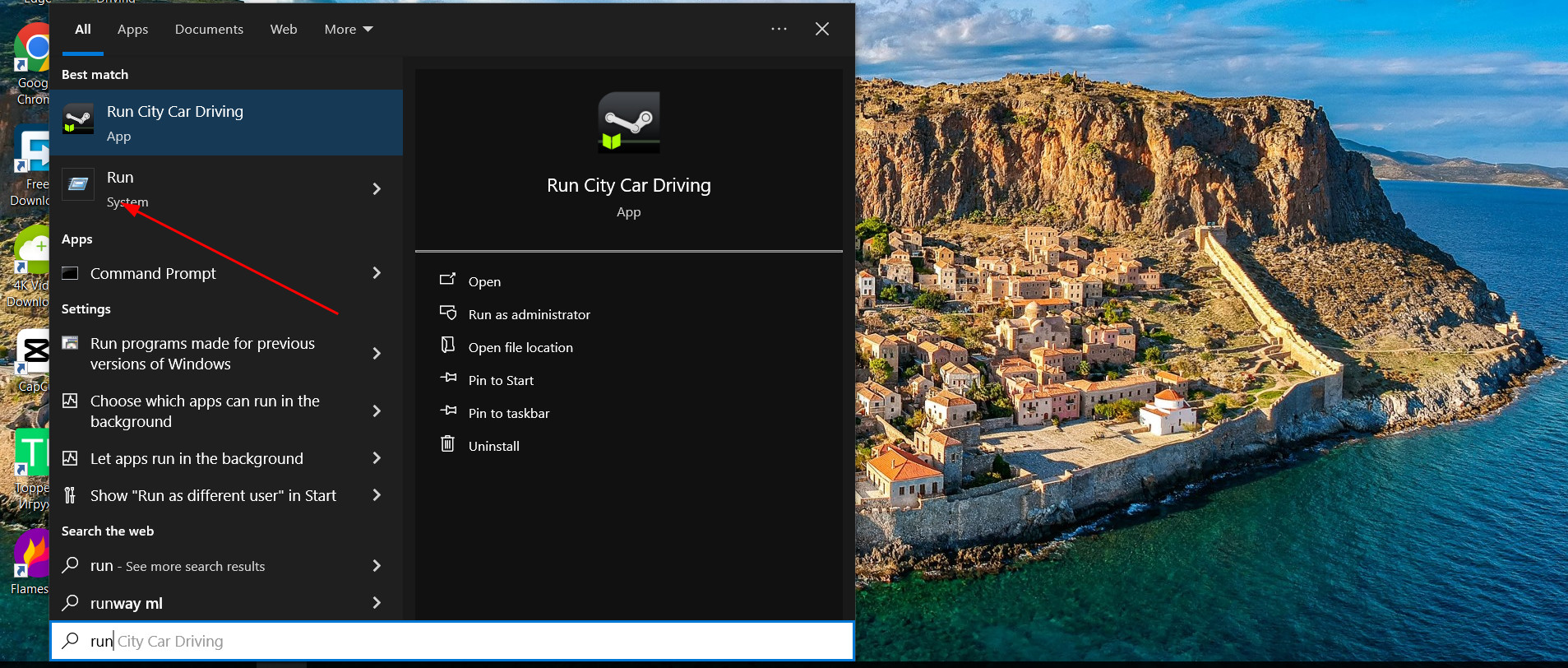
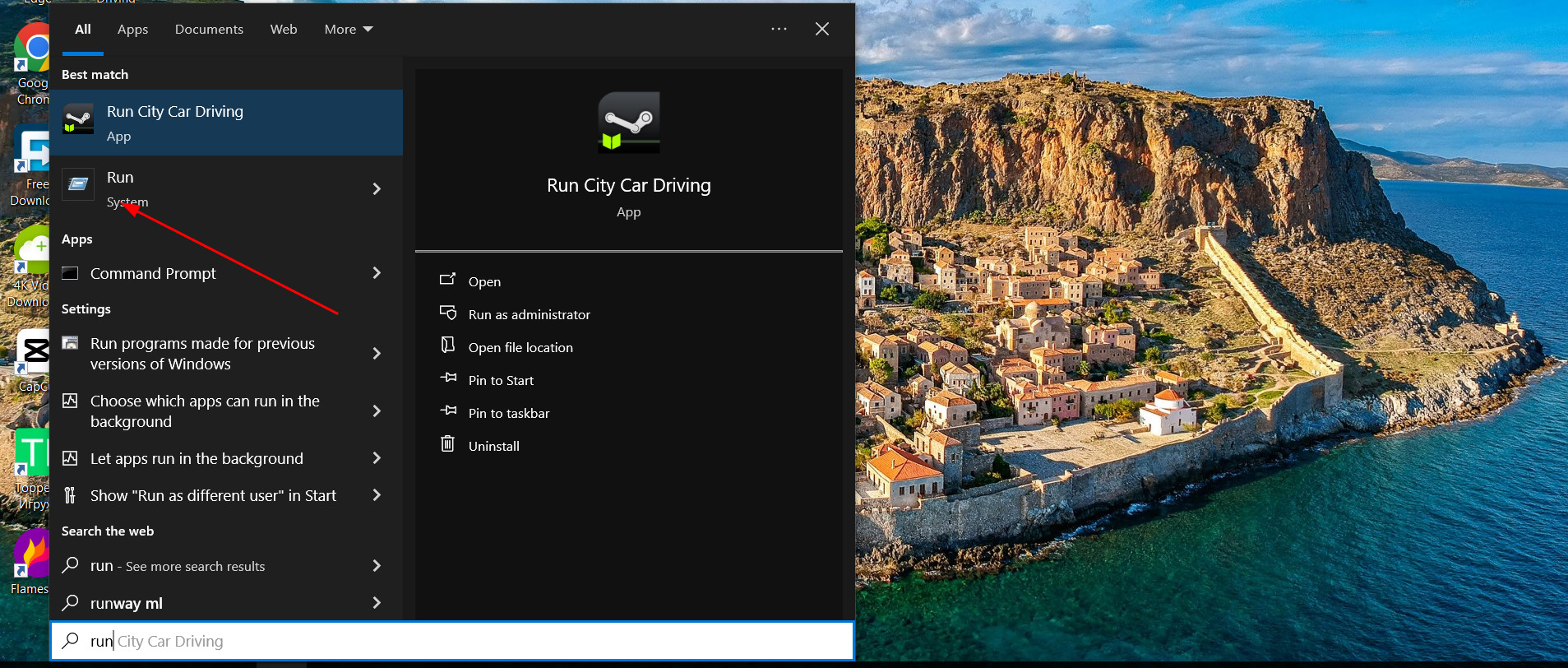
First, open the start menu and in the search bar enter «Run».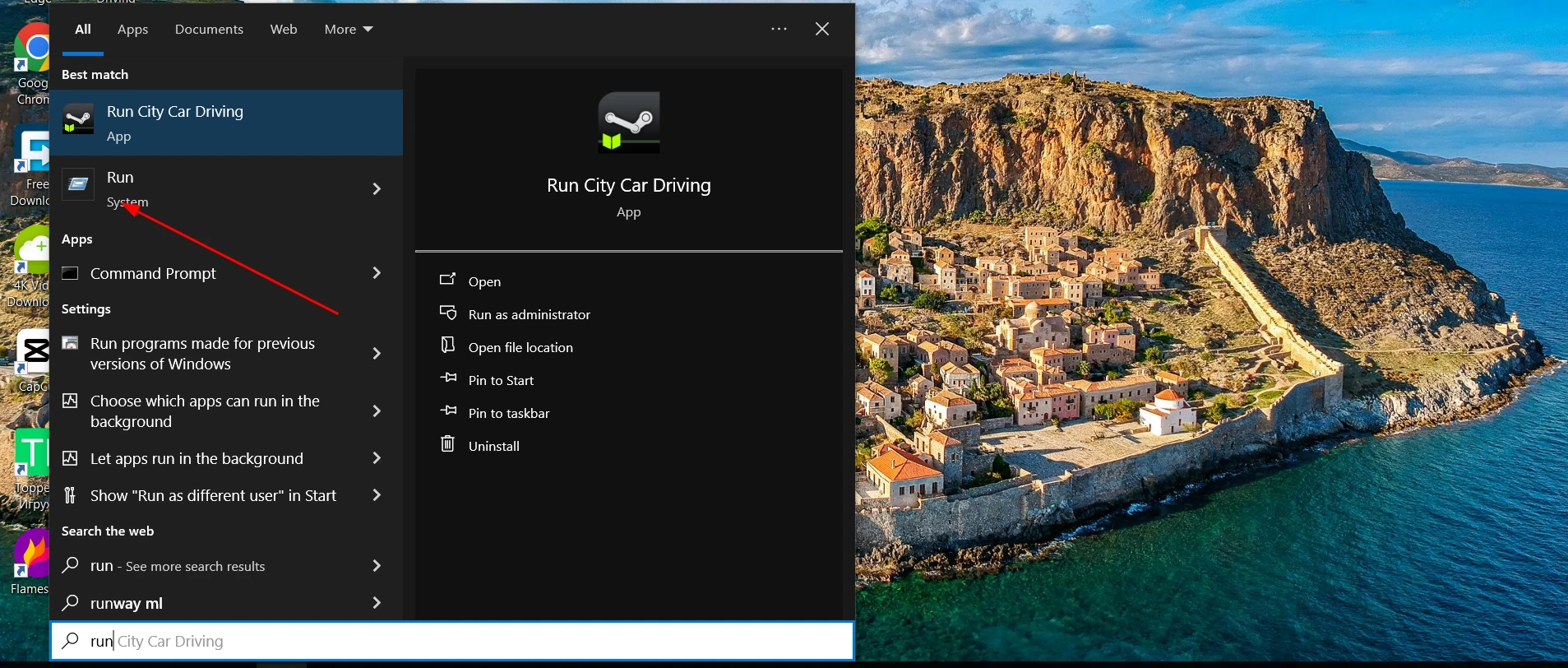
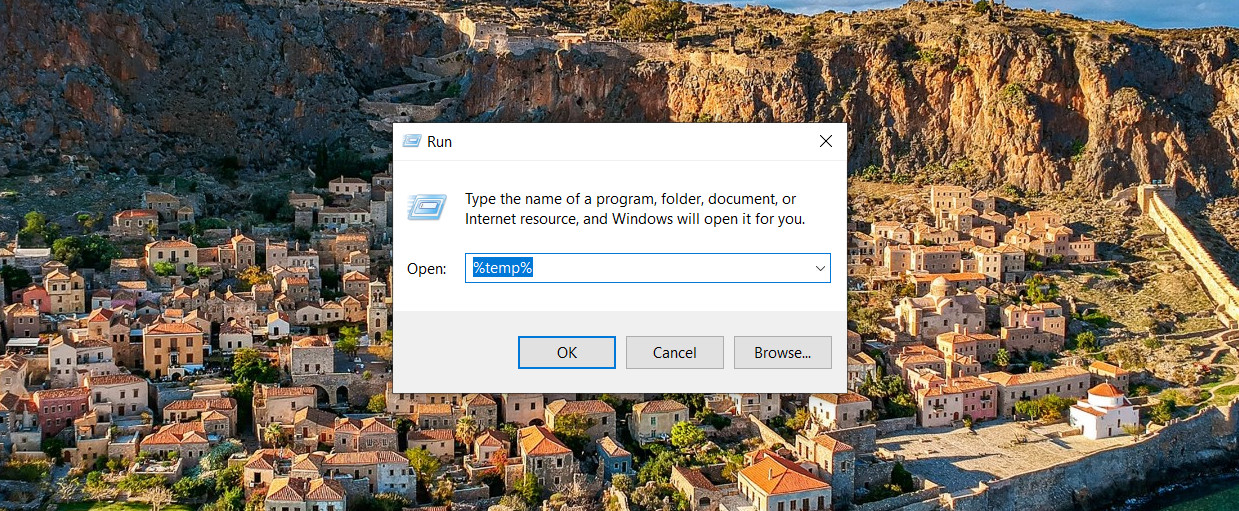
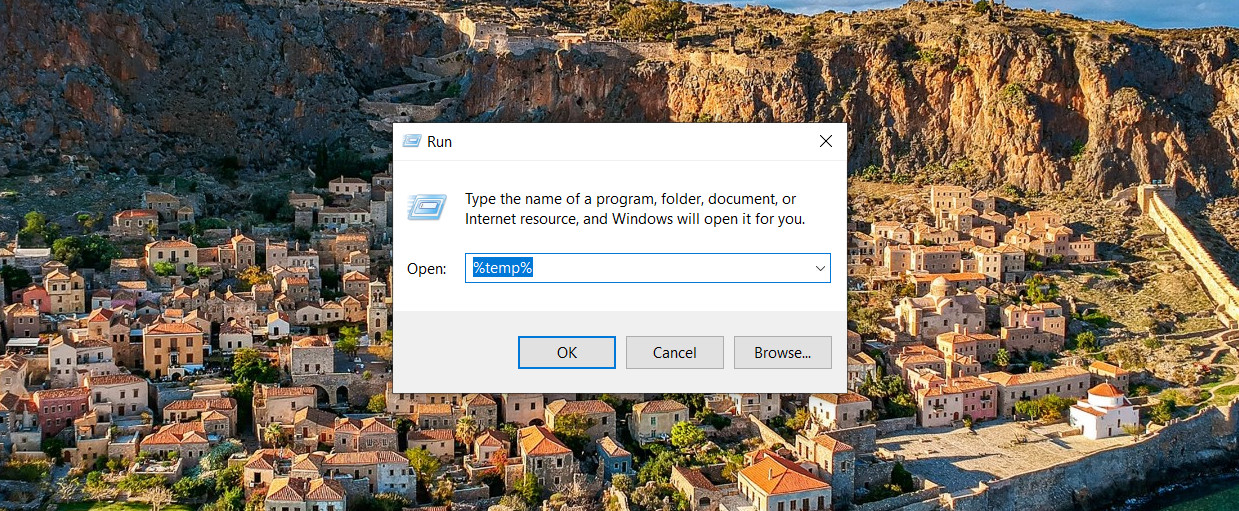
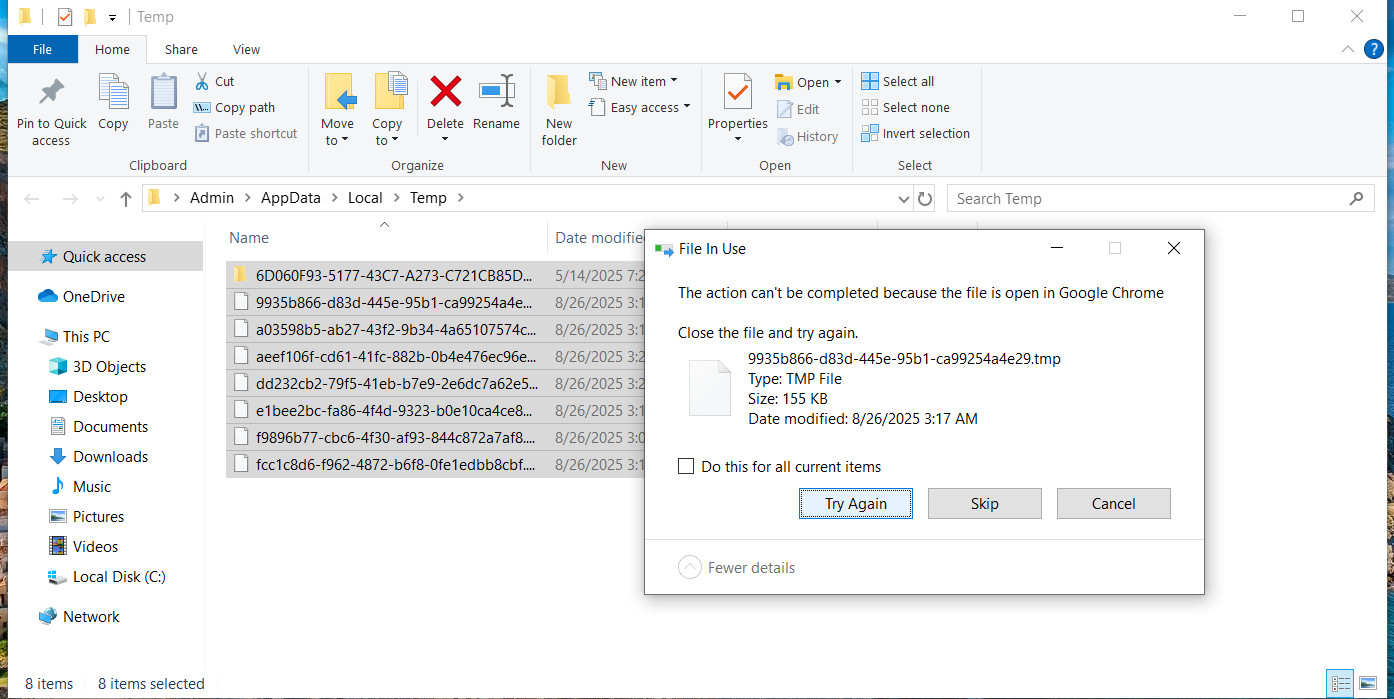
Now in the opened window enter the following text: «%temp%».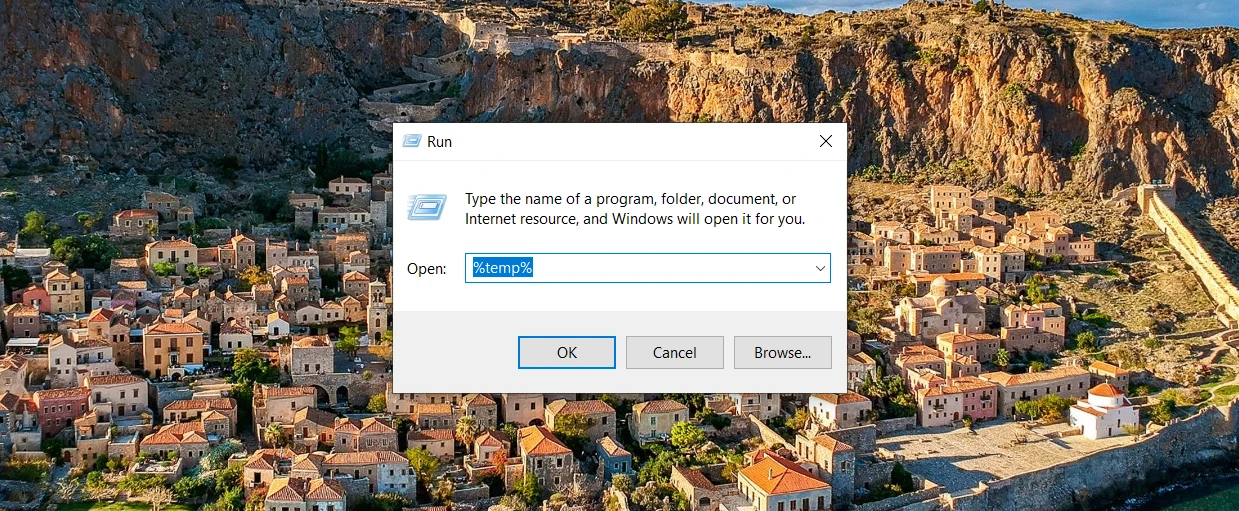
You will see that Windows Explorer has opened a folder with multiple files. They all need to be deleted. Some files may not be deleted - skip the action.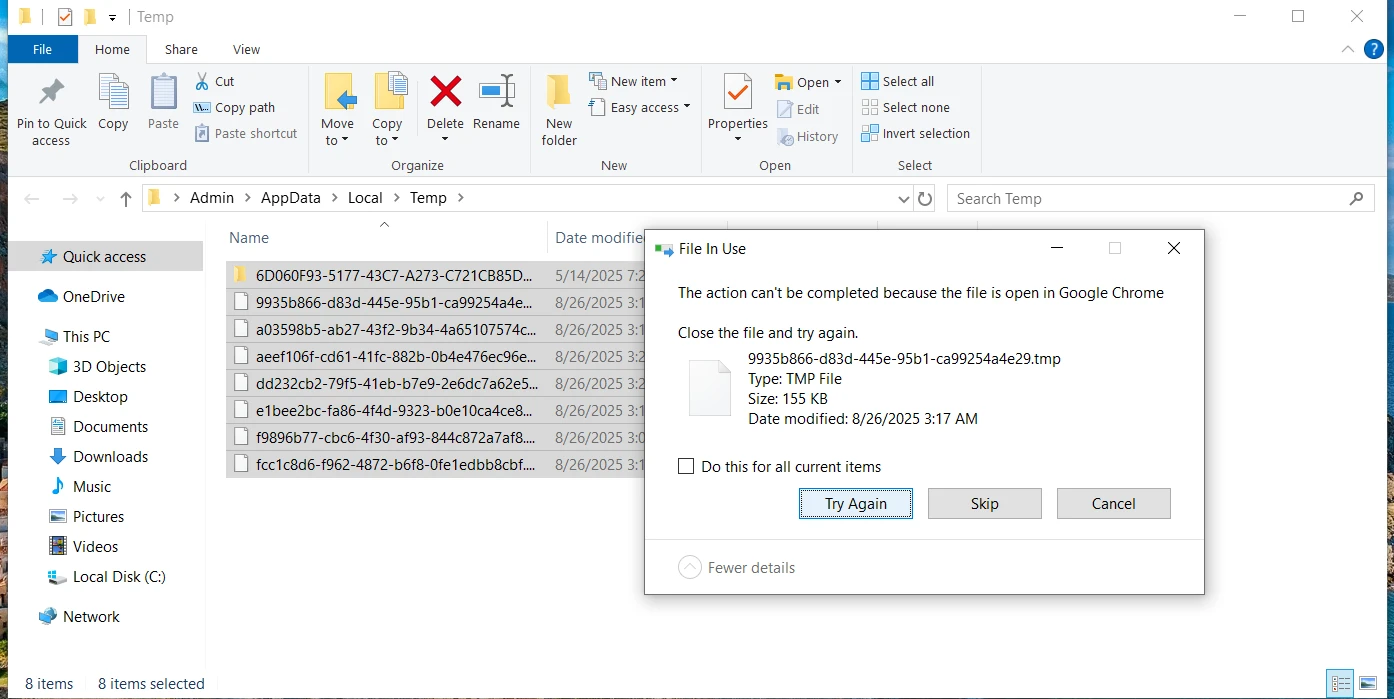
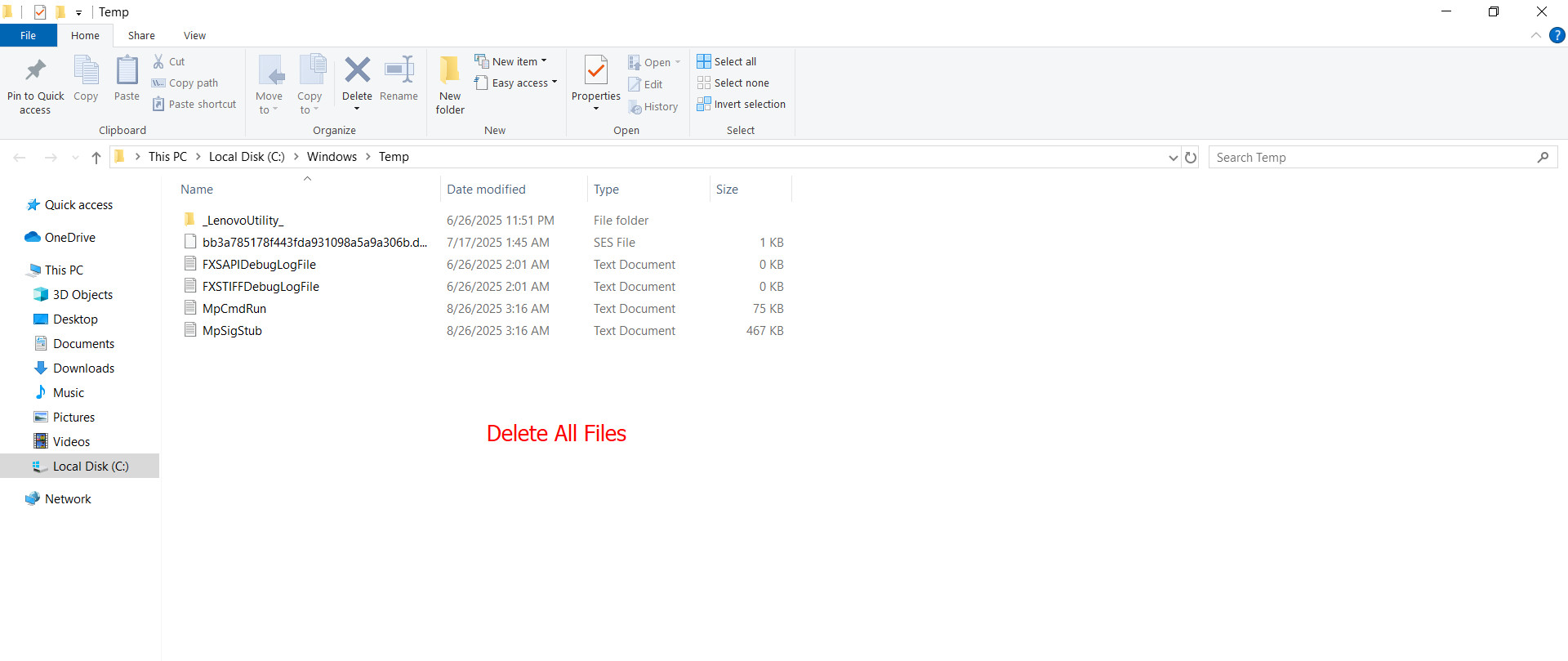
Now closes the window and again perform the same actions - open the launch and in the command Run enter already «temp». Another folder will be opened, in which we also delete all the contents (what is not deleted, we pass). 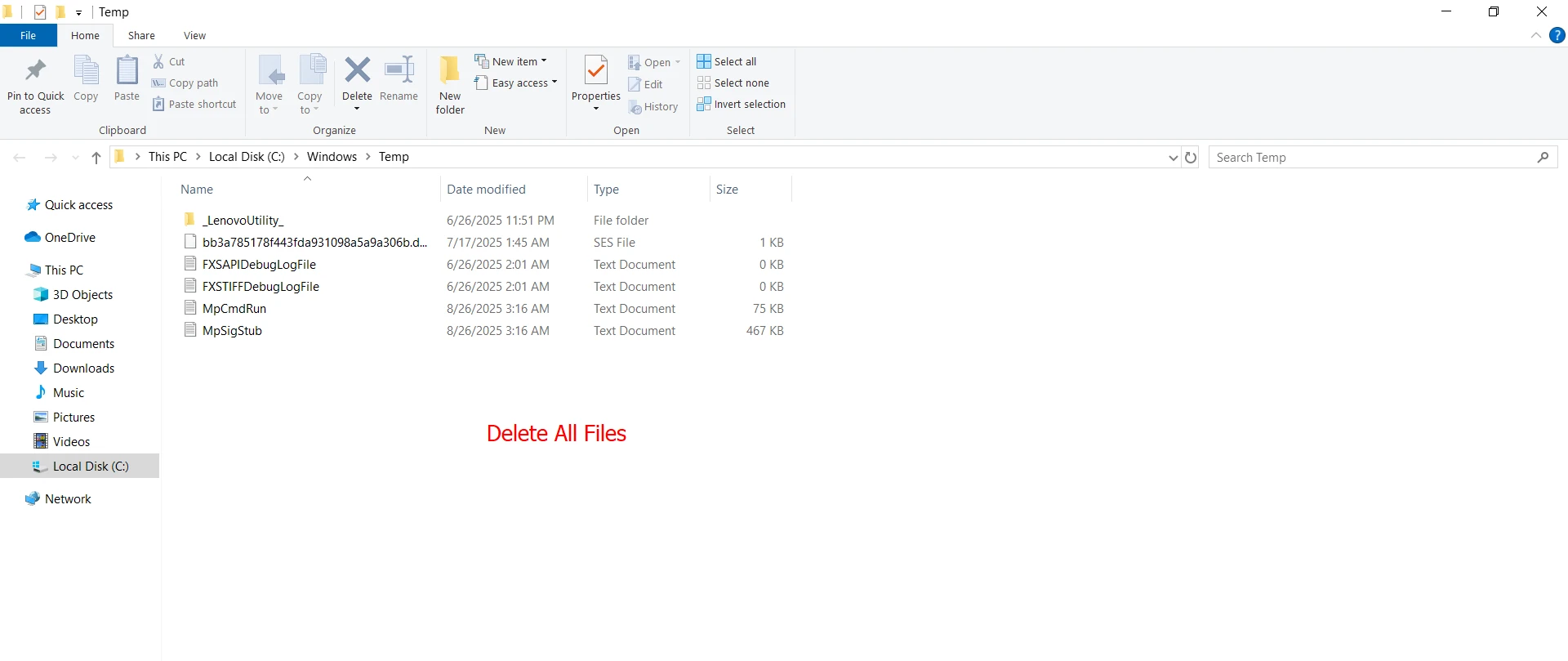
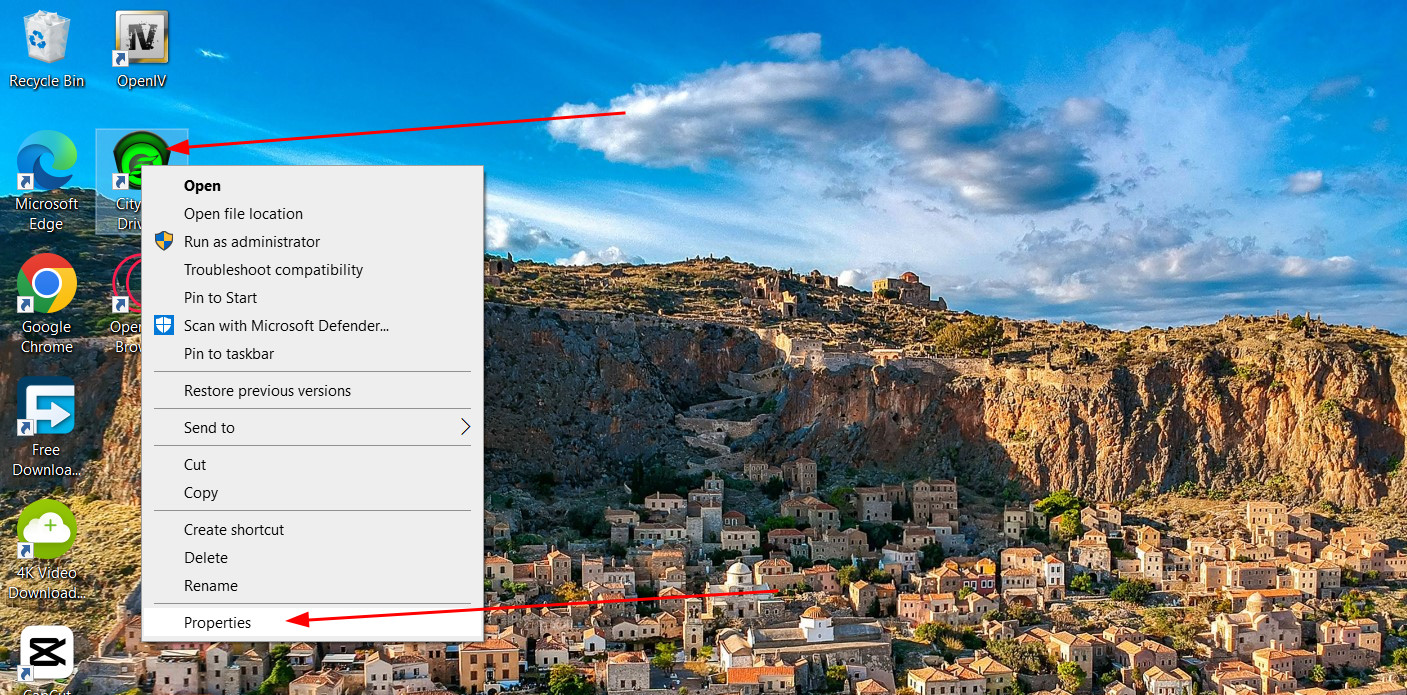
This is not all. Find the file that opens the game (usually it’s a shortcut on the Paradise table), right-click on it and open «Properties». Select the «Compability» tab.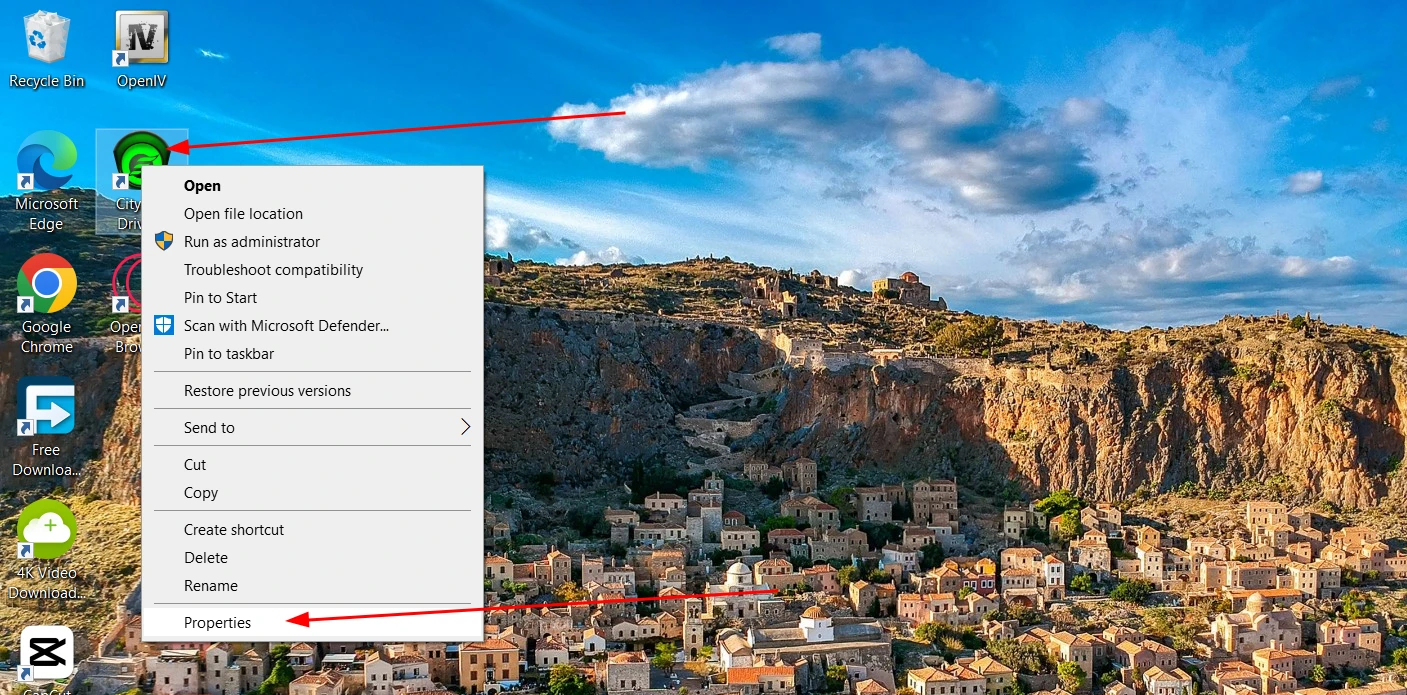
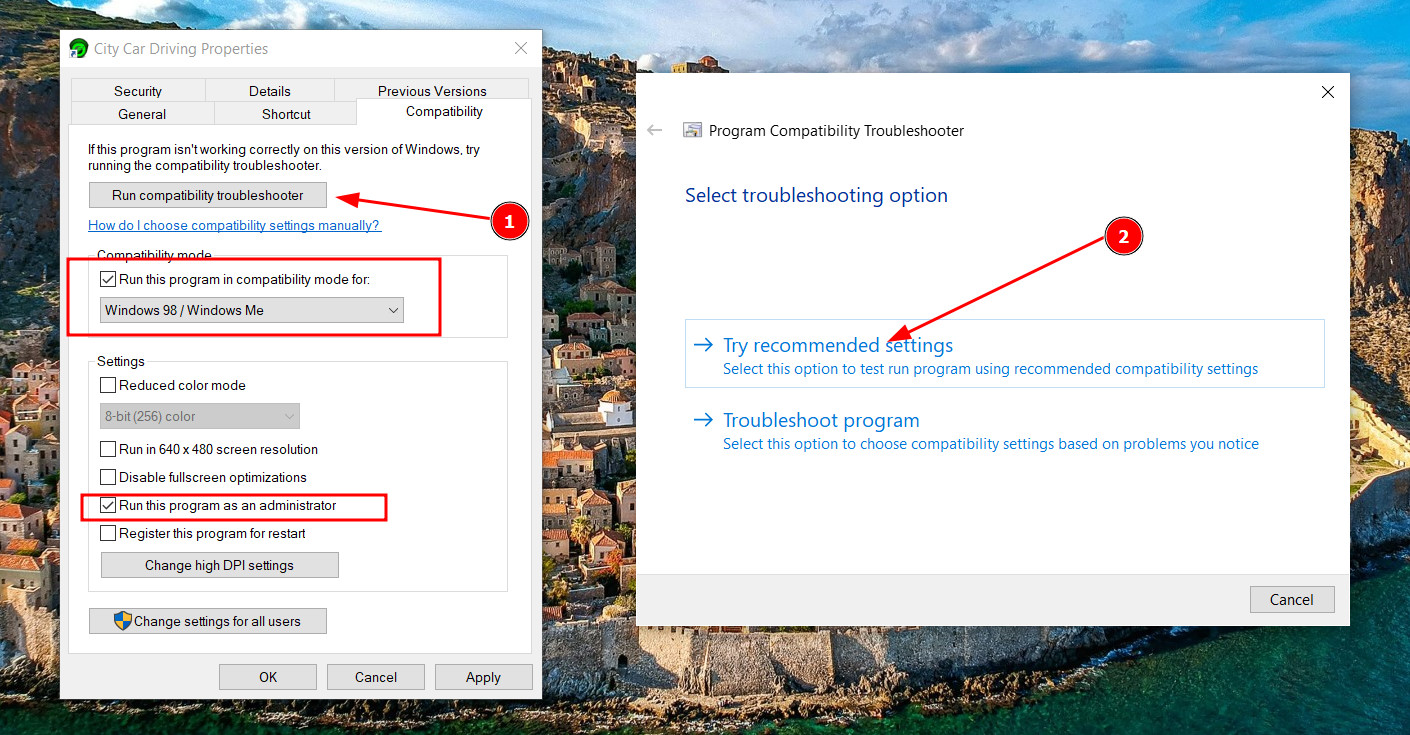
Here set the check mark on «Run this program in compability mode for:» and when the drop-down list becomes available, select «Windows 98/ Windows ME».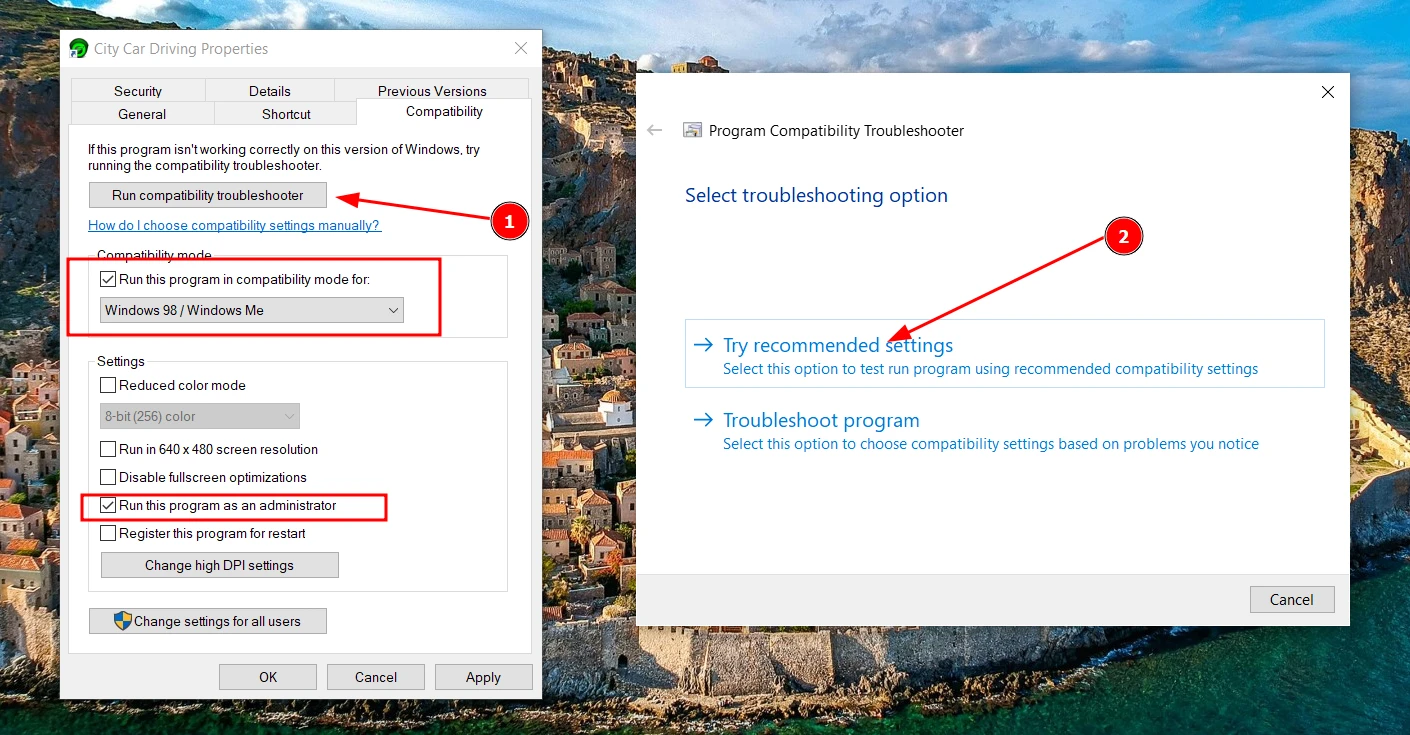
Click the button to check, as shown in the screenshot below.
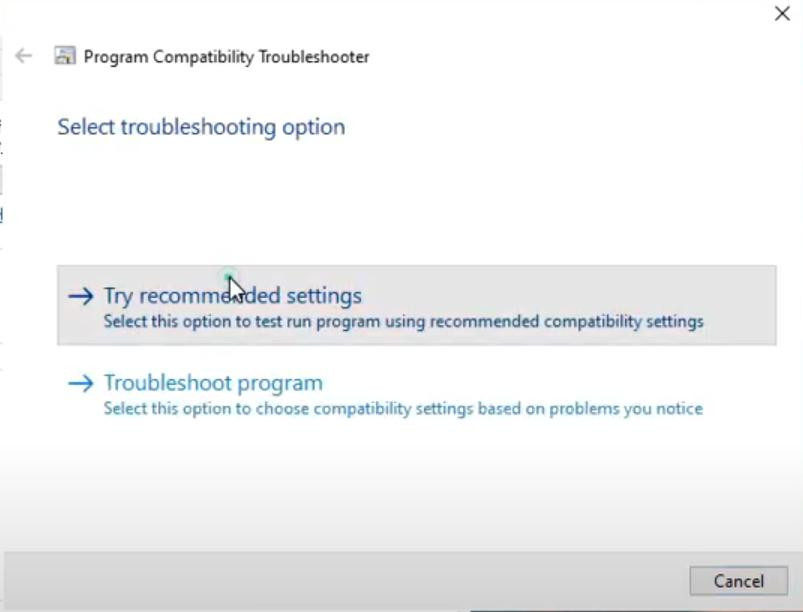
Wait for the program to load and select "Try recommended settings".
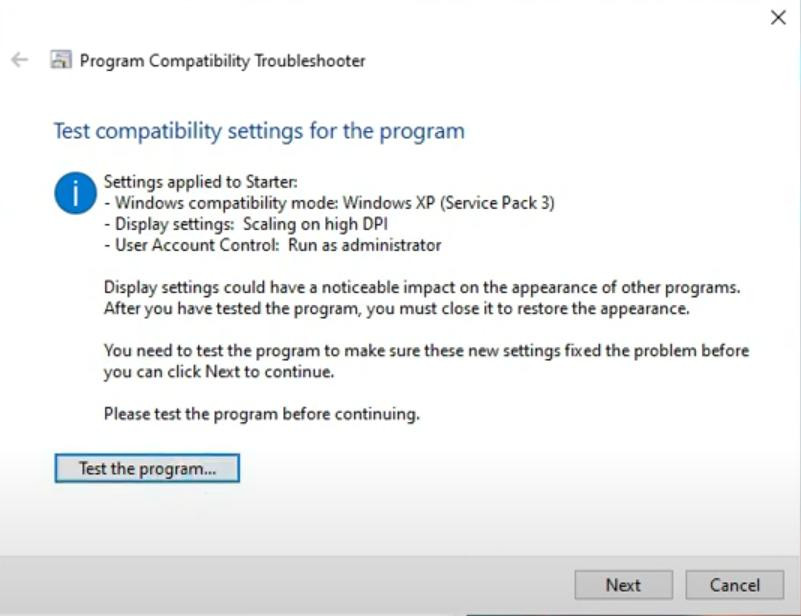
Complete the test. Wait until the game starts. If everything works, you can exit the CCD.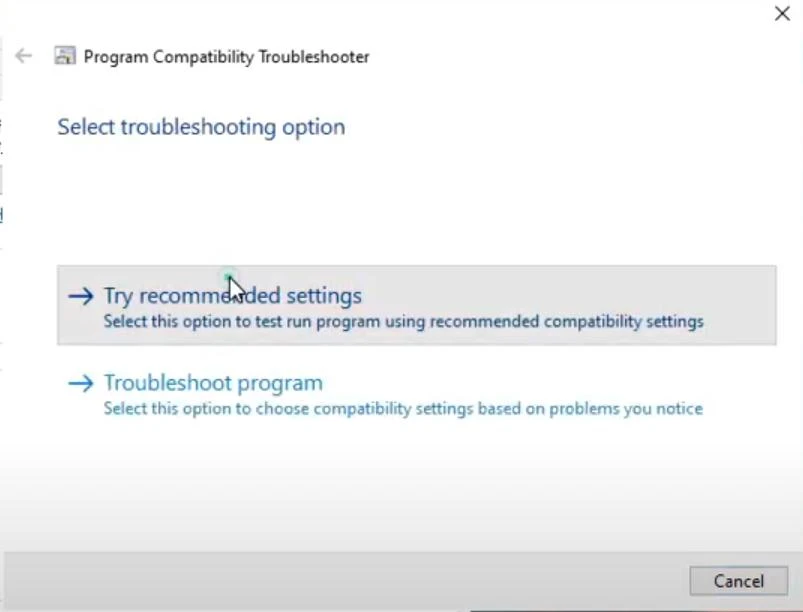
But this is not the last step, you still need to press «Next» button in the same window.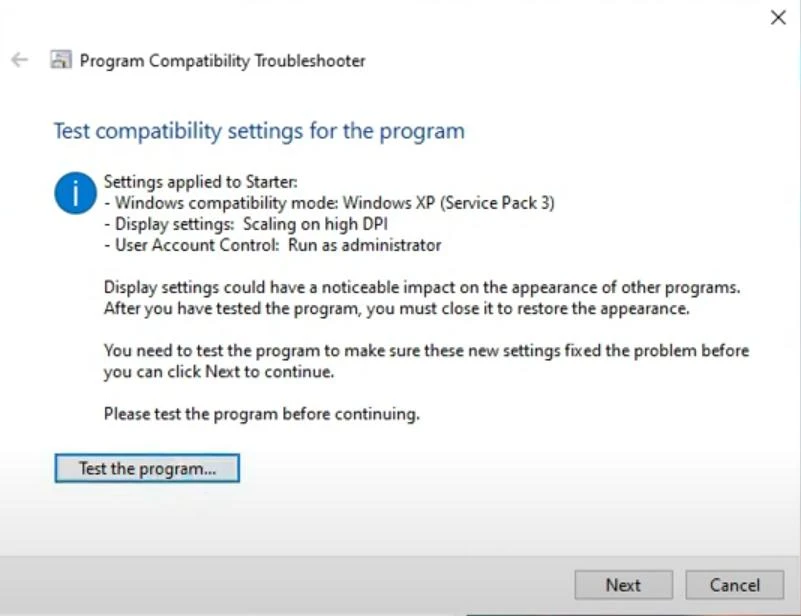
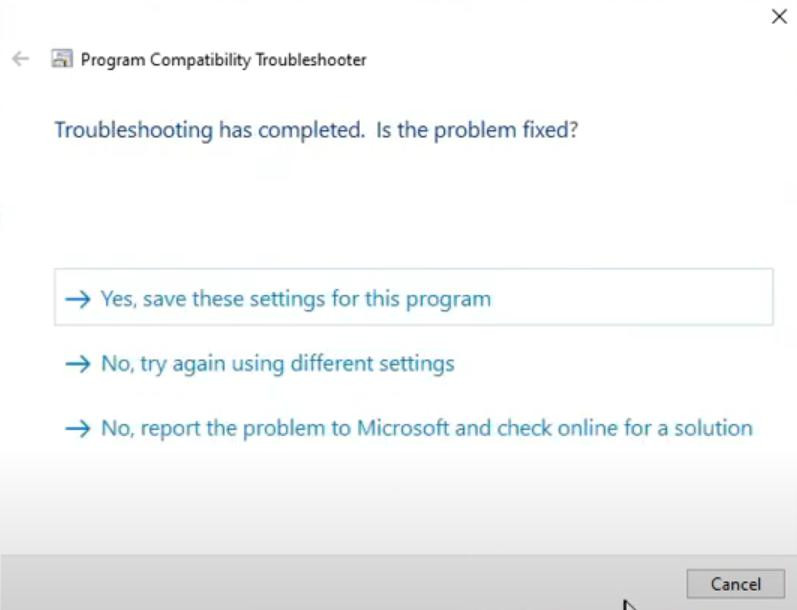
Save the settings by pressing "Yes, save these settings for this program".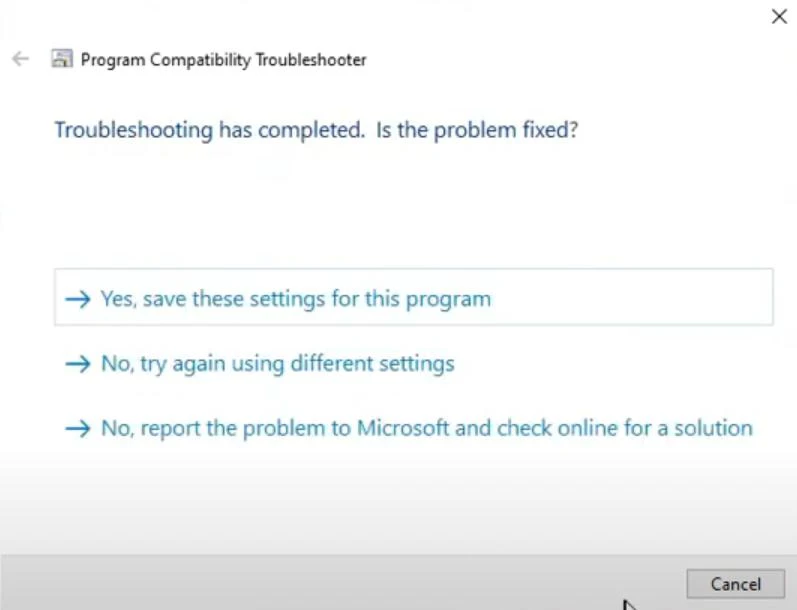
Wait until the program is finished. When the process is finished, close the window and save the changes in the properties window.
Done, this was the last step. After these actions, the game starts loading faster, fades and noticeable lags disappear. But the most important thing is that the error starter.exe should disappear.
Videos
Added by
![BMW M5 E60 V 2 [1.5.9]](https://li1.modland.net/city-car-driving-mods/cars/thumbnail/bmw-m5-e60-v-2-[1.5.9]_ModLandNet-4.jpg)
![Mercedes W210 E270 CDI [1.5.9]](https://li1.modland.net/city-car-driving-mods/cars/thumbnail/mercedes-w210-e270-cdi-[1.5.9]_ModLandNet-3.jpg)