The best settings to increase FPS in FS25!
Optimization of Farming Simulator 2025 may seem like a difficult task, especially when you want a beautiful picture, and at the same time, so that the performance does not suffer.
But everything can be customized, and even an old PC will be able to enjoy stable framerate. The main thing is to know which toggle switches to turn and which checkboxes to check.
First steps: resolution and screen mode
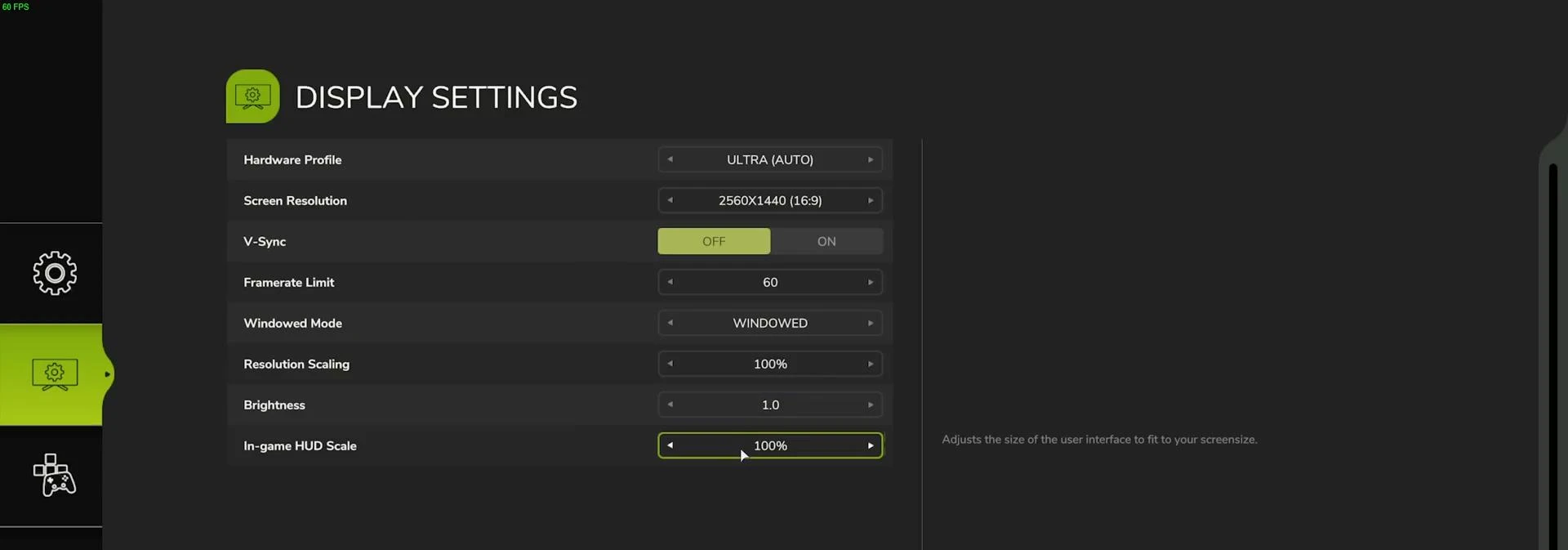
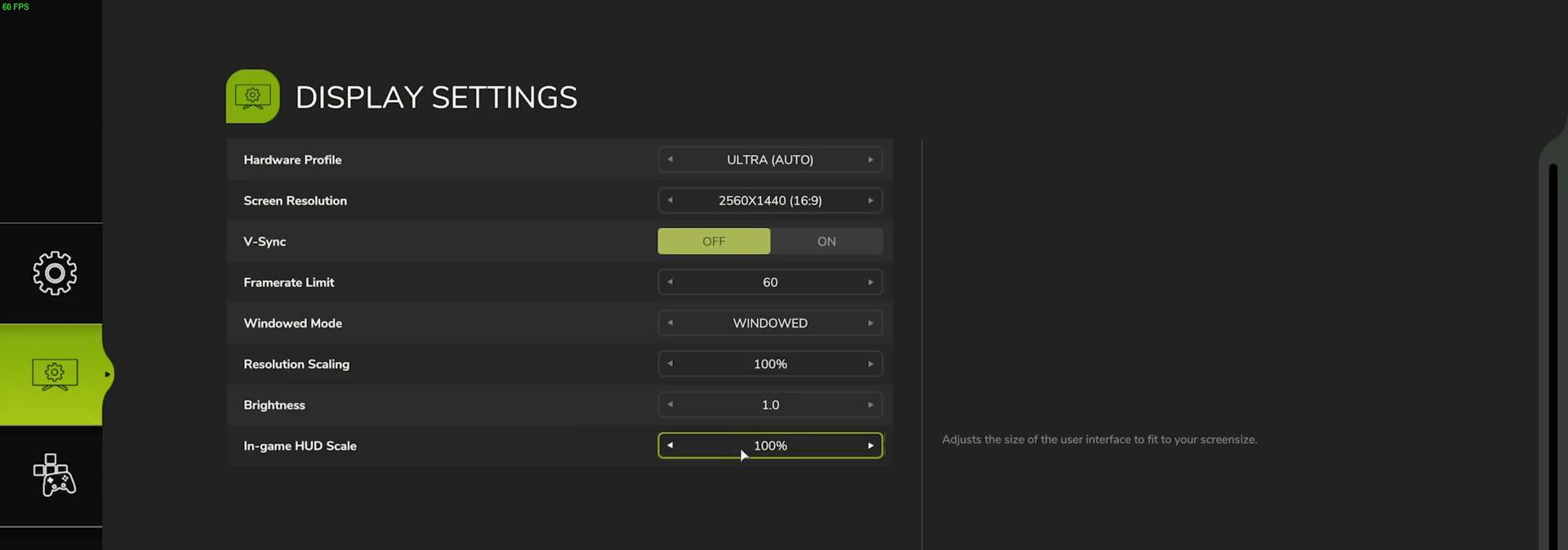
One of the most common mistakes is incorrect resolution. The game may not start in the native screen resolution, which makes everything look soapy and blurry. The fix is simple - in the “Display Settings” section you select the desired resolution, e.g. 2K for the corresponding monitor. After applying the changes, the game restarts and the world becomes clearer.
It is better to set the frame limitation to 60 FPS at once. This saves resources. It will be especially useful for laptops, not to heat them up to the state of a stove.
For constant minimizing of the window it is reasonable to leave the window mode, which is actually frameless - it works perfectly with the browser, Discord and other joys of multitasking.
Graphics settings: where FPS is hiding
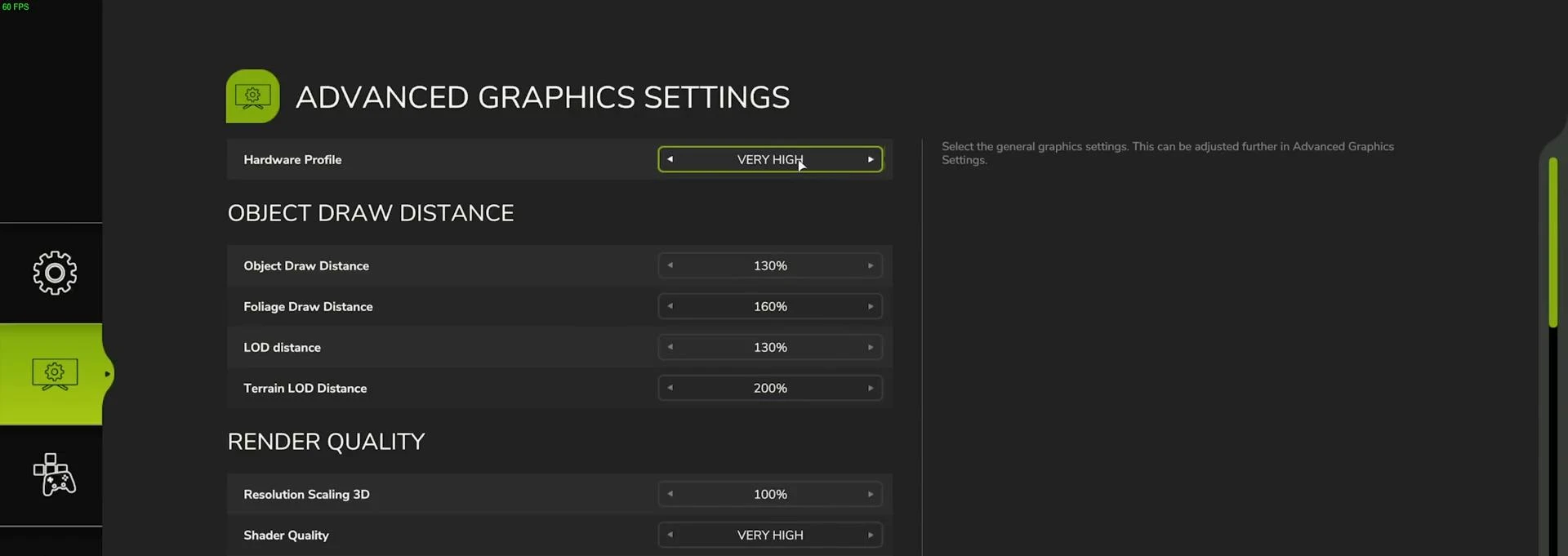
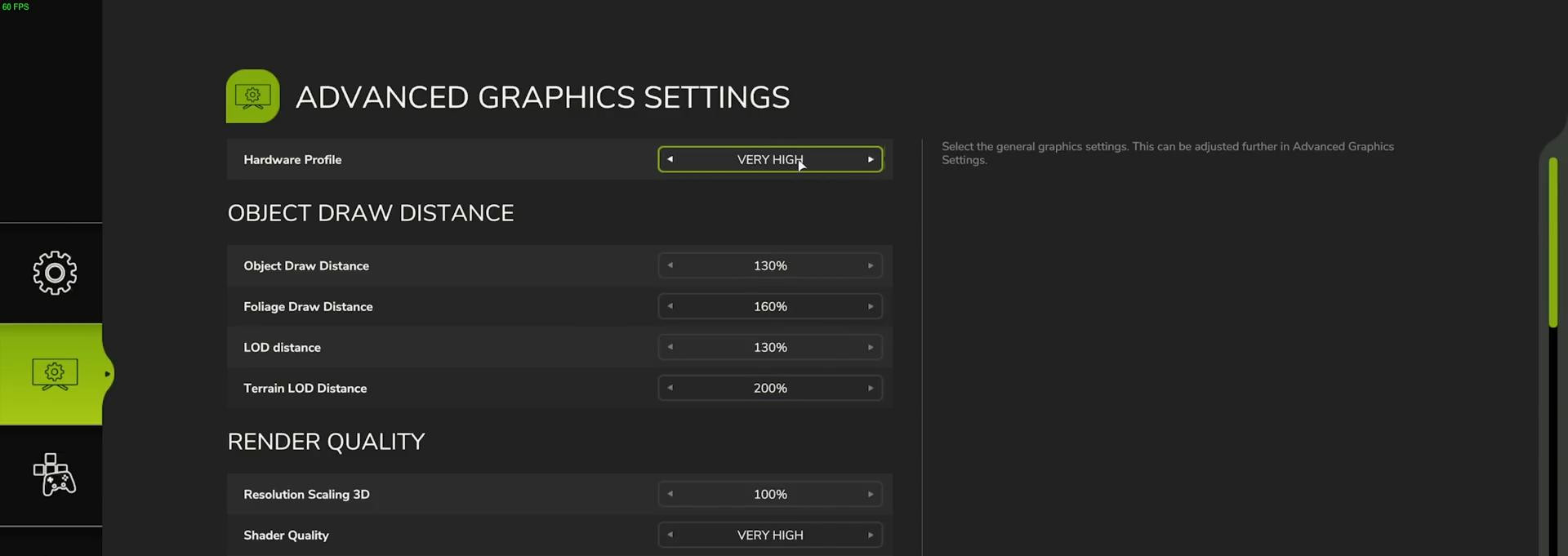
The tab with advanced settings is opened by pressing the spacebar. This is where the real sorcery begins. The first in the list are the drawing distances. If your video card allows, you can safely turn all the sliders to 200 - and the farm immediately comes to life, every bush behind the horizon becomes visible. For weak PCs it is better to keep the values at the level of 150-180.
Rendering is the key to the balance between performance and quality. Scaling resolution is strictly 100%, otherwise the image will become soapy. Shader quality should be left at a high level, but screen space shading rate should be disabled - it is of no use, but it eats resources. Screen space reflections and ambient occlusion (SSAO) should be set to minimum. With shadows the situation is twofold: you want beauty - leave it, you need more FPS - disable screen space shadows, and set the regular shadows on medium.
The fog in the game is beautiful, but it is voracious. It is better to leave it on minimum - it will be easier to breathe and iron, and the player. Atmosphere quality can be left on high, but cloud shadows - to taste, sometimes they darken the scene too aggressively.
Textures, lighting and other details
Texture quality directly depends on the amount of video memory. Up to 5 GB - set low, above that - high. Anisotropic filtering has almost no effect on FPS, so you can safely set 8 or 16x. Lighting in general affects a lot, but too low settings will make the picture inexpressive.
Here is a small list of settings that you should keep under control:
- Shadow Quality - medium.
- Shadow Distance - medium.
- Soft Shadows - it is better to disable.
- Foliage Shadows - gives realism but consumes FPS.
- Max Shadow Lights and Max Mirrors - reduce to 2-3.
- Texture Resolution - on video memory.
- Volumetric Fog - low.
Post-processing and anti-aliasing: beauty or speed?
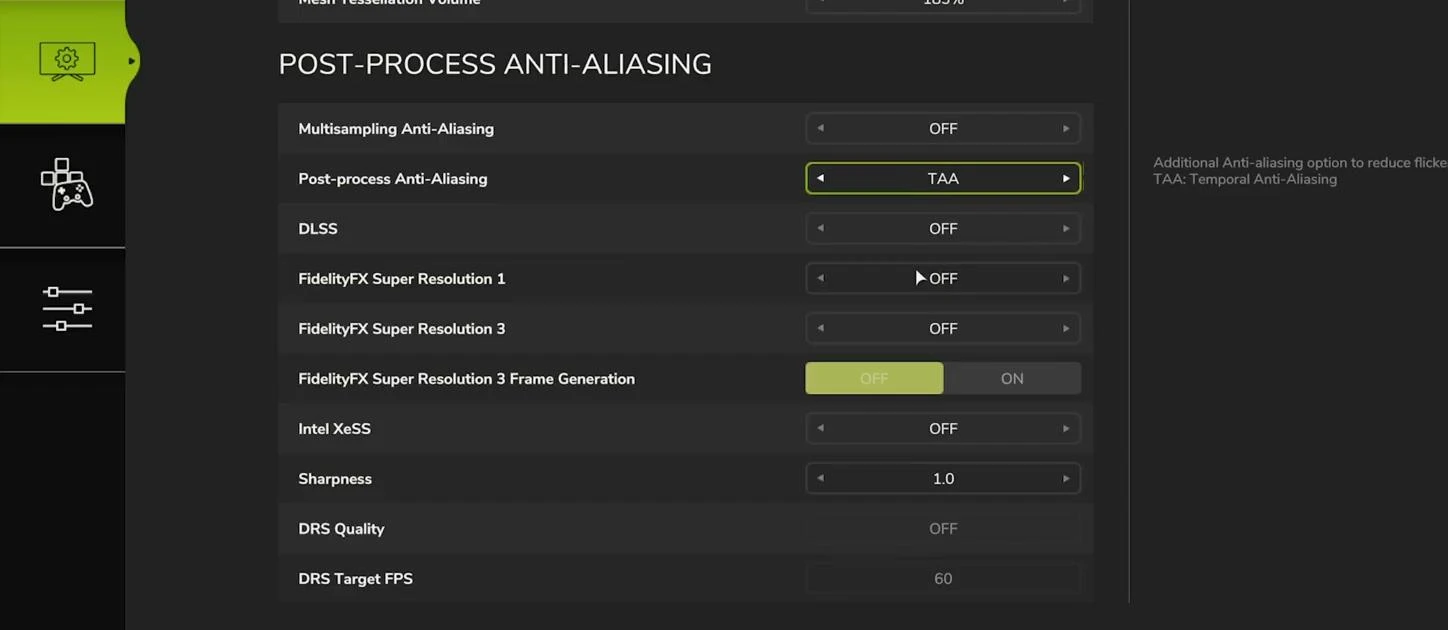
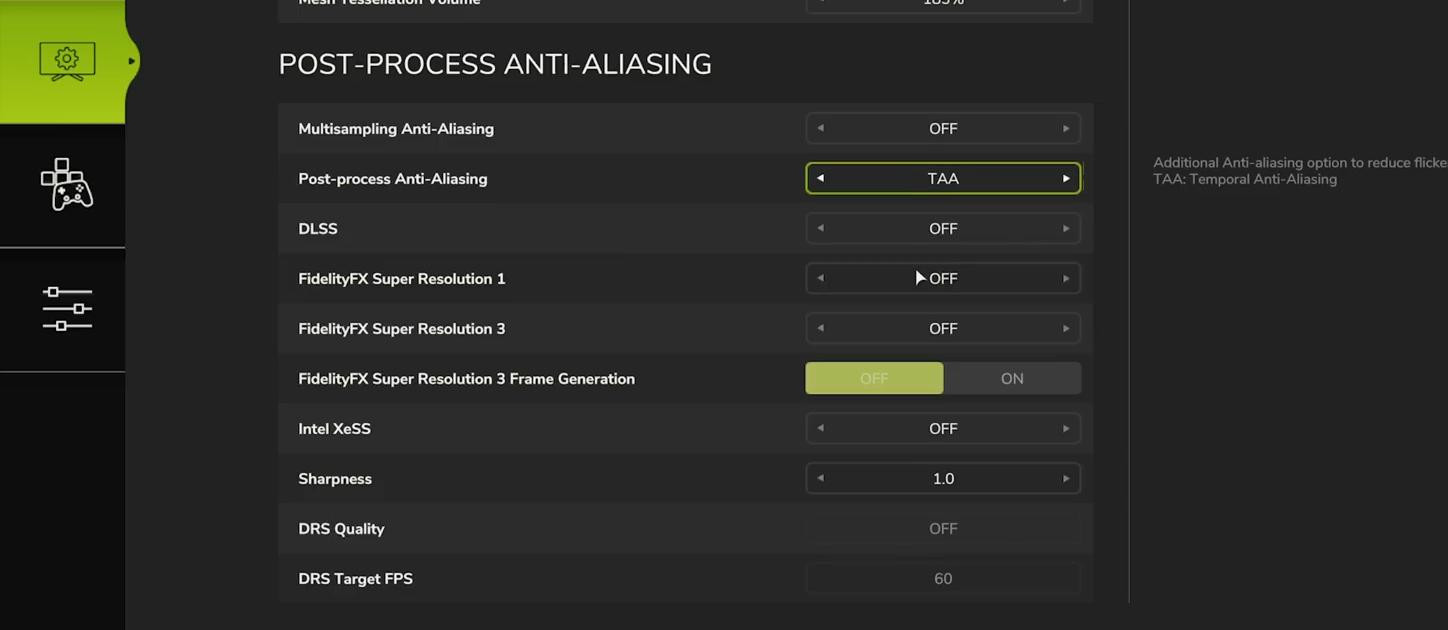
MSAA is better to disable at once. But post-processing is an interesting thing. TAA makes everything too blurry. DAA is the best choice, especially on NVIDIA cards. The game becomes sharper, and FPS loss is almost insignificant. If you have AMD or Intel, you should use FSR 3 or XeSS respectively.
Upscaling like DLSS, FSR or XeSS gives FPS gain, but may cause visual artifacts - especially on moving objects like plants. If you notice glitches, it's better not to use upscale, but to be satisfied with classic antialiasing.
Frame Generation and disabling FPS limit
For owners of RTX 40-series and above there is Nvidia Frame Generation, but so far in FS25 only FSR 3 Frame Gen works. This is available to everyone, NVIDIA, AMD, Intel. The main thing is to enable FSR 3 as anti-aliasing or upscaling, then the option is activated. But there is a nuance here: input lag increases a bit, so gamers at high hertzecs are just fine, the rest should think twice.
You can unlock the console and remove the FPS limitation by editing the game.xml file in Documents\My Games\FarmingSimulator2025 folder. You need to find the line <development> and change controls="false" to controls="true". Then tilde (~) opens the console, F2 shows FPS, and F3 removes the limit. You can even write limit false in the console for complete freedom.
After all manipulations the game picture becomes noticeably more pleasant and FPS grows. Of course, the game engine itself is not perfect - there can be sags and freezes, especially if a lot of background applications are running. That's why you should disable them when starting the game.
Videos
Hinzugefügt von