Where and How to Buy Seeds in Farming Simulator 25?
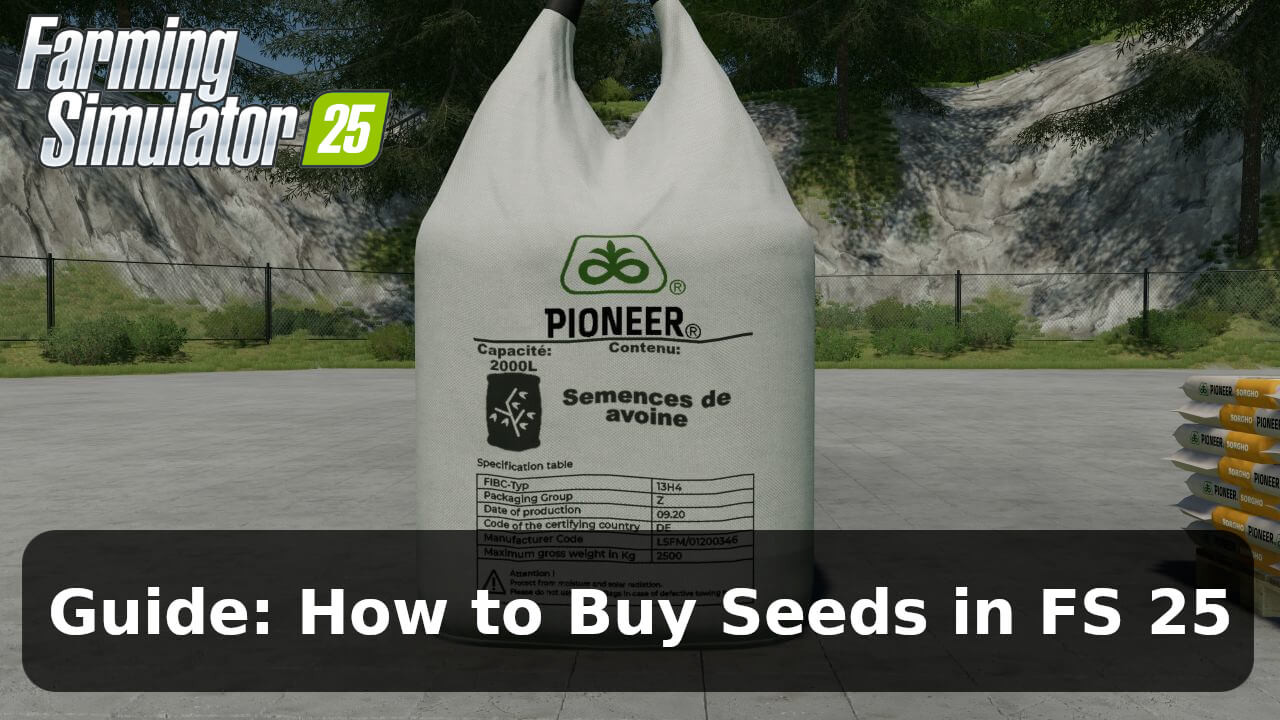
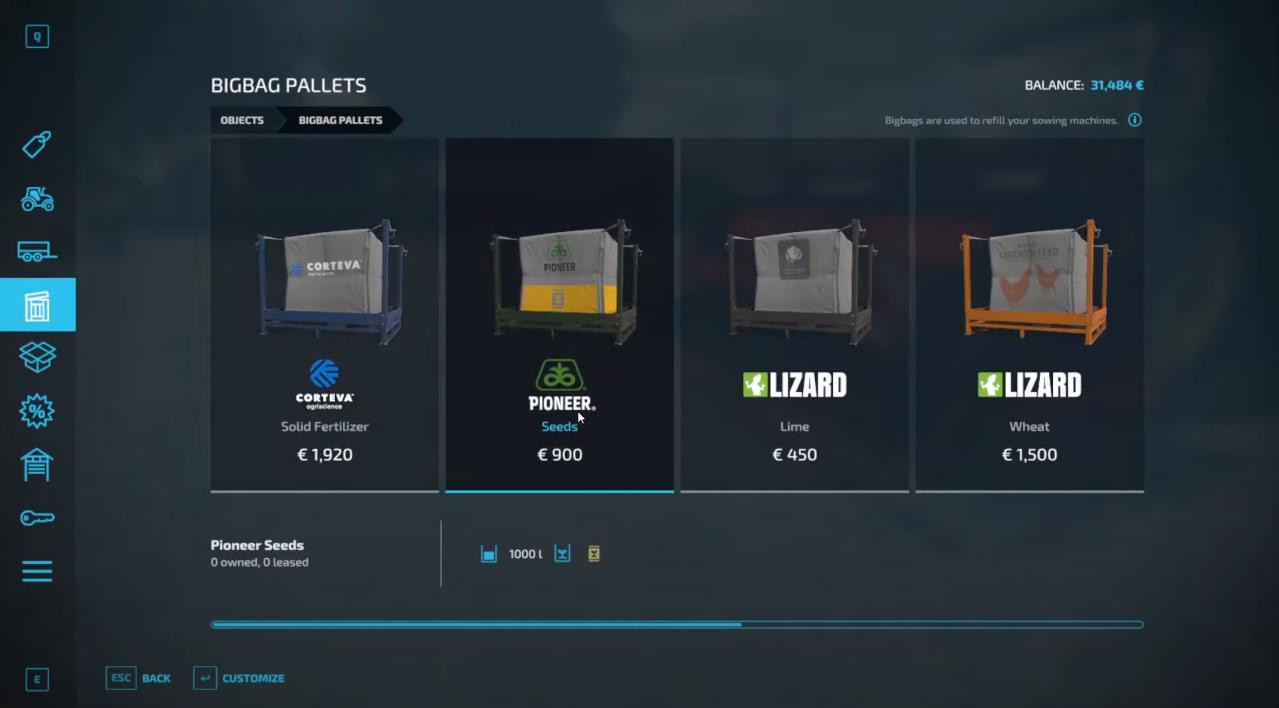
If you've recently started playing Farming Simulator 25 and aren't familiar with previous versions of this wonderful game, this brief guide will be helpful. Growing crops on fields in the game is one of the most important, interesting, and profitable activities. The very first and crucial step is purchasing seeds. Therefore, below we will detail the types of seeds available, where and how to buy them, and provide information on how to load them into the planter.
If you're a beginner in the game, this guide will certainly be useful to you. It's actually quite simple to buy seeds, requiring just a few steps. So let's not delay and get straight to the main topic of our discussion.
What types of seeds are available in the game?
The game's title itself hints at its focus. Since farming is the core of its gameplay, agriculture receives the most attention. That's why the developers have included a vast variety of seed types for planting. Each type can yield different crops and, consequently, profits. It's also important to note that different seeds require different equipment for planting. For example, potatoes require a specific planter, while corn or wheat have their own agricultural tools. There are also multi-combines that can be used for planting multiple varieties.
So, here are several types of seeds you can find in FS 25:
- Corn
- Barley
- Wheat
- Potatoes
- Popcorn
- Rapeseed
- Sunflower
- Oats
- Sugar beet
- Sorghum
- Cotton
- Grass
- And many others
Each type can yield different harvests. It's also crucial to consider that each has specific seasonal requirements. For instance, potatoes should be planted in spring, while wheat is best sown in autumn or spring. Harvesting different crops will also vary.
Furthermore, after planting, each crop requires appropriate fertilization. We'll cover this in other guides that you can find on ModLand.
Buying seeds in FS 25
Now, let's address the most important question: where and how to buy seeds in the game? They are purchased at the store, of course, in the appropriate section. Therefore, initially, you need to visit the store.
Navigate to the location on the map where the store is located (you can find it on the map by pressing "M"). This helps you immediately see where the seed pallets will appear after purchase.
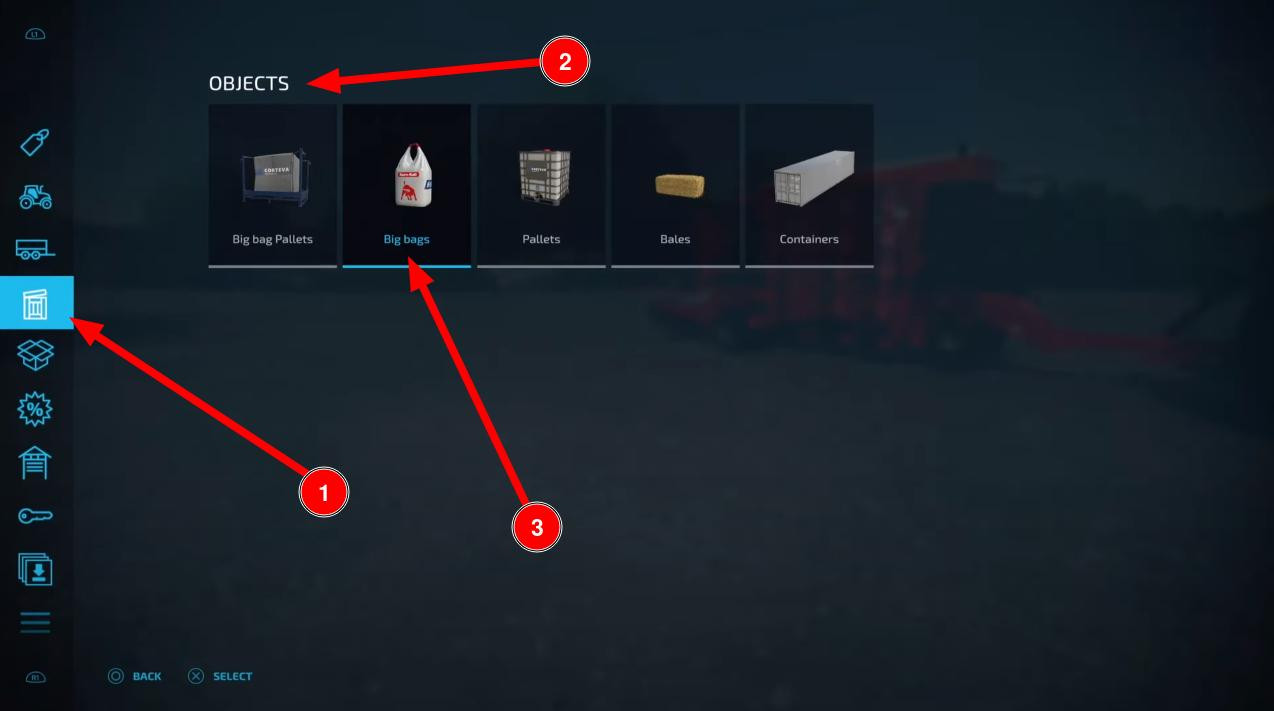
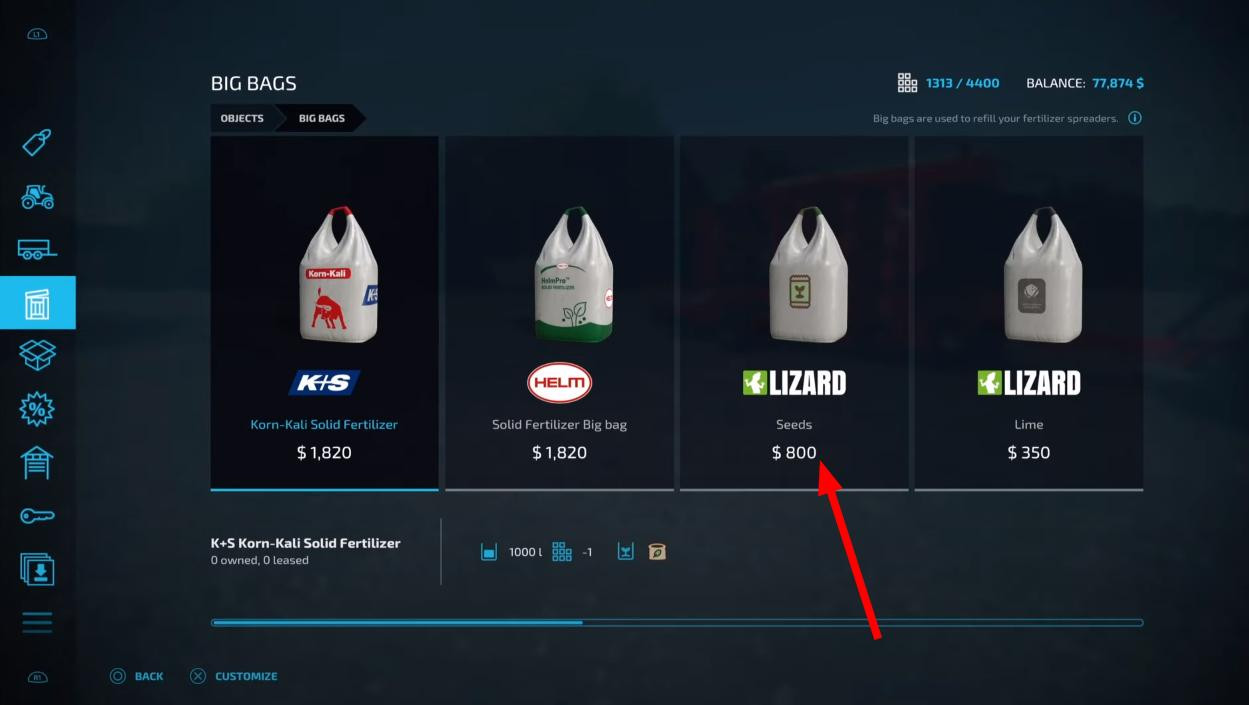
Next, press the "P" key to enter the store. Find the tab labeled "Objects" and go to this section.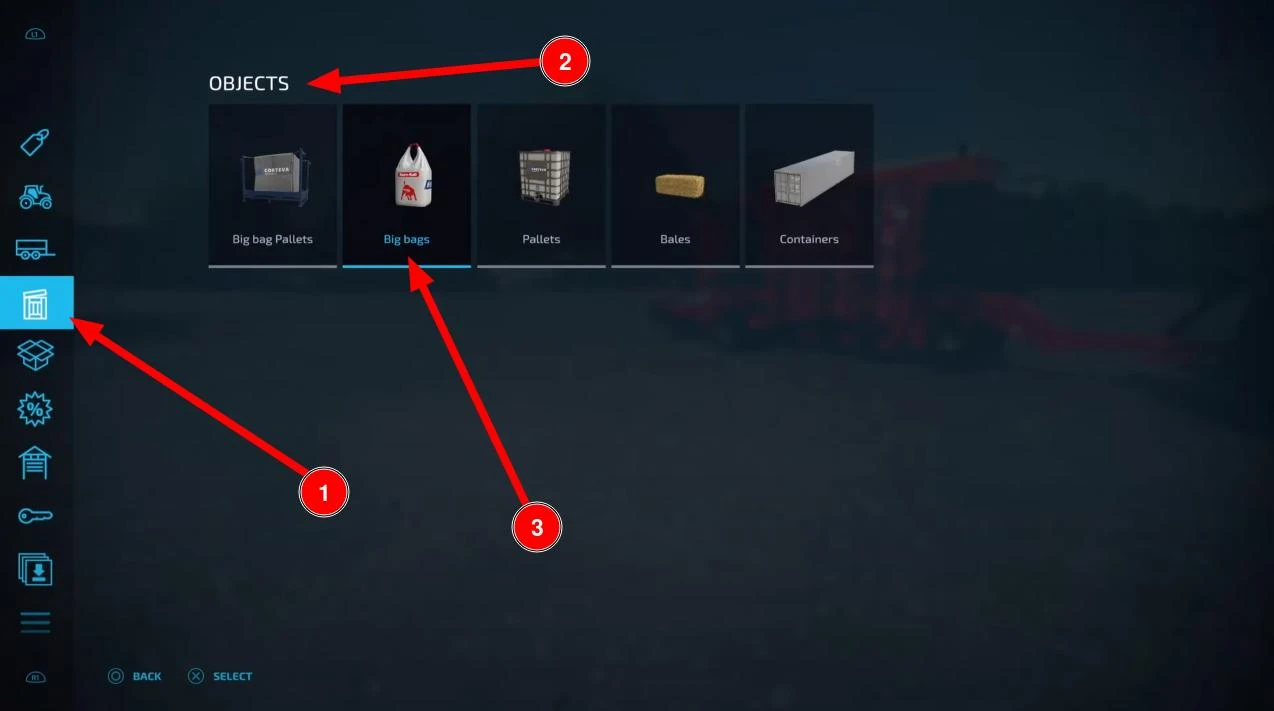
Under the "Big Bags" subsection, select "Seeds".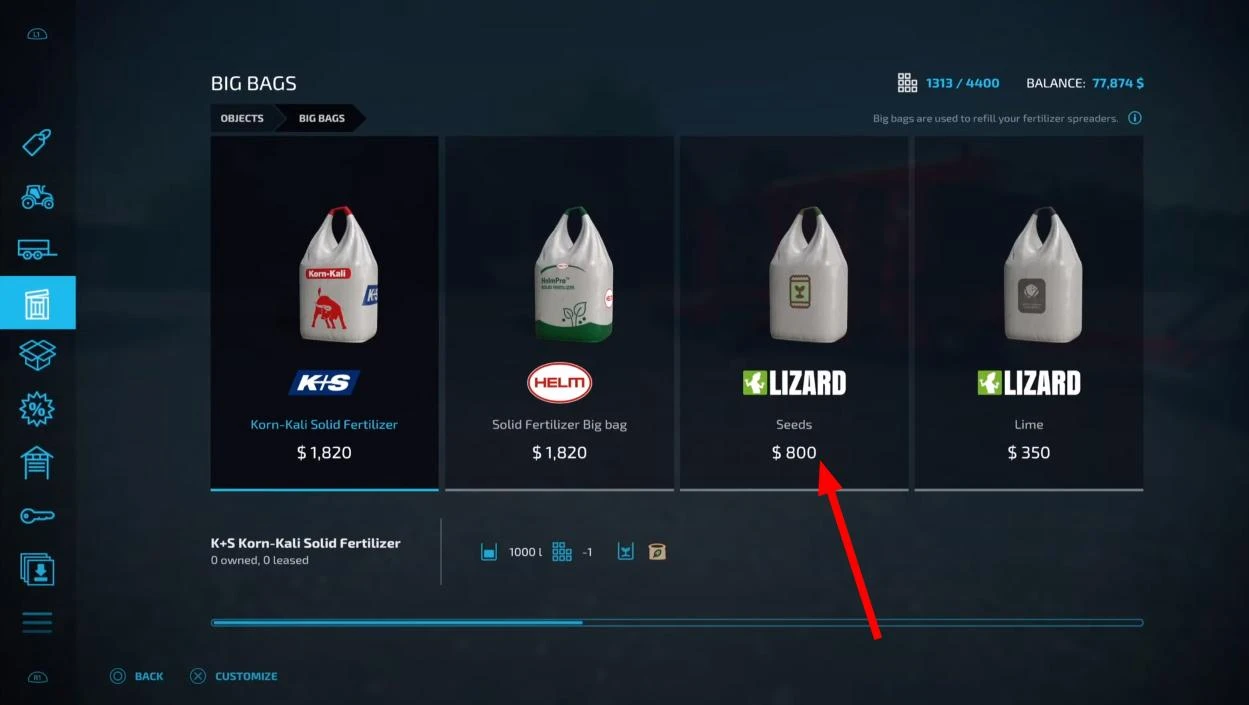
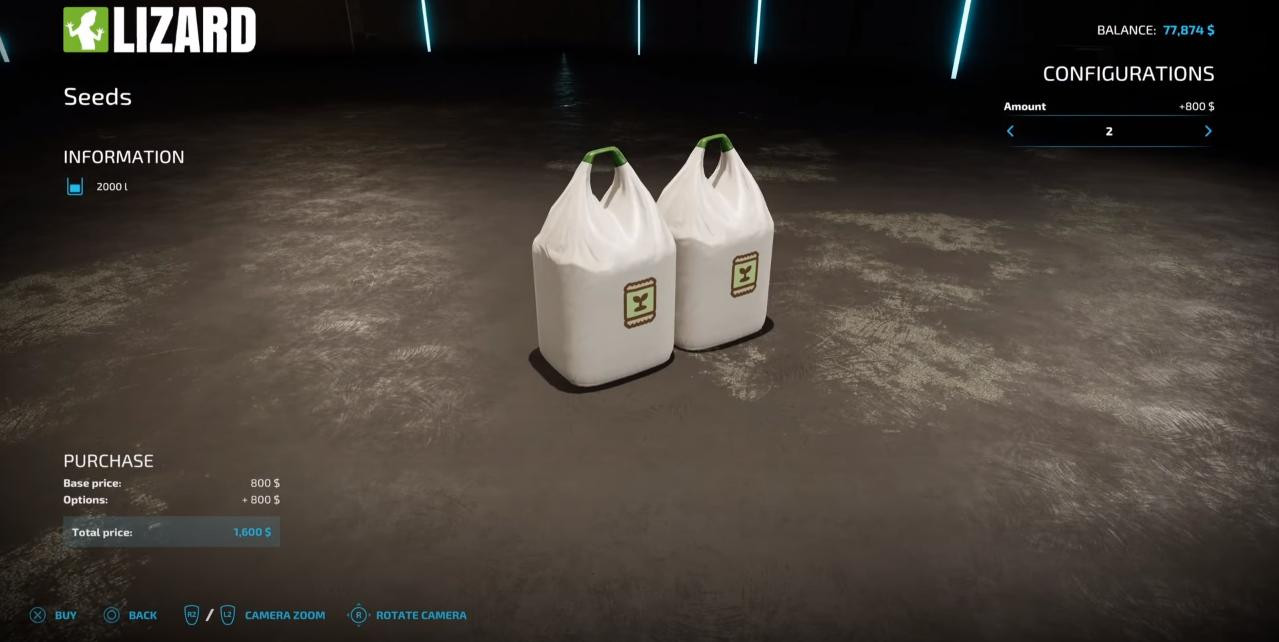
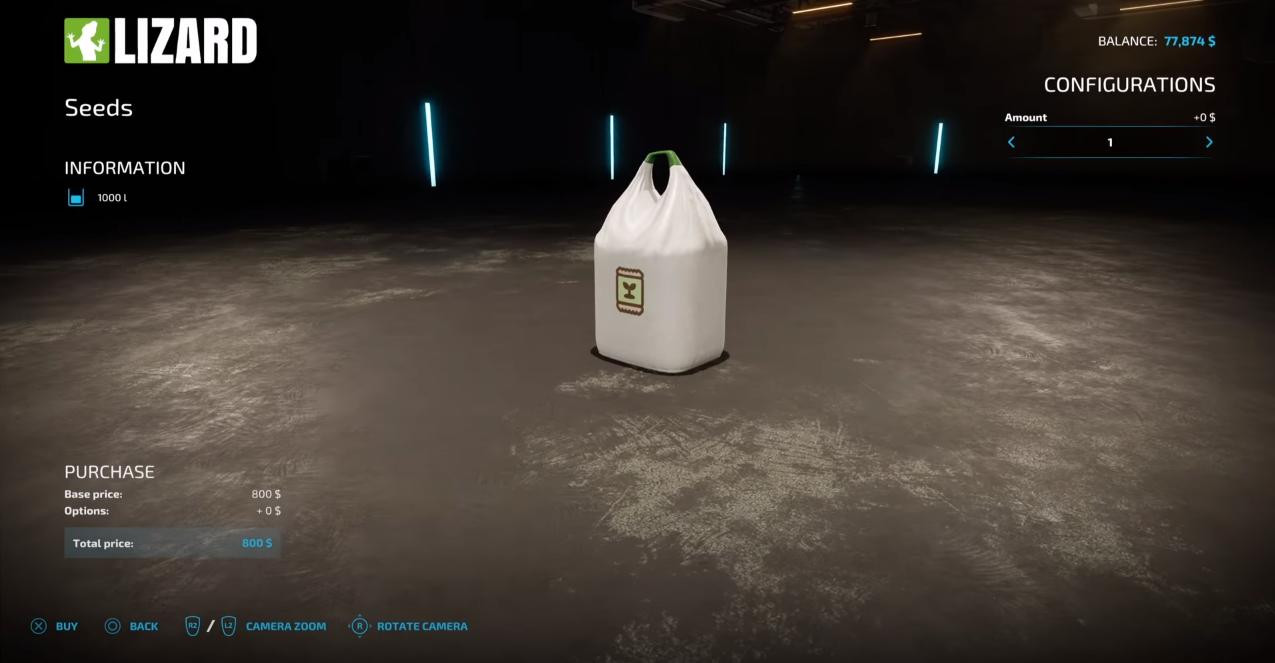
Now, simply press "Buy" to purchase the seeds you need. You can specify the desired quantity right there.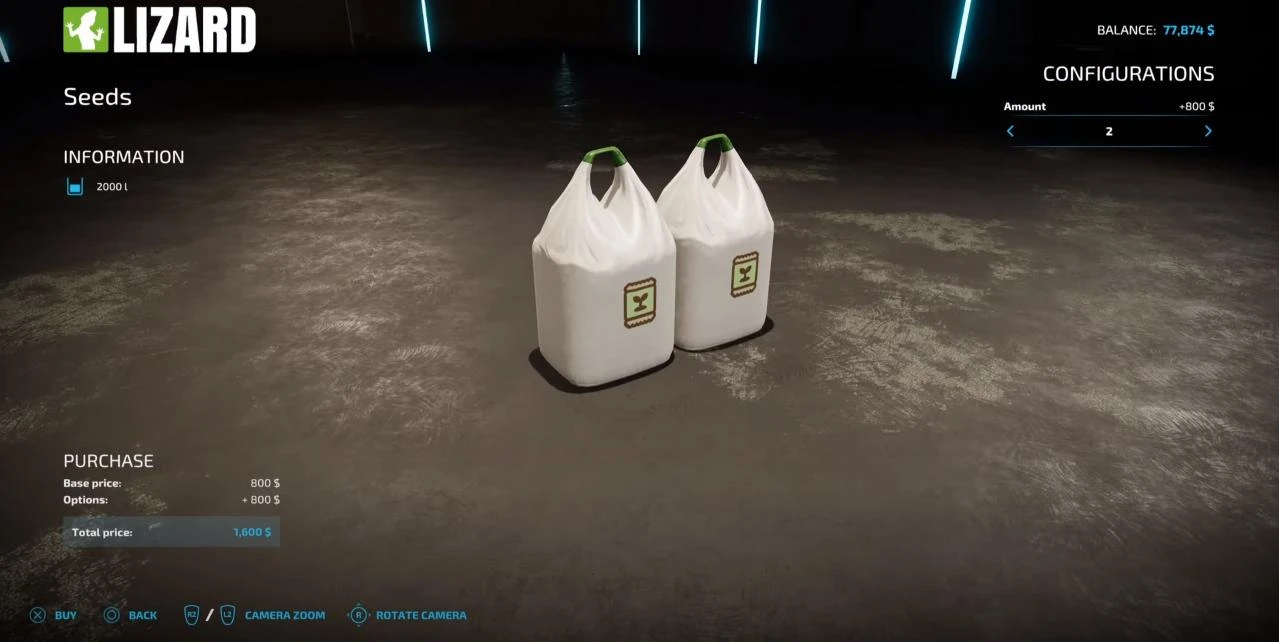
Additionally, if you require larger quantities of seeds, they can be bought in the Pallets section.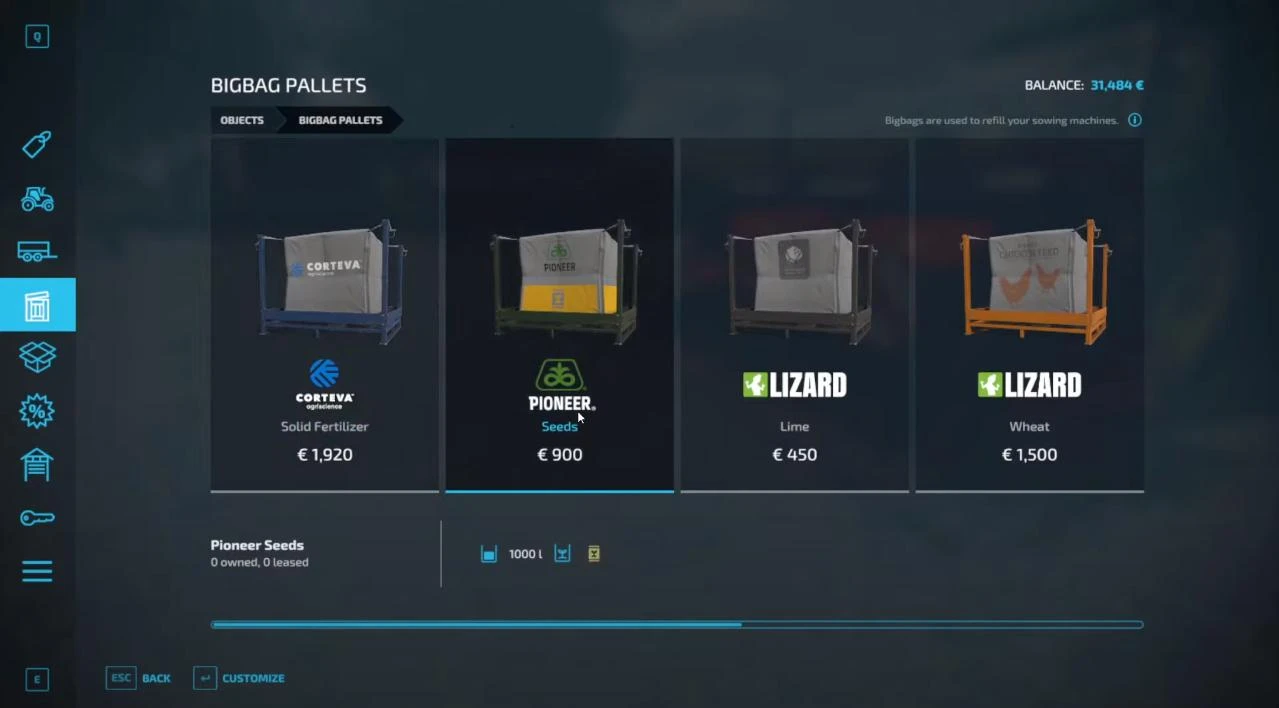
That's it! You have successfully purchased seeds!
How to load seeds into the planter?
This process is as simple as buying them. First, you'll need to buy a specific planter. It's also sold at the store (press the "P" key). You can find it in the "Tools" section under the category aptly named "Planters".
Note that you'll also need a tractor to attach it to.
Now that you have the planter and tractor, approach the cabin. Stand near the tractor's cabin until a message appears indicating which button to press to get into the vehicle. Usually, this is done with the "E" key. Then, start the engine with the ENTER key and reverse towards the planter. Approach it evenly and as close as possible to trigger the corresponding notification. Press "Q" to attach the necessary tool to the tractor's hitch.
Don't exit the cabin yet! We haven't loaded our seeds. Move towards the seeds and position yourself so that the planter is at the closest possible distance to the bags or pallets. Park in a way that triggers a notification indicating that you can load the seeds. When you see this notification, press the "R" key.
The process of loading the planter with seeds will begin. At the bottom of the screen, you'll see a progress bar showing the percentage completed. Wait until the bar fills up.
Done! The planter is now loaded. You can head to the field and start planting! We'll cover how to do this in other guides.
Added by