How to Enable Voice Chat in GTA 5 Online
-lg_modland.jpg)
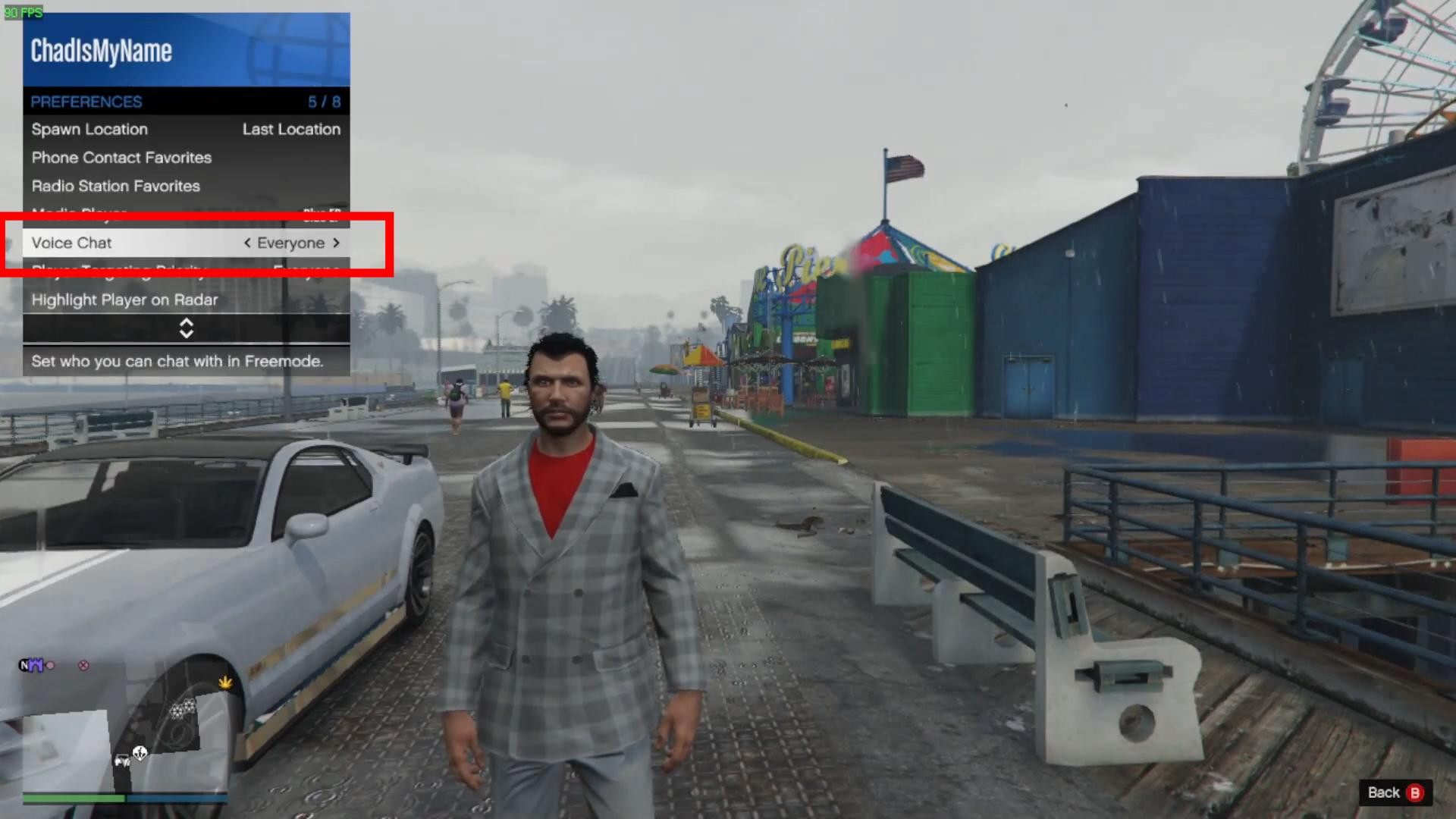
Voice chat in GTA 5 Online allows you to communicate with other players in real time, which is especially useful for cooperative missions, heists, or just to communicate in free play. However, due to a variety of settings in the game and on different platforms, it can be disabled by default. So let's go through step-by-step how to enable it.
First, open the pause menu. This is done by pressing the ESC key on the PC or the Start button on the controller.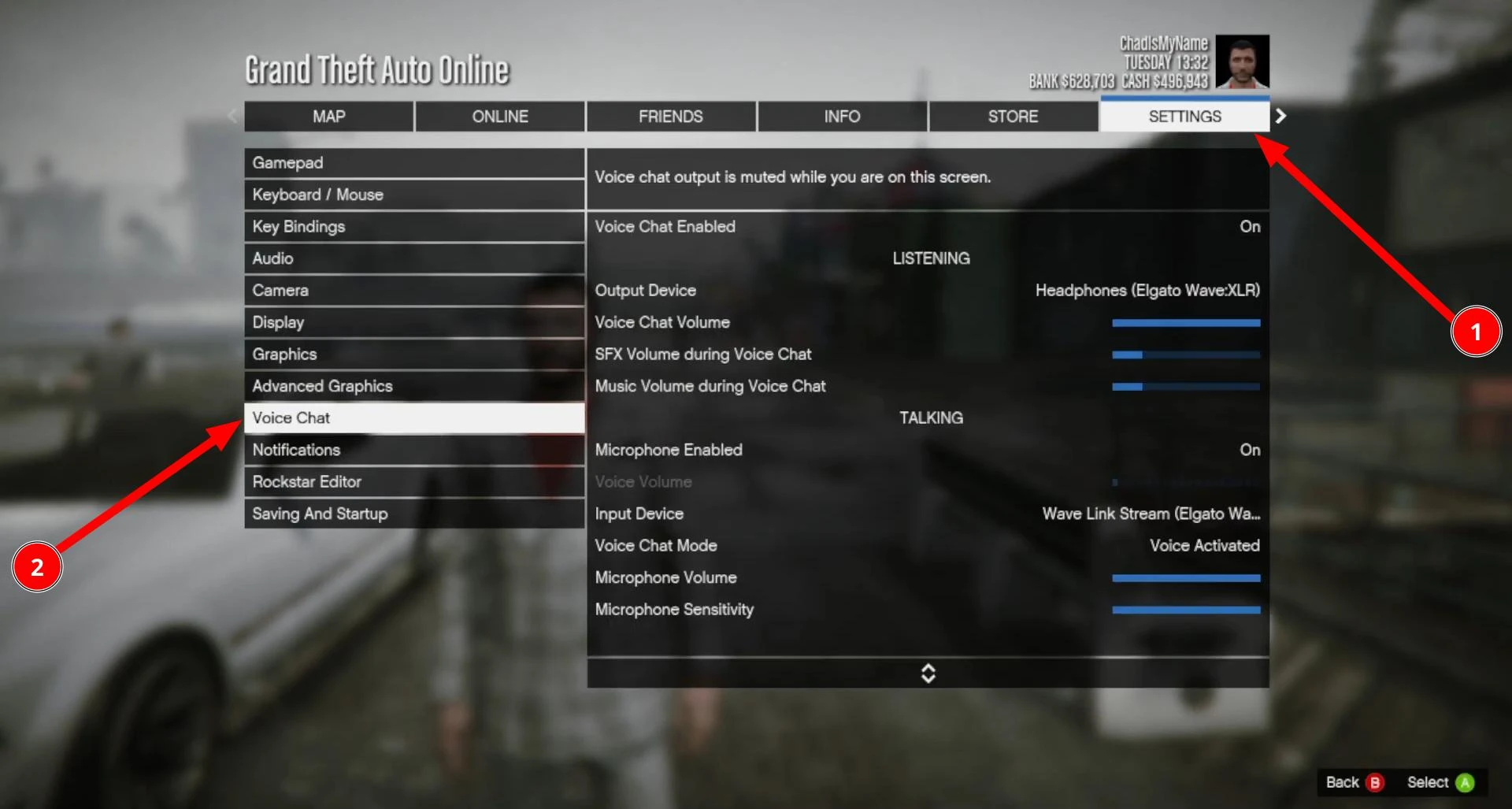
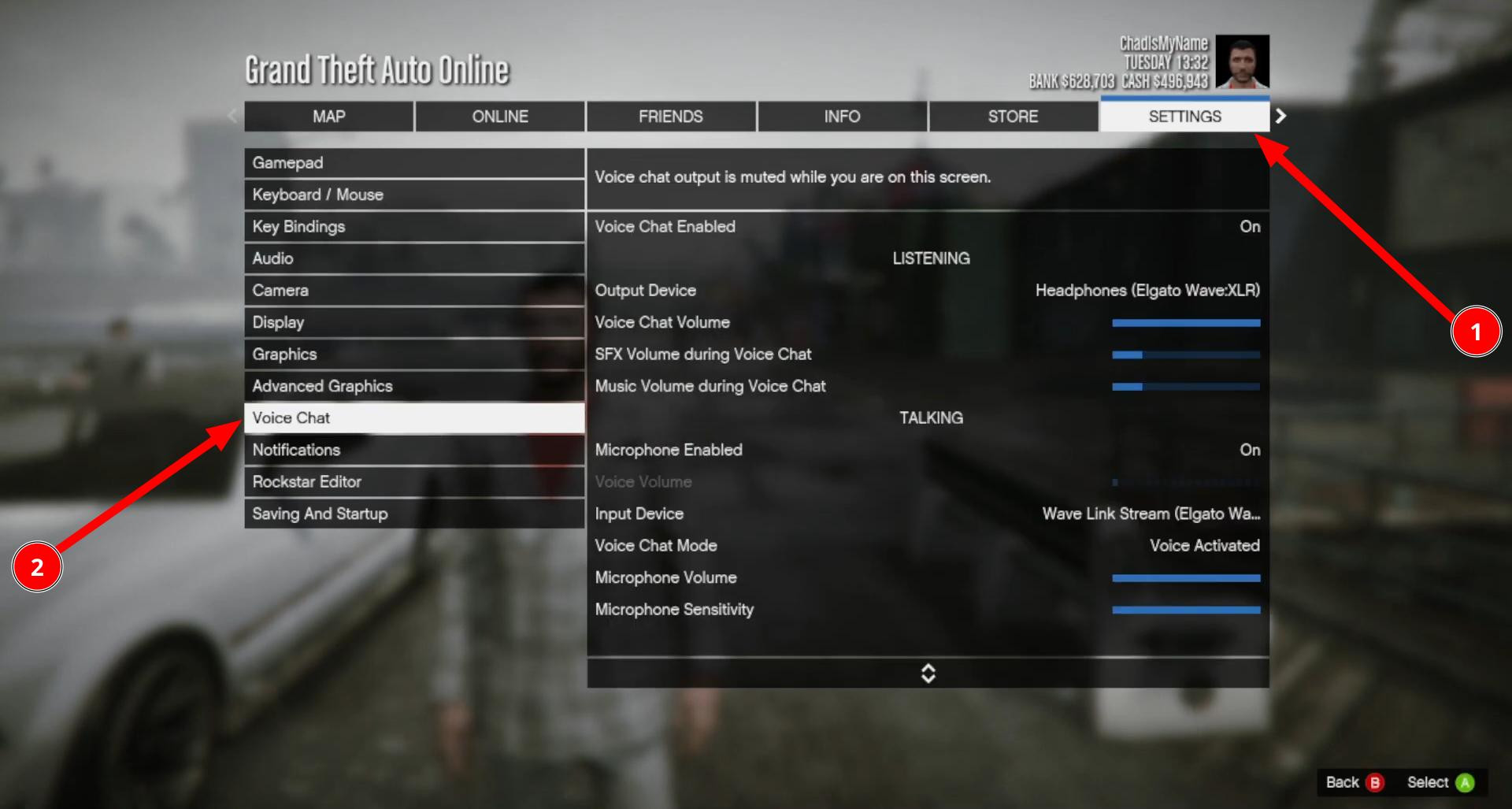
When you get to the main menu, use the arrows or cursor to go to the Settings tab. Then scroll down to the Voice Chat section.
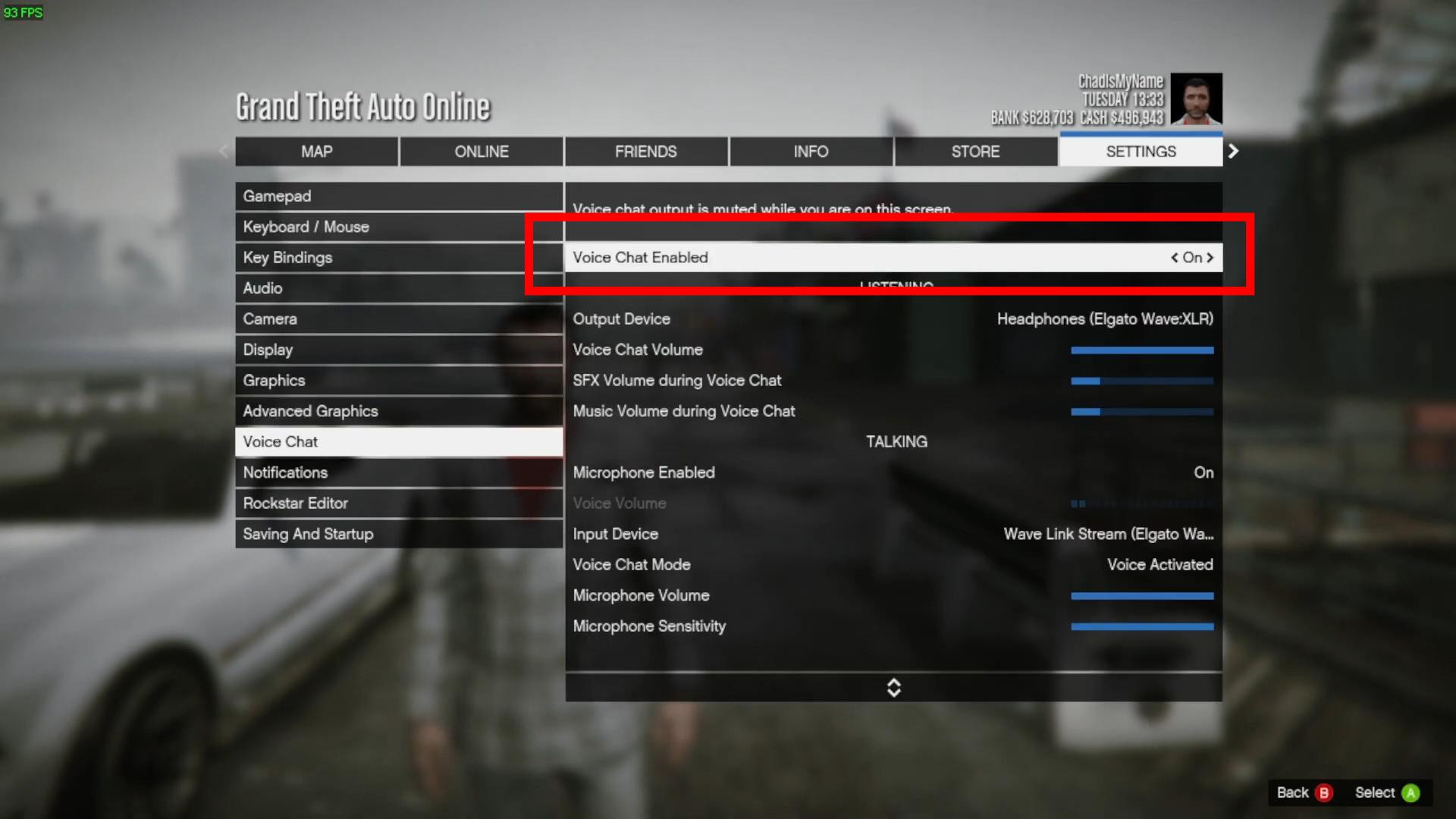
Here you need to make sure that Voice Chat is enabled.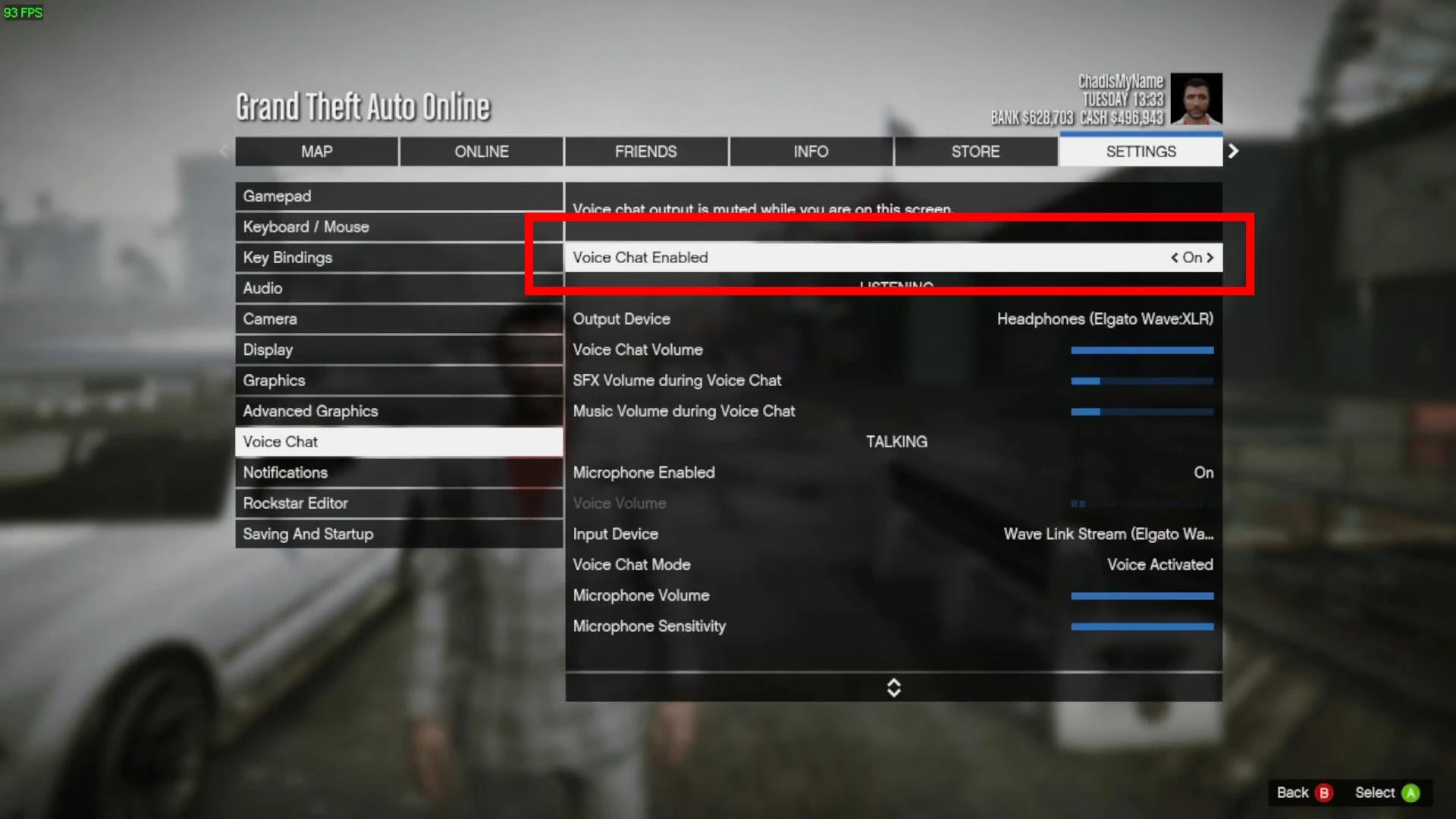
Set Voice Chat to Enabled. Also pay attention to the volume sliders - set the volume of voice chat and microphone to a comfortable level so that you can be heard, but not too loud.
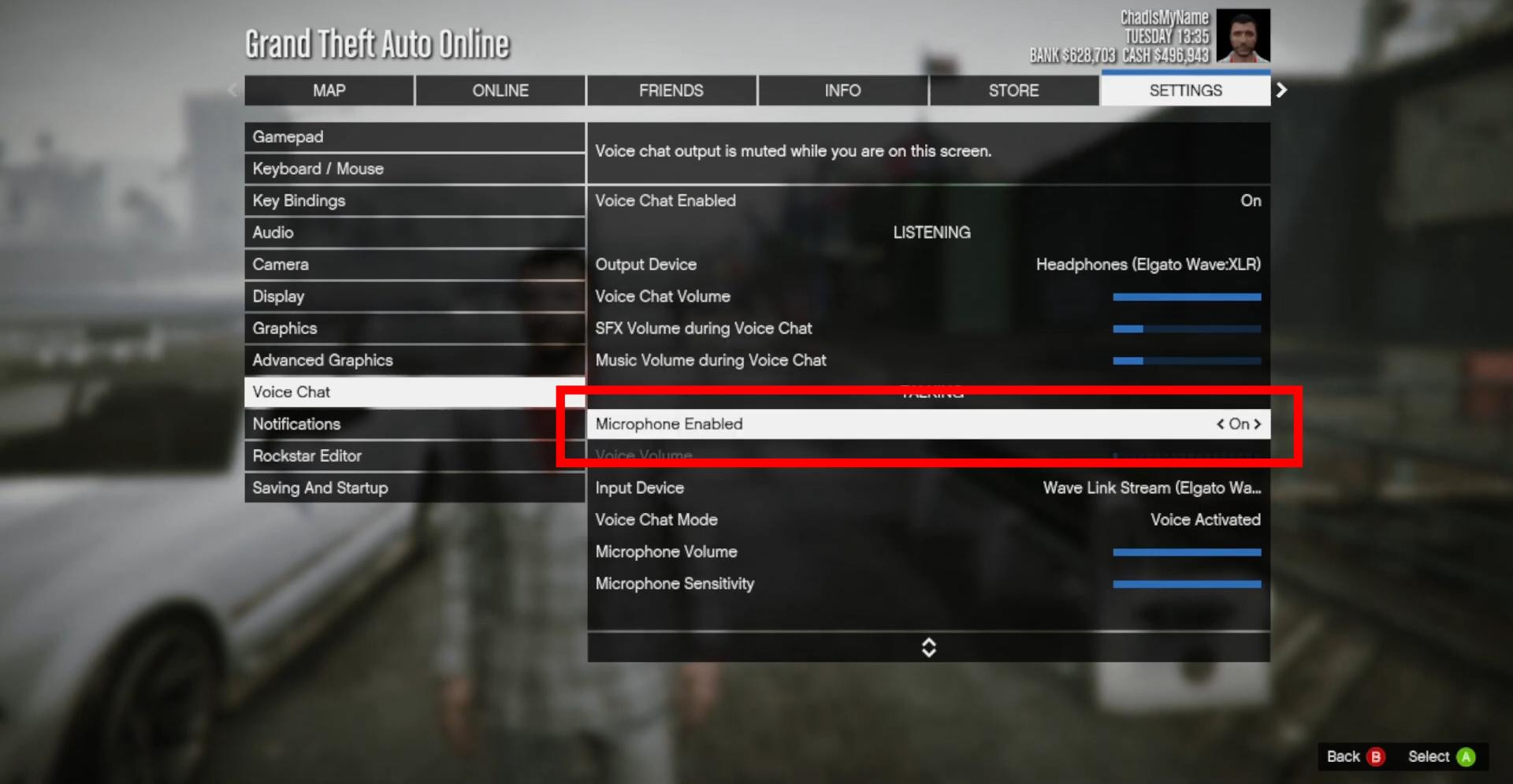
Below in the same section, you will see the parameter responsible for turning on the microphone.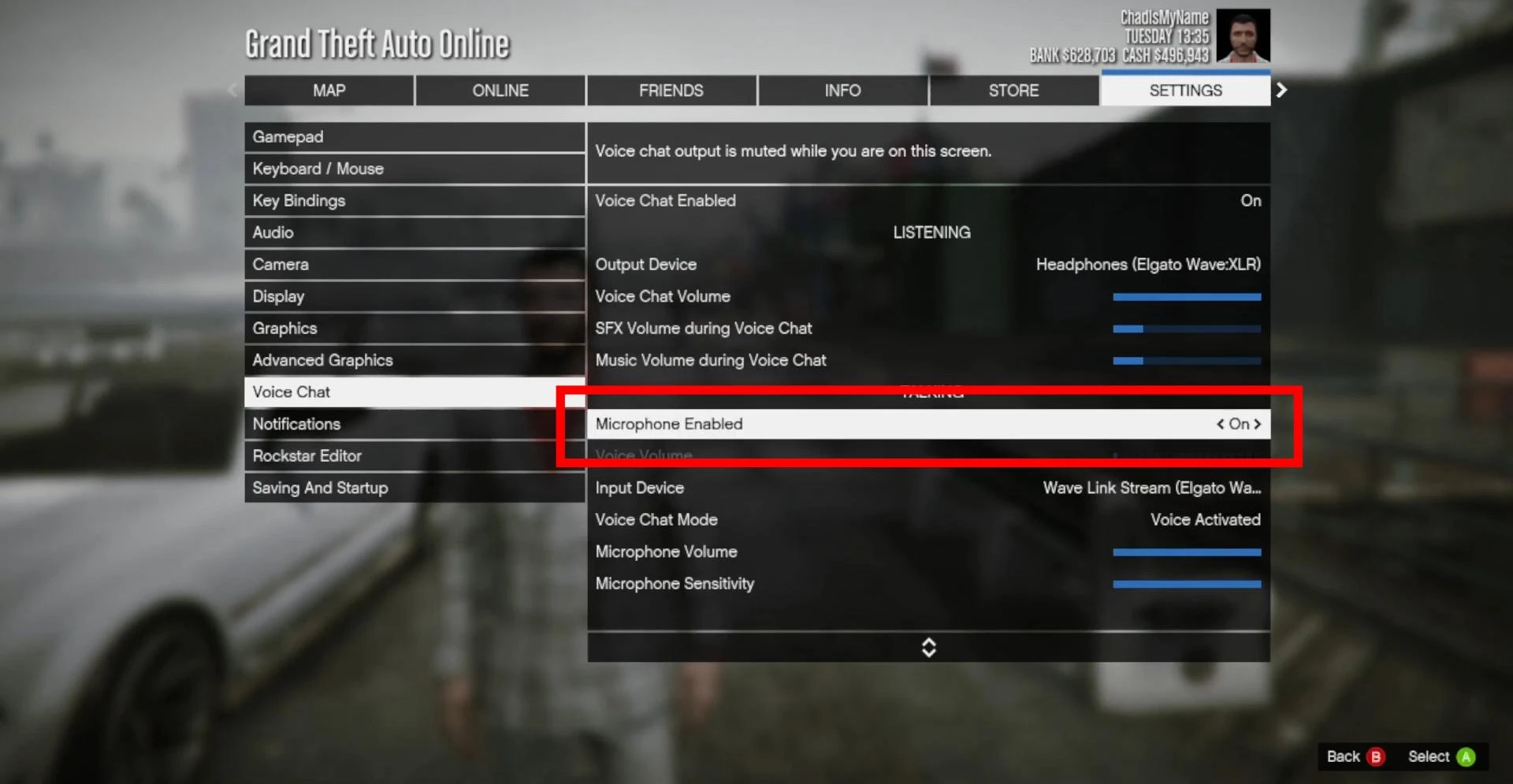
Make sure it is active. If the microphone is properly recognized by the game, you will see a volume indicator below it that will respond to your voice. This will help make sure everything is working as it should.
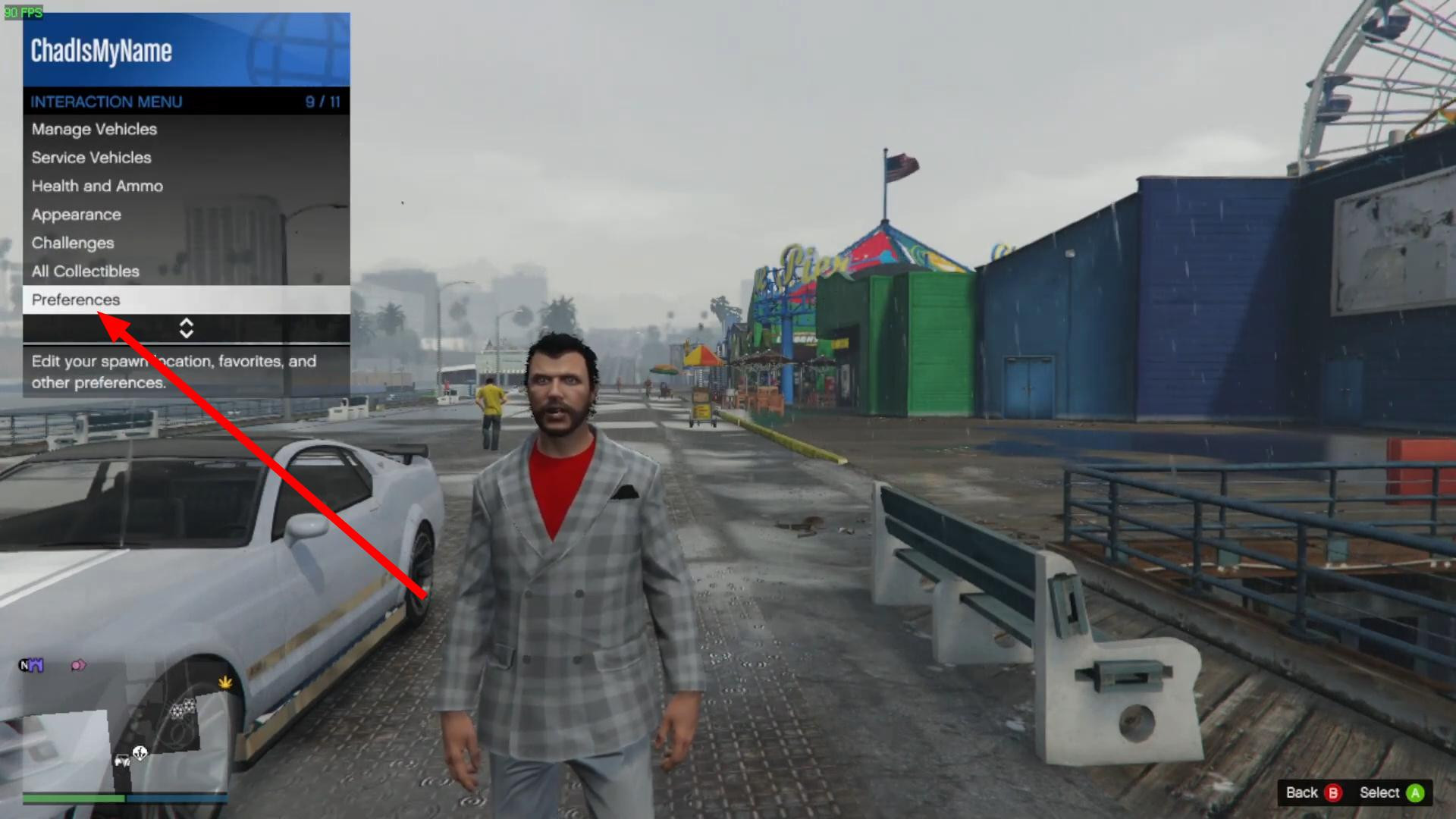
Now that the basic settings are done, return to the game. The next step is to open the Interaction Menu. How to do this depends on the platform:
- On PC, press the M key on your keyboard.
- On Xbox, press and hold the View (Select) button.
- On PlayStation 4/5, press and hold the touchpad on the controller.
Once the menu opens, scroll down to Preferences.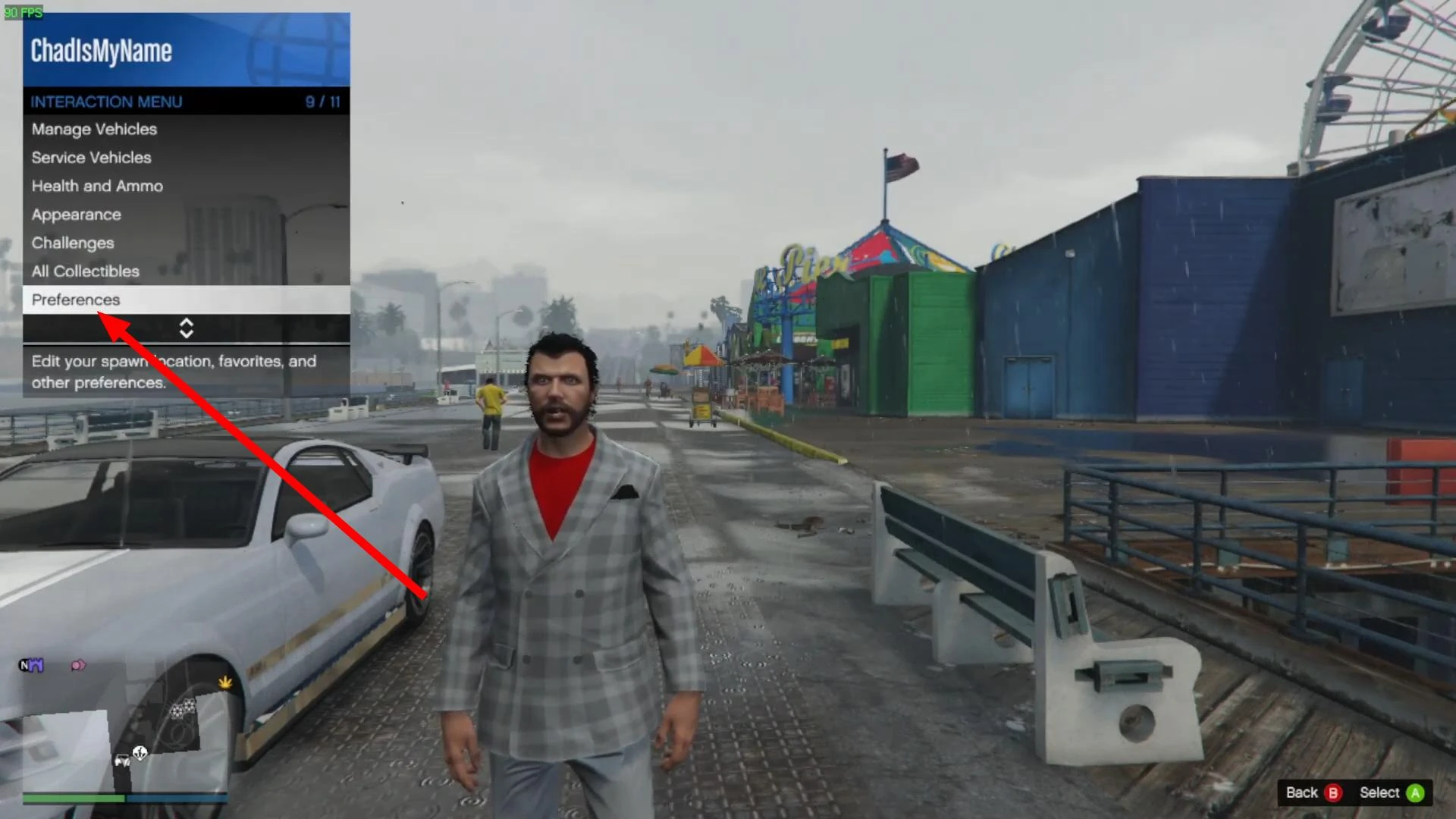
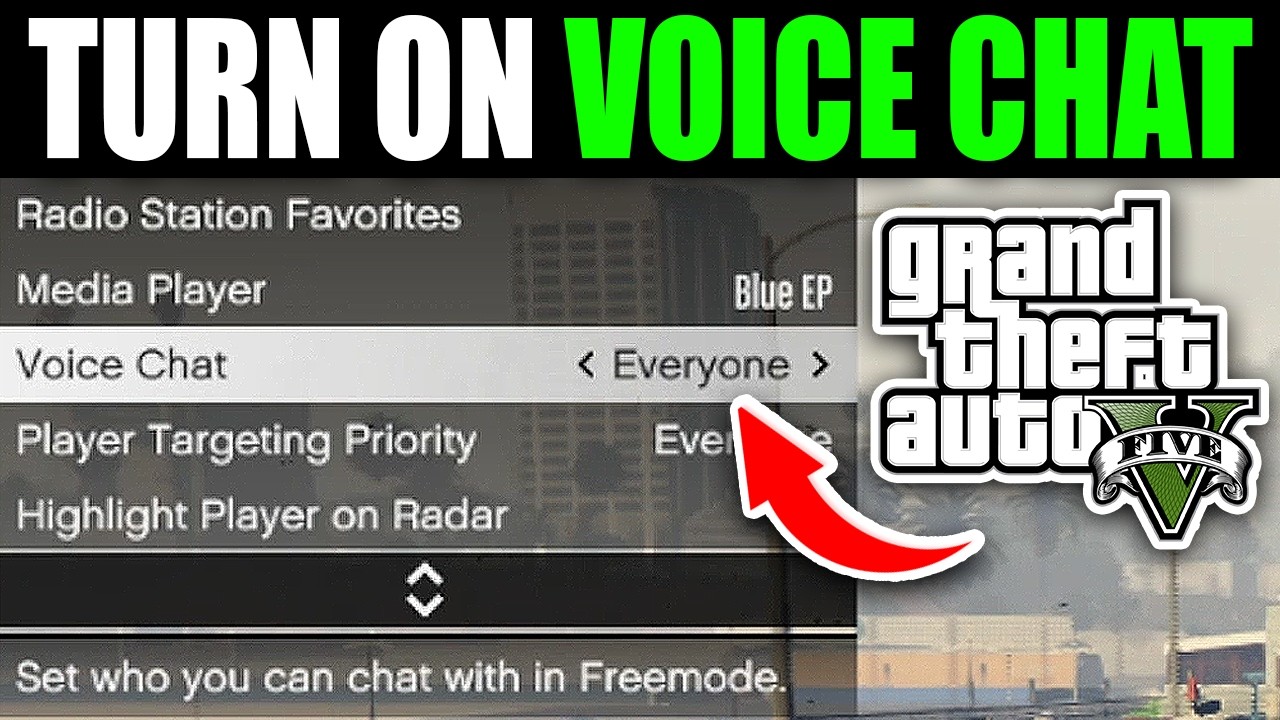
Here you will find the option responsible for voice chat.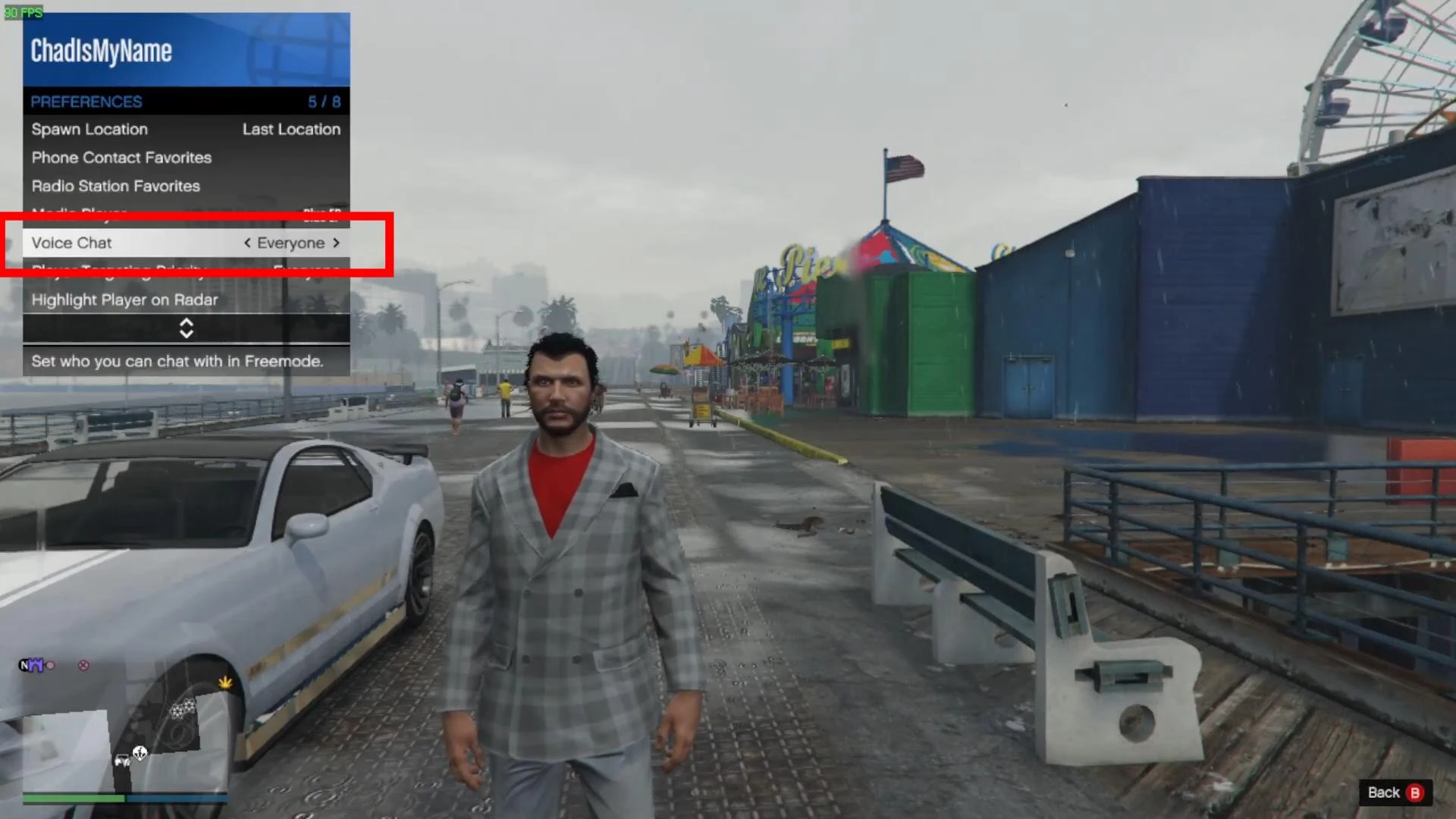
You can choose who you want to chat with in the game:
- Everyone - you will hear all players and you will be heard by everyone.
- Crew - only members of your gang will be able to chat.
- Friends - voice chat will only be enabled for friends.
- Crew + Friends - combined mode.
- No One - voice chat will be completely disabled.
Choose the option you want depending on who you want to chat with. If you just want to talk to friends you've invited to the session, it's most convenient to use the “Friends” or “Crew + Friends” mode.
You can then close the menu - voice chat will be active in your current session. Don't forget to also check that you have the correct default microphone selected in your operating system (especially on your PC). Sometimes the game may not recognize the device if it is disabled at Windows or console system level.
Videos
Added by