How to fix the eRR_GFX_D3D_INIT error in GTA 5
-lg_modland.jpg)
-lg_modland.jpg)
-lg_modland.jpg)
Many players may encounter an eRR_GFX_D3D_INIT error when launching GTA 5. This is a common mistake and here we try to figure out how to solve it.
1. Changing the DirectX version in GTA 5
The problem may be with an incorrect version of DirectX. First, check which version you have installed. Press Win + R, enter dxdiag command in the window and press Enter.
In the diagnostic tool DX see below version. If DirectX 12 is installed, then on old video cards the game may work with errors. You have to change the version,
To change the DirectX version for GTA 5 open folder «Documents», then go to directory «Rockstar Games» and open folder «GTA V».
Inside there will be a settings.xml file, you need to open it via Notepad.-lg_modland.webp)
In the file, find the string . Number «2» means DirectX 11, «1» - DirectX 10.1, «0» - DirectX 10. To correct this error, change the value from «2» to «0».-lg_modland.webp)
After making the changes, save the file and restart the computer. If you do this you can start the game again. The error should disappear.
2. Checking the integrity of game files
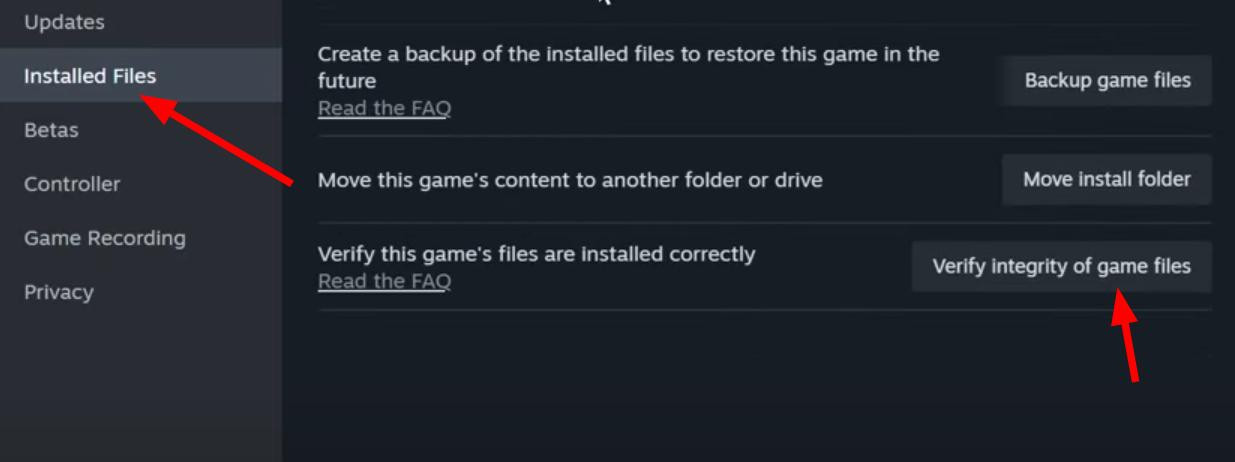
Perhaps the above method did not help you in solving the problem. If the error remains, check GTA 5 files. If the game was purchased from Steam, then open the client. Then open the game properties, go to «Local files» and select «Check file integrity».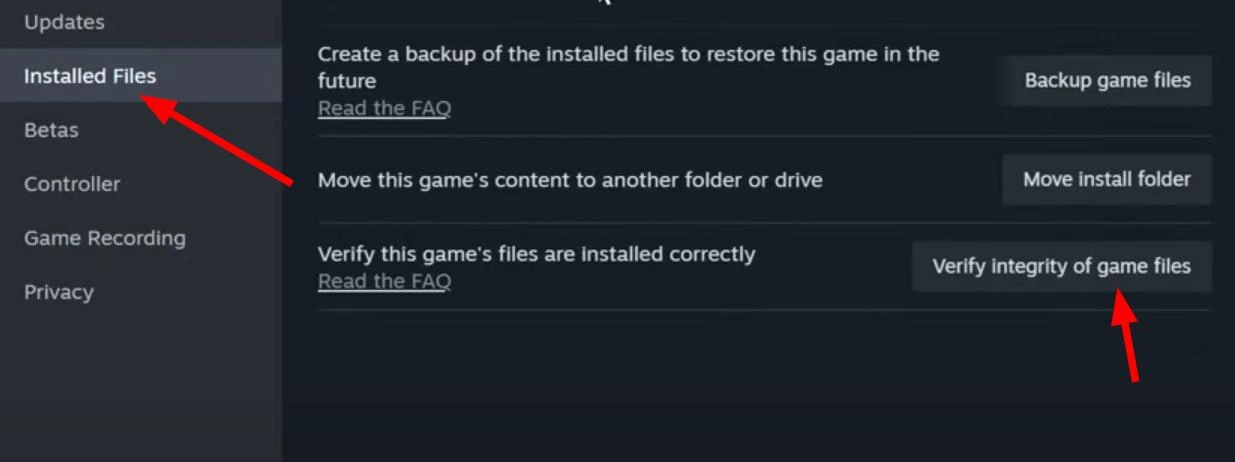
In Epic Games, open the library, right-click on GTA 5 and select «Check».
3. Setting the Windows Hyphenation File
What else can you try to do if GTA 5 issues an eRR_GFX_D3D_INIT error? Try changing the bouncing file.
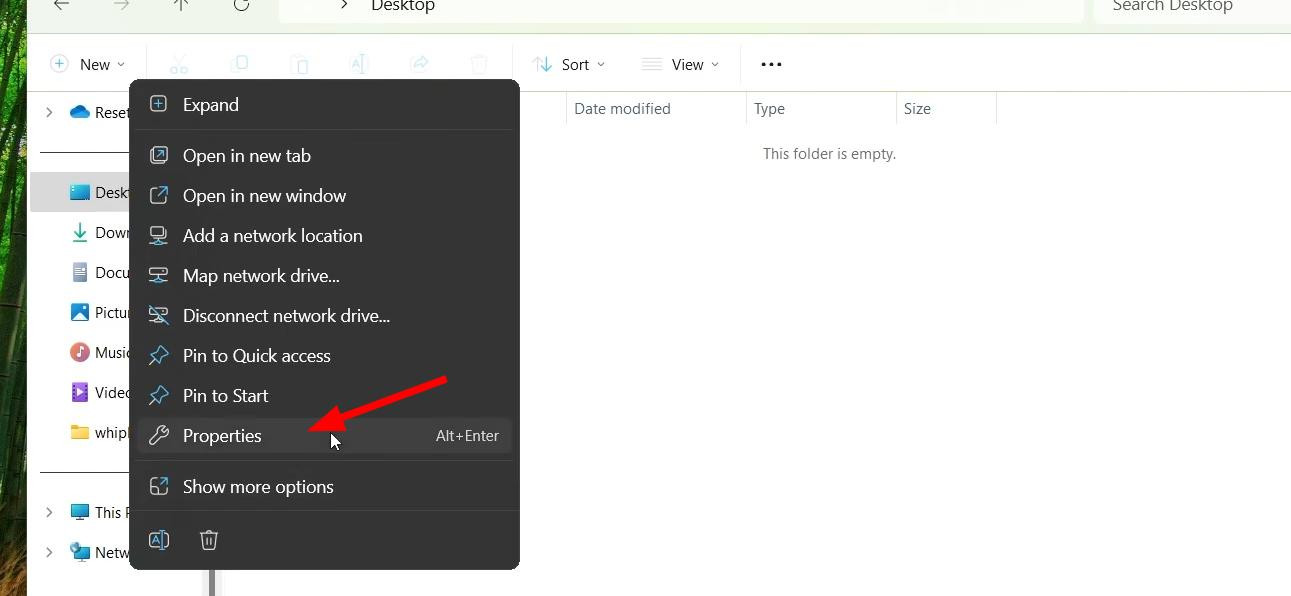
Open the computer properties.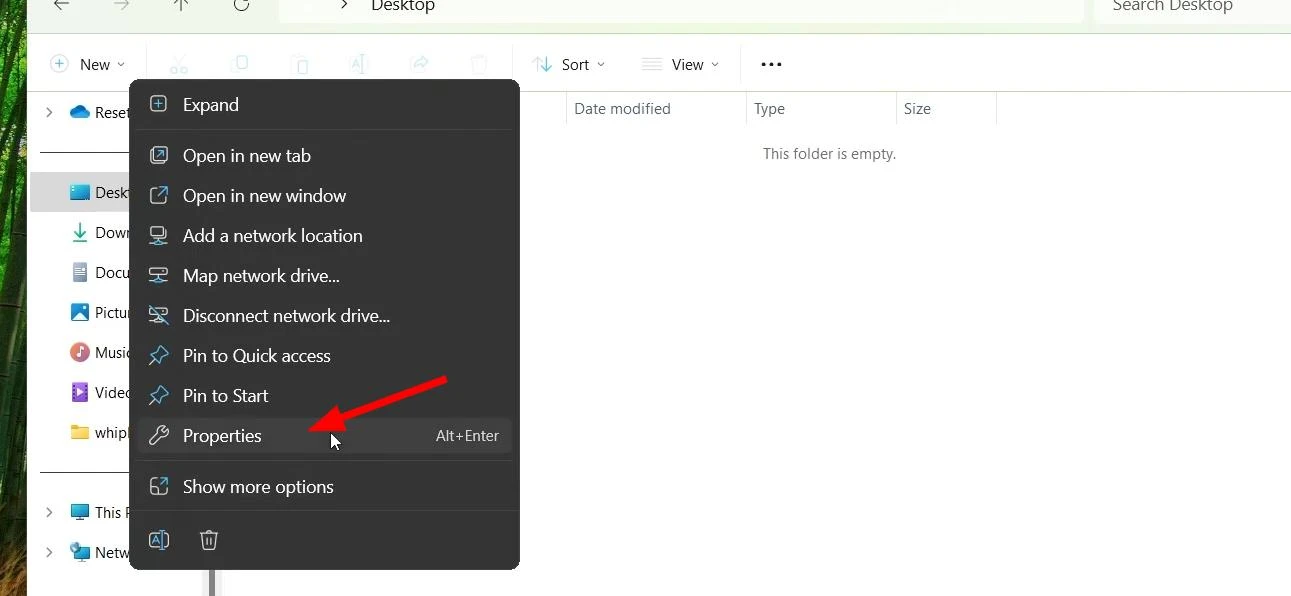
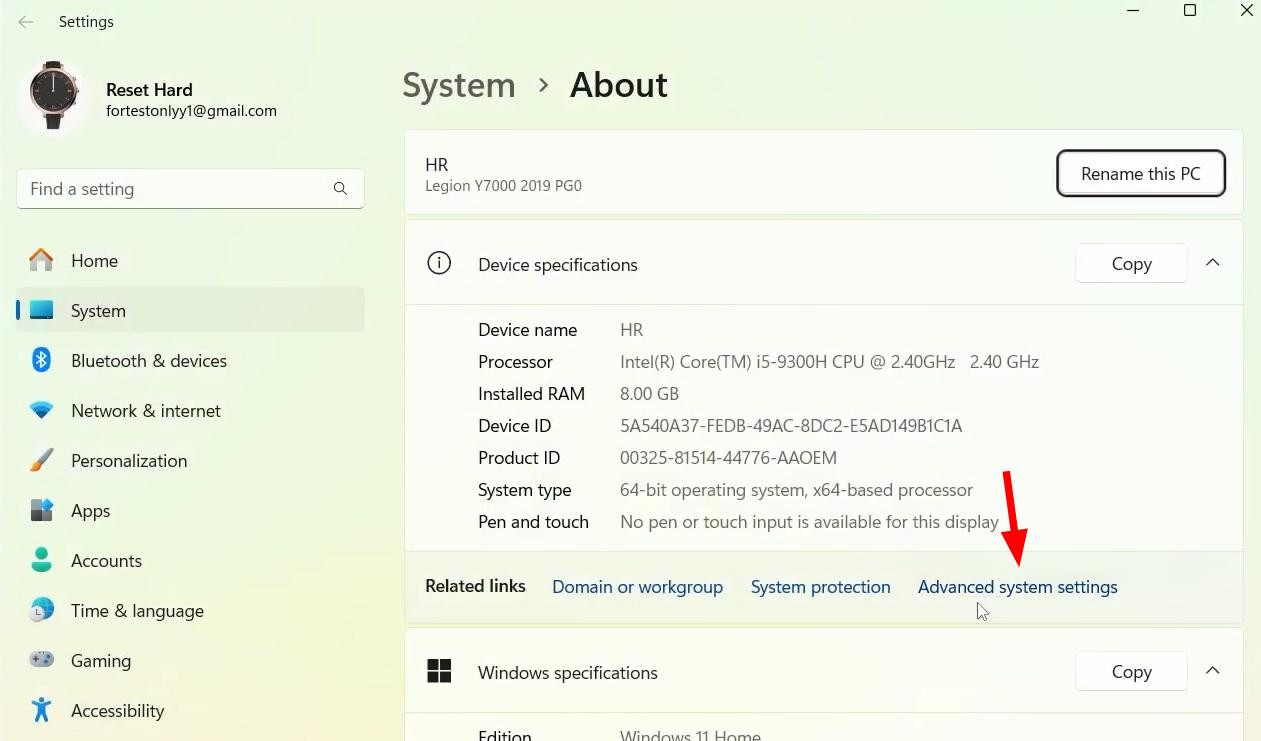
Go to «Advanced system settings».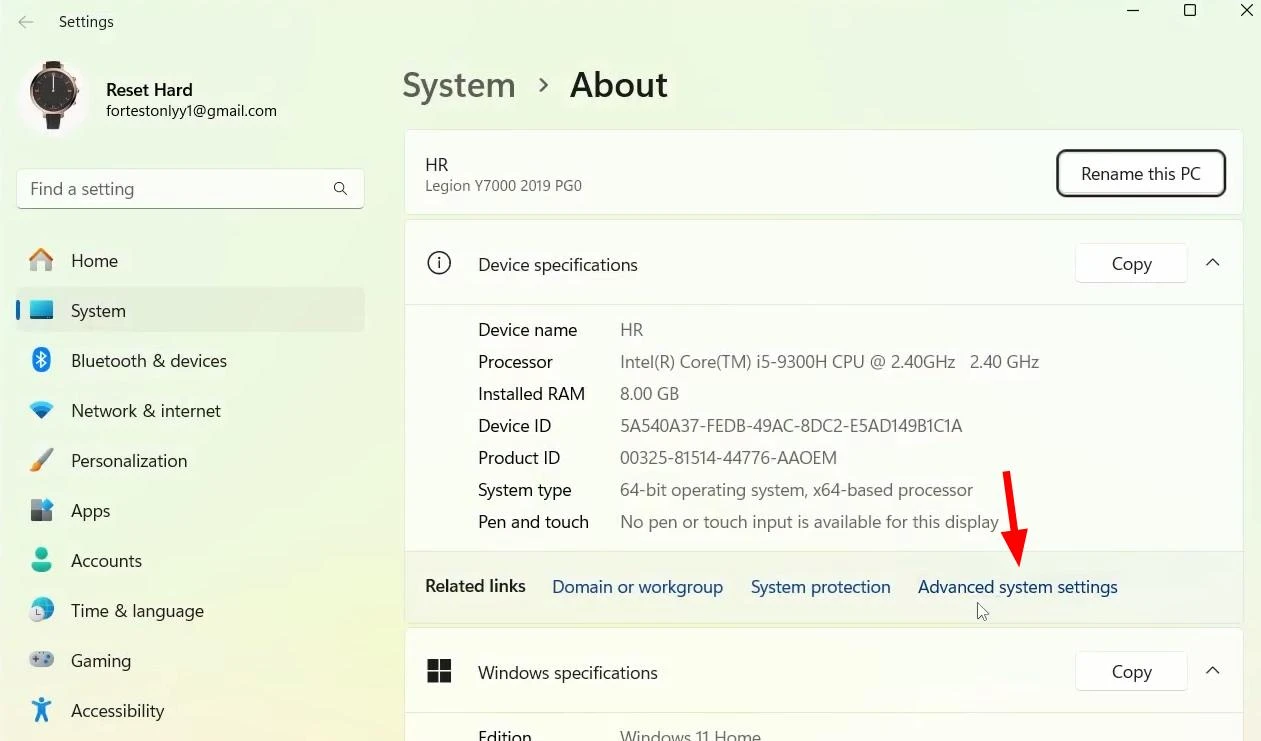
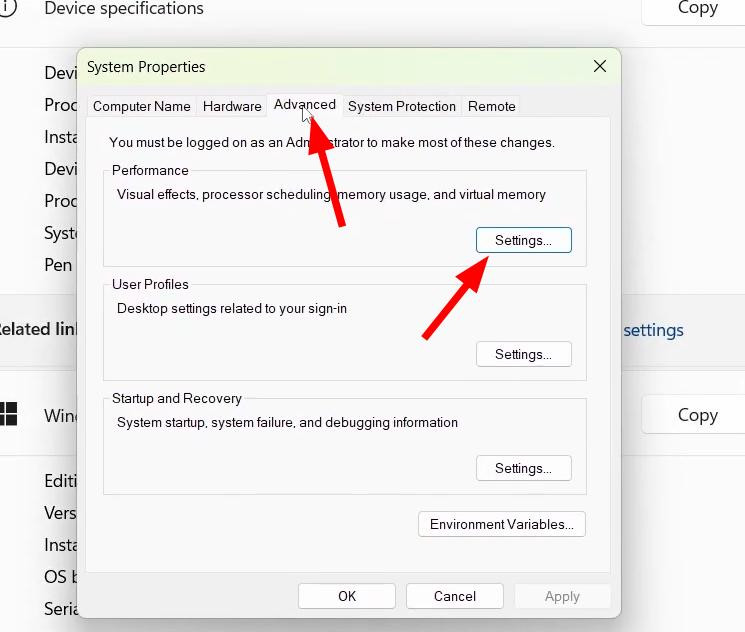
In the «Advanced» tab, find the «Performance» section and click on «Settings».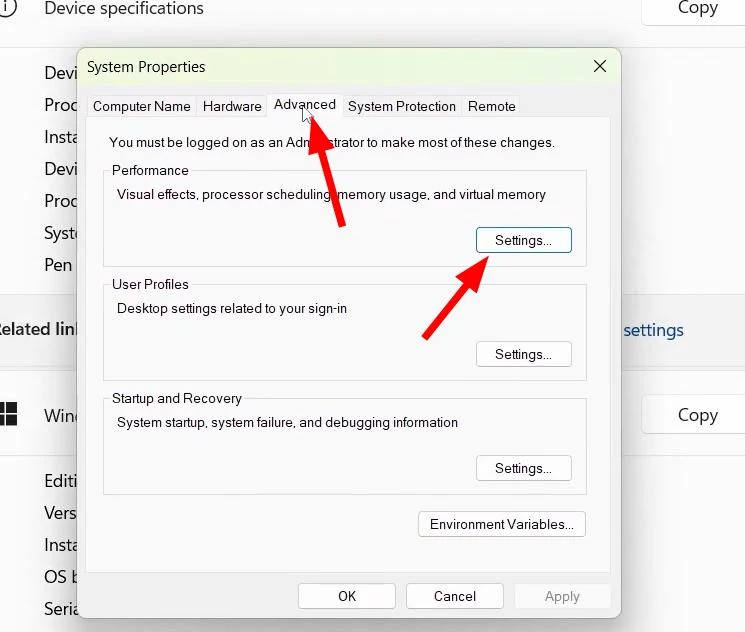
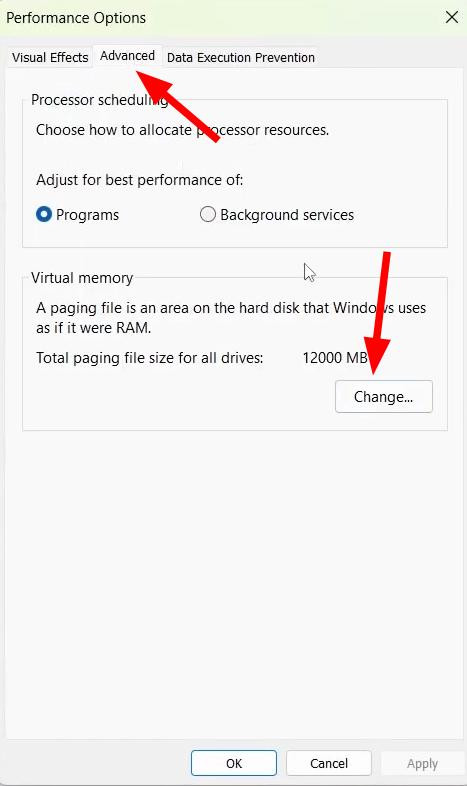
In the next window, open the «Advanced» tab again and click on «Change» in «Virtual memory».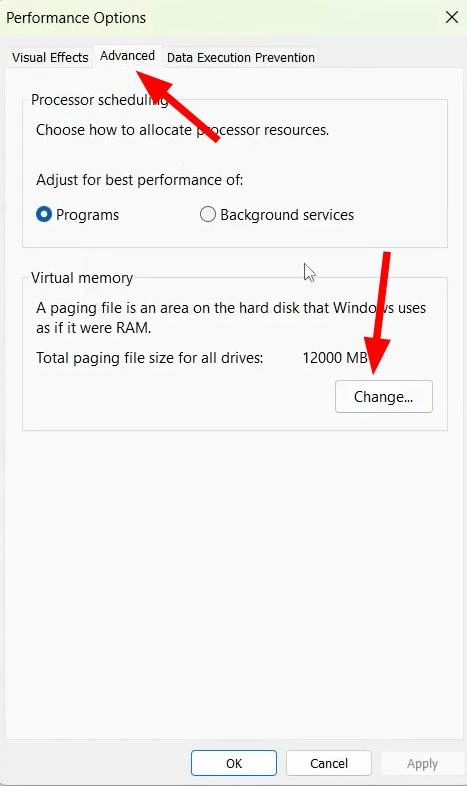
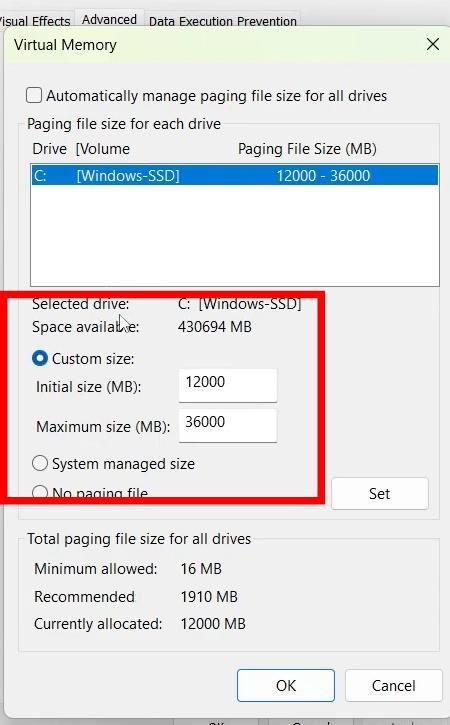
Check whether the check mark is set in front of the «Automatically manage pagging file size for all drivers» option.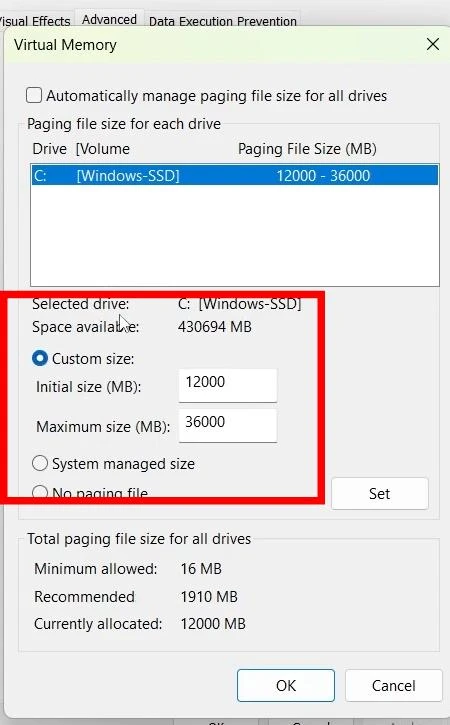
If the check box is not present, check it. Below enter a larger RAM value, try to change the values.
Then save the changes and restart the computer.
4. Disabling third-party programs
Some third-party utilities also interfere with GTA 5. You may have installed antivirus, firewalls and ad blockers.
Before launching the game, close such programs completely, as they can consume a lot of RAM and load the processor, which may affect the performance of the game afterwards. You can do this via the task manager (CTRL+SHIFt+ESC, or CTRL+ALT+DEL)
5. Disabling NVIDIA game filters
For NVIDIA video cards, the problem may be in game filter functions. This function can conflict with modes such as ENB and cause an error.
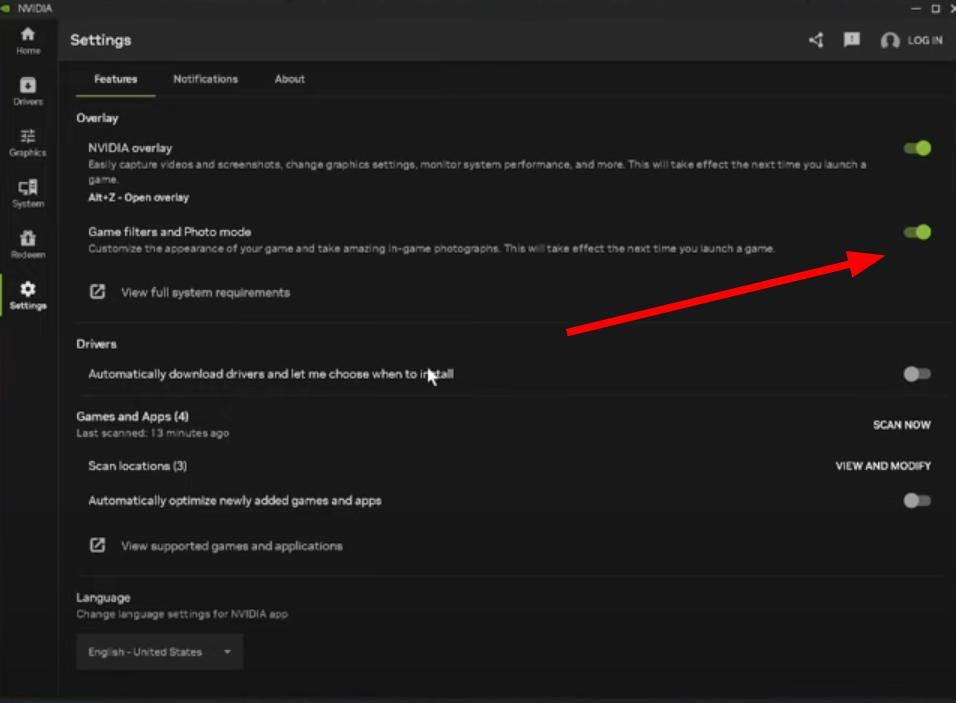
Open the GeForce Experience app.
In the settings, find «Game filters and photo mode» and turn it off completely.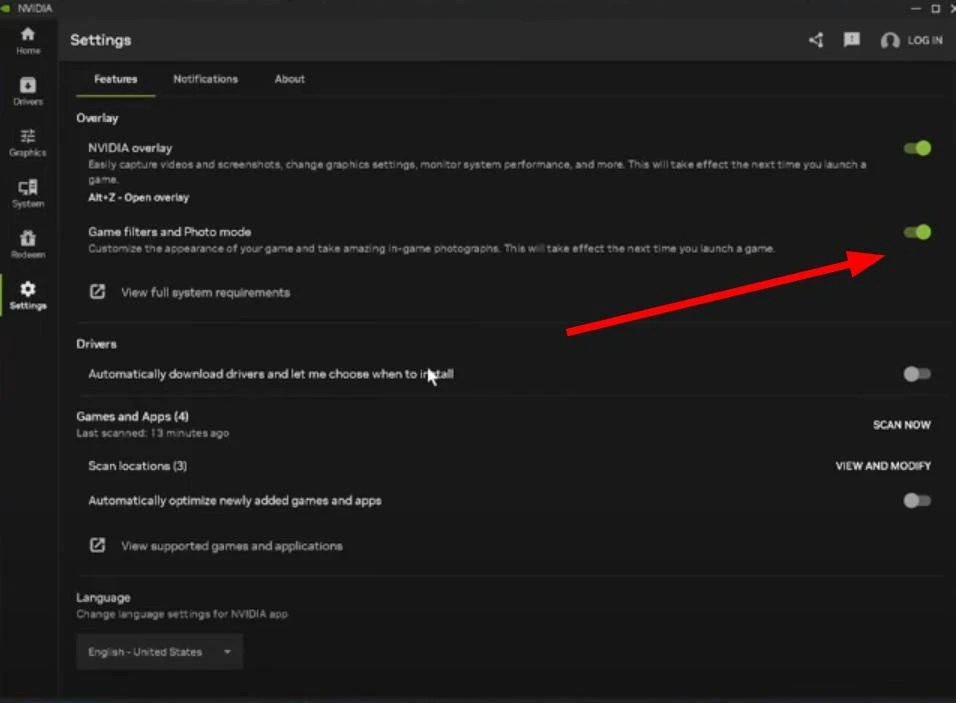
After the shutdown try to run GTA 5 again, in most cases the problem disappears.
6. Elimination of conflicting modes
Frequently installed modifications can also interfere with GTA 5.Try to temporarily disable or remove them.
After that, be sure to check the integrity of the game files in Steam or Epic Games. How to do it is written above.
Added by