How to Enable Director Mode in GTA 5: A Complete Guide
-lg_modland.jpg)
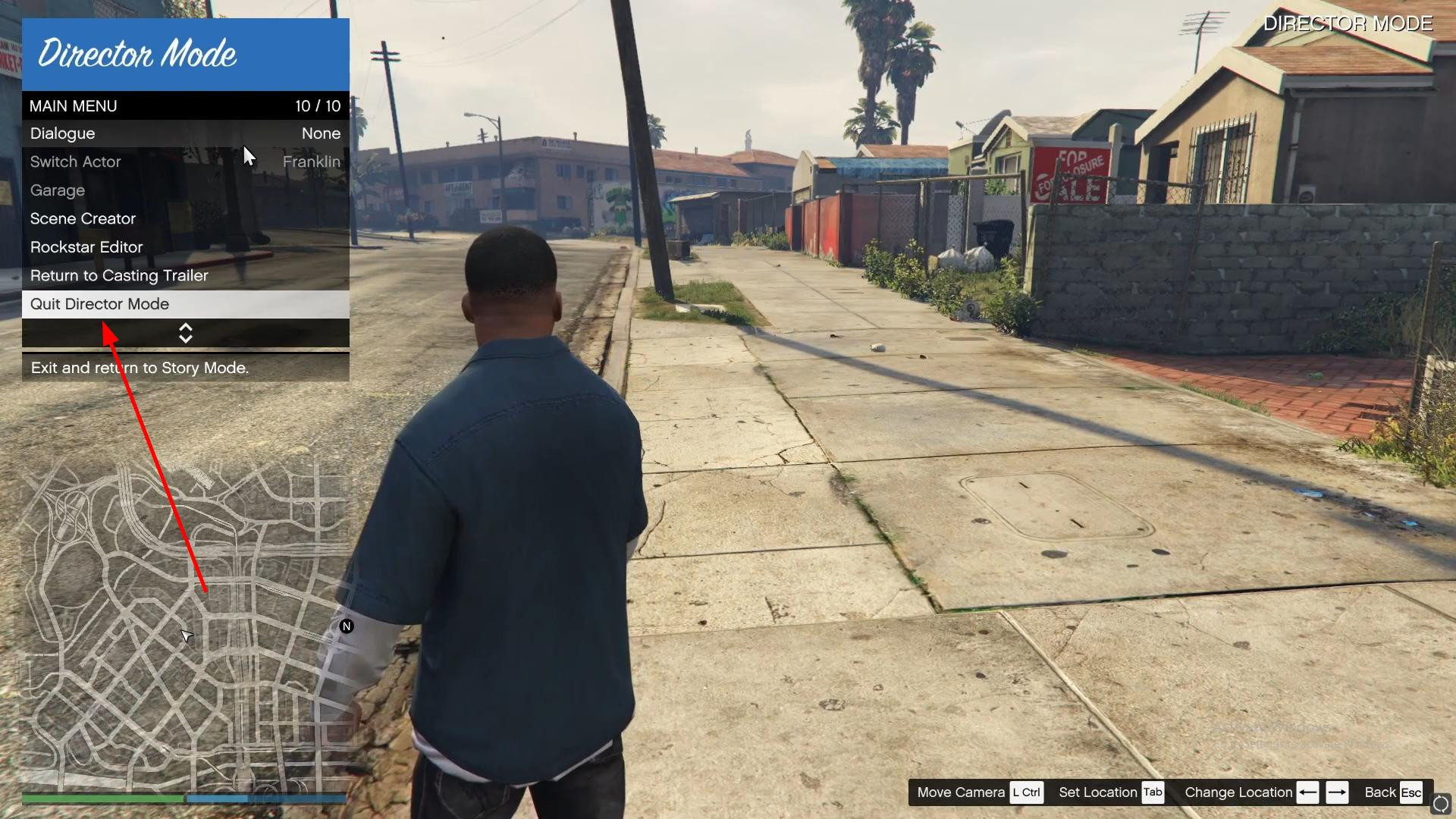
In this short guide you will learn how to start the director mode in the single-player game GTA 5.
Director mode is convenient because it gives you the opportunity to create interesting scenes, control the weather, time and various parameters. Also, you will independently direct all the actors, like a real director.
What to use these features? Here you already think up yourself. But most often the mode is used to create videos.
Open the interaction menu
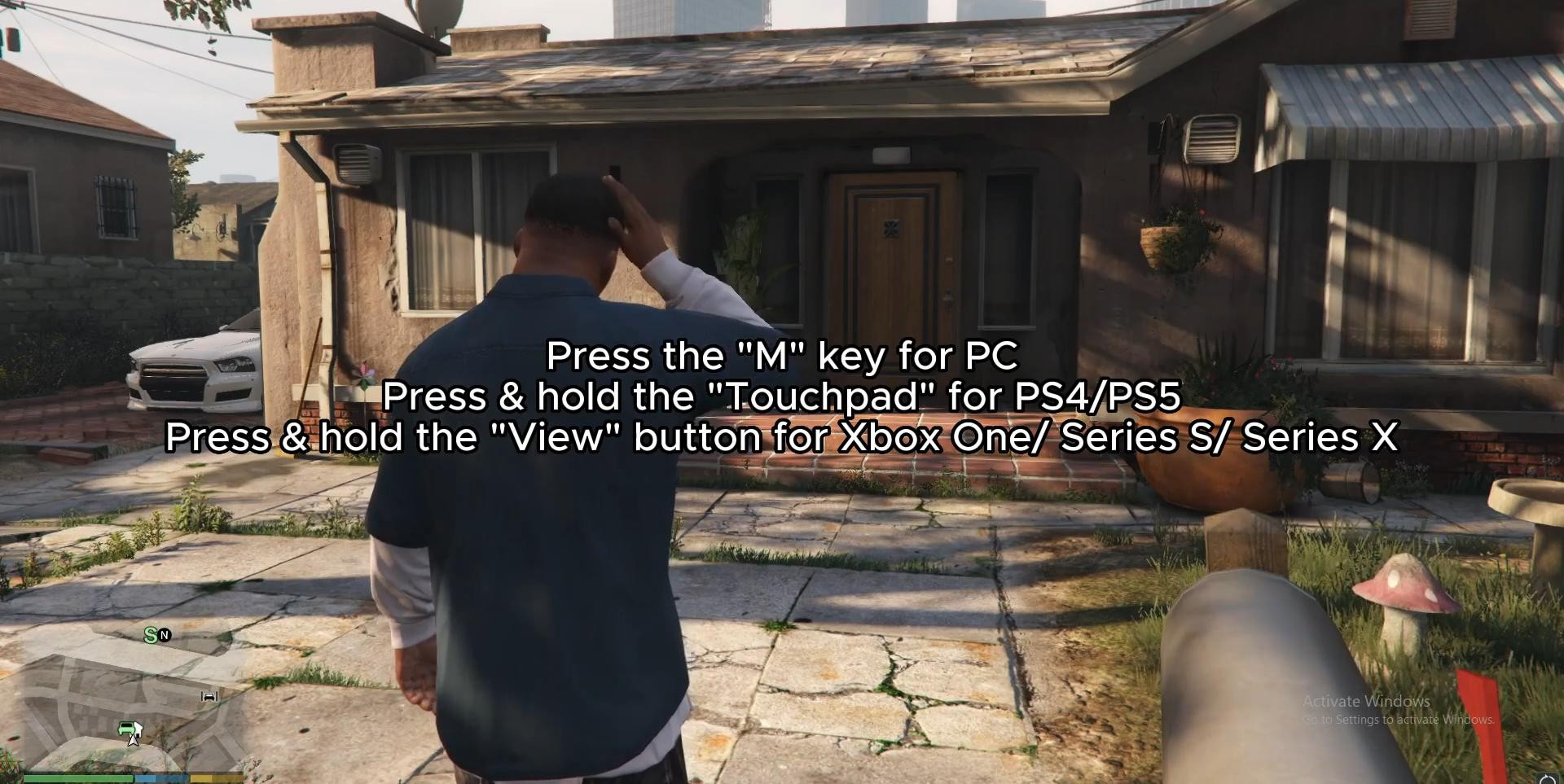
If you are playing on PC, press the M key to open the interaction menu.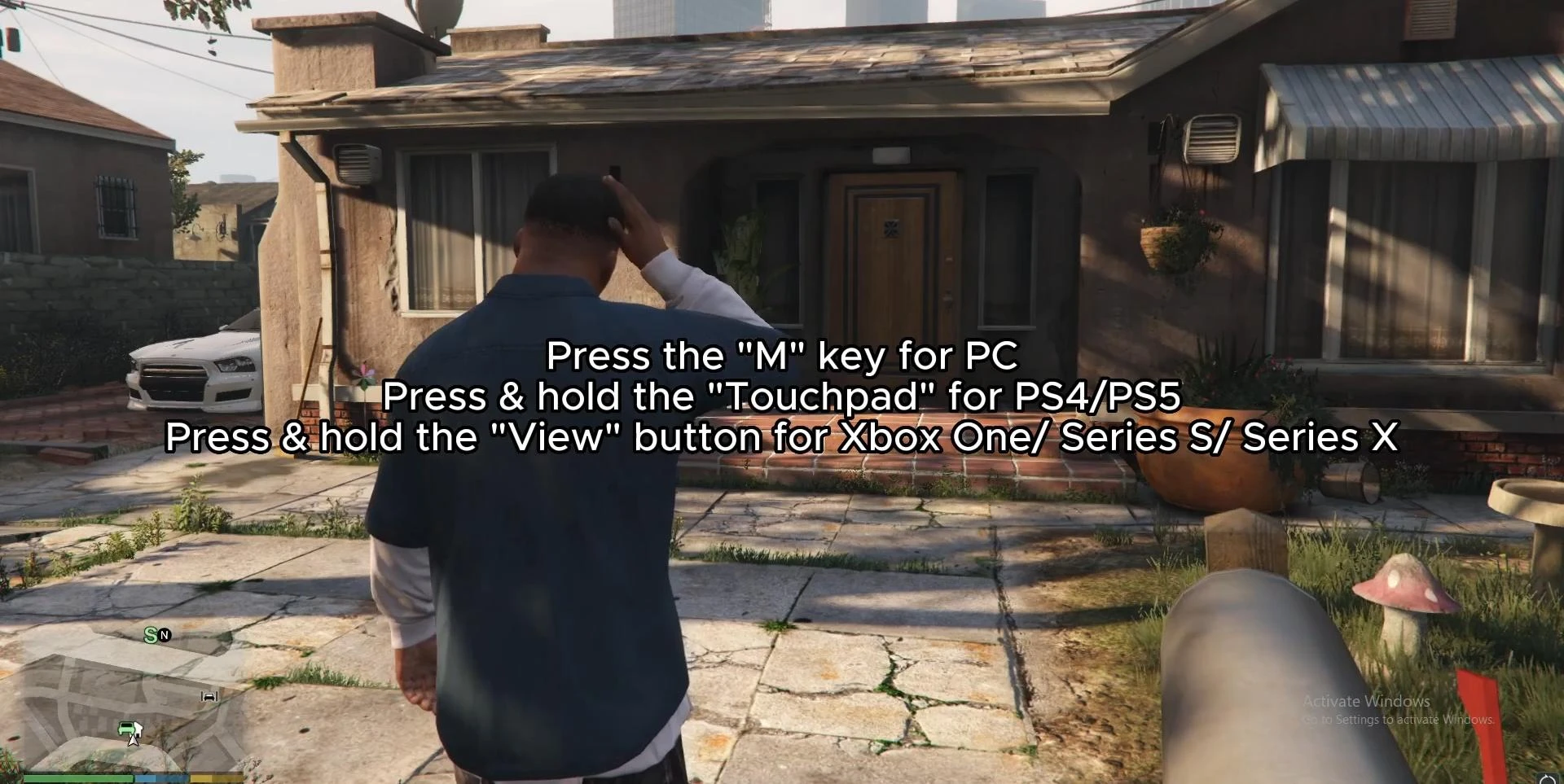
On PlayStation, press and hold tap on the touchpad, and on Xbox, press the View button (to the left of the Xbox button).
Launching Director Mode
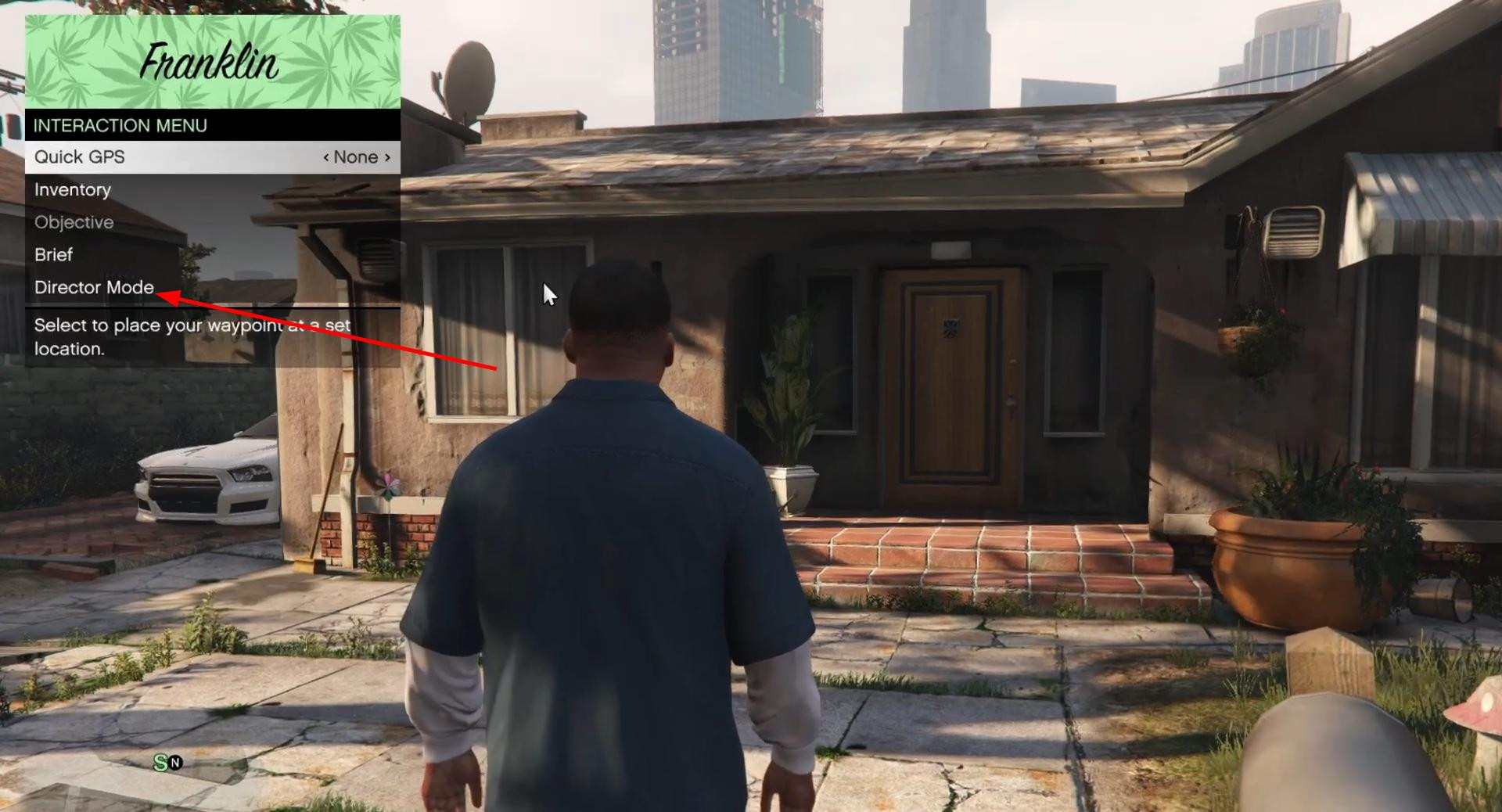
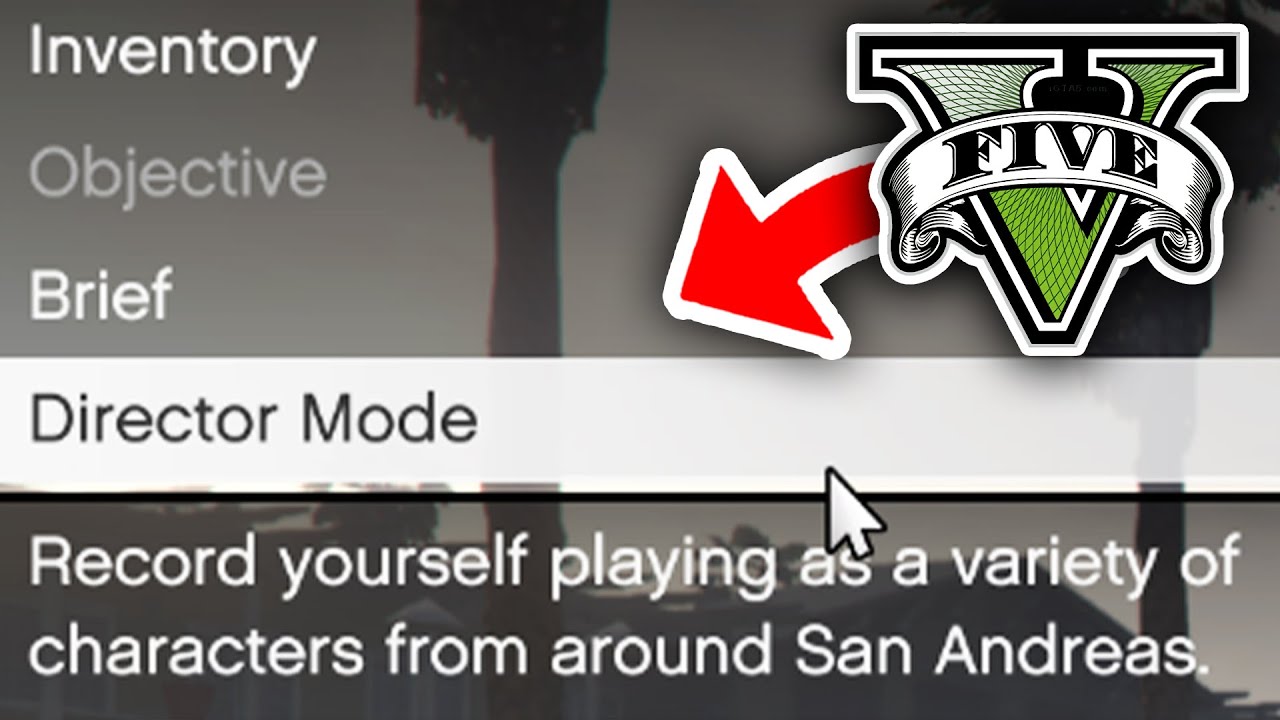
In the interaction menu, scroll down and find "Director Mode".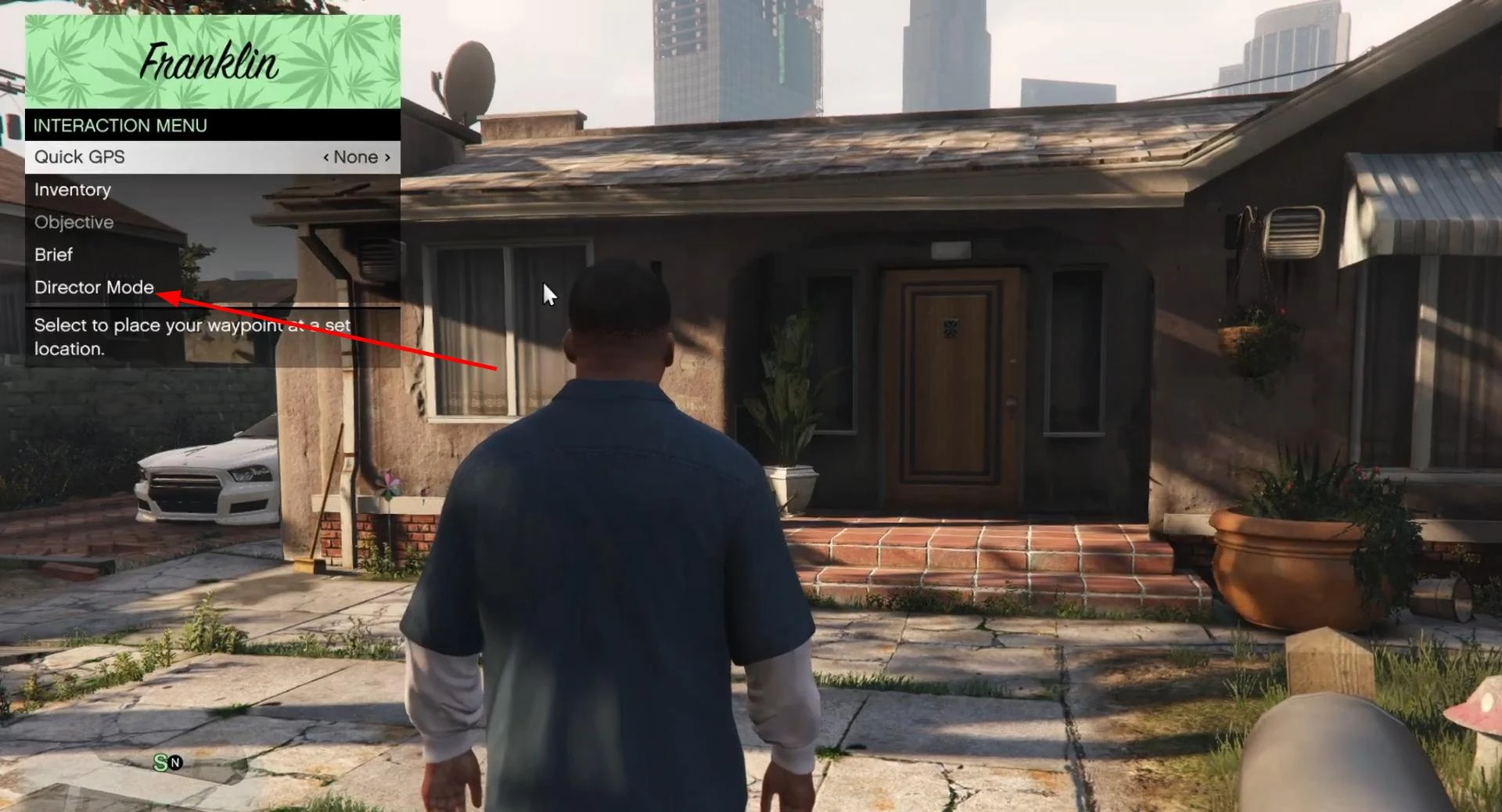
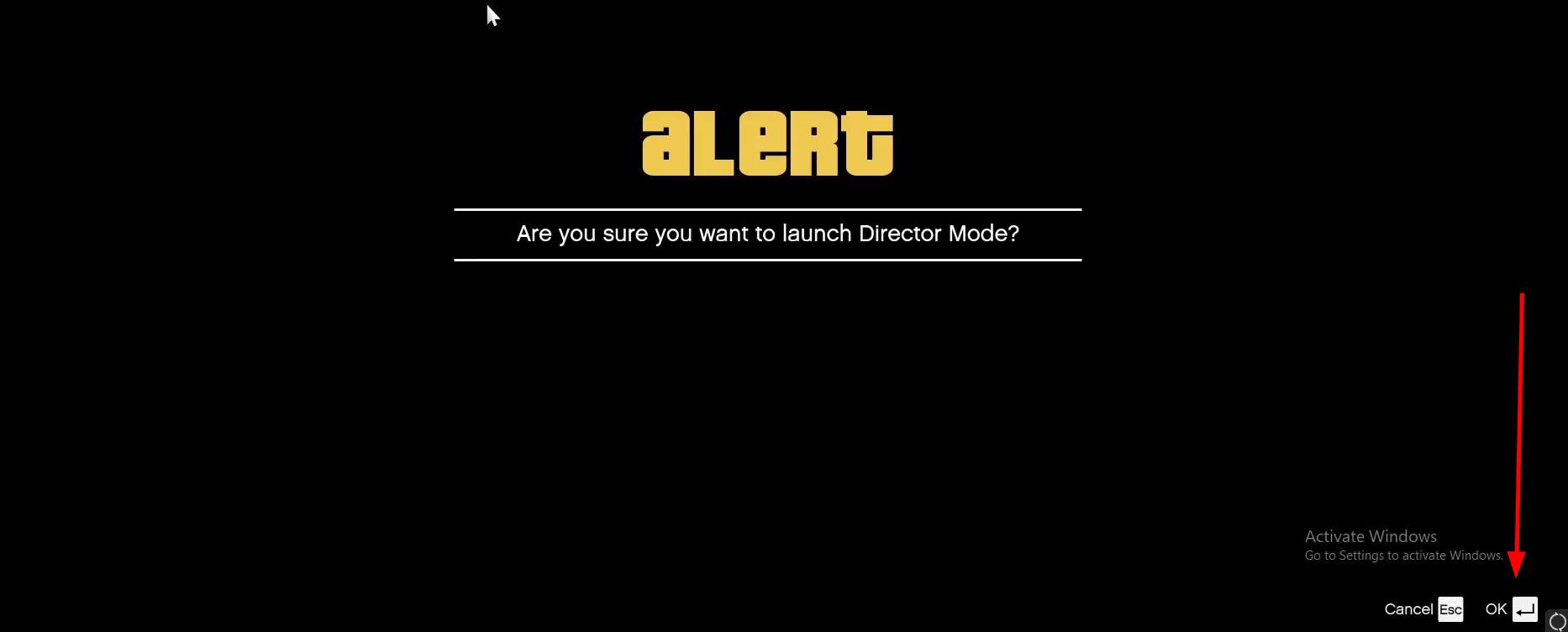
Select it, then confirm your entry.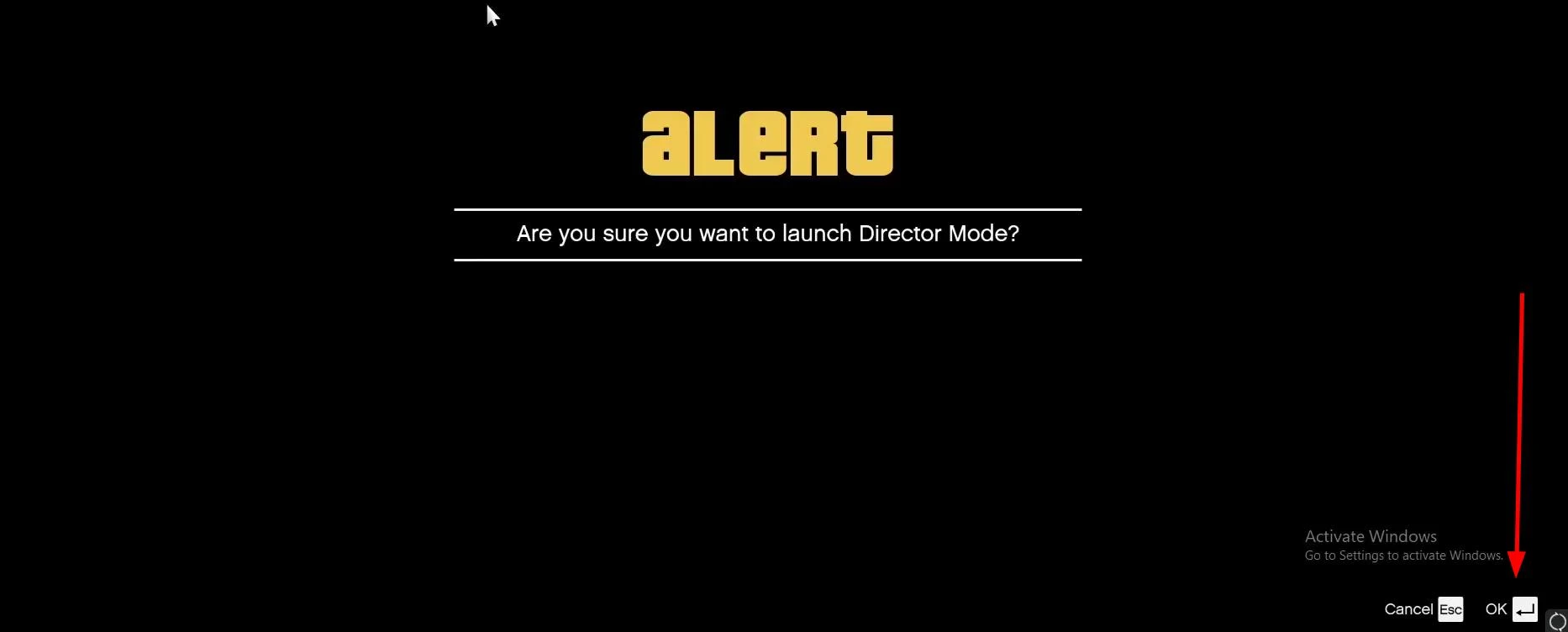
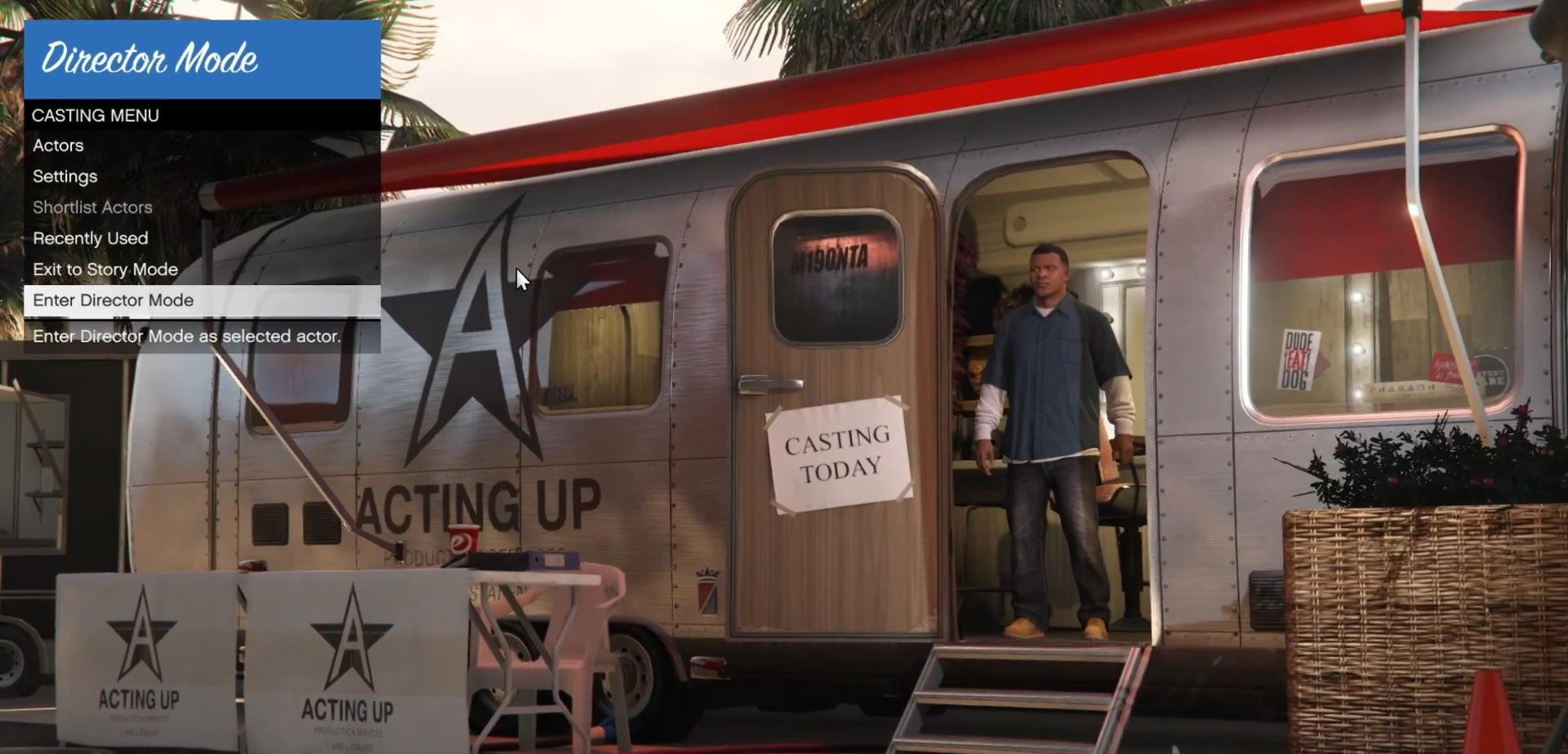
After that, you'll be taken to the casting trailer. This is the starting area from where you can select the characters you'll be playing with.
Selecting actors and settings
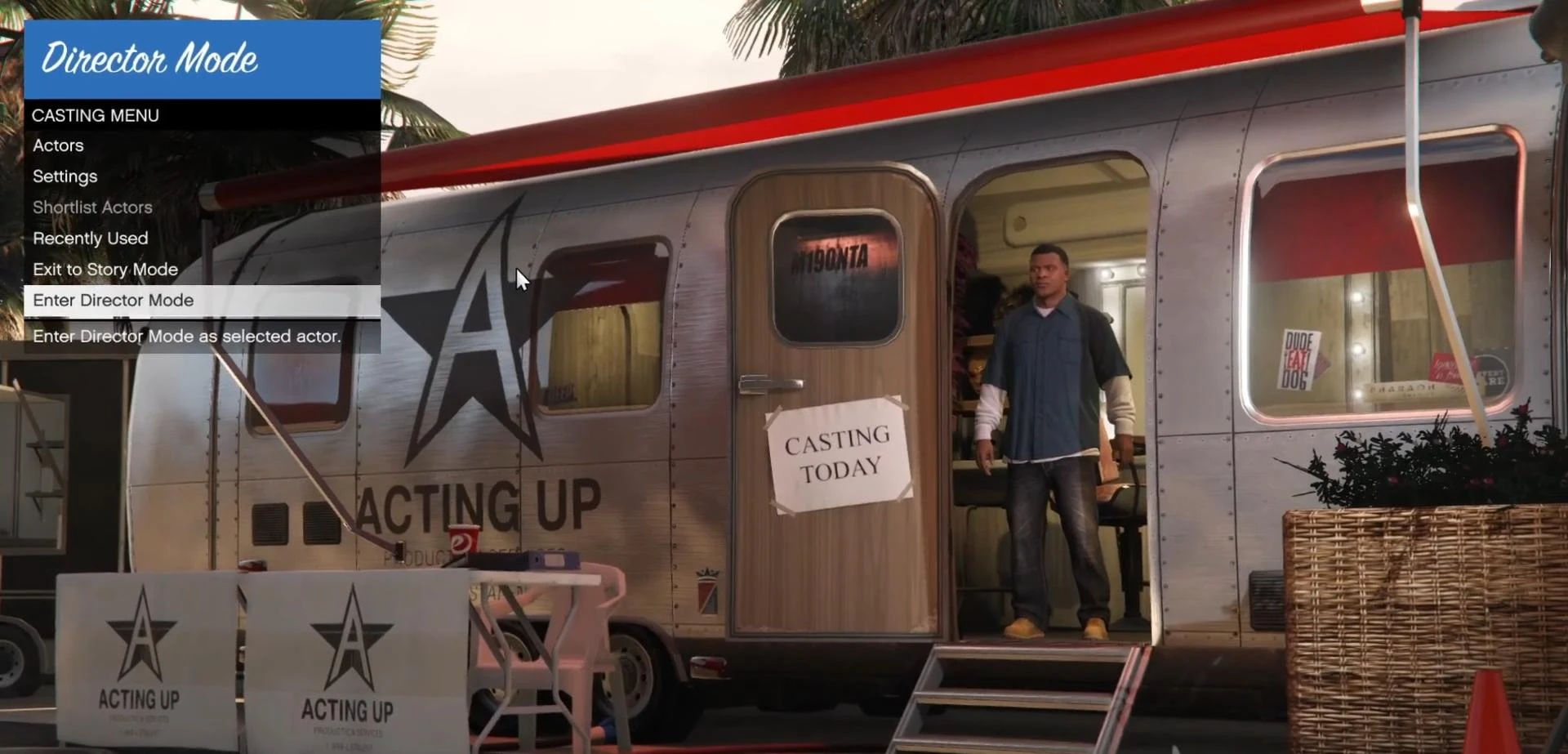
In the casting trailer you can select:
- Playable characters from the story
- Online characters
- Animals (if you have collected the appropriate plants in the game)
- Pedestrians, cops, bandits and other NPCs
You can also change settings here - time of day, weather, search level, NPC behavior and more.
Entering Director Mode itself
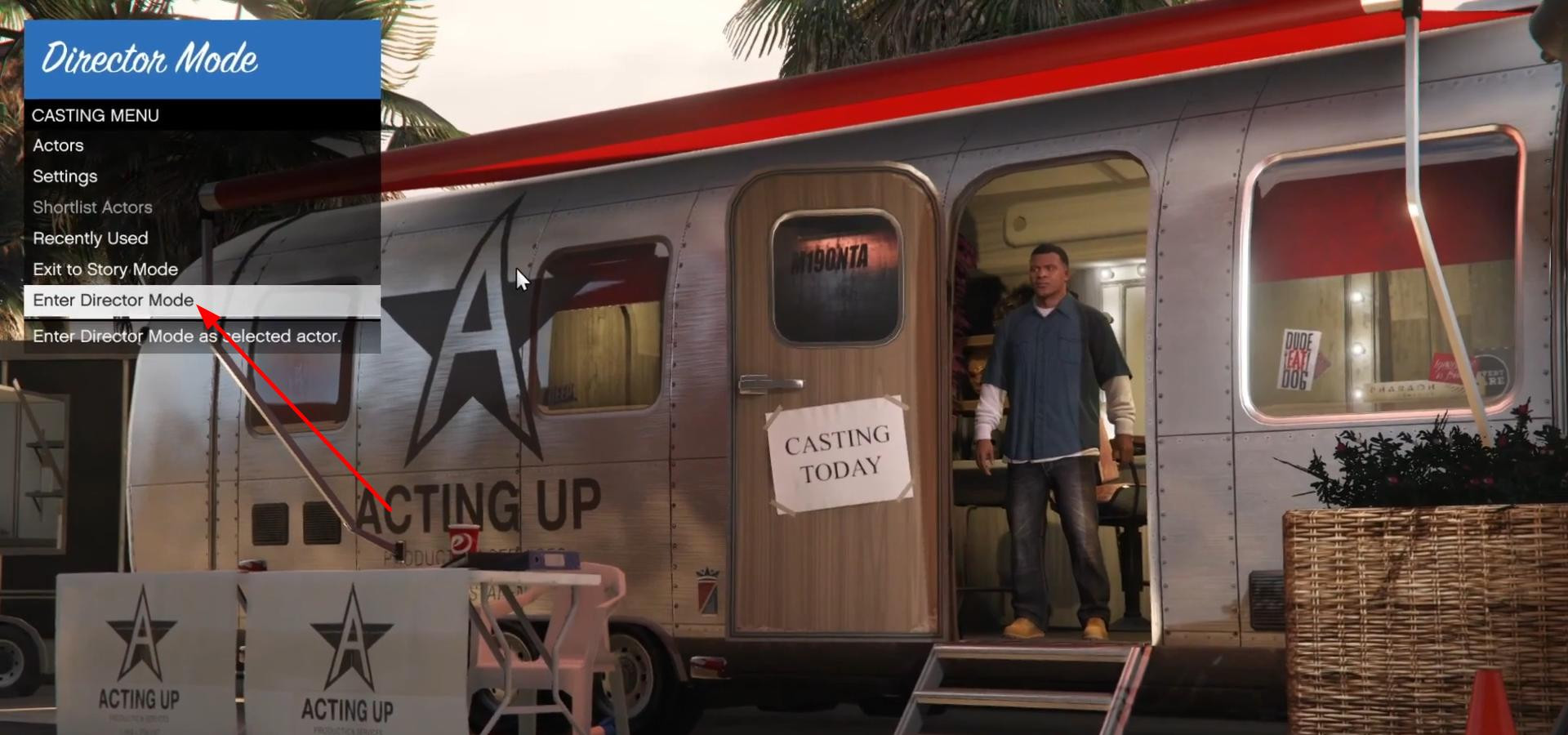
After selecting an actor and the desired settings, scroll down and click "Start Director Mode".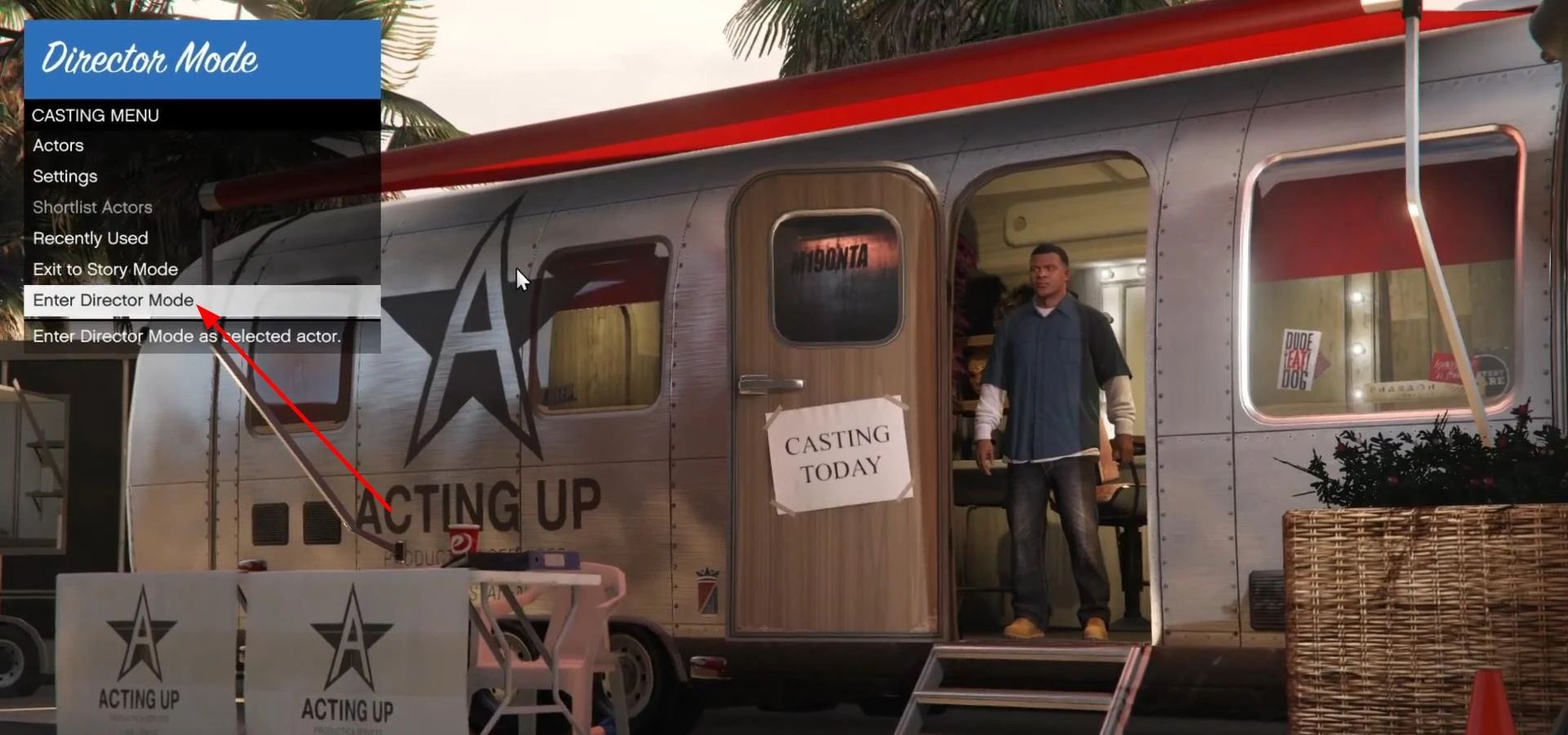
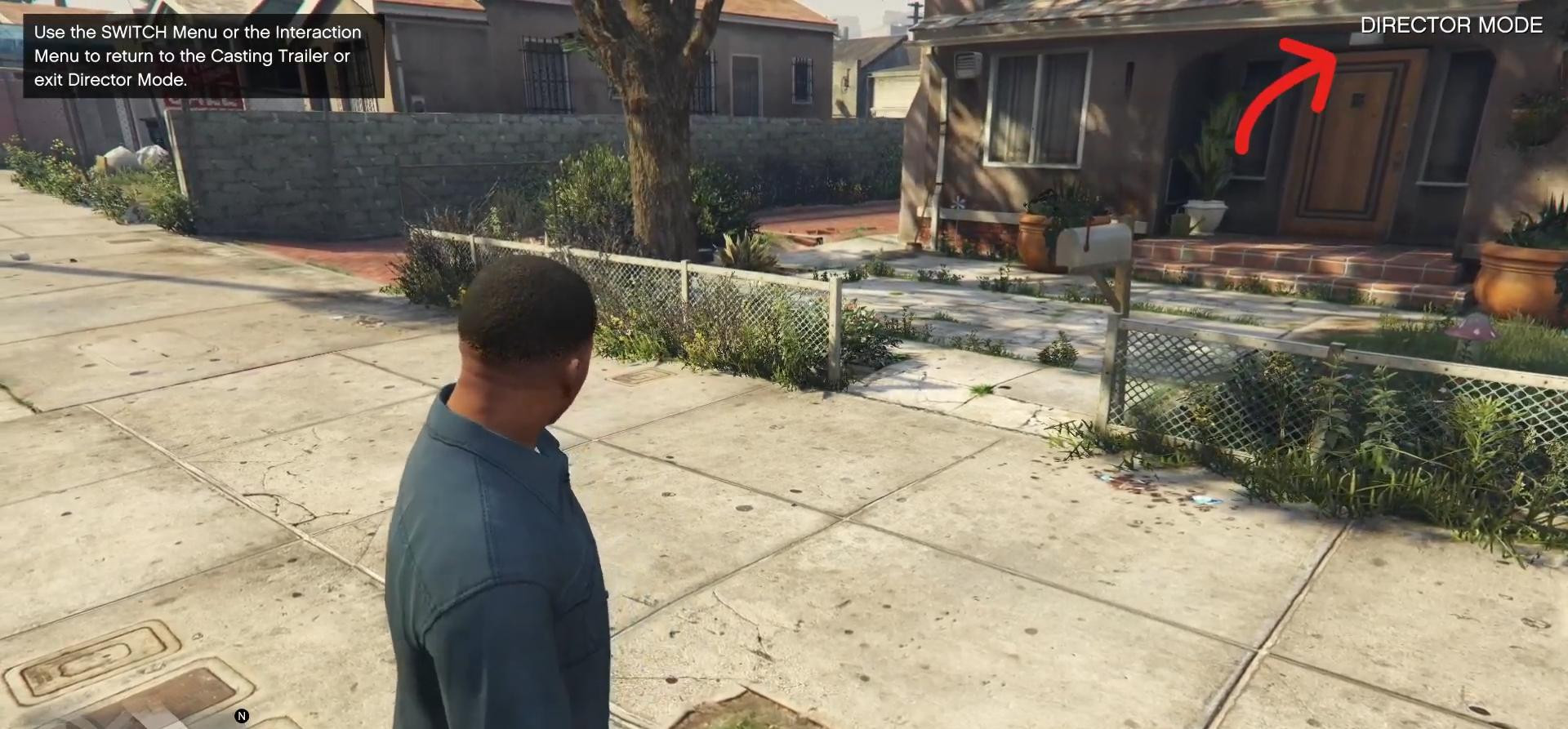
You'll see "Director Mode" appear in the upper right corner - you're now in Director Mode.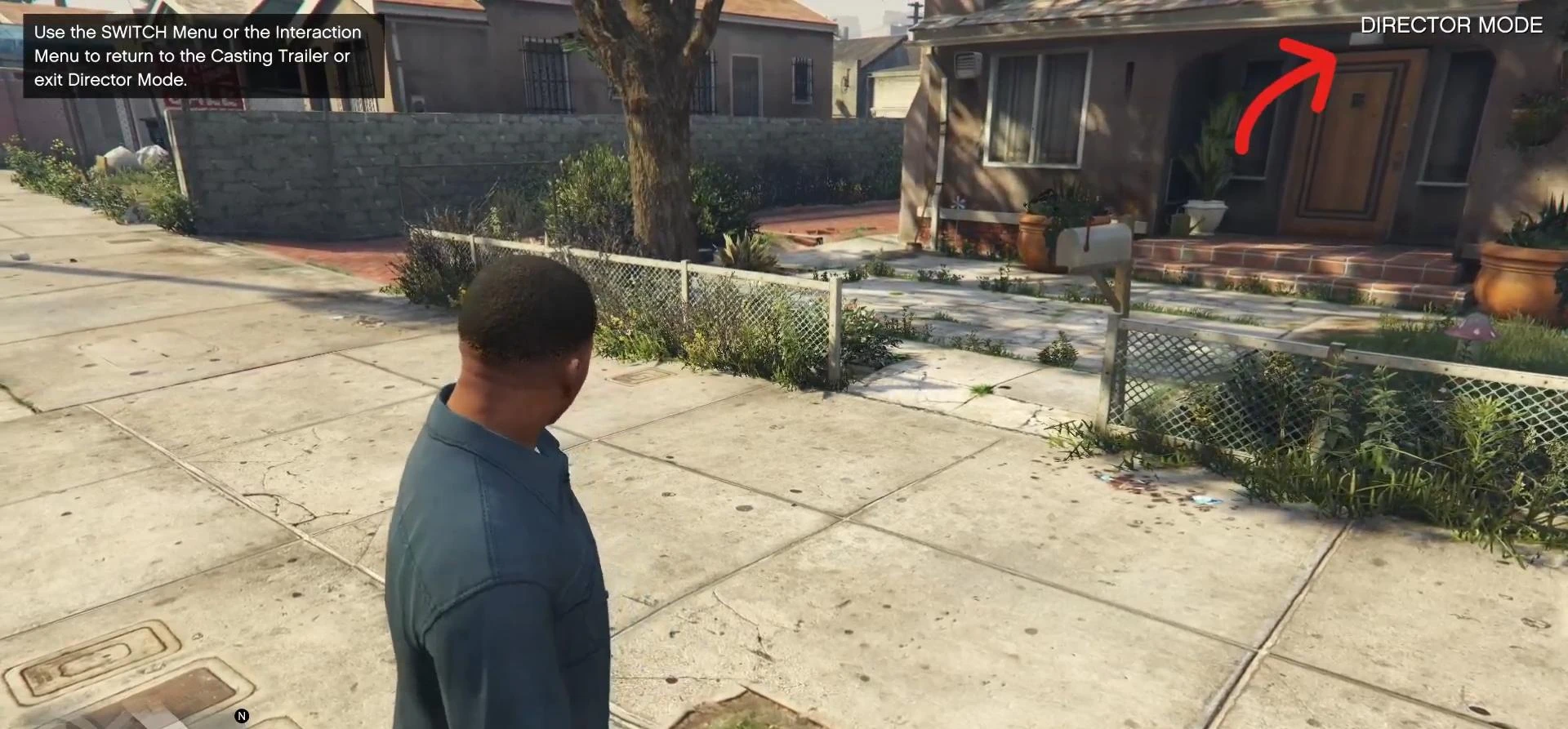
While playing in director mode, you can reopen the interaction menu and customize additional scene settings.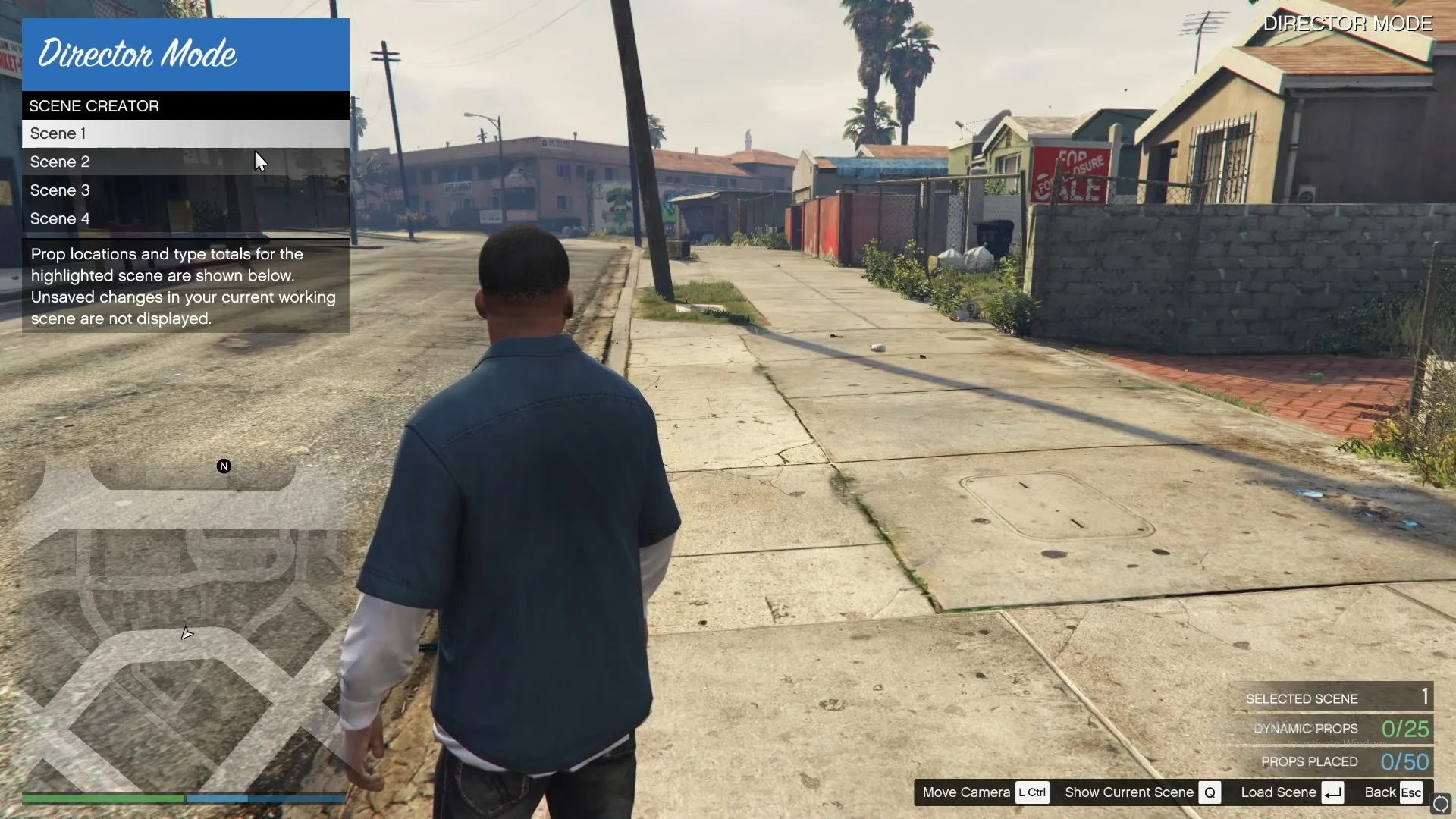
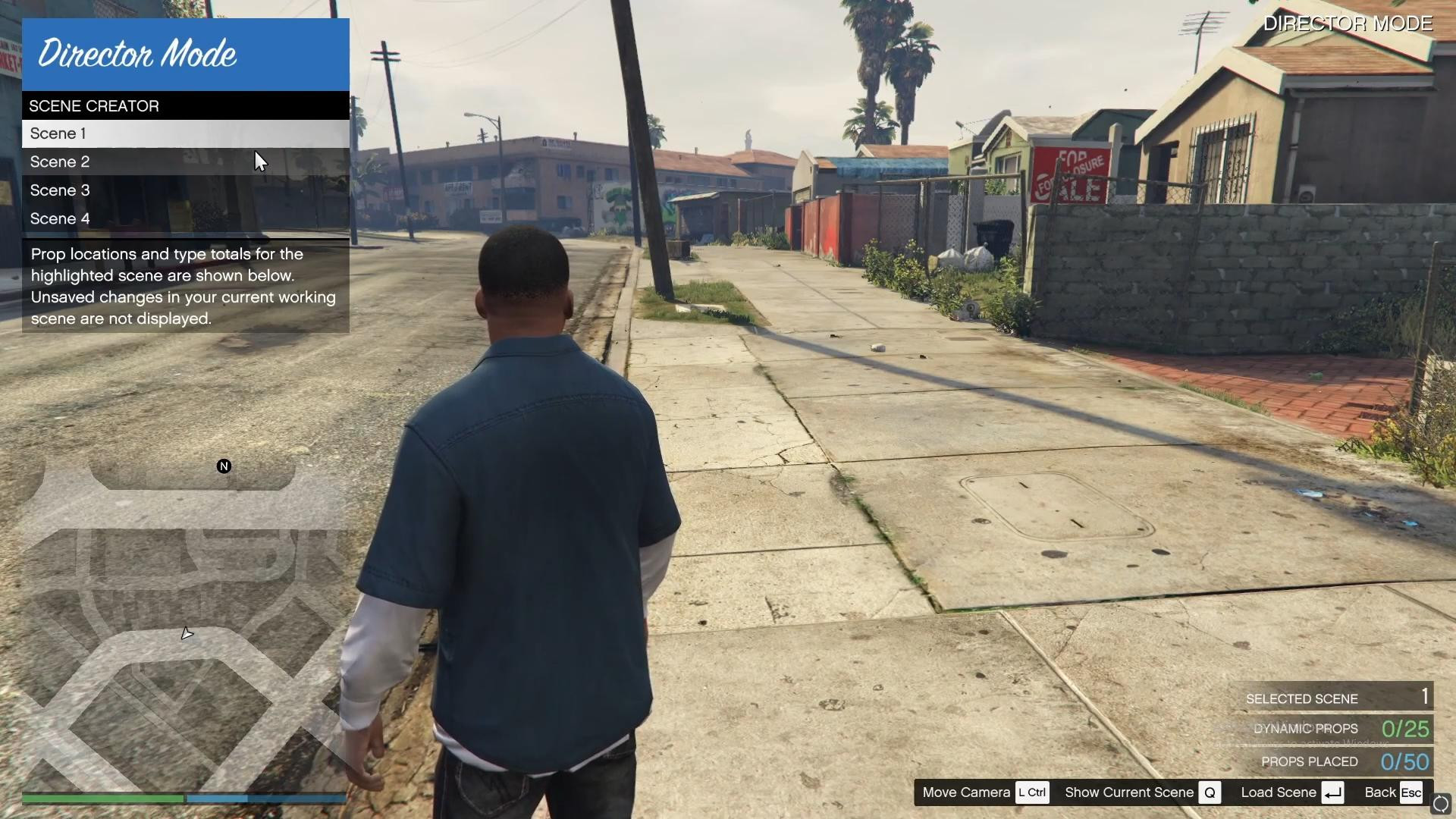
There is also a special tool called Scene Creator. In it you can place objects, cars, people and build your own scenes. If your goal is to create an interesting video, it will definitely come in handy.
How to exit
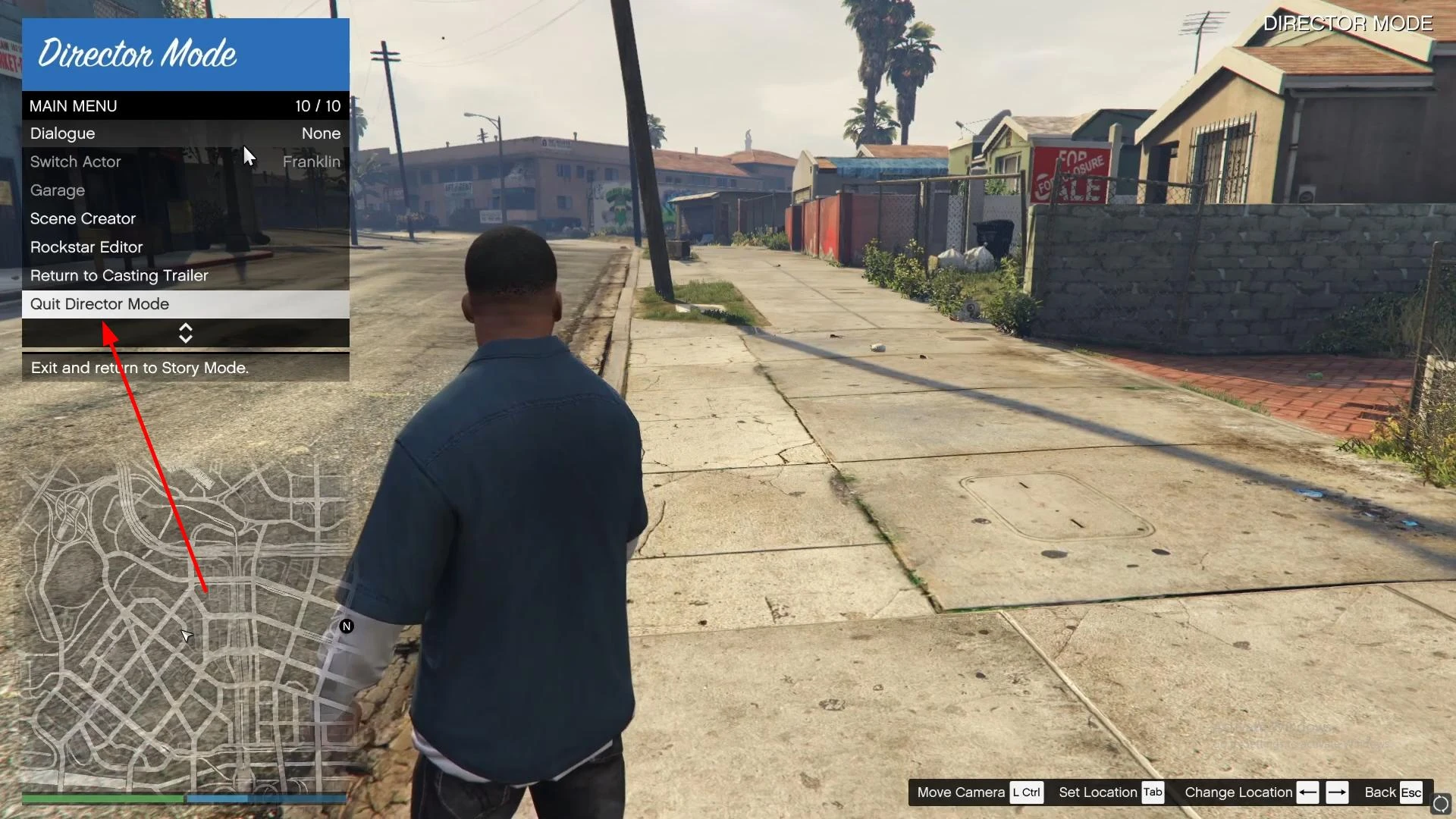
When you're done shooting, go back to the interaction menu, select "Exit Director Mode", or go back to the Cast Trailer to change your character or settings.
Videos
Added by