How to Install and Remove Car Mods in Assetto Corsa EVO
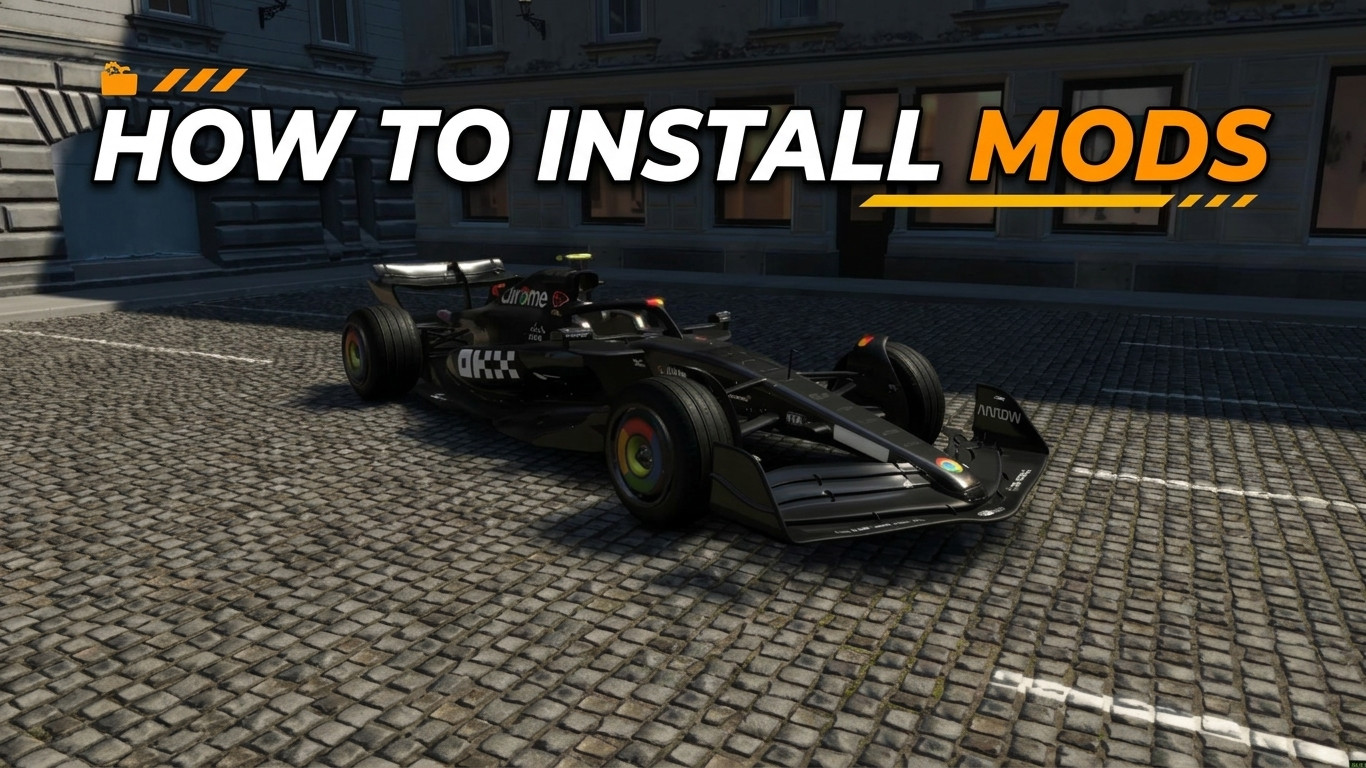
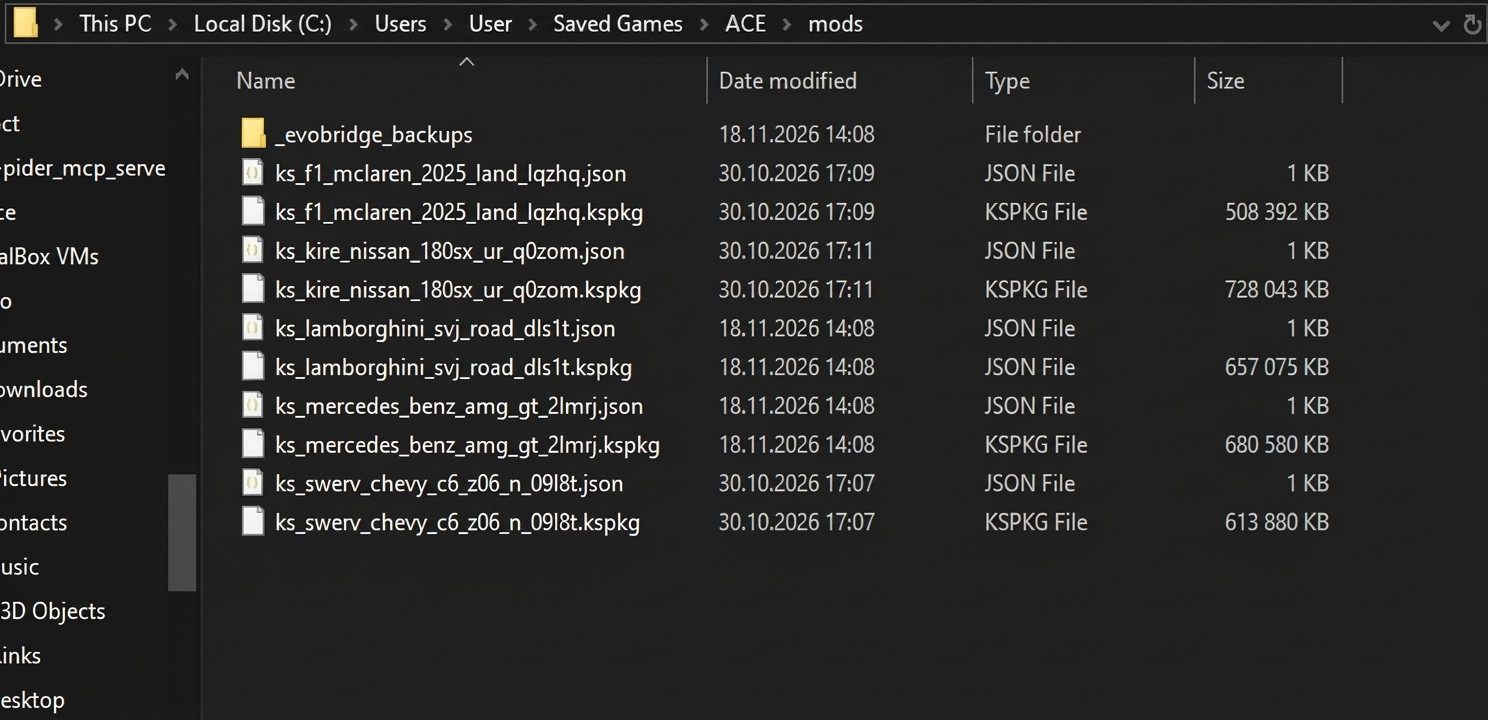
Car mods for Assetto Corsa EVO usually come as a ZIP archive with two files inside: a .kspkg file, which is the car itself, and a .json file with its description. The game needs both. This guide shows how to install a car mod, how to remove it, and what to check if the car does not appear in the game.
Before you start
You only need Assetto Corsa EVO. The original Assetto Corsa and Content Manager are not required. Make sure the game is closed while you work with the files.
Installing a car mod
1. Close Assetto Corsa EVO completely.
2. Extract the ZIP archive into any folder. Do not copy the archive itself into the game folder.
3. Open C:\Users\<your name>\Saved Games\ACE. If there is no folder called mods, create one and name it in lowercase.
4. Copy both the .kspkg file and the .json file into the mods folder.
5. Start the game and open the car list. The new car should appear together with the other cars.
Tip: press Win+R, paste %USERPROFILE%\Saved Games\ACE\mods and press Enter to open the folder directly. On a Russian version of Windows this folder is shown as "Сохранённые игры".
Removing a car mod
1. Close the game.
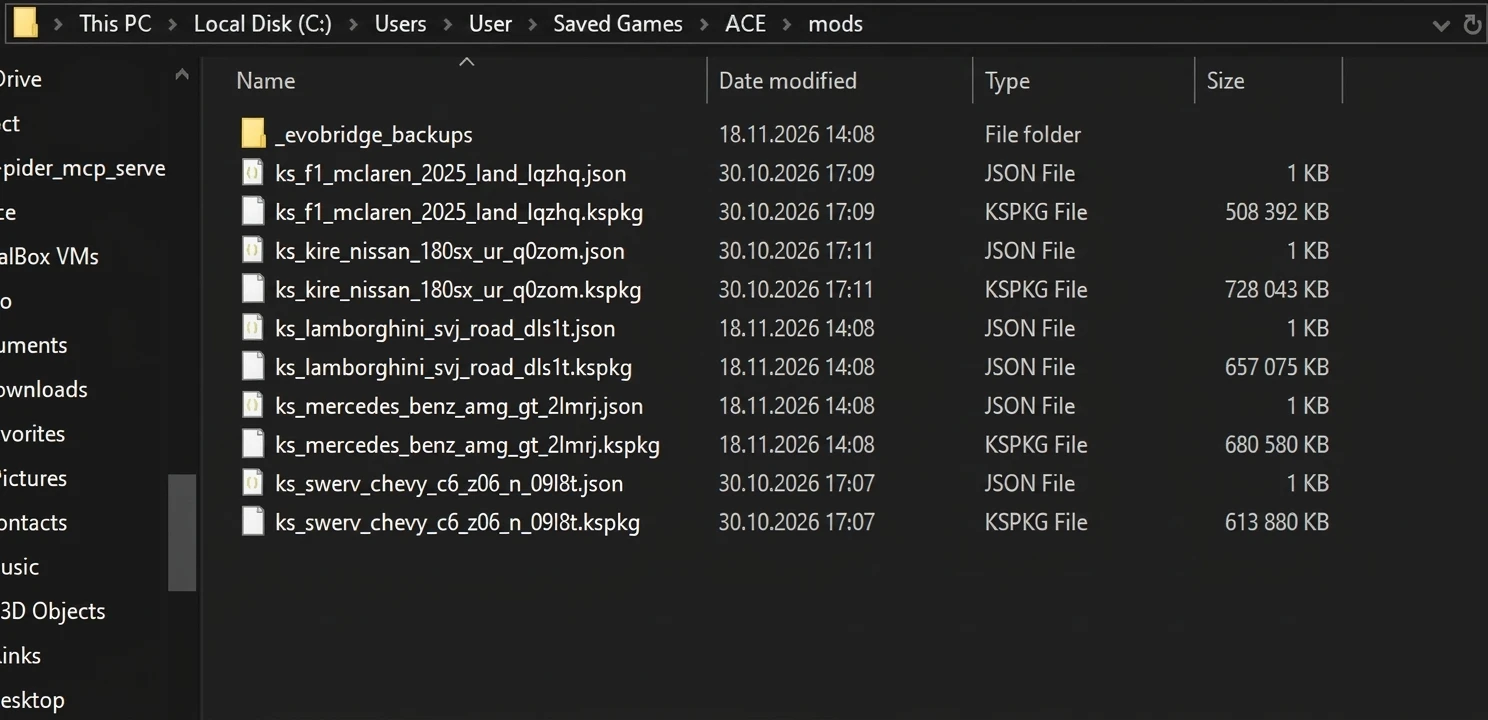
2. Open the same mods folder.
3. Delete the .kspkg and .json files of that car. They have the same name, so they are easy to find.
4. Start the game. The car is gone.
If the car does not show up
- Check that the folder is named exactly mods, in lowercase, and that it is inside ACE.
- Both files must be directly in the mods folder, not inside a subfolder.
- Make sure you extracted the archive and did not copy the ZIP file itself.
- The .kspkg and .json must belong to the same car. Do not rename them.
- Restart the game. It reads the mods folder only when it starts.
- Check that the mod was made for your game version. After a big update some mods stop working until the author updates them.
- If the game crashes on start, move the new files out of the folder and start again. If it works, that mod was the cause.
Added by