How to Install Car and Track Mods for Assetto Corsa?
 (1)-lg_modland.jpg)
Mods in Assetto Corsa turn the racing simulator into a universal platform for motorsports. Thanks to the community of players, a variety of tracks, cars, weather effects and visual improvements can be added to the game. However, for the stable operation of custom content, it is necessary to properly organize the installation process.
Before you start installing mods, it is recommended to use Content Manager - an alternative launcher for Assetto Corsa. It has much more possibilities compared to the standard game launcher. It is convenient to manage mods, customize graphics, start races and control the installed improvements.
Together with Content Manager you need to install Custom Shaders Patch (CSP), which adds a lot of graphical and technical features to the game. It is a mandatory component for most modern mods. Additionally, the Sol mod is installed, which is responsible for the realistic display of time of day, clouds, light and weather conditions.
Mod formats and archive structure
Mods for Assetto Corsa can contain separate cars, tracks or be full-fledged compilations with many elements. In most cases, the mod is delivered as an archive - .rar, .zip, .7z. It contains either a single folder with content, or directory “content”, including subfolders: “cars”, “tracks”, “fonts”, “extension” and others.
For correct operation it is important to follow the installation structure. Incorrect location of files or excessive nesting will lead to the fact that the mod will simply not be displayed in the game.
Manual installation of cars in Assetto Corsa
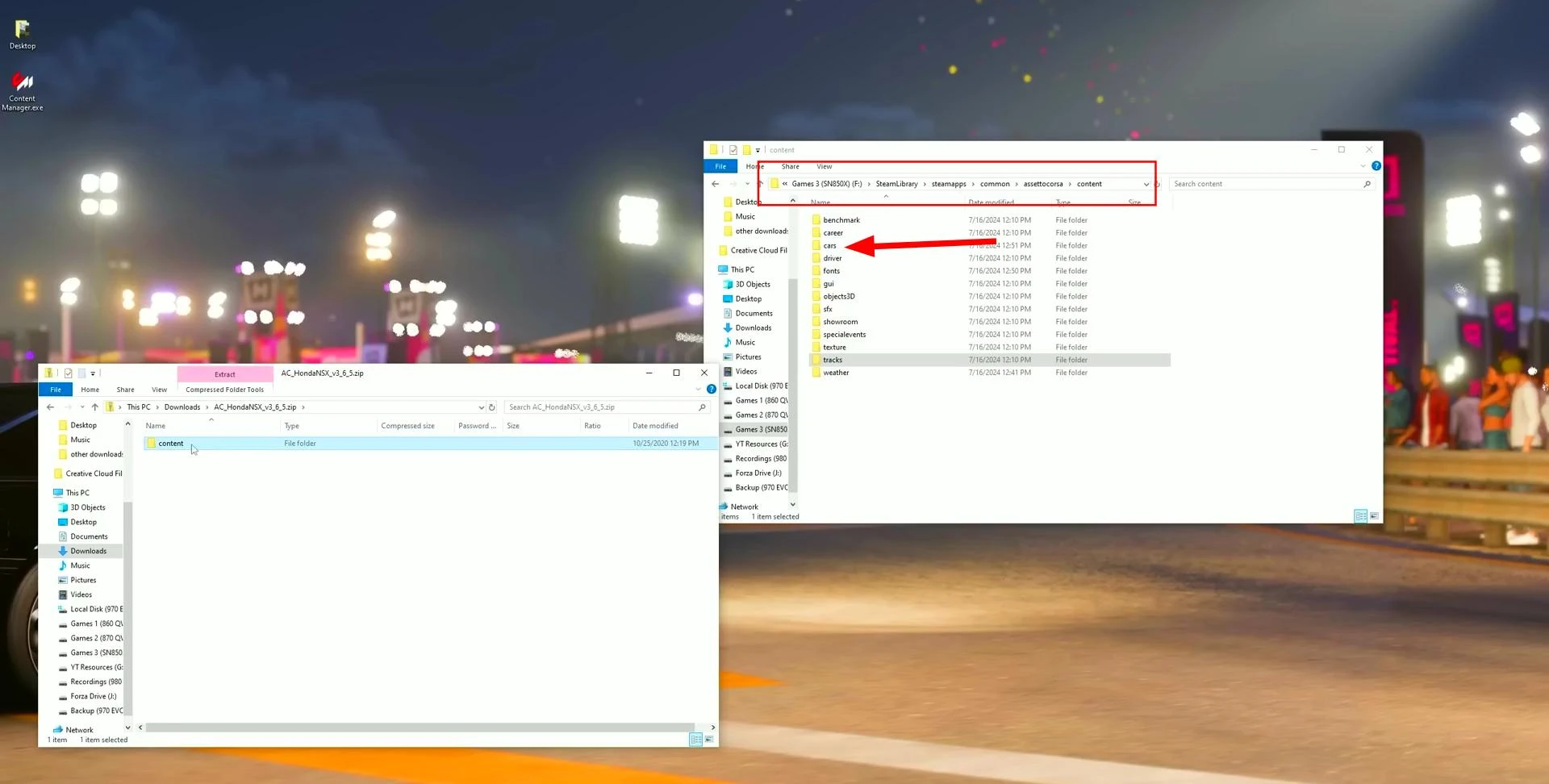
Most car mods for Assetto Corsa come as separate archives. Therefore, in most cases, you should use the manual method of installing them into the game. This is especially true if the mod does not support automatic installation via Content Manager or has a non-standard structure. How to do this is described below:
-
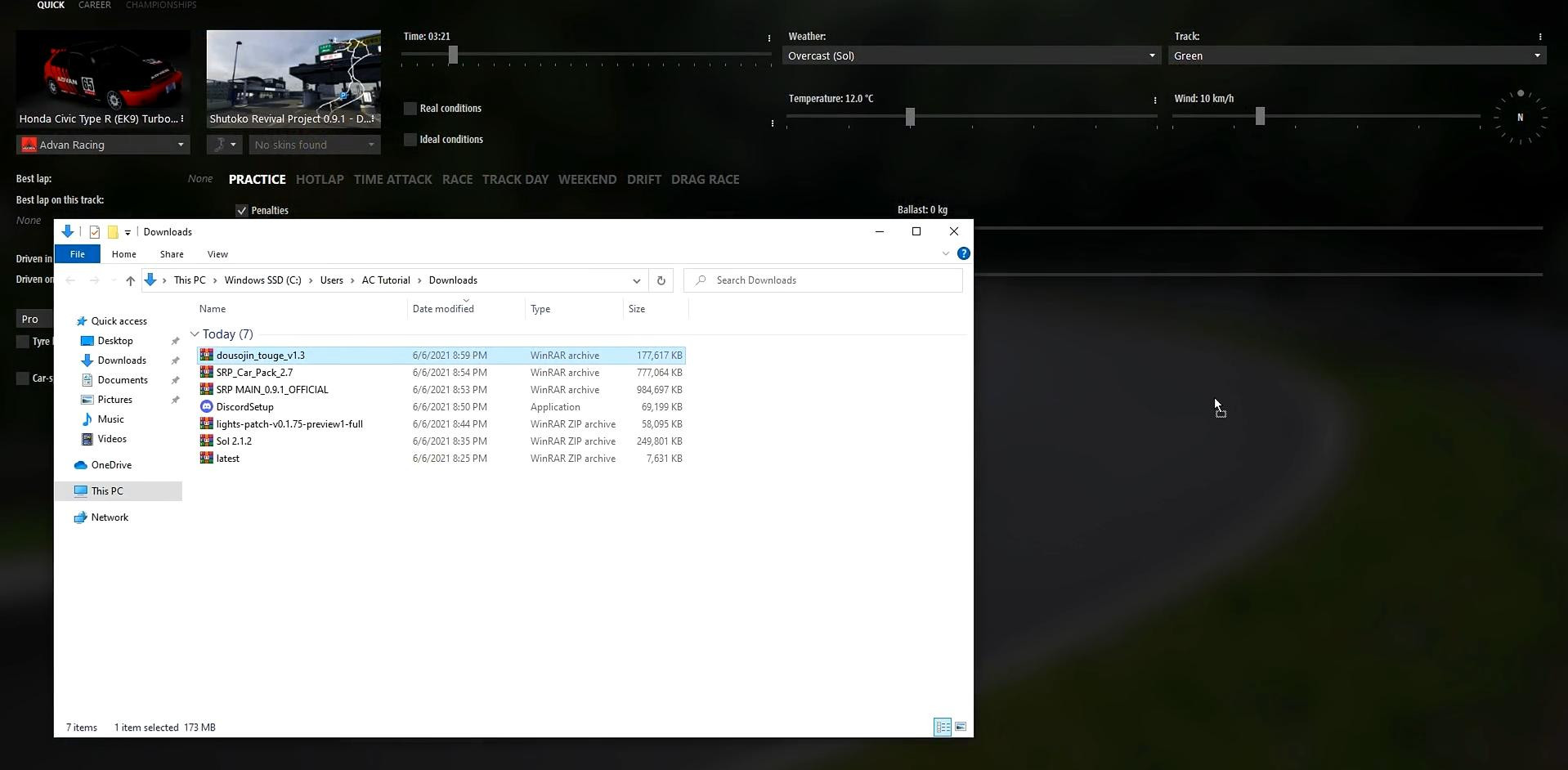
Download the archive with the desired car model. You can do this by going to the Assetto Corsa mods section on ModLand.
-
Unpack it using any archiver (for example, 7-Zip or WinRAR). Inside the archive, as a rule, there is a folder with the name of the car, for example, porsche_959_sport.
-
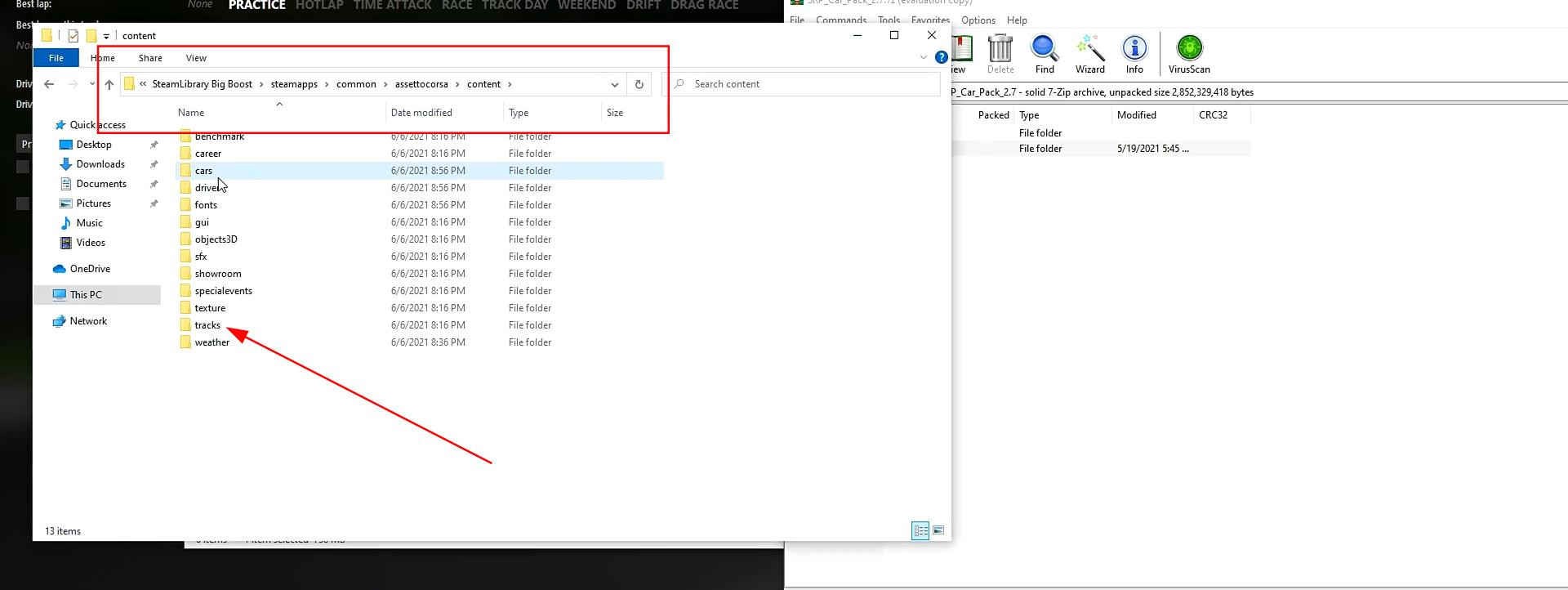
Open the directory where Assetto Corsa is installed. By default the path looks like this: Steam/steamapps/common/assettocorsa/.
-
Inside the main game folder, open the "content" folder, then the cars folder.
-
Copy the unpacked folder with the car to the cars folder located in the above path.
-
Done. The car should appear in the list of available cars in the game (or in Content Manager, if it is installed).
To make sure that the installation was successful, it is recommended to run a quick race and check the loading of the car, as well as the correctness of its display and behavior in the game.
Manual track installation
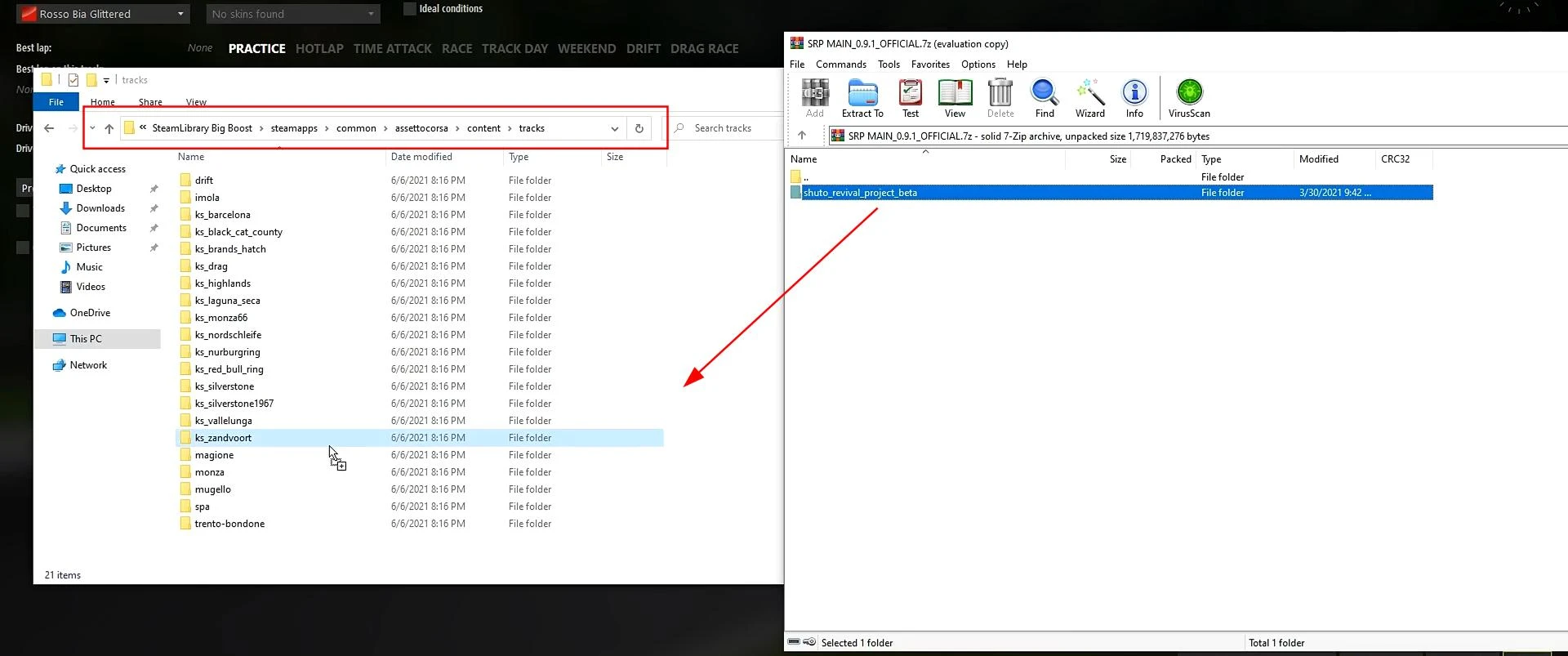
Tracks in Assetto Corsa are installed according to the same principle. To manually install a track, you need to perform the following actions:
-
Download the archive with the track from a reliable source.
-
Unzip it using an archiver (e.g. WinRAR or 7-Zip). Inside there is usually a folder with the name of the track - for example, gtav_circuit.
-
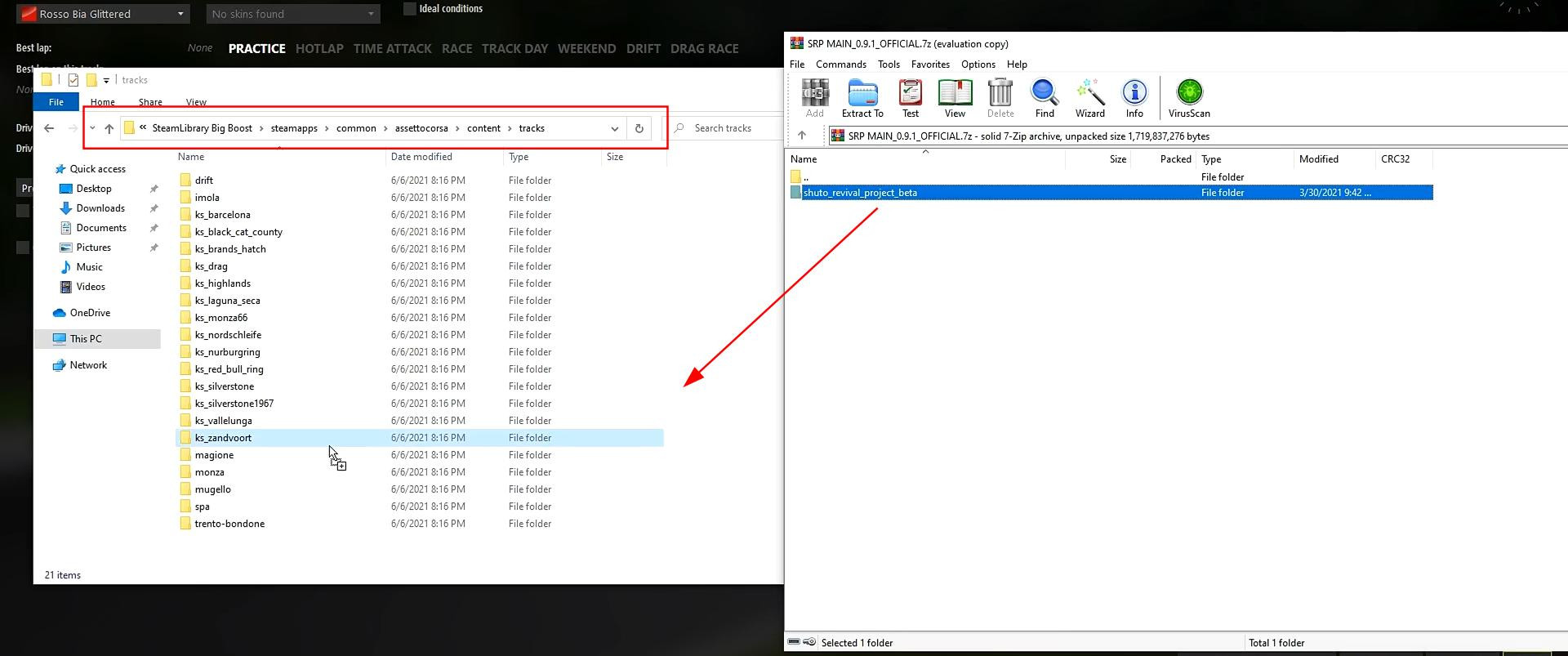
Open the folder where Assetto Corsa is installed. It is usually located at Steam/steamapps/common/assettocorsa/.
-
Inside the main game folder, open the "content" directory, then go to the tracks folder.
-
Copy the folder with the track to the tracks folder. Observe the structure - all necessary track configuration files should be inside it.
-
After copying is complete, the track will be displayed in the list of available locations in Content Manager.
In some cases, a track modification contains several configurations. These will be displayed as separate routes within the same track when the race is started.
To test the installation, you can open Content Manager, select the new track in the list and run a test session.
Installing mods via Content Manager
To simplify the process, you can use the automatic installation via Content Manager.
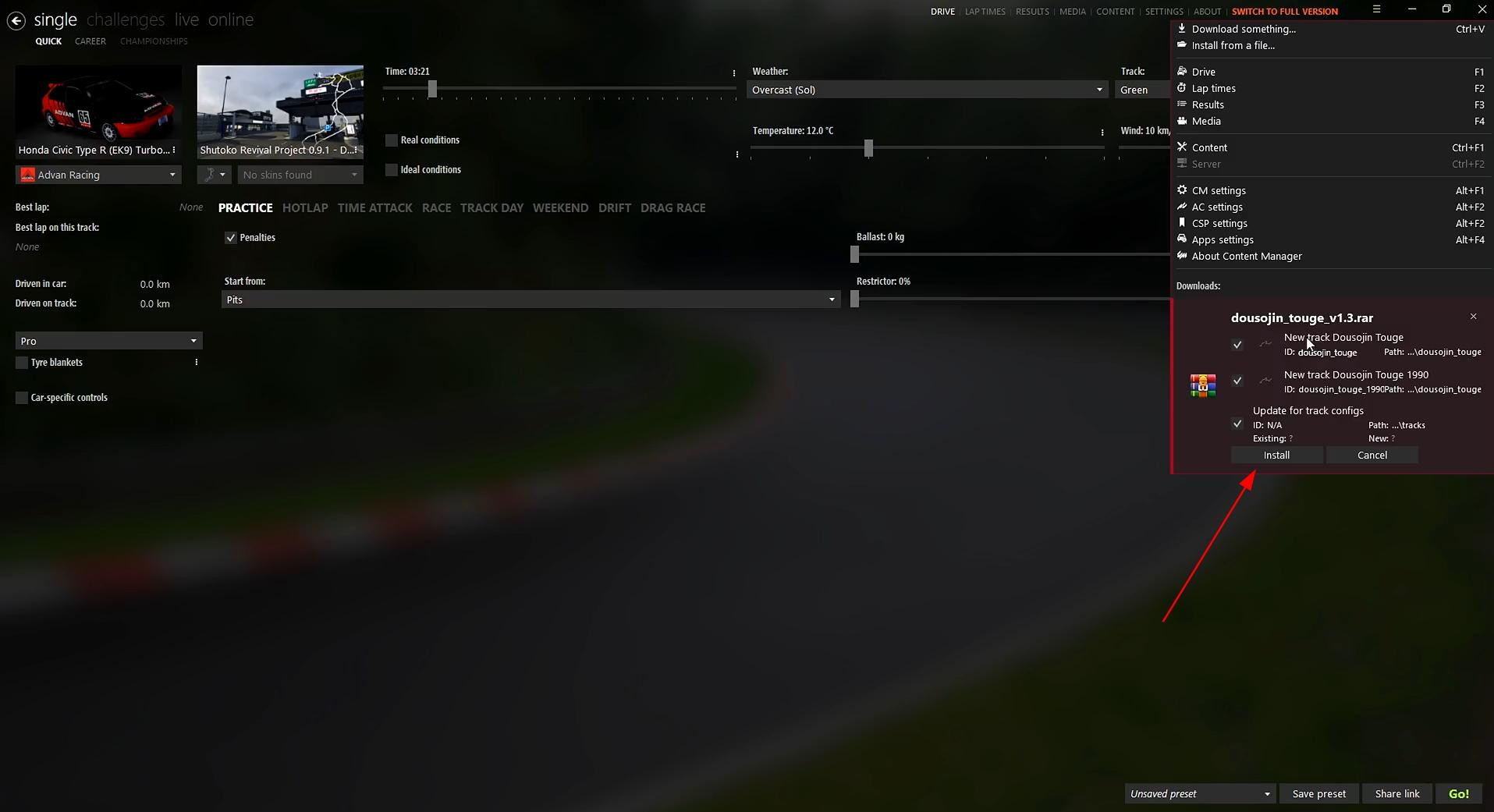
Just drag and drop the archive with the mod into the program window - the launcher will automatically recognize the structure and offer to install the modification.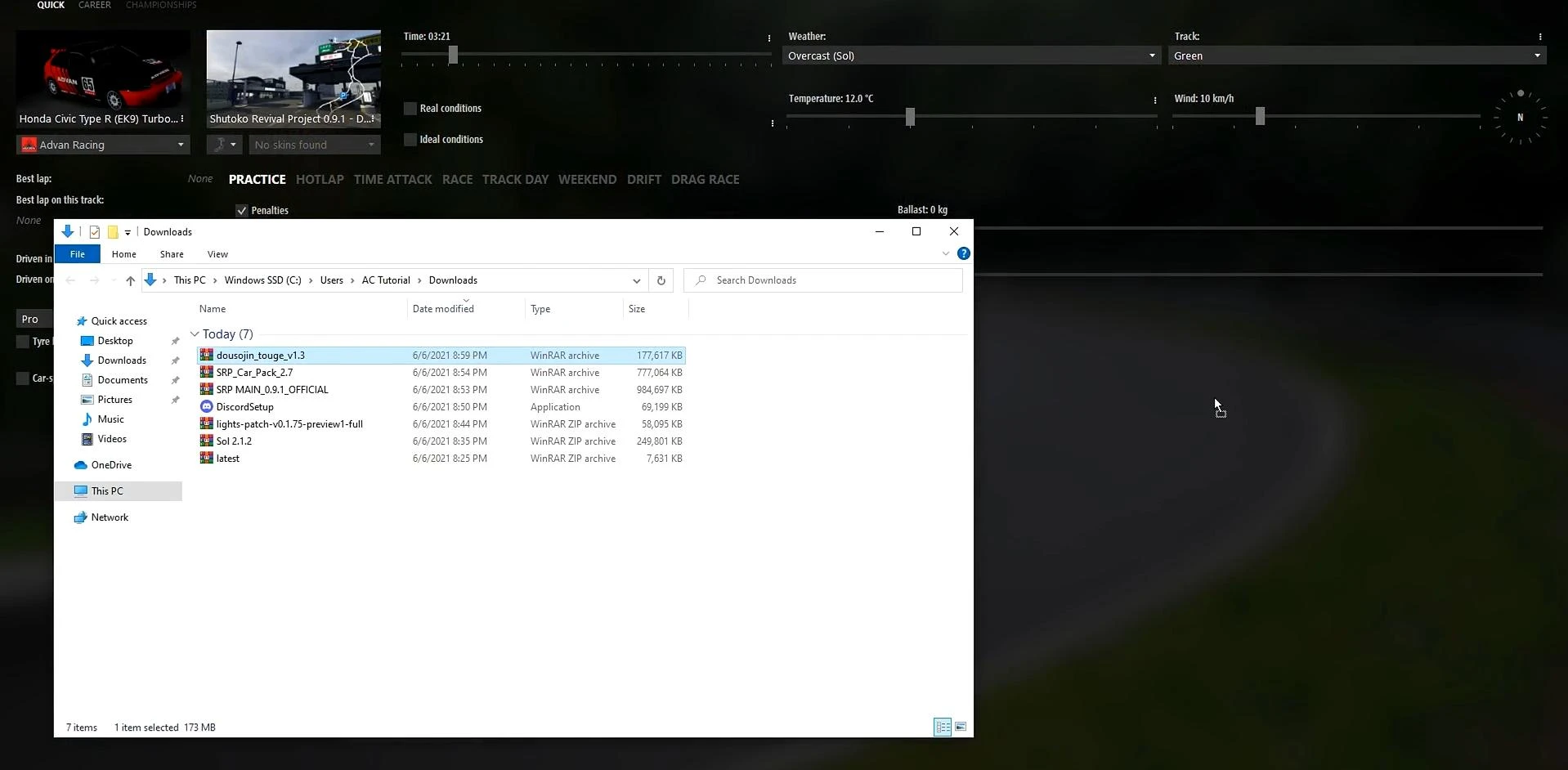
After clicking on the “Install” button, the installation will take place automatically. 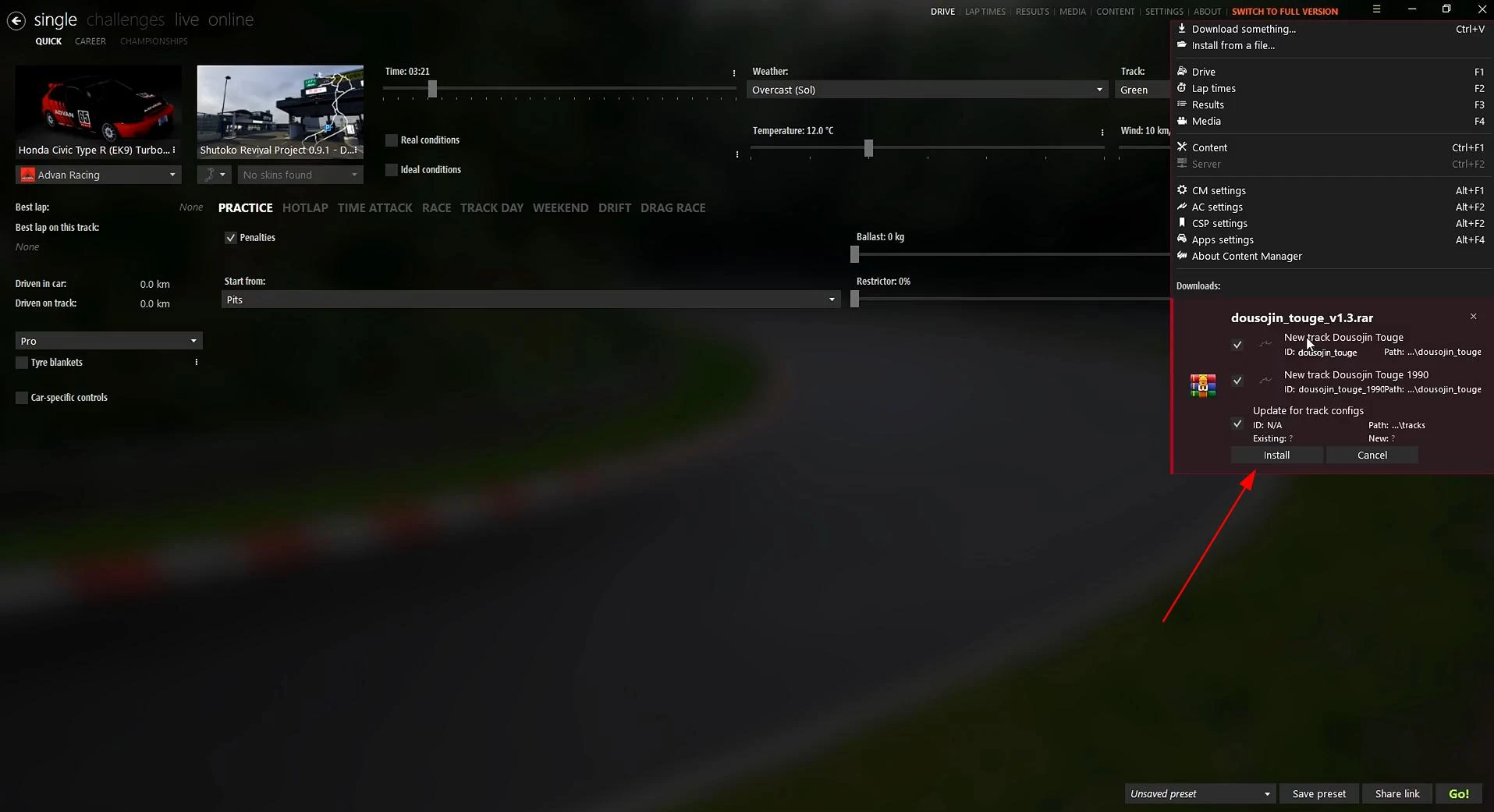
Some mods with non-standard structure may not be installed correctly by this method. In such cases it is recommended to use manual installation.
If Content Manager is not installed, please read detailed instructions on how to install it here - How to install Content Manager for Assetto Corsa.
Installing mod-packs and large archives
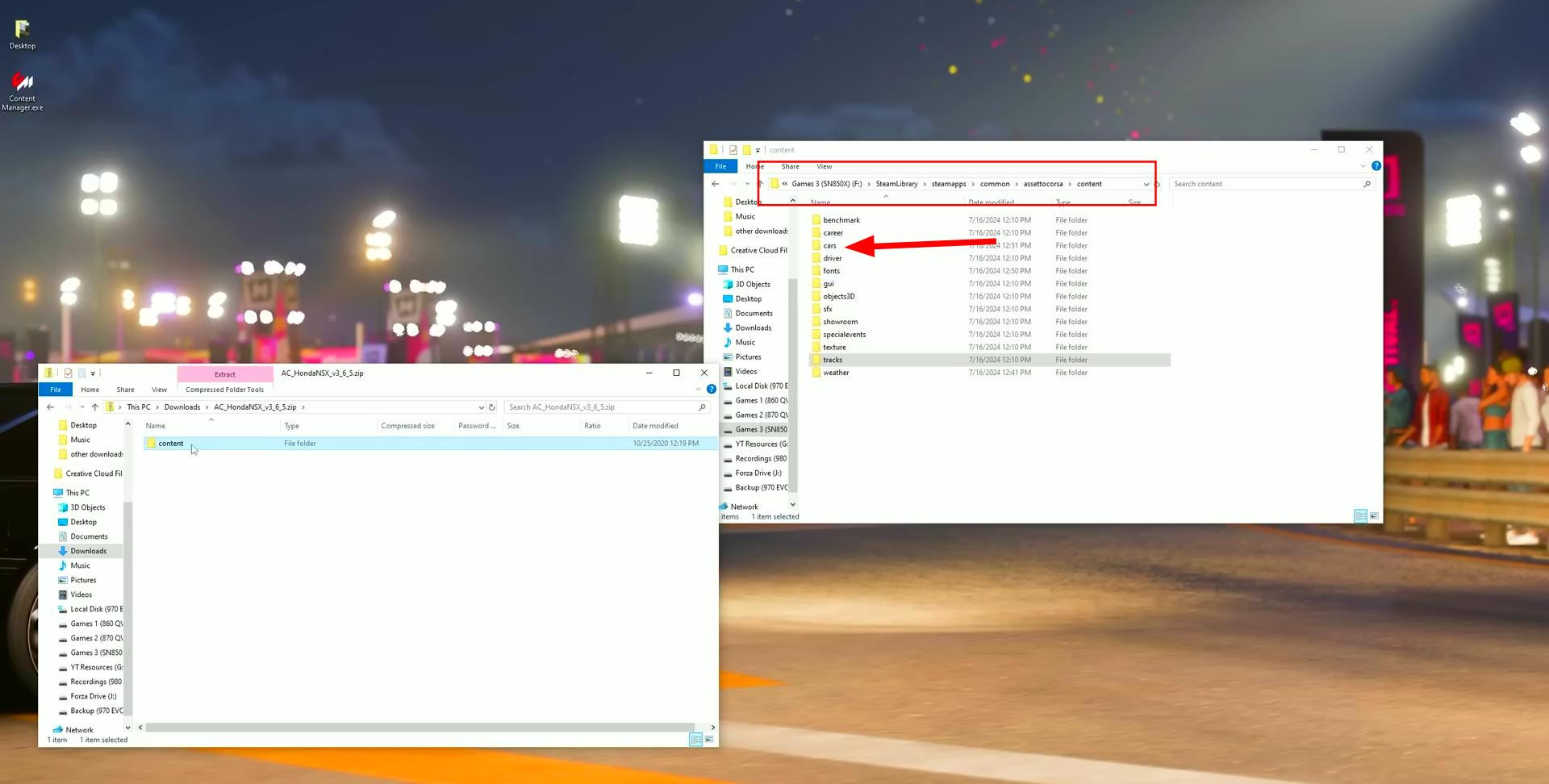
When installing large modifications that include several components at once, often used folder “content”, located in the root of the archive. Inside it are all the necessary directories: cars, tracks, interface files and so on.
To install such an archive, you need to open the root folder of the game and move the contents of the archive to a similar directory, confirming the merging of folders when prompted by the system.
Checking the installation
After the installation is complete, make sure that the mod is displayed in the Content Manager interface. For cars check the presence of the model in the list of cars, for tracks - in the track selection menu.
Additionally it is recommended to run a test session to make sure that the mod is stable. If the mod does not appear in the list or causes failures at startup, you should check the correct installation structure and the presence of unnecessary folder nesting level.
It is also worth making sure that the archive was unpacked completely, not partially.
Typical errors and how to fix them
The most common error when installing mods is related to the violation of the directory structure. For example, a mod can be accidentally placed in the wrong folder or have unnecessary nesting - as a result, the game will not be able to recognize it.
Many modifications require the current version of Custom Shaders Patch. If there are problems with graphics or stability, it is recommended to update the CSP through the Content Manager settings.
Also do not forget to make sure that the archive was downloaded without errors.
As you can see, installing mods for AC is quite simple. And if you use additional mod managers, it simplifies not only the installation process, but also the management of installed mods.
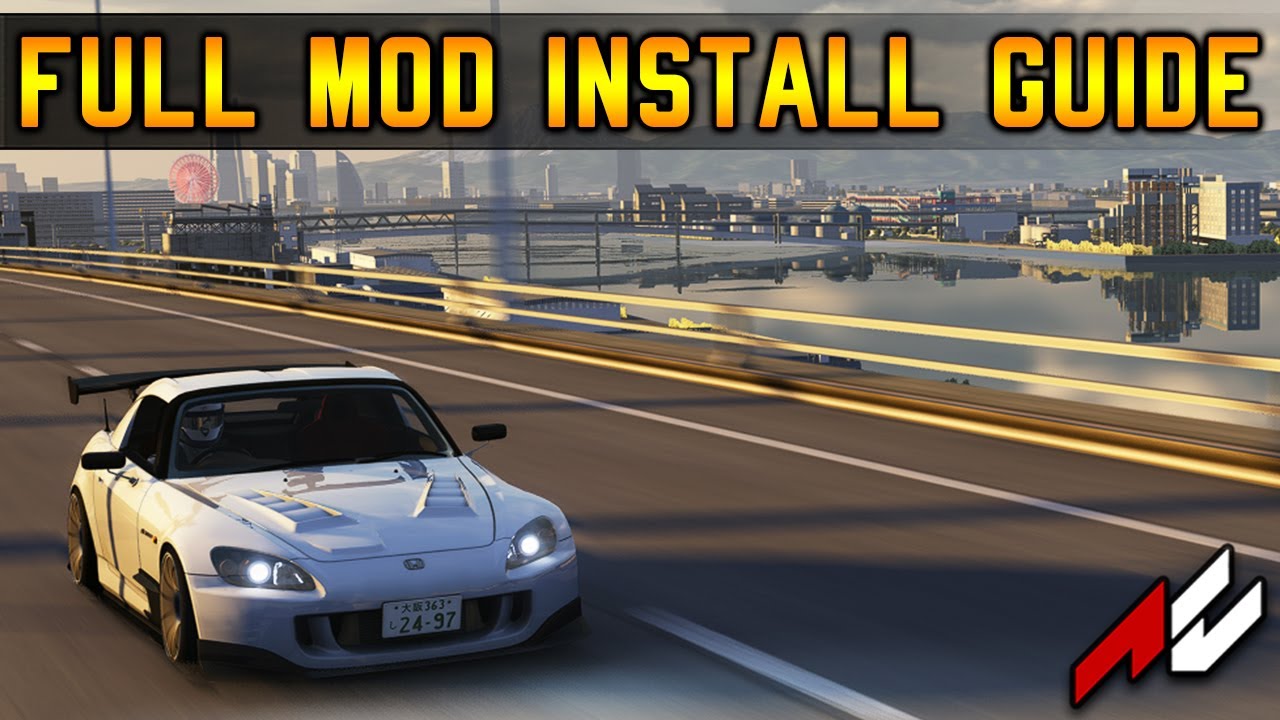
Videos
Added by




_modland.webp)



wait but what do you do with the shaders?