BeastZ Control Deck 1.1
![Mack Anthem / Pinnacle [PACK]](https://temp2.modland.net/i/6aa50a7184eaa/6ab9344368d3b/0_modland.webp)





5/5,
1
votes
Updates
latest
Version
1.1
· App Not Appearing in the Menu + Panel Position Fix
· BeamNG.drive
0.39.x
1 month ago
- Fixed: a packaging problem in the previous download that could stop the app from ever appearing in the in-game "Add App" list, even though the mod showed as installed. If you couldn't find BeastZ Control Deck after installing, this update fixes it.
- Fixed: the panel sometimes ending up positioned off-screen (e.g. after changing resolution or monitor setup) with no way to get it back — it now automatically snaps back into view on load.
- Fixed: the panel sometimes ending up positioned off-screen (e.g. after changing resolution or monitor setup) with no way to get it back — it now automatically snaps back into view on load.
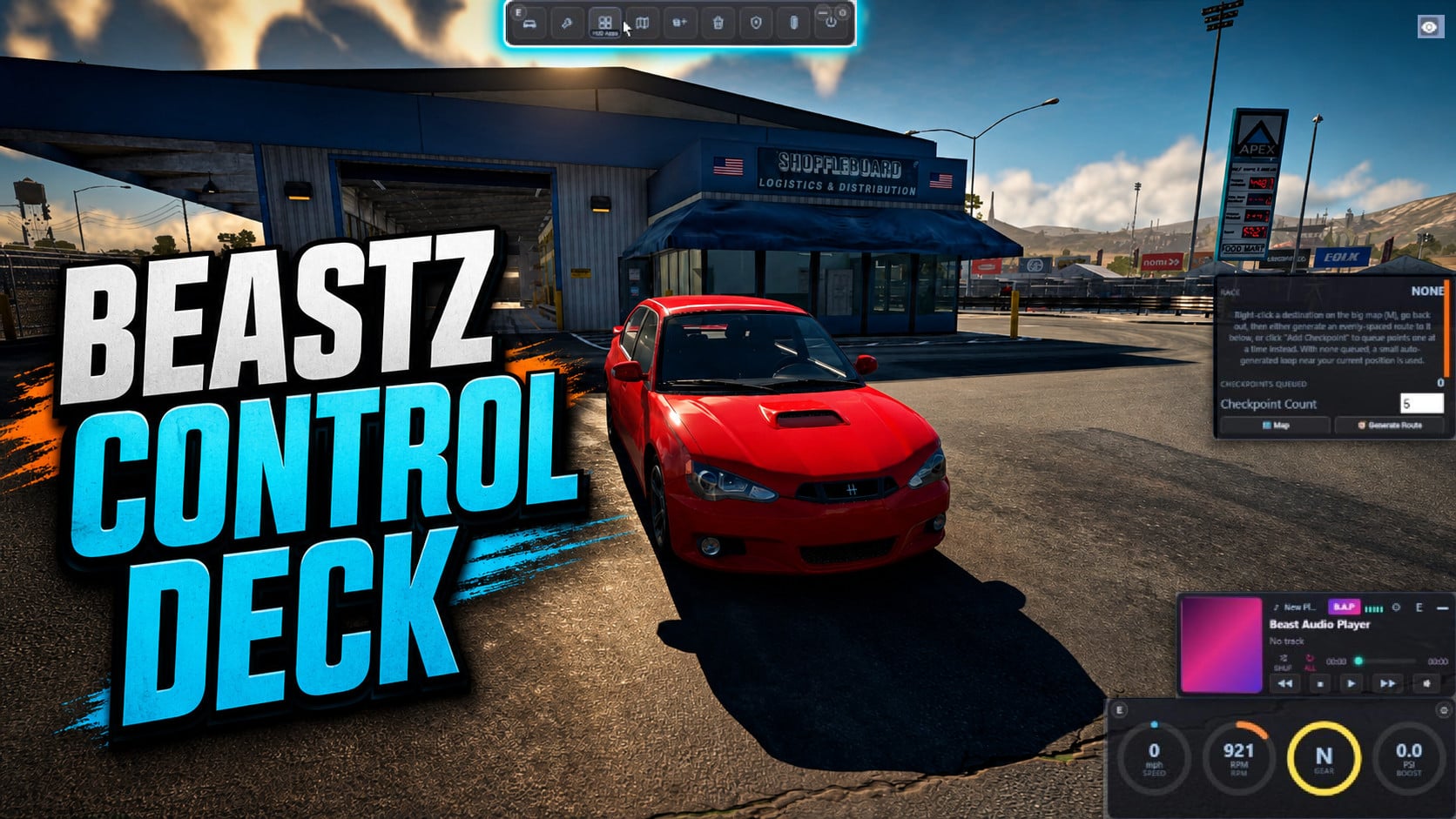
BeastZ Control Deck is a customizable BeamNG drive UI app menu bar that puts your most-used controls and menus in one convenient place.
Open vehicle menus, access the Big Map, manage traffic, edit your HUD, and more without repeatedly navigating through multiple menus. Choose which controls appear, arrange them to fit your HUD, and customize the panel to match your other BeastZ apps.
Main features
Available controls
Traffic controls
Open Traffic Settings from its button on the deck or from the main settings panel.
Customization
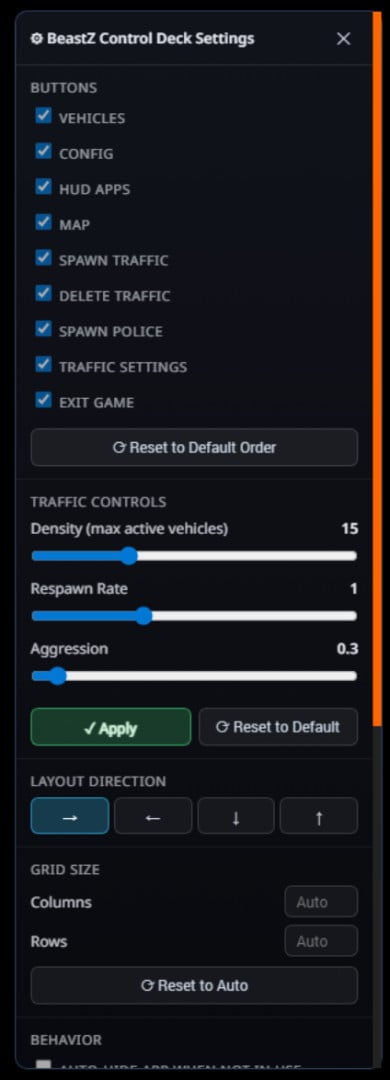
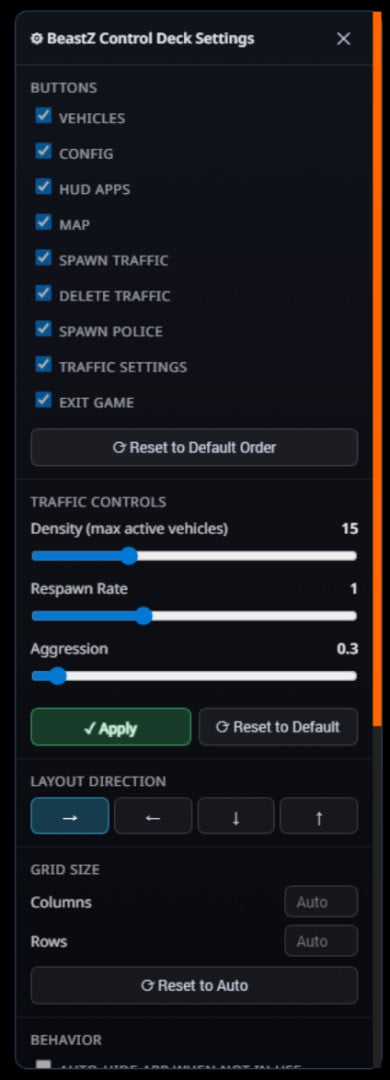
Hover over the Control Deck and select the gear button in the upper-right corner. From the settings panel, you can:
Moving, resizing, and reordering
Sync Color
Enable Sync Color on the Control Deck and another compatible BeastZ app to share appearance changes between them. Hue, transparency, saturation, and text color update together.
Apps without Sync Color enabled keep their own independent appearance.
Auto-hide and minimize
Auto-hide slides the panel off-screen when it is not being used and leaves a small trigger along the selected screen edge. Hover over the trigger to reveal the deck
again.
The panel remains visible while Edit Mode, Settings, Traffic Settings, or the Exit Game confirmation is active.
For a smaller footprint, select the minimize button to replace the deck with a floating circular icon. Drag the icon to reposition it or click it to restore the full panel.
Game-mode awareness and safeguards
Some BeamNG actions are restricted in certain game contexts. The Control Deck greys out tracked controls when the game reports that they are unavailable and checks their status again when selected.
Exit Game requires a second click within four seconds, helping prevent accidental shutdowns. Frequently repeated actions also use short cooldowns.
Please leave a comment with your feedback, ideas, or suggestions for future updates. Thanks!
Open vehicle menus, access the Big Map, manage traffic, edit your HUD, and more without repeatedly navigating through multiple menus. Choose which controls appear, arrange them to fit your HUD, and customize the panel to match your other BeastZ apps.
Main features
- Nine quick-access controls.
- Enable or disable individual buttons.
- Drag buttons into any order.
- Horizontal and vertical layouts in either direction.
- Custom row and column grid layouts.
- Move and resize the panel directly on the screen.
- Snap the panel into alignment with compatible BeastZ apps, including BeastZ Gauges and B.A.P.
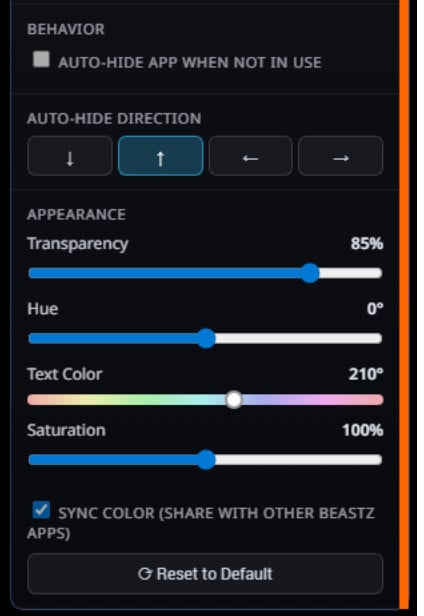
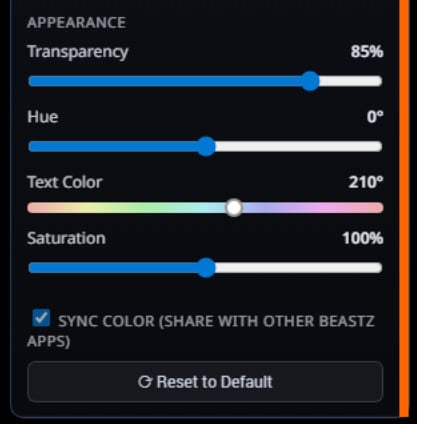
- Adjustable transparency, hue, text color, and saturation.
- Optional color synchronization with compatible BeastZ apps.
- Whole-panel auto-hide in four directions.
- Minimize the deck into a movable floating icon.
- Saves panel position, size, layout, button order, and appearance settings between sessions.
- Clear success and warning messages for game actions.
Available controls
- Vehicles - Opens the Vehicle Selector.
- Config - Opens Vehicle Configuration.
- HUD Apps - Opens the HUD Apps layout editor.
- Map - Opens the Big Map.
- Spawn Traffic - Spawns regular traffic.
- Delete Traffic - Removes all traffic.
- Spawn Police - Spawns police traffic.
- Traffic Settings - Opens controls for traffic density, respawn rate, and aggression.
- Exit Game - Exits BeamNG.drive after a two-click confirmation.
Traffic controls
Open Traffic Settings from its button on the deck or from the main settings panel.
- Density - sets the maximum number of active, visible traffic vehicles.
- Respawn Rate - controls how quickly traffic is replenished.
- Aggression - changes the base aggression of traffic vehicles.
Customization
Hover over the Control Deck and select the gear button in the upper-right corner. From the settings panel, you can:
- Choose which buttons are displayed.
- Reset the buttons to their default order.
- Select left-to-right, right-to-left, top-to-bottom, or bottom-to-top layouts.
- Set custom rows and columns or return the grid to Auto.
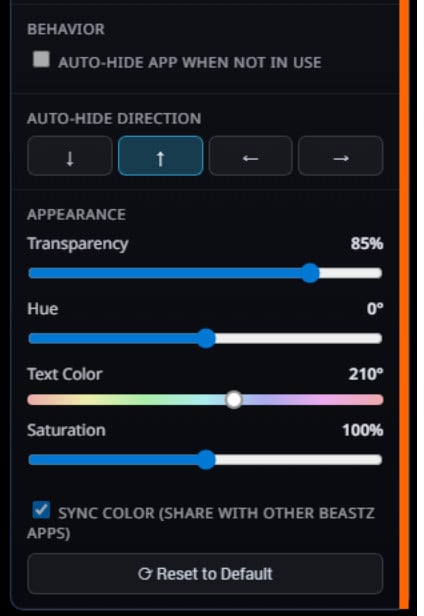
- Enable auto-hide and choose its direction.
- Adjust panel transparency, hue, text color, and saturation.
- Enable Sync Color for compatible BeastZ apps.
Moving, resizing, and reordering
- Hover over the panel and select the E button to enter Edit Mode.
- Drag the panel to move it anywhere on the screen.
- Drag the lower-right handle to resize it.
- Drag individual control tiles to change their order.
- Select E again to leave Edit Mode.
Sync Color
Enable Sync Color on the Control Deck and another compatible BeastZ app to share appearance changes between them. Hue, transparency, saturation, and text color update together.
Apps without Sync Color enabled keep their own independent appearance.
Auto-hide and minimize
Auto-hide slides the panel off-screen when it is not being used and leaves a small trigger along the selected screen edge. Hover over the trigger to reveal the deck
again.
The panel remains visible while Edit Mode, Settings, Traffic Settings, or the Exit Game confirmation is active.
For a smaller footprint, select the minimize button to replace the deck with a floating circular icon. Drag the icon to reposition it or click it to restore the full panel.
Game-mode awareness and safeguards
Some BeamNG actions are restricted in certain game contexts. The Control Deck greys out tracked controls when the game reports that they are unavailable and checks their status again when selected.
Exit Game requires a second click within four seconds, helping prevent accidental shutdowns. Frequently repeated actions also use short cooldowns.
Please leave a comment with your feedback, ideas, or suggestions for future updates. Thanks!
Videos

Direct Download Links
latest
Version
1.1
· BeamNG.drive
0.39.x
1 month ago
Game Versions:
0.39.x
About Mod
| Latest Version | 1.1 |
| Game | BeamNG.drive |
| Category | Other |
| Game Version | 0.39.x |
| Tags | Gameplay Tools UI |
| Downloads | 290 |
| Created | 1 month ago |
| Last Updated | 1 month ago |
Download Latest Version
Version: 1.1Updated: 1 month ago
Total Size: 33.17 KB BeastZControlDeck_modland.zip direct download · 33.17 KB · added 1 month ago
You Might Also Like »

![Mack Anthem / Pinnacle [PACK]](https://temp2.modland.net/i/6aa50a7184eaa/6ab9344368d3b/0_modland.jpg)
0 Comments
There are no comments. Be first to comment!