How to Create Realistic Motion Blur in BeamNG.drive
-lg_modland.jpg)
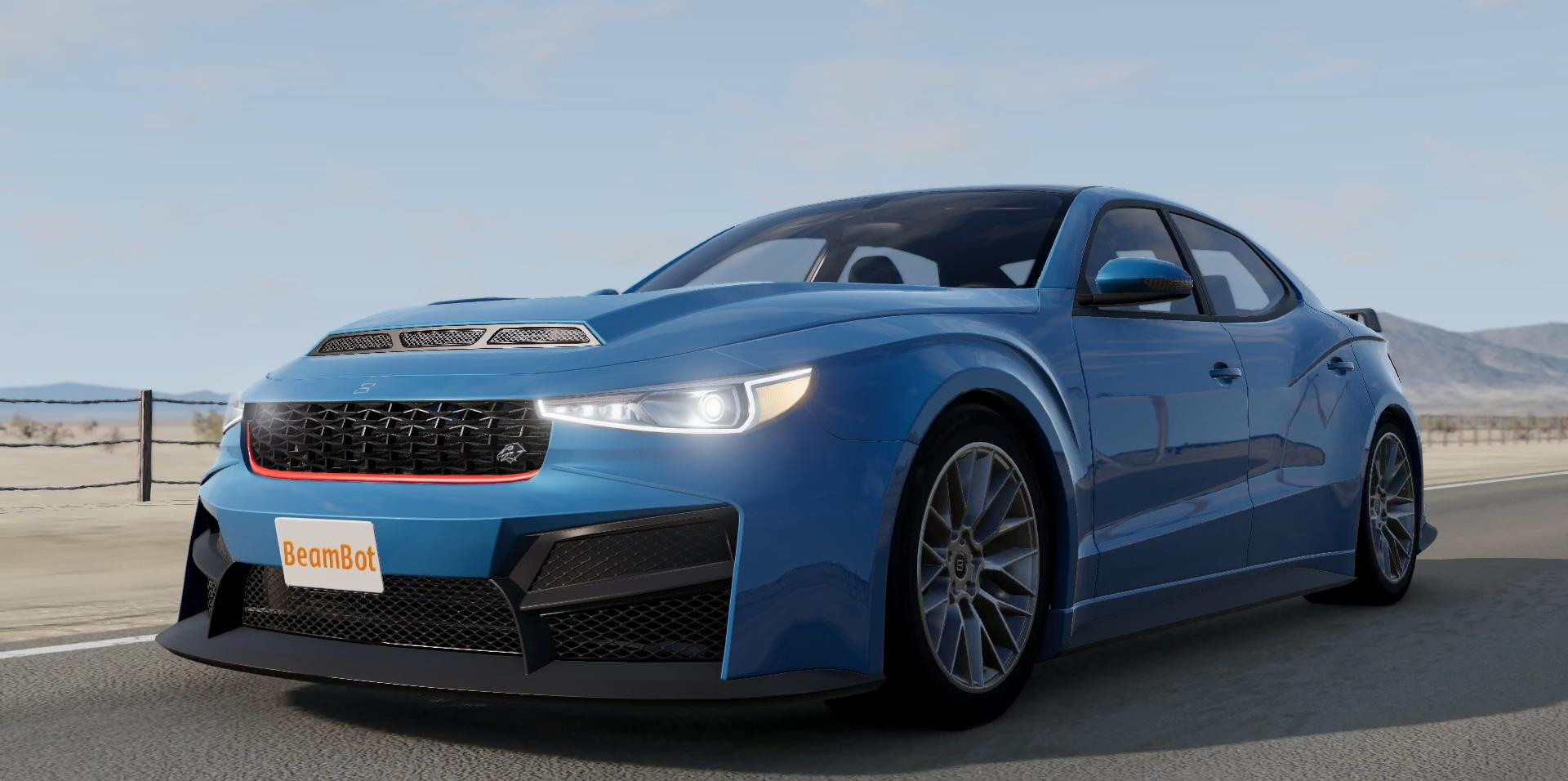
Want to create a realistic motion blur effect on screenshots in BeamNG.drive? Below, we'll show you how to do it.
Select the car you want and accelerate it to a speed of about 60–70 miles per hour. At this speed, the car will be moving fast enough to produce a nice blur in the background.
Once the desired speed is reached, pause the game.
To successfully capture the movement and achieve the blur effect, you need to slow down the game time by about 100 times (Alt + ←). Then you can take a series of consecutive screenshots while the car is moving, without losing the quality and clarity of the object.
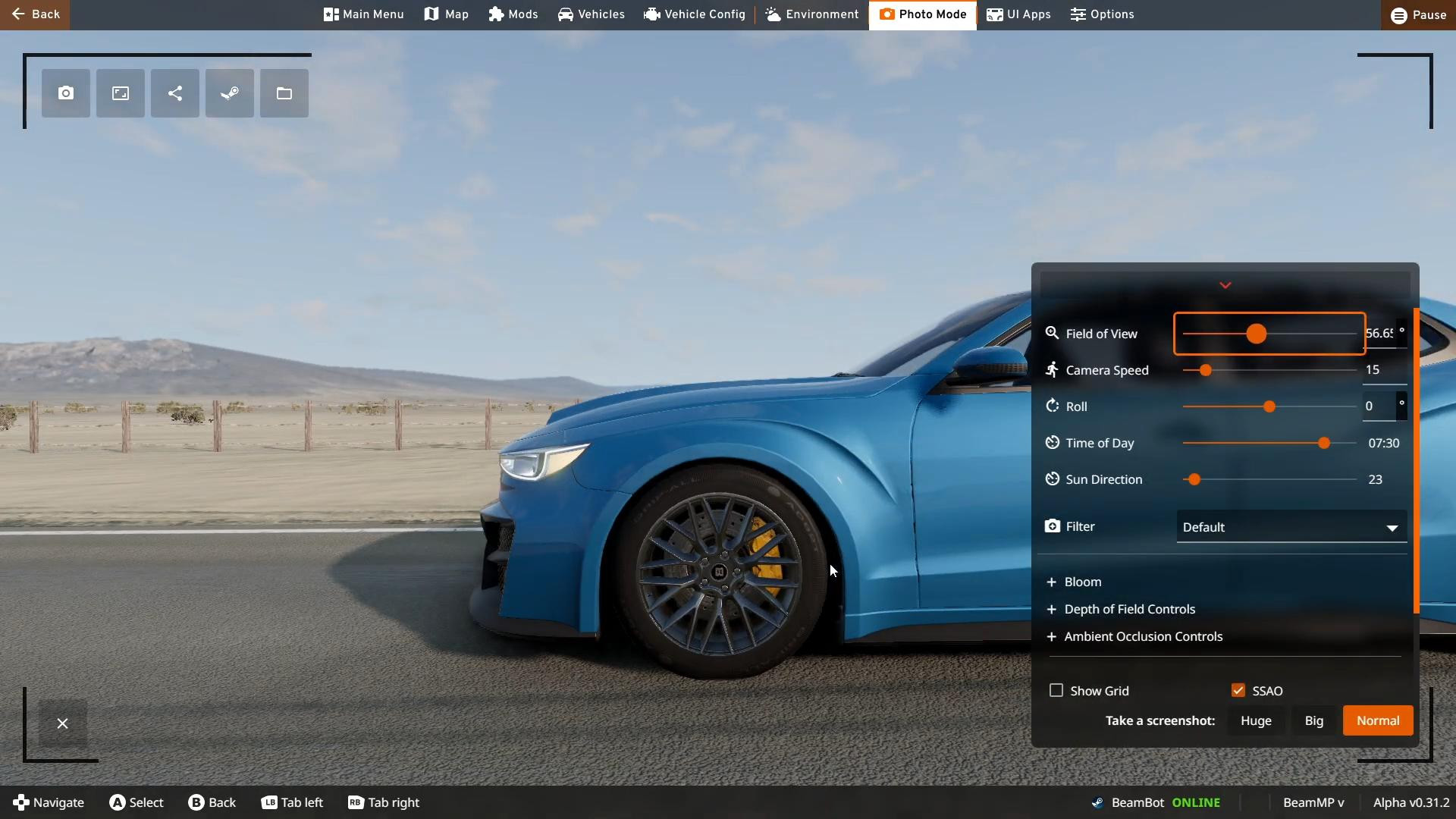
After slowing down time, switch to photo mode. Turn on the “Relative” camera mode (Key 5). This is a type of camera that is fixed on an object. In our case, on a car. It allows the camera to move in sync with the car. However, this feature does not allow you to adjust the usual Field of View slider.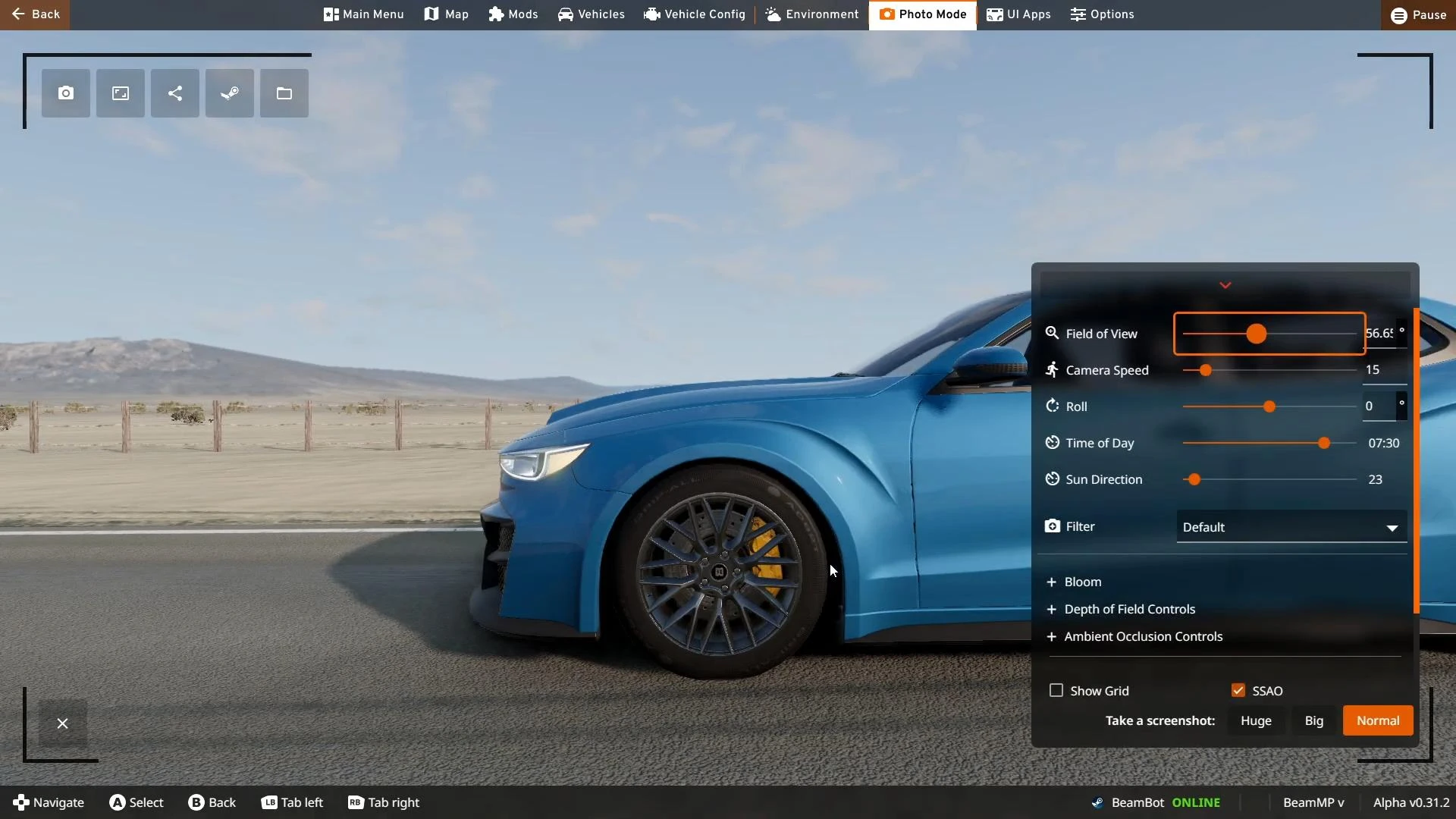
To change the viewing angle, use the Page Up and Page Down keys on your keyboard.
You can now start taking screenshots.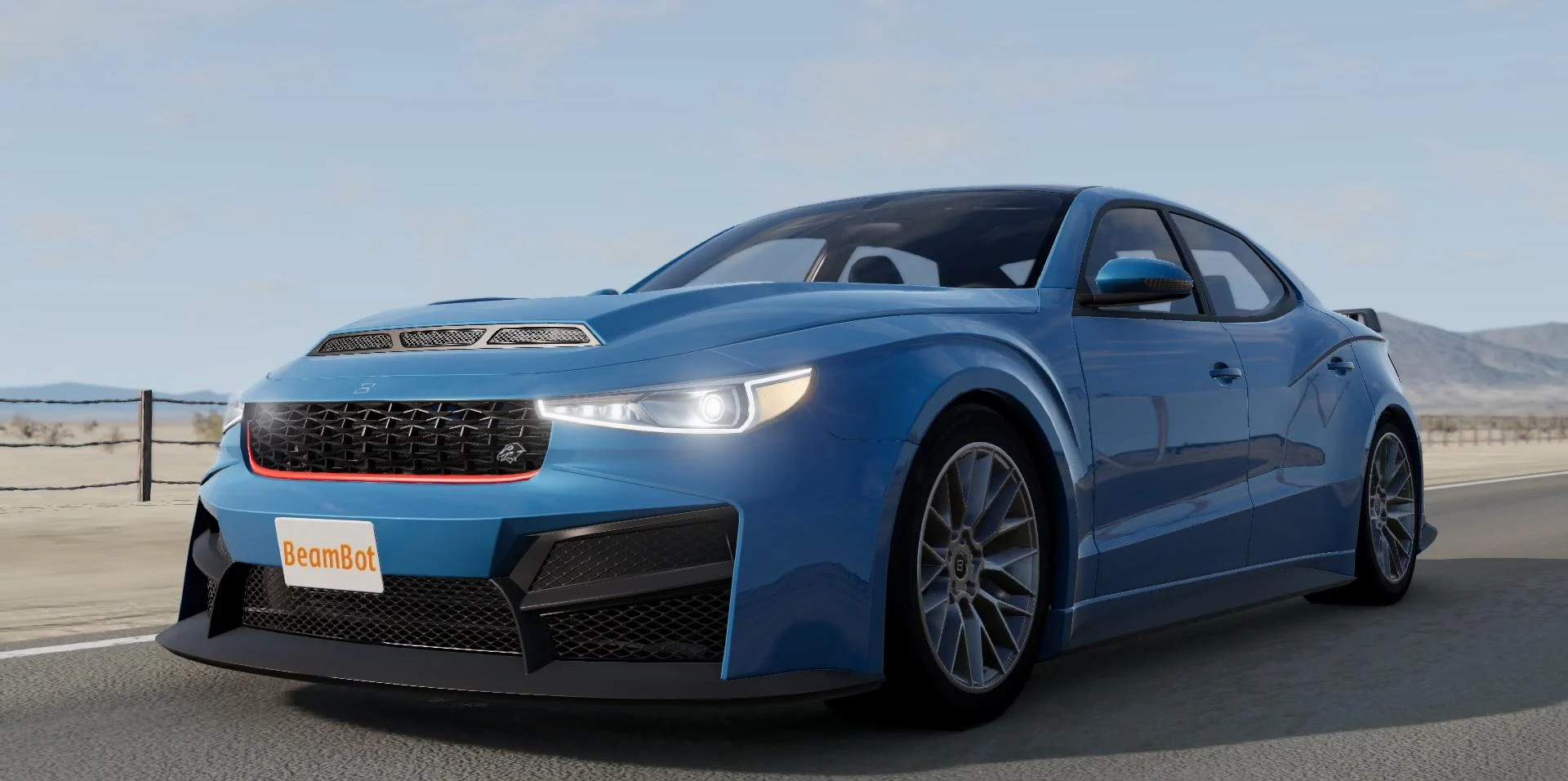
Unlock the game and take 20 to 30 frames. This sequence of frames will later be used to create blur. To take screenshots, you can use any convenient program or system hotkey (read How to make a screenshot in BeamNG.Drive).
Now you need to combine all the layers into one. Photopea, a free image editor available through a browser, is suitable for this.
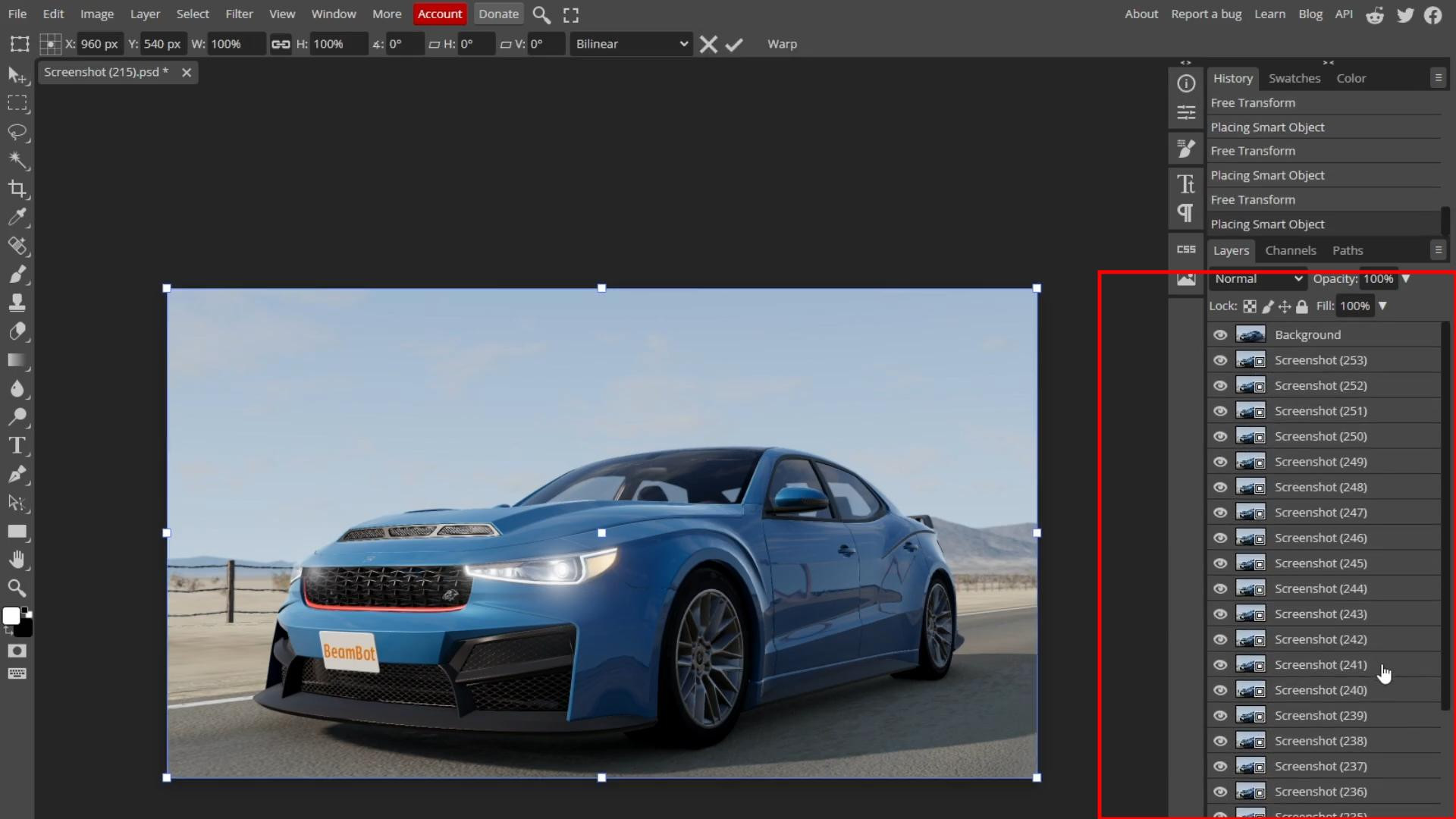
Open the first screenshot from the series in the program. Then load all the remaining frames one by one and place them in the layers panel.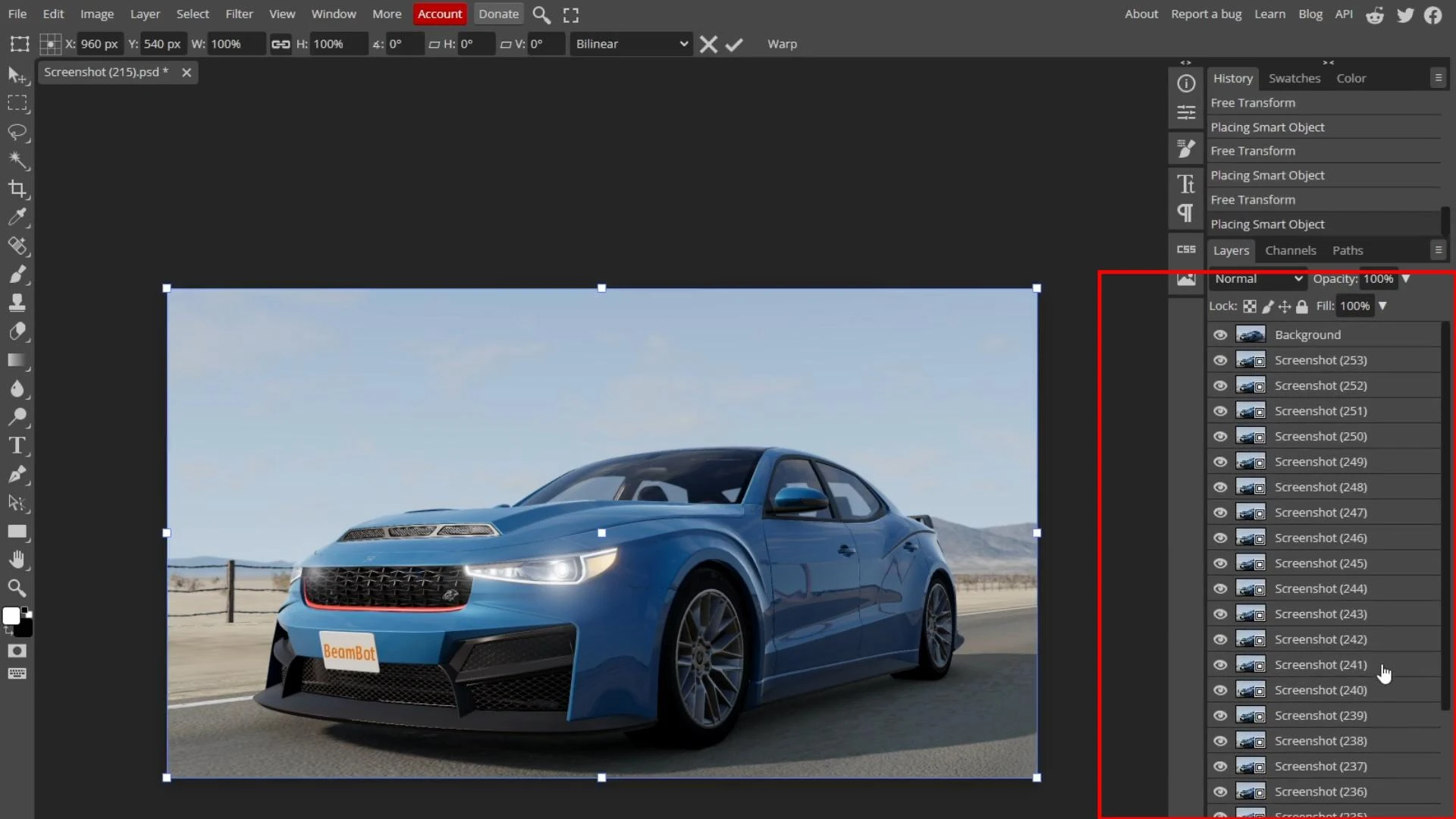
Photopea does not allow you to select all layers using the standard Ctrl + A combination. You will have to click on each layer manually while holding down Ctrl.
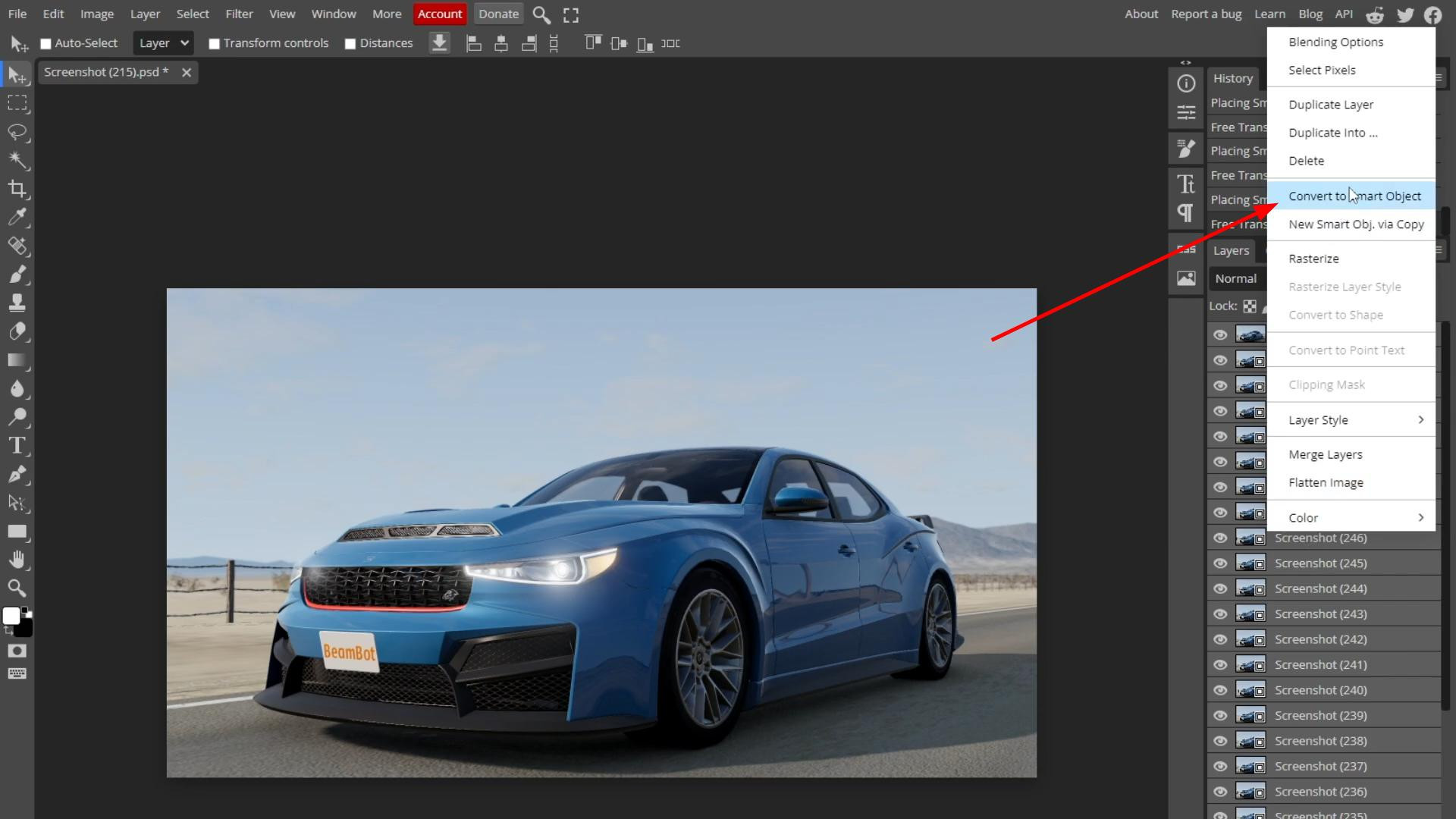
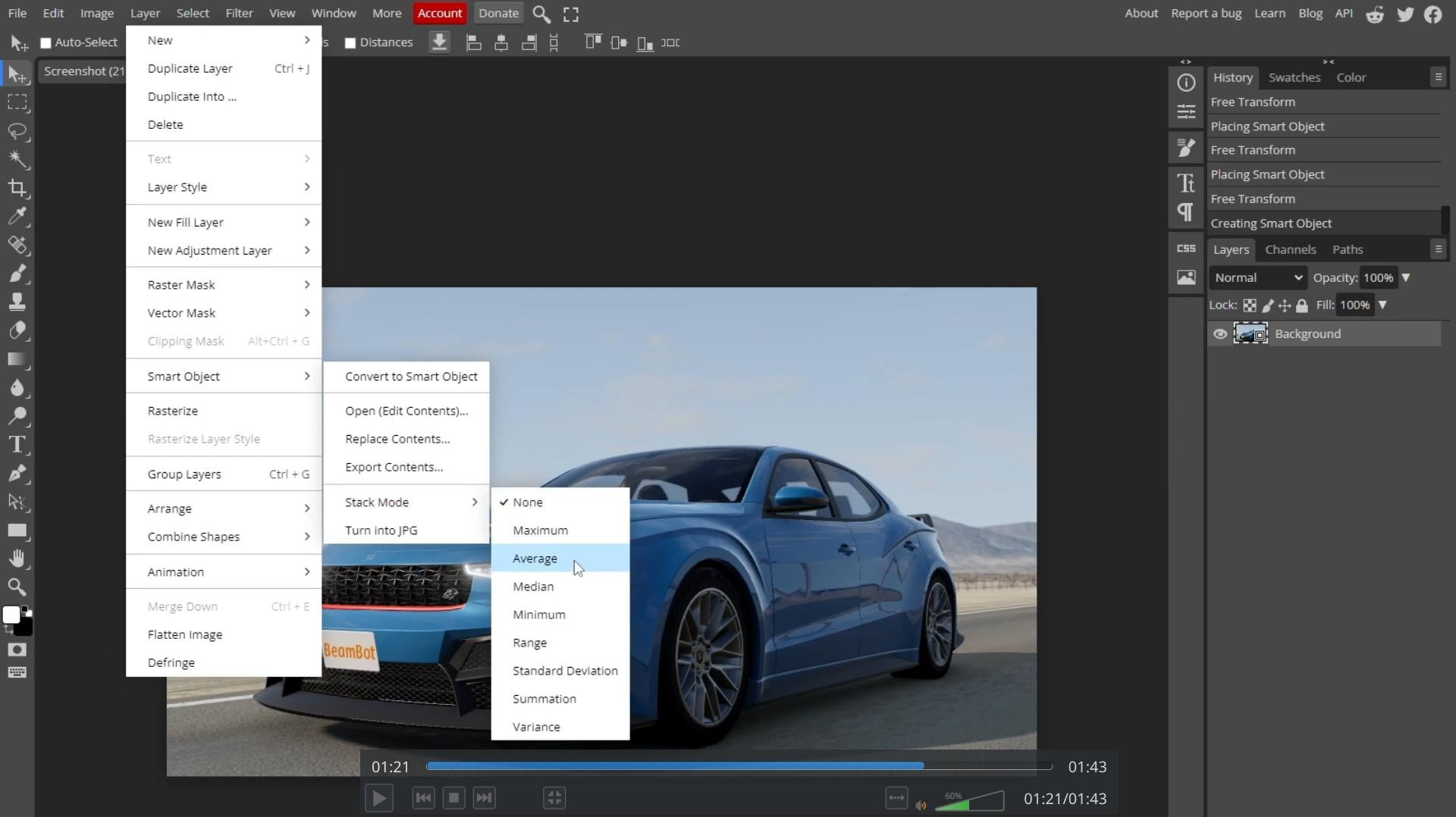
When all layers are selected, right-click and select “Convert to Smart Object”. Combining into a smart object may take some time, depending on the number of frames. 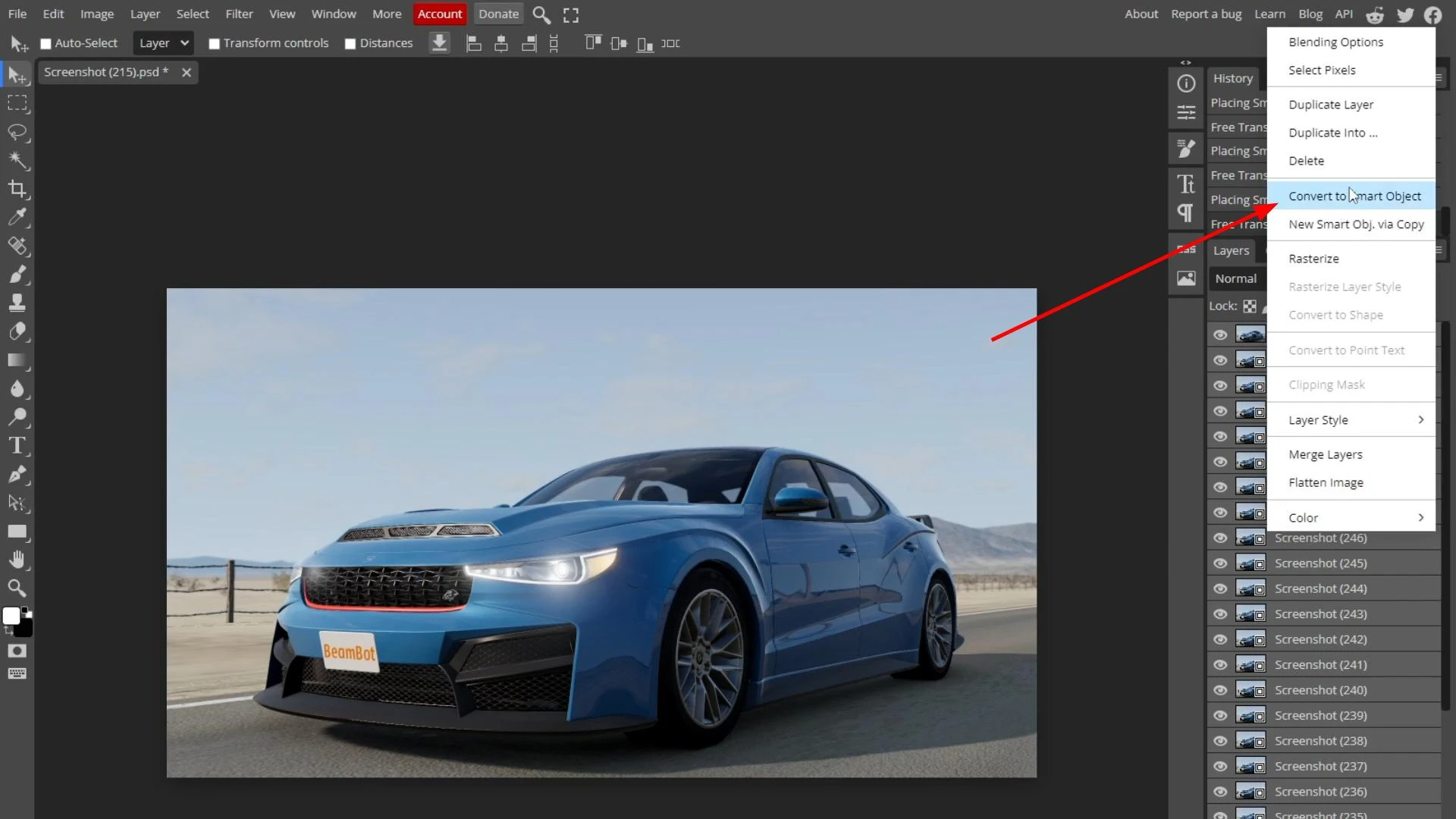
Next, go to the “Layer” menu, select “Smart Object”, then “Stack Mode”, and click on “Average”.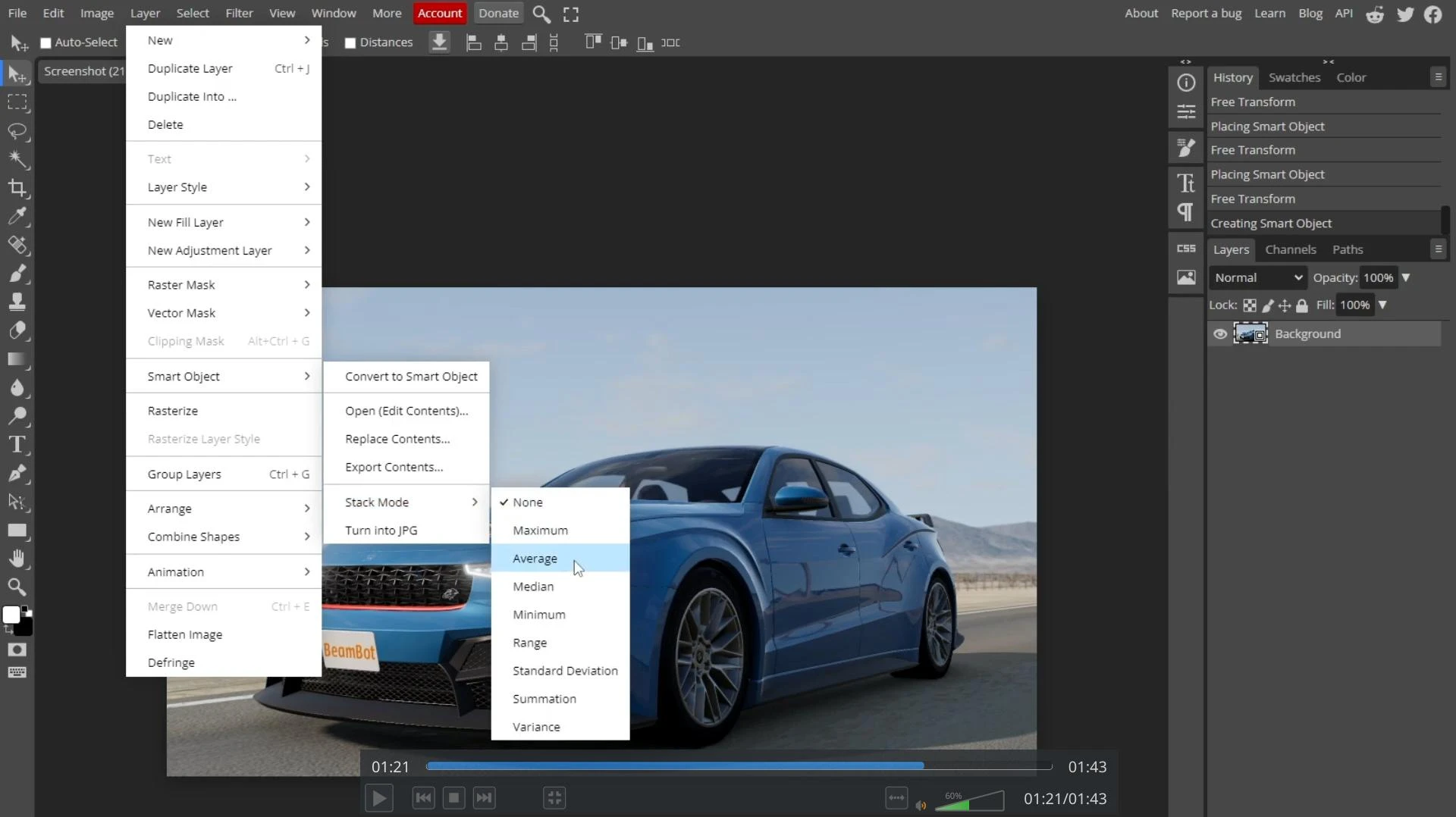
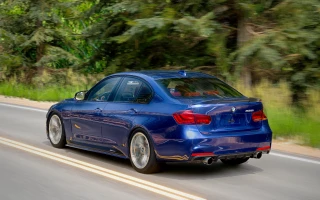
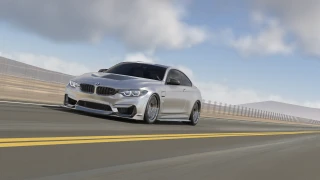
As a result, the program will combine all the frames, smoothing the transitions between them and creating the desired Motion Blur effect.
Videos
Added by
![Mack Anthem / Pinnacle [PACK]](https://temp2.modland.net/i/6aa50a7184eaa/6ab9344368d3b/0_modland.webp)
using reshade is way faster idk why people still uses this method