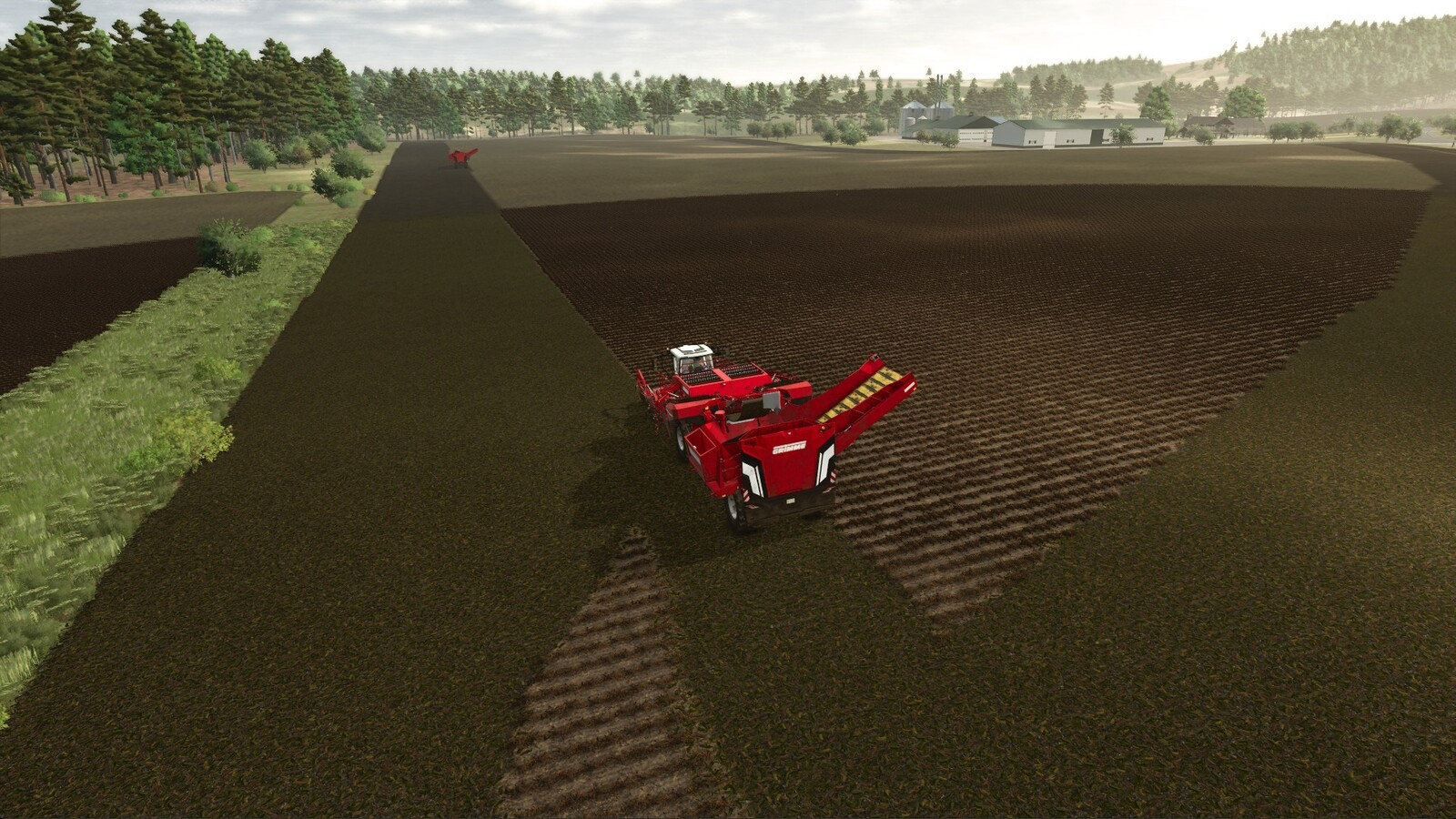
Radio Player 1.0

0/5,
0
Stimmen
Description:
Radio Player adds a simple control panel for the in-game radio. See which station and song are playing, step through the stations, change the volume, or jump straight to the station you want.
Features:
- Control Panel: Open with Left Alt + 5 (configurable under Options > Controls). Works on foot and in vehicles.
- Station Information: Displays the current station, logos for built-in stations, and the song name when provided by the game.
- Station Management: Alphabetical list of built-in stations with the current one highlighted.
- Quick Controls: Previous/Next buttons, "Tune In" for direct jumps, and Volume +/- adjustments.
- Playback Settings: Toggle between "Play Everywhere" or "Vehicle Only," and a Radio On/Off switch.
- Mini Player: Press Left Alt + 6 to toggle a small HUD showing the station, song, and basic controls. Use Left Alt + 7 or the middle mouse button to show the cursor and drag the player to a preferred position.
- Custom Music Support: Supports internet radio stations and personal music added via the game's music folder.
- Save Integration: The current station is saved with your savegame and restores upon loading.
- Multiplayer Compatible: Each player controls their own radio independently.
Adding your own stations:
You can add any internet radio station that offers a direct stream address. Open the music folder in your game's user folder (Documents > My Games > FarmingSimulator2025 > music) and add a line for each station to streamingInternetRadios.xml.
Addresses ending in .mp3, .aac, .m3u or .pls work best. Restart the game after making changes for stations to appear.
Unreachable stations:
If a station does not connect after 8 seconds, the panel shows "Station not responding," and it will be skipped for the remainder of the session. Note that some offline stations may cause the game to pause briefly; this is a behavior of the game's native radio system.
Credits:
Dave Rowland
Direct Download Links
Version: 1.0Aktualisiert: vor 2 Tagen
Gesamtgröße: 74.42 KB FS25_RadioPlayer_modland.zip direct herunterladen · 74.42 KB · hinzugefügt vor 2 Tagen
Das könnte Sie auch interessieren »





0 Kommentare
Es sind noch keine Kommentare vorhanden. Seien Sie der Erste, der kommentiert!