CinemaTruck – Camera Flights and Video Renders 1.62




0/5,
0
votes
Changelog
0.9.0 – first public version (beta): recording and replay with traffic, free / orbit / rail cameras, timeline editor, video rendering with sound, Russian and English interface.
Description
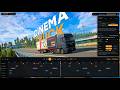
CinemaTruck is a free tool for making cinematic camera flights and videos in Euro Truck Simulator 2. Drive a route once, then film it from any angle you like. One drive, endless camera angles.
Features
- Records your drive together with the surrounding traffic, with pause and resume.
- Replay with pause, seeking and speed from 0.5x to 4x. The steering wheel turns in the replay.
- Free camera: fly with WASD, look around with the right mouse button, change speed with the mouse wheel.
- Orbit camera around your truck.
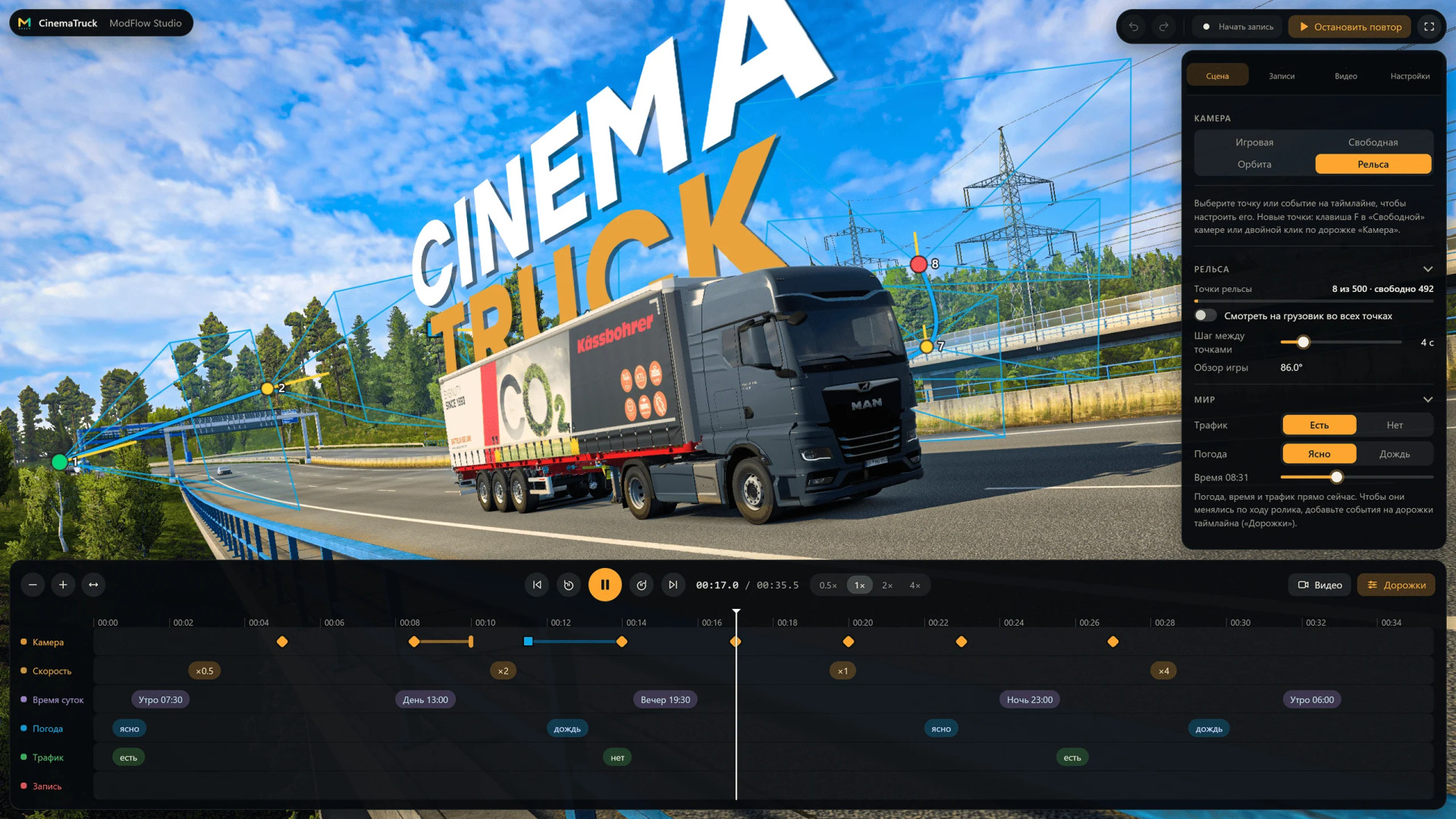
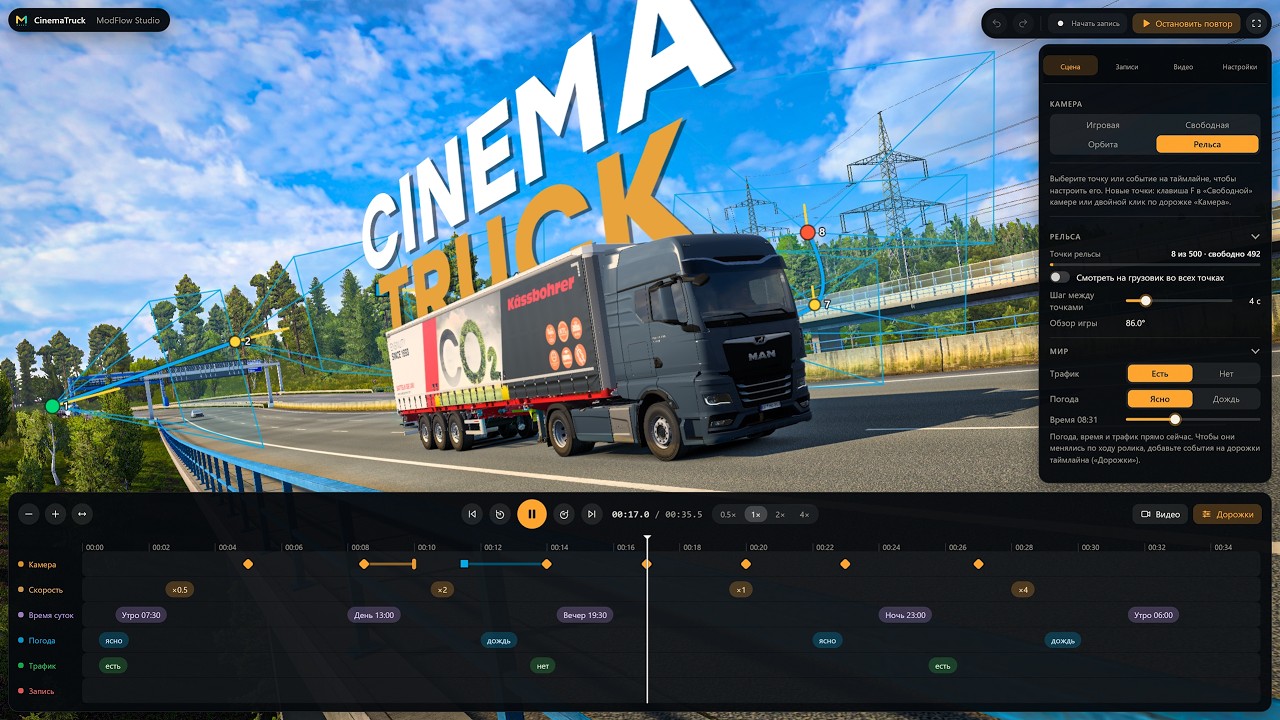
- Rail camera: place smooth-flight points and static shots, and the camera flies through them in sync with the replay. Up to 500 points.
- Per-point settings: roll, field of view, focus blur (depth of field), look at the truck, segment speed and hold time.
- Full-screen editor with a timeline: move points, select them in groups, undo and redo.
- Timeline events: weather, time of day and replay speed change during the clip.
- Video rendering at a steady frame rate (24, 30 or 60 fps) without the game interface, H.264 or H.265, with the game’s sound (optional).
- Russian and English interface, UI scale 100-150%, tray icon, starts together with the game.
- Switches itself off in TruckersMP.
Supported Game Version
Euro Truck Simulator 2 from Steam, tested on 1.62. Single player only. American Truck Simulator is not supported.
Requirements
Windows 10 or 11, 64-bit. H.265 video may need the Microsoft HEVC extension; H.264 works without it.
Notes
- The installer is not digitally signed yet, so Windows SmartScreen or an antivirus may show a warning.
- The program does not connect to the internet and does not collect any data.
- A recorded traffic cannot be removed from a replay: it is replayed from the recording.
- Version 0.9.0 is a beta.
Installation Instructions
1. Close the game.
2. Run CinemaTruck-Setup-0.9.0.exe. The installer finds Euro Truck Simulator 2 in Steam and puts one plugin file into the plugins folder. Game files are not changed.
3. Start the game. On every start the game shows a window about advanced SDK features: press OK.
4. A “CinemaTruck is running” message appears in the corner. Ctrl+Alt+E opens the panel, Ctrl+Alt+R opens the editor.
5. Record: Ctrl+Alt+E, “Start recording”, drive, stop with the parking brake and press “Stop recording”. Replay: Ctrl+Alt+R, “Recordings” tab, pick a recording, “Start replay”. Then use cameras, rail points and the “Video” tab.
Recordings are stored in Documents\Euro Truck Simulator 2\saved_replays, videos in Videos\CinemaTruck, camera points and settings in Documents\CinemaTruck. Uninstall from Windows “Apps”: the plugin is removed from the game, your recordings and videos stay.
Credits
ModFlow Studio
External Download Links:
Videos
Direct Download Links
You Might Also Like »


0 Comments
There are no comments. Be first to comment!