How to Get Rid of FPS Drops and Freezes in Euro Truck Simulator 2
-lg_modland.jpg)
Sometimes, even on a decent PC, Euro Truck Simulator 2 starts to behave strangely: the image jerks, frames drop, and the game becomes torture. There can be a whole bunch of reasons for this — from an overloaded processor to incorrect Windows settings. But there are a few steps that often help restore smoothness and stable FPS.
1. Unload the processor
Before digging into the game settings, make sure your computer isn't suffocating from unnecessary tasks. Often the problem is that a dozen resource-hungry background programs are running alongside ETS 2.
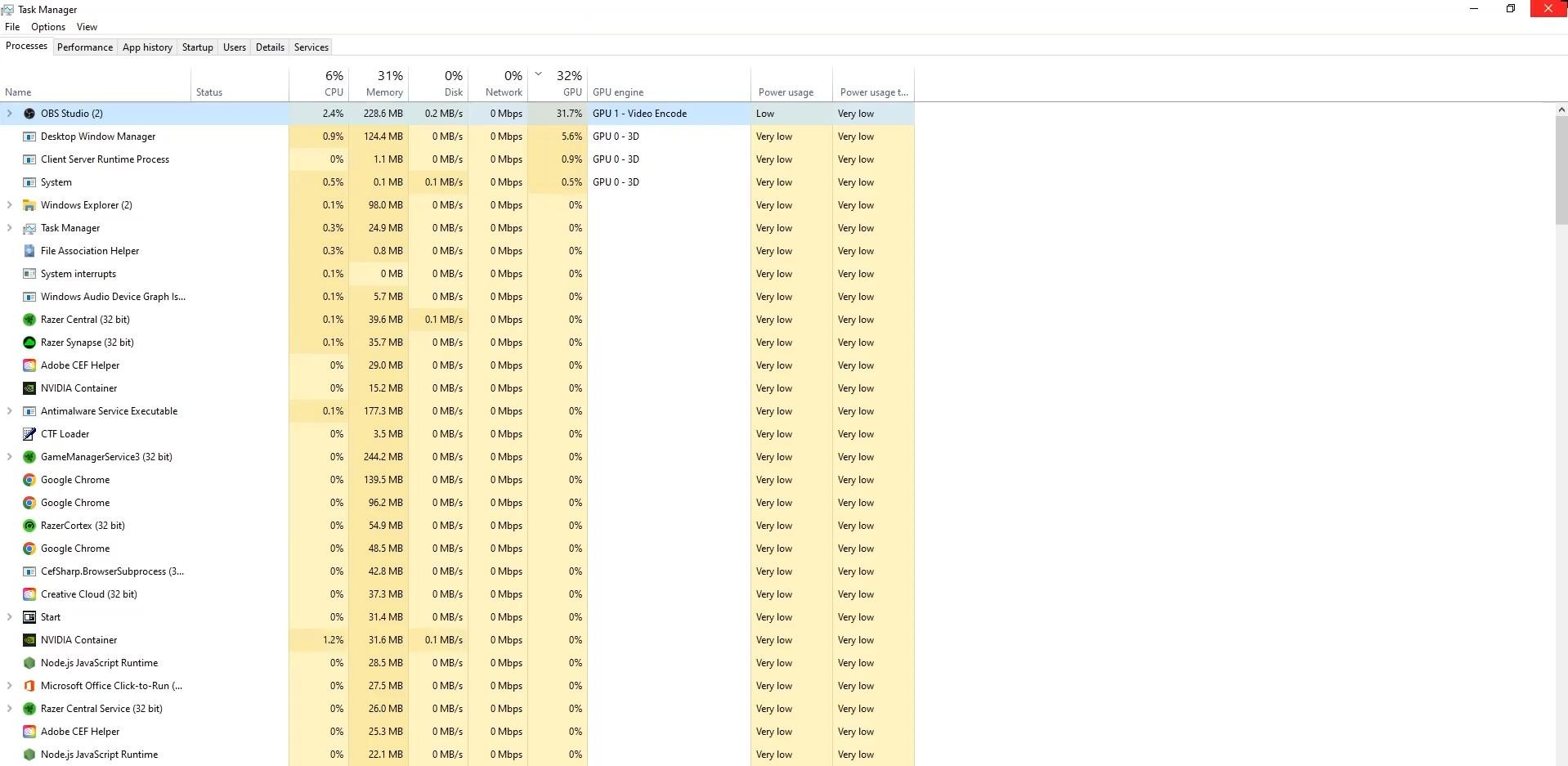
Launch Task Manager (CTRL + SHIFT + ESC or via Windows search) and open the “Processes” tab.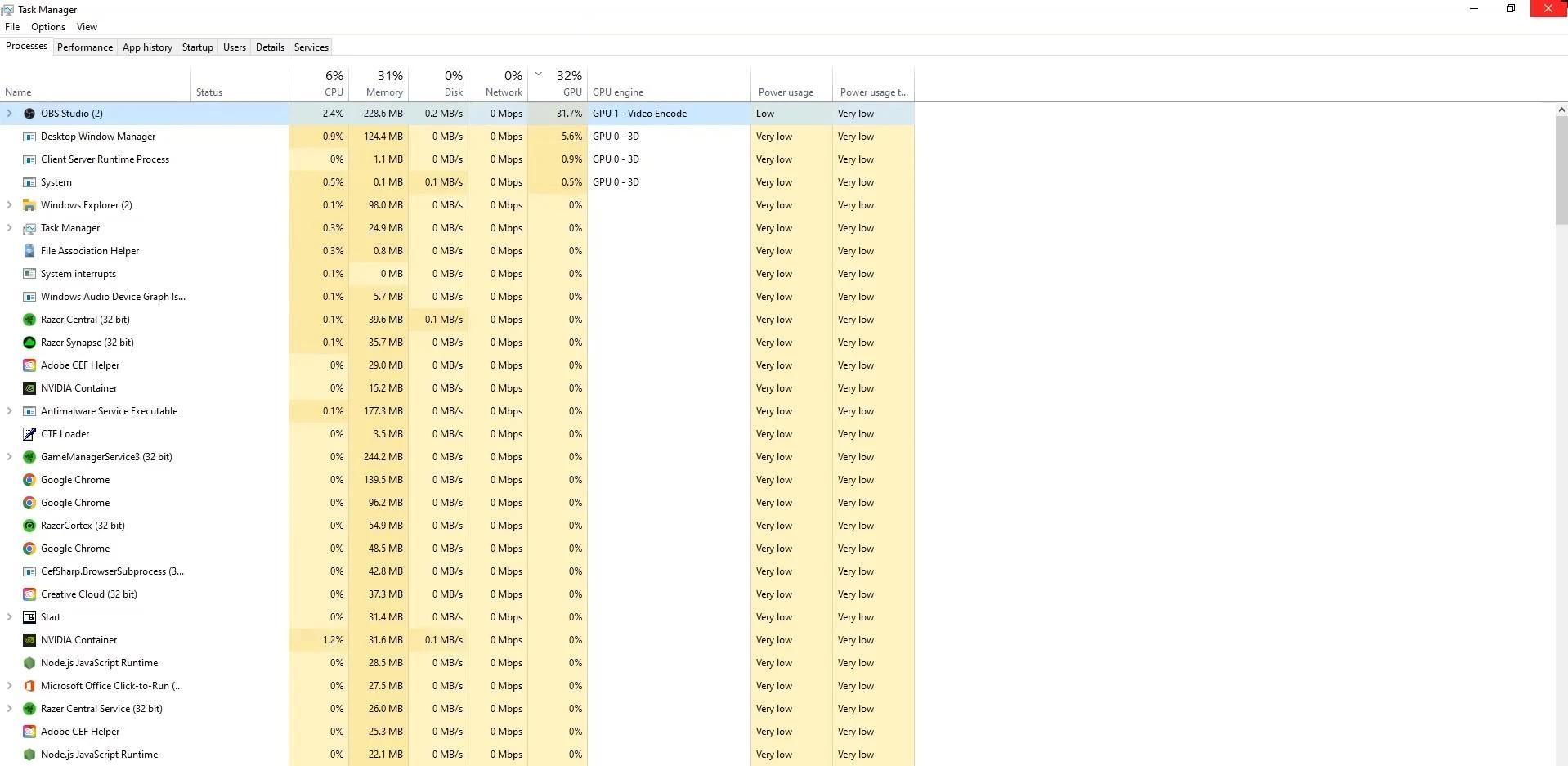
Sort them by CPU load. If you see “resource-hungry” programs that are not currently needed, feel free to terminate them via the context menu.
2. Disable unnecessary Windows features
If unloading the processor did not help, check the game settings of the system.
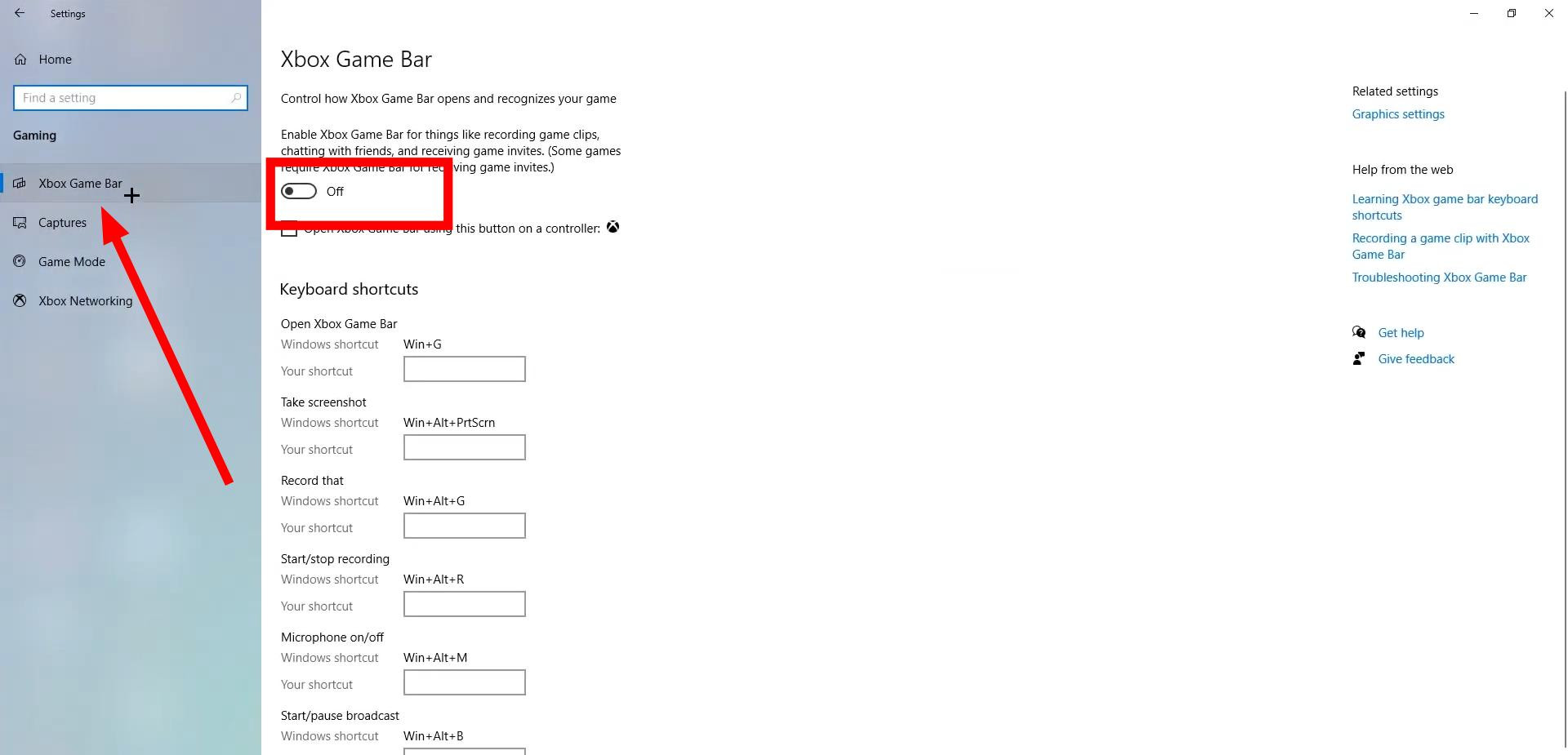
Open “Settings” → “Games”.
Xbox Game Bar — disable it immediately. It is useless for ETS 2 and consumes resources.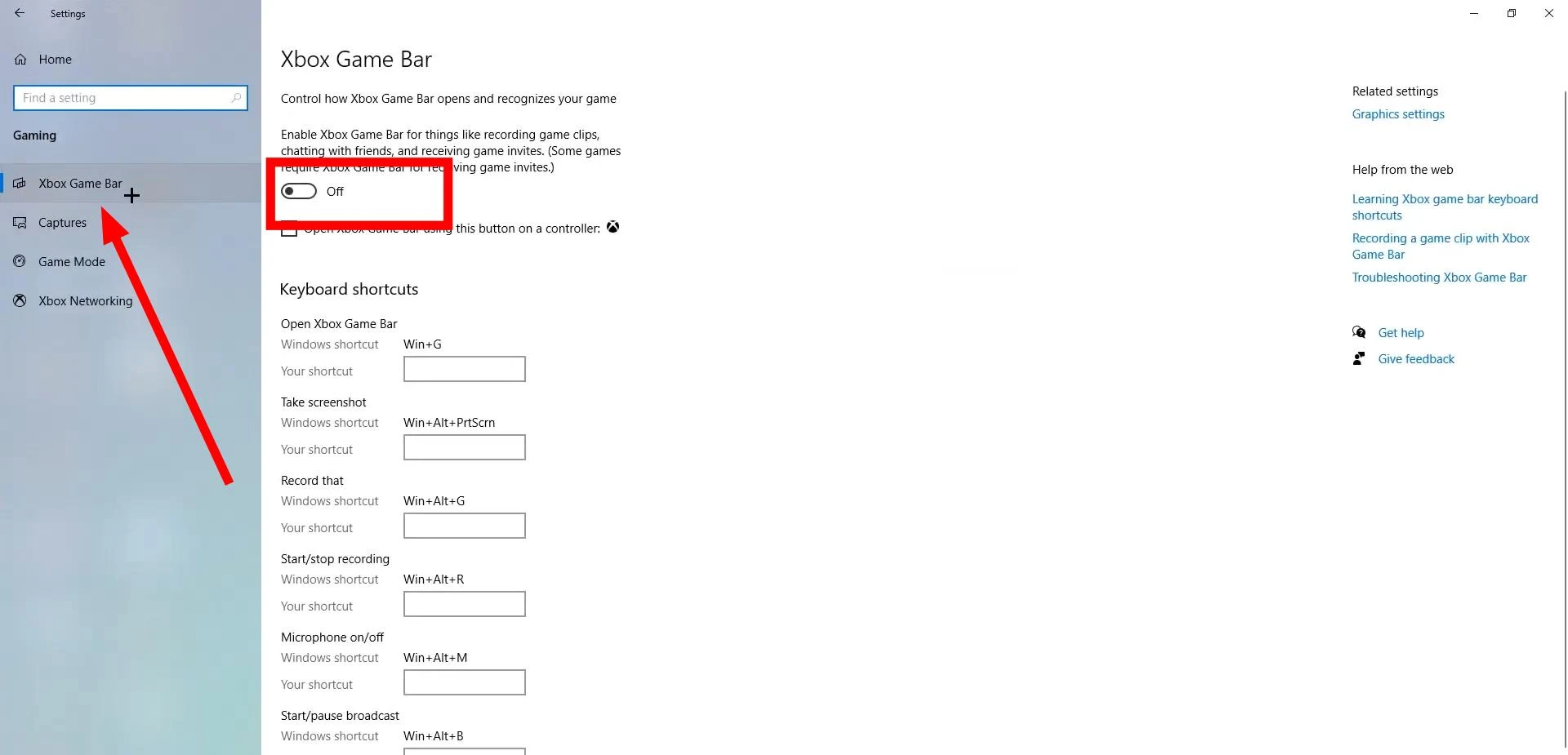
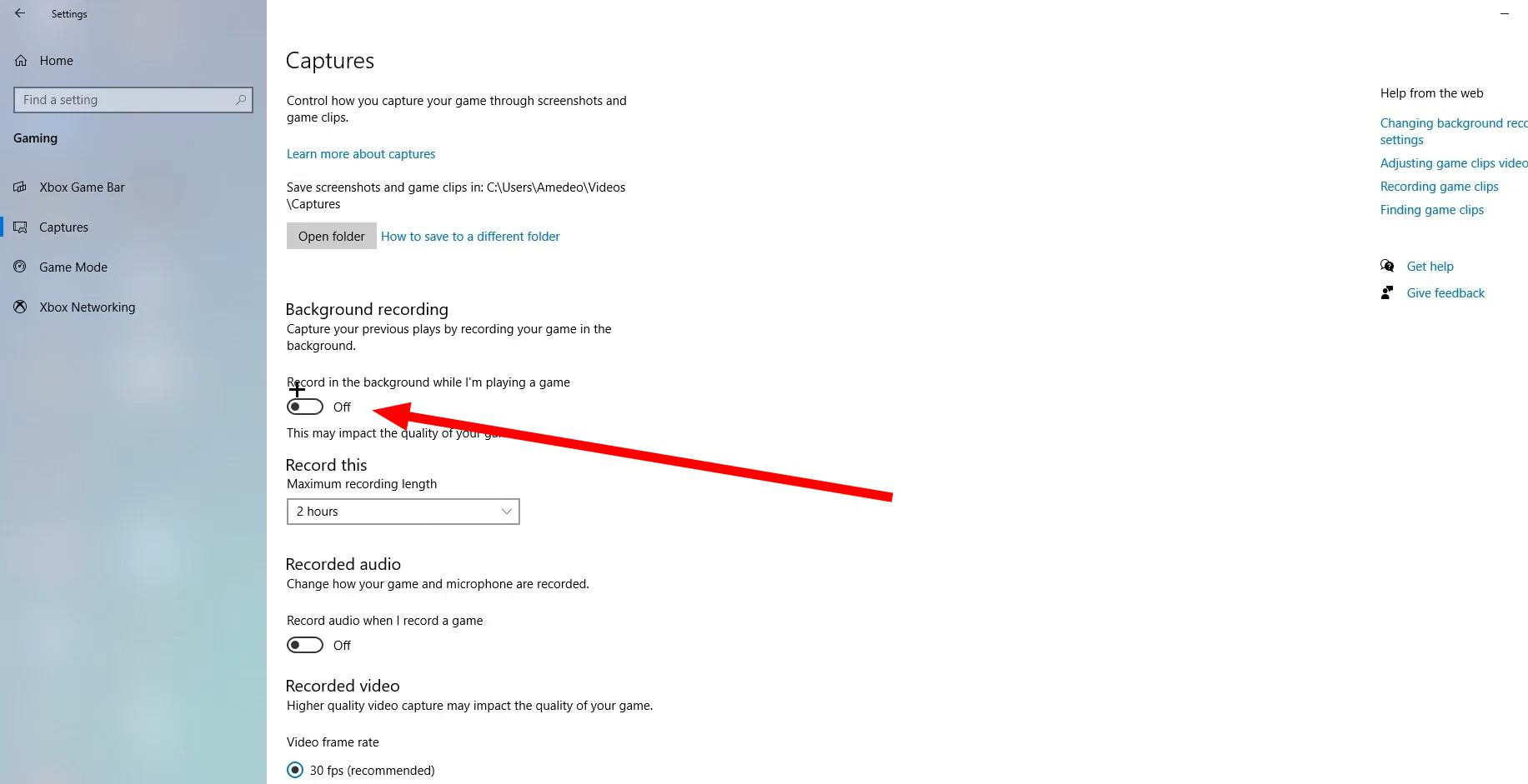
In the “Recordings” section, disable background recording. It runs constantly in the background and eats up FPS.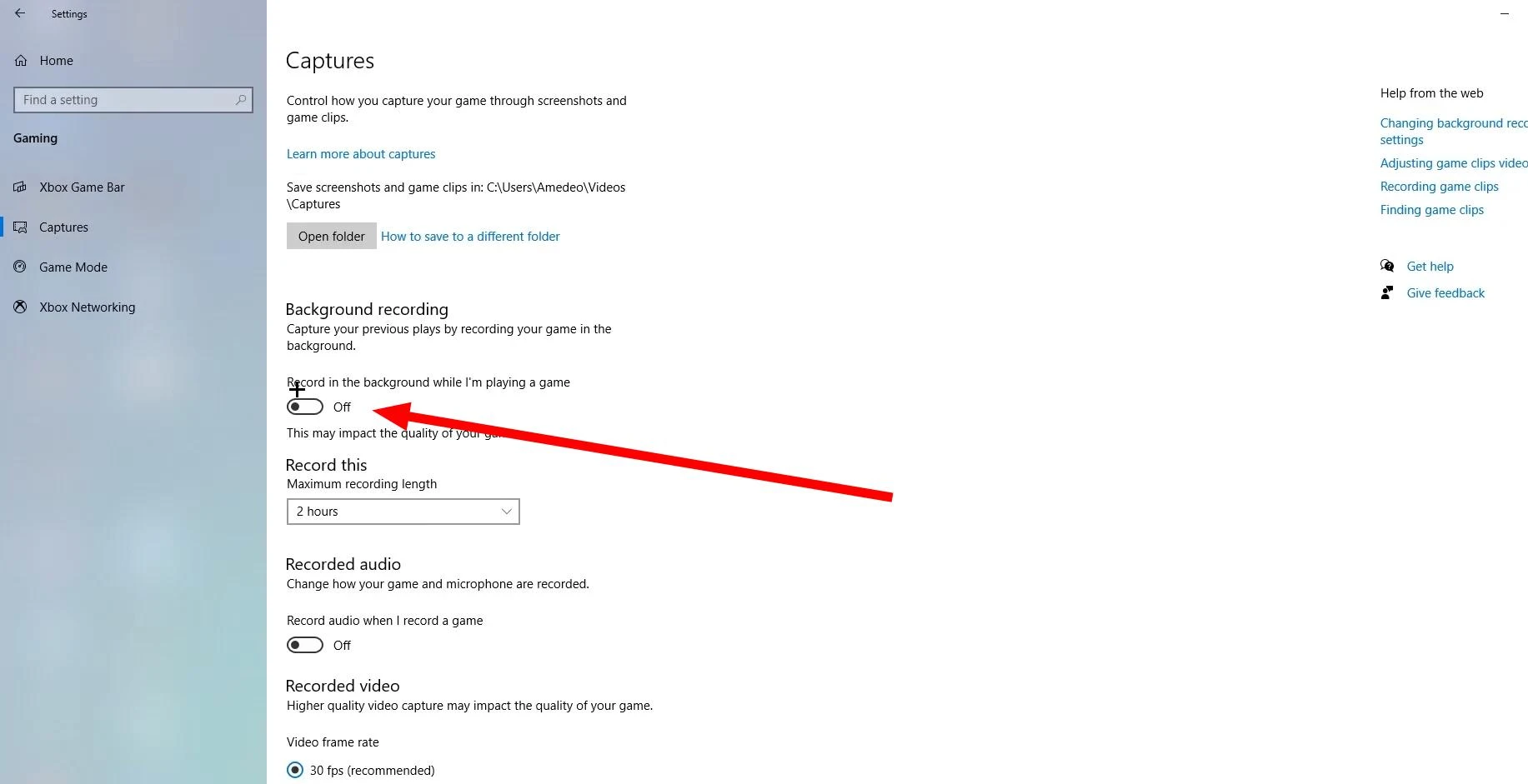
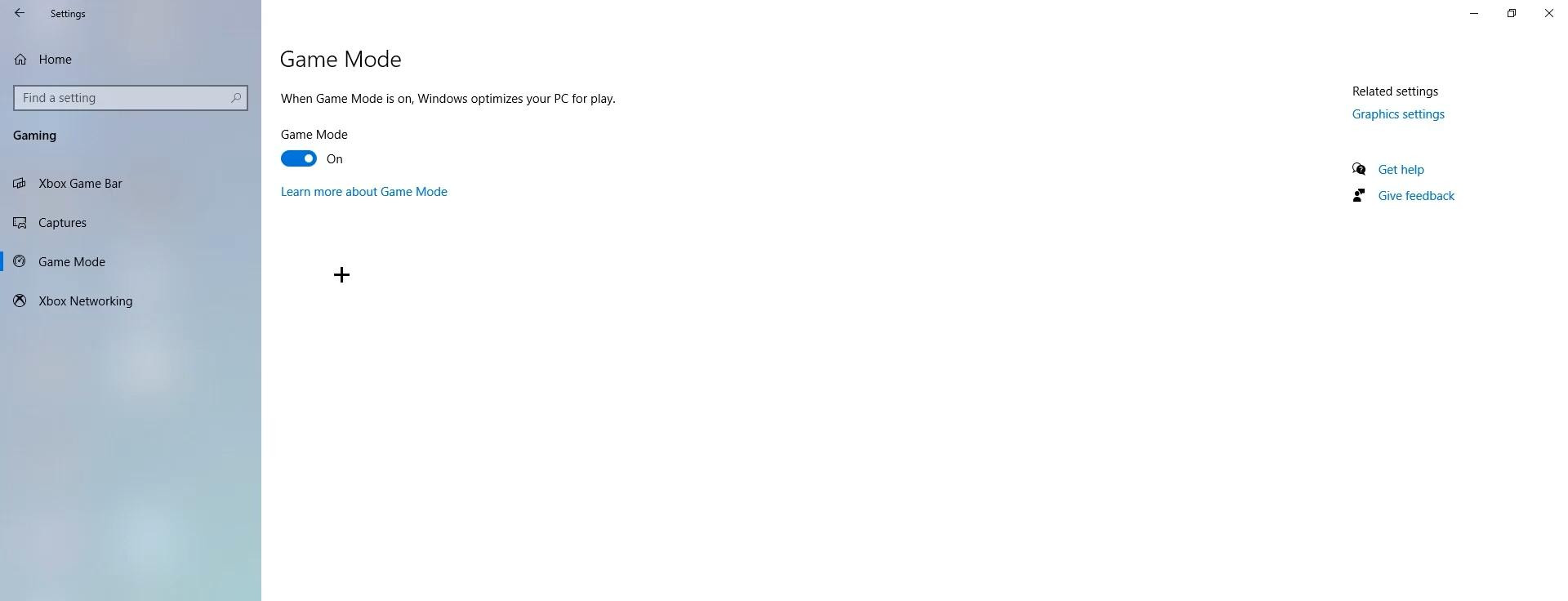
“Game Mode” — it's worth experimenting with this: on some PCs it helps, on others it has the opposite effect.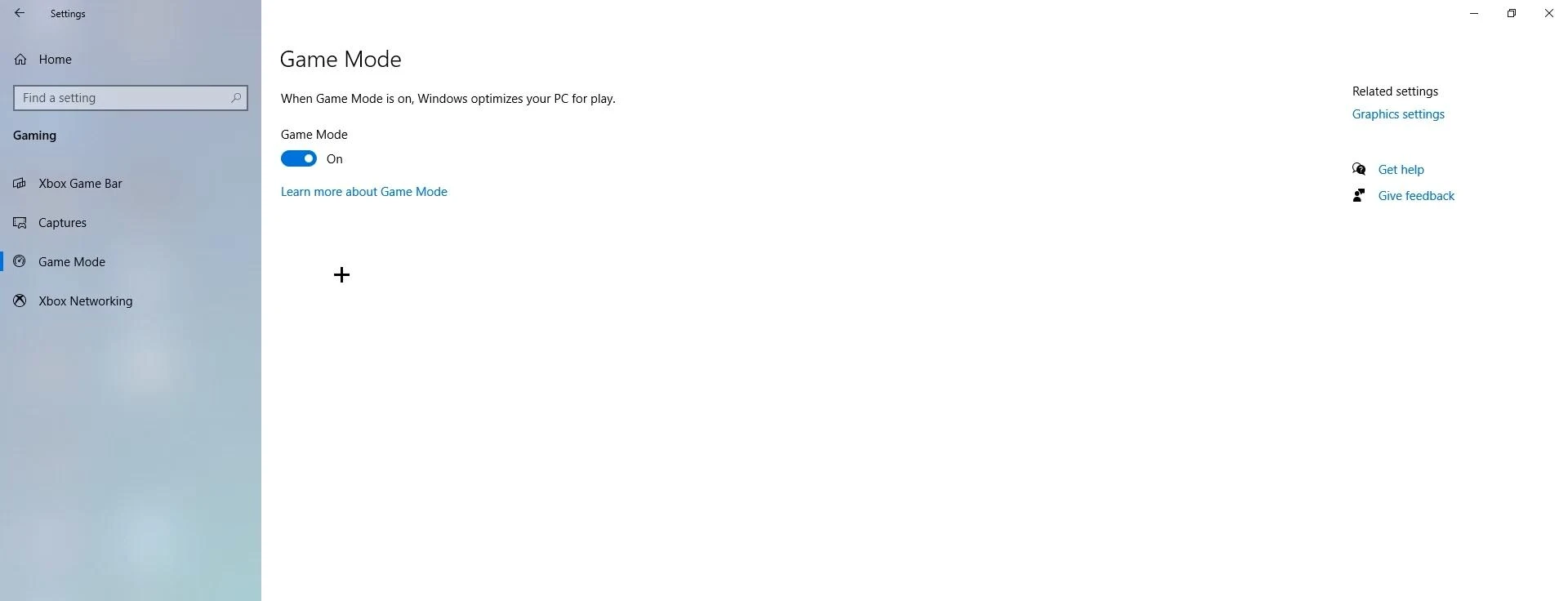
3. Update your system and drivers
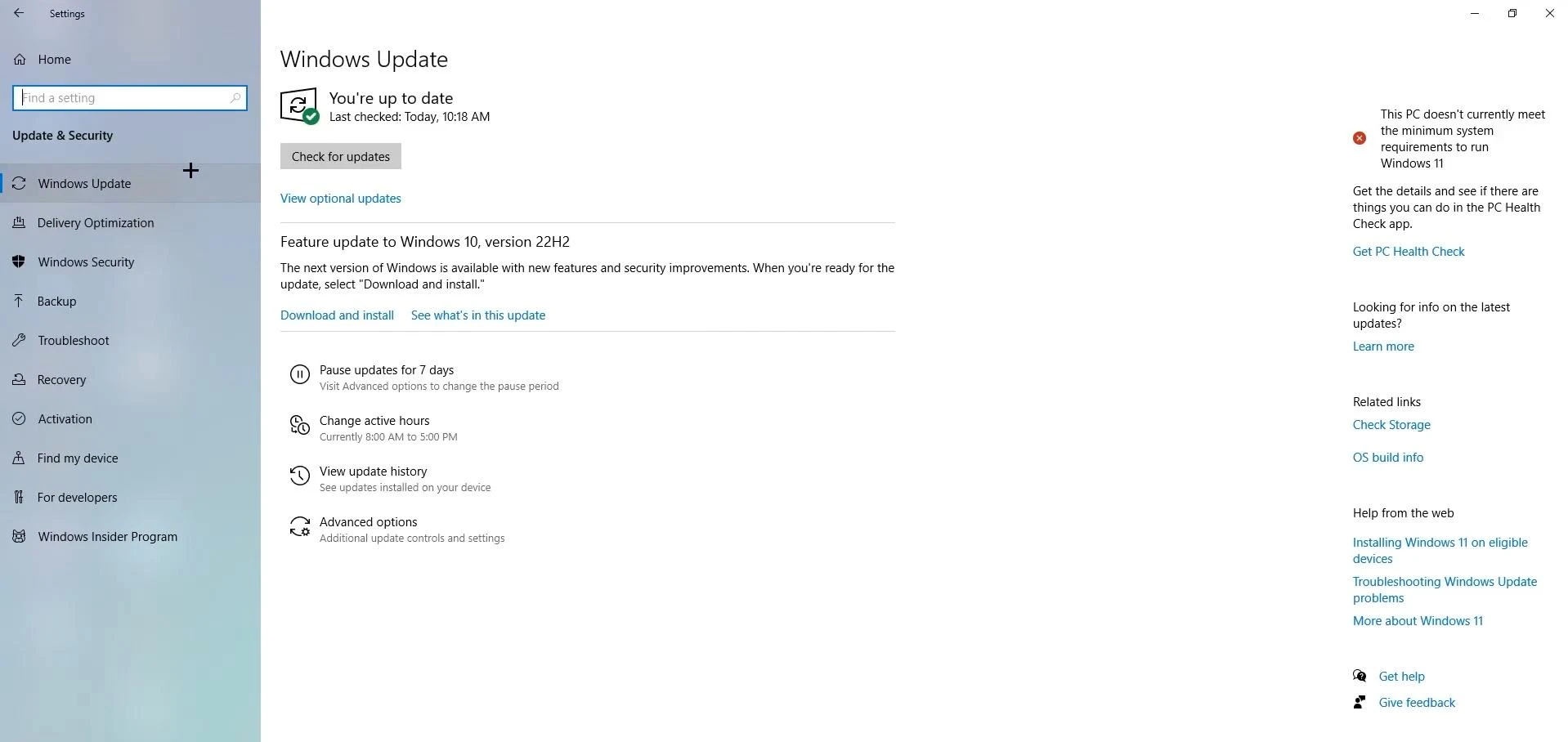
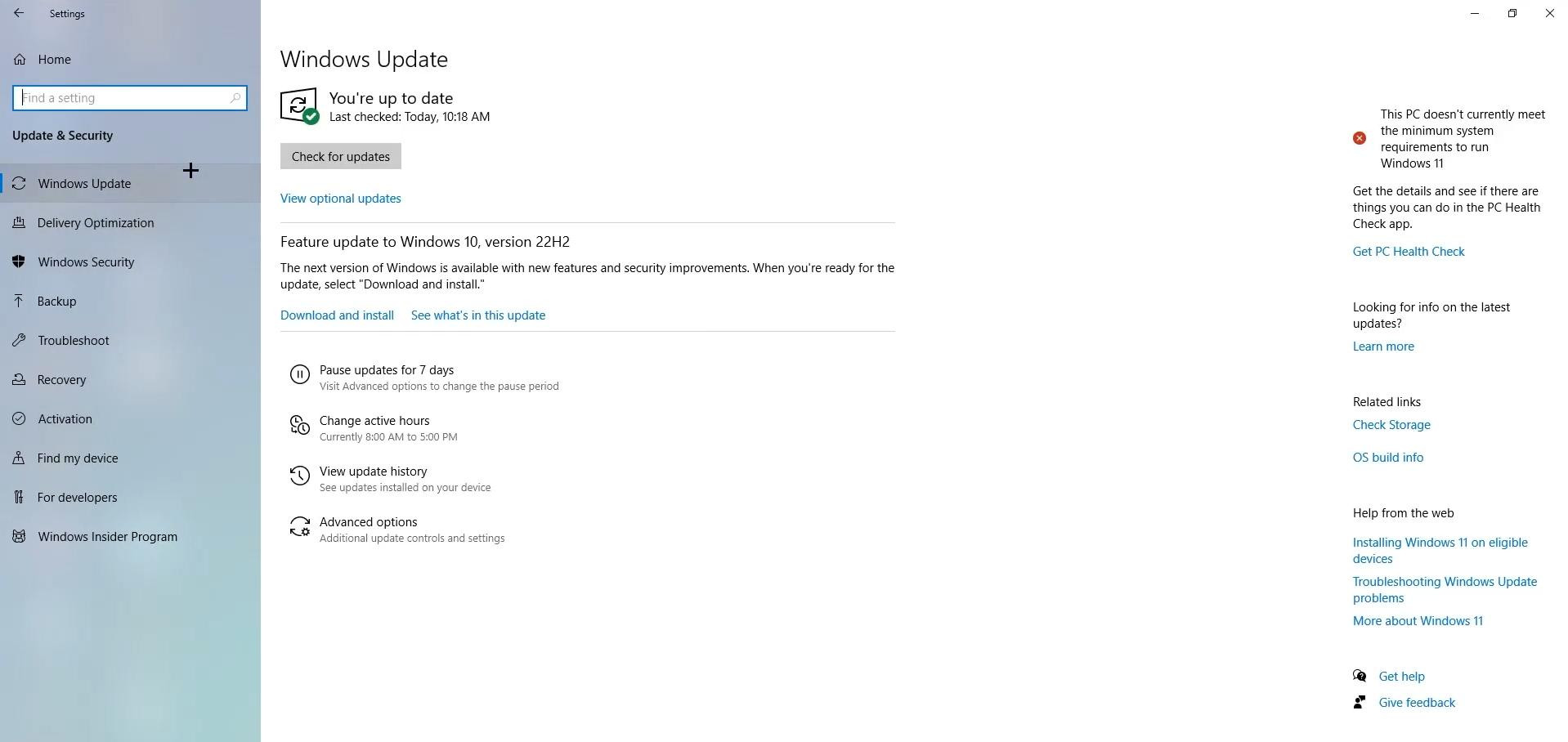
Sometimes drops are related to outdated system components. Go to “Update & Security” and install everything that Windows offers.
After that, check your video card drivers. It is better to download them either through the proprietary application (GeForce Experience, AMD Adrenalin) or directly from the manufacturer's website. You can find out the model of your adapter through Device Manager.
After these steps, Euro Truck Simulator 2 often starts to run noticeably smoother. Even if the FPS has only increased by a few frames, the difference in the driving experience is huge.
Videos

Added by


i dont recommend this type of mods