How to fix the “GIANTS Engine 8.0.0” error in Farming Simulator 19
-lg_modland.jpg)
When you run FS19, do you see an error «GIANTS Engine 8.0.0»? This is a fairly frequent situation where the game does not want to start. It is difficult to determine why the game refuses to work, but there are quite universal solutions.
All of them are described below. Try different solutions, maybe some of them will help you.
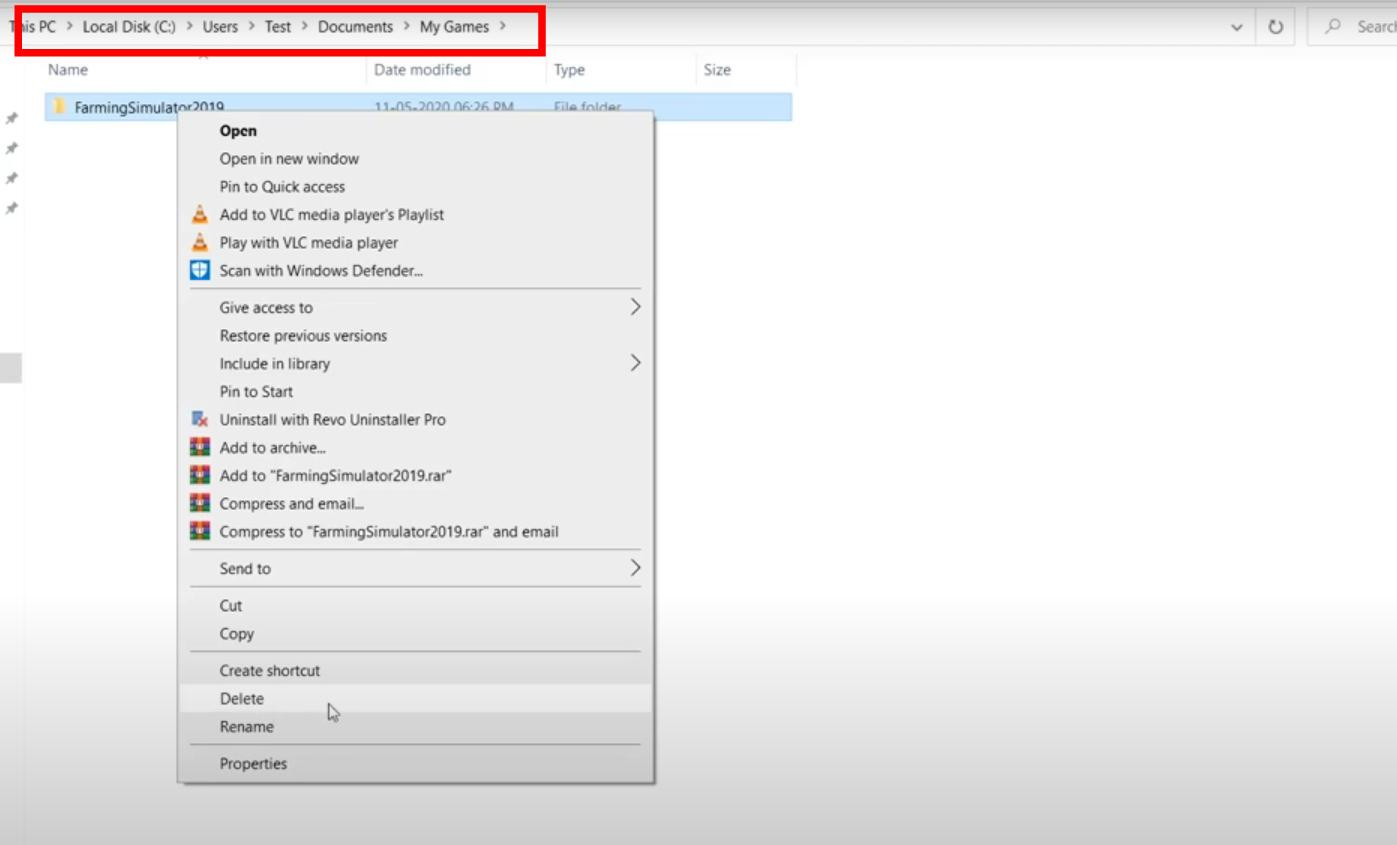
Clear game settings folder
If when you start Farming Simulator 25 does not want to run the game and the error message «GIANTS Engine 8.0.0» appears on the screen, you can first try to clear the folder with the game settings.
It is on the way: «Documents My Games FarmingSimulator2019». Before you delete, make a backup of this folder so that you do not lose your saves and mods.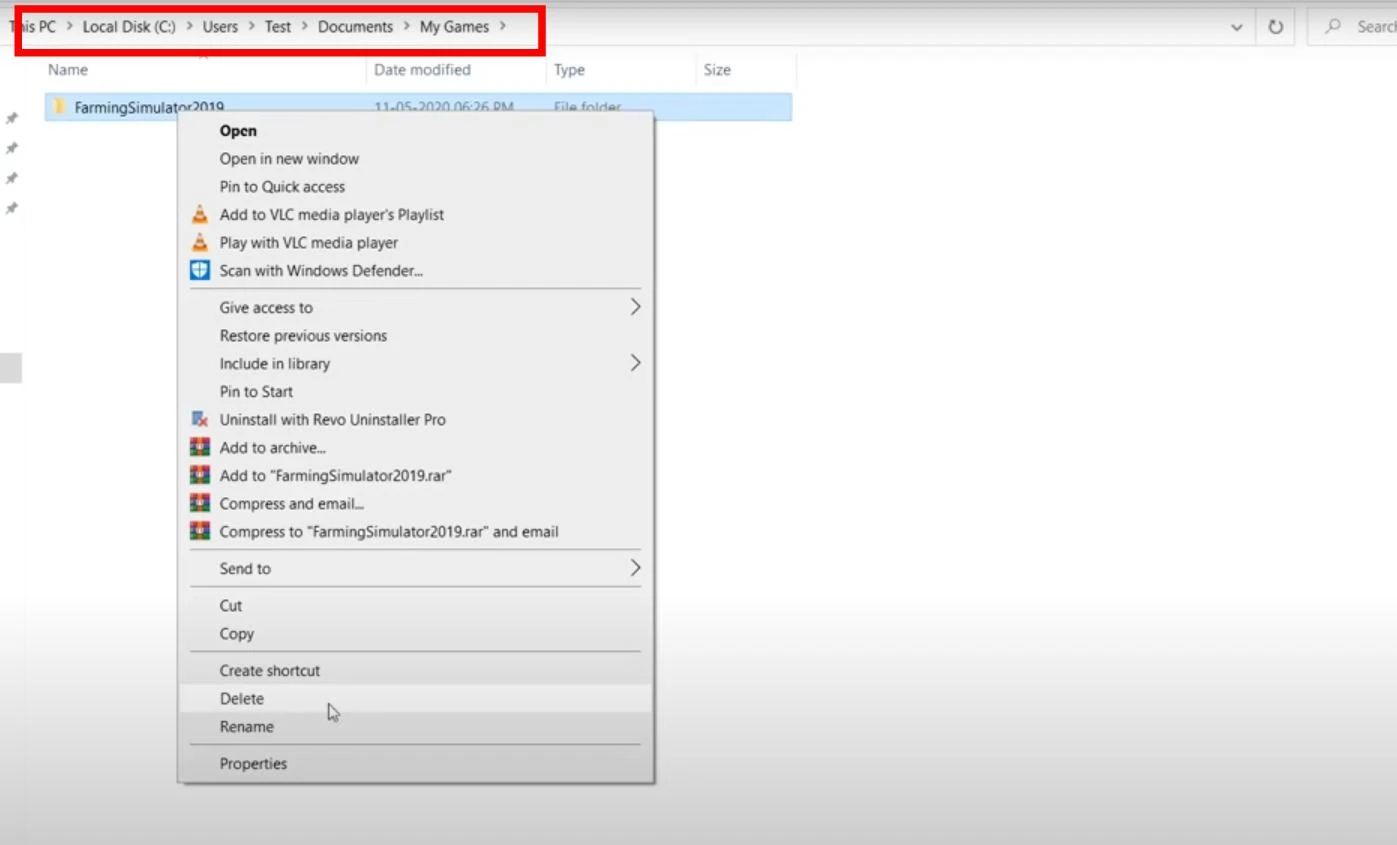
After the original folder is deleted, run the game through Steam. It will create a new folder with clean files. If the game runs without errors, you can restore your saves and mods by simply copying them from a backup.
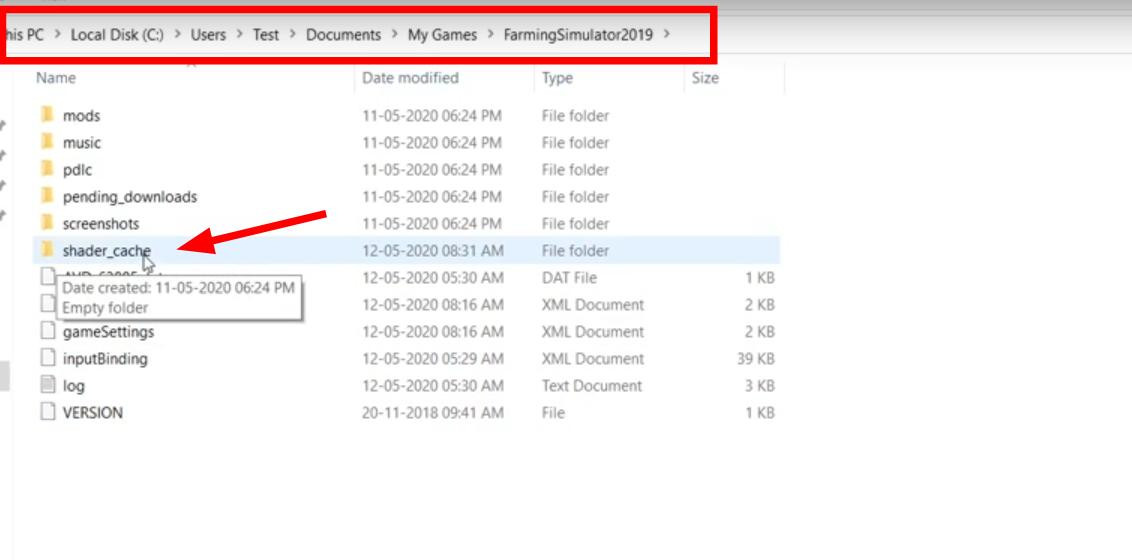
Cache removal
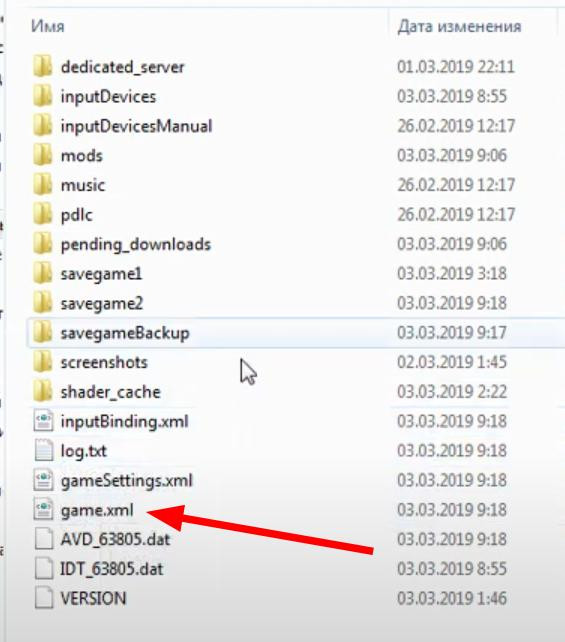
Often exits are caused by a damaged shader cache. The same FarmingSimulator2019 folder has a shader_cache subfolder.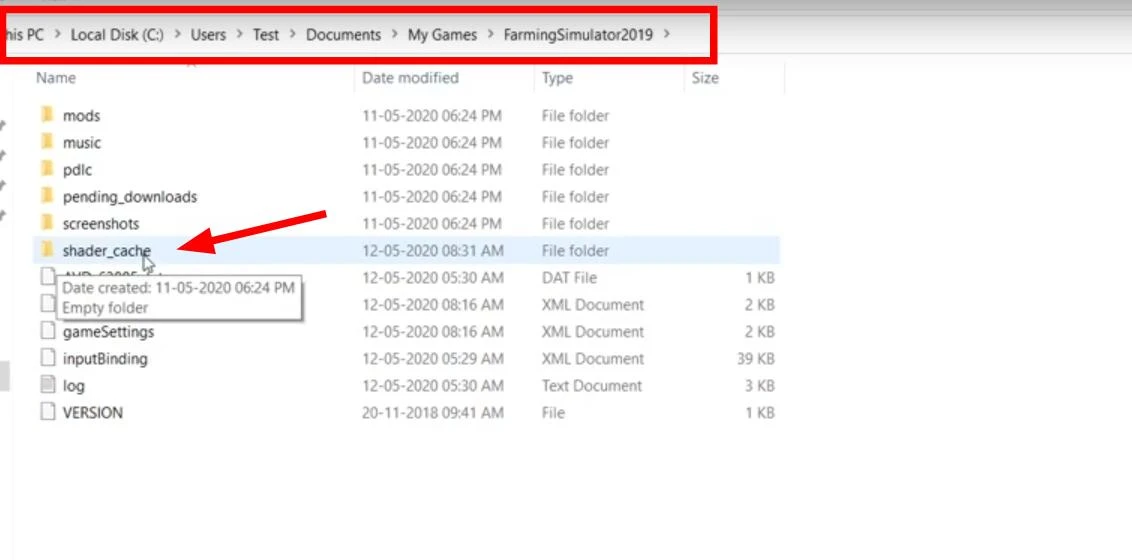
Just try to delete all files inside it. The next time you start the game, the shaders will reset again and the error may disappear.
Editing the game.xml file
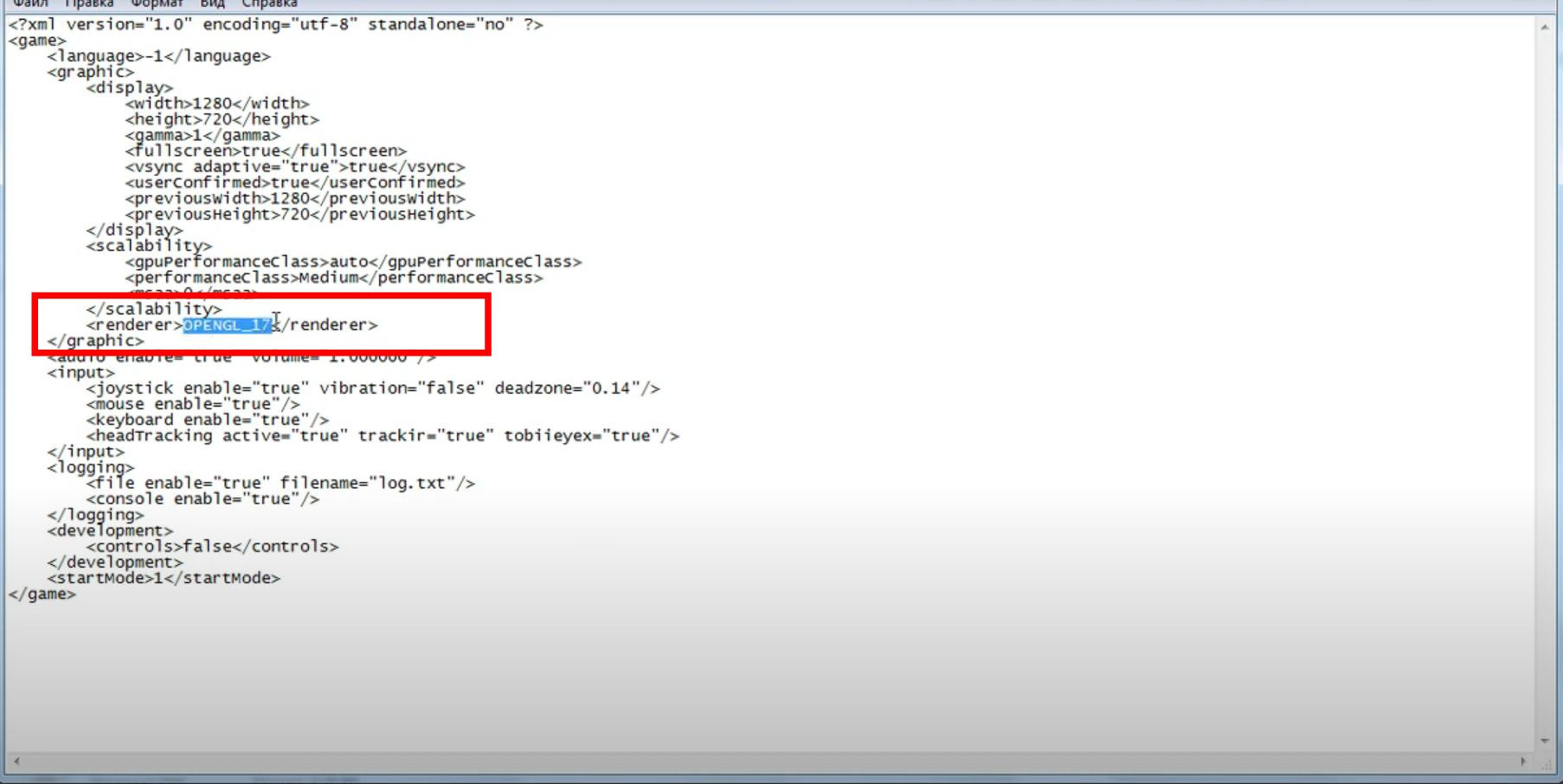
Another effective method that can help in some cases is to change the OpenGL version in the game.xml file.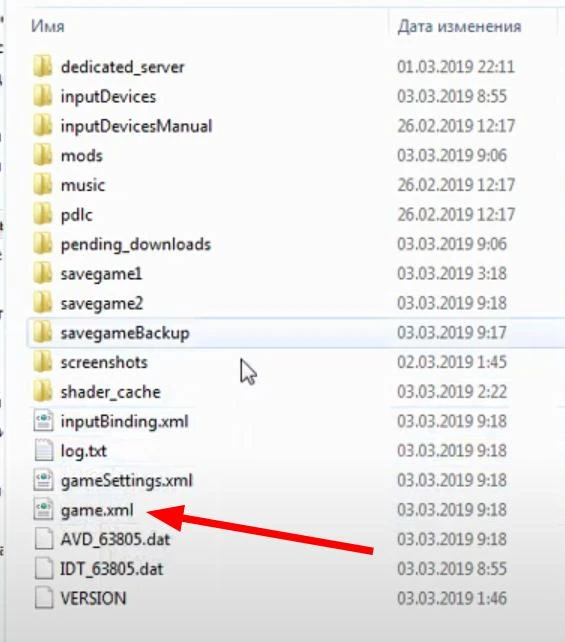
Open the game.xml file, which is in the folder with the installed game (FarmingSimulator2019) using Notepad.
Find the renderer string and replace the value with, for example, OpenGL_17. Try matching different digits - it can be from 15 to 19.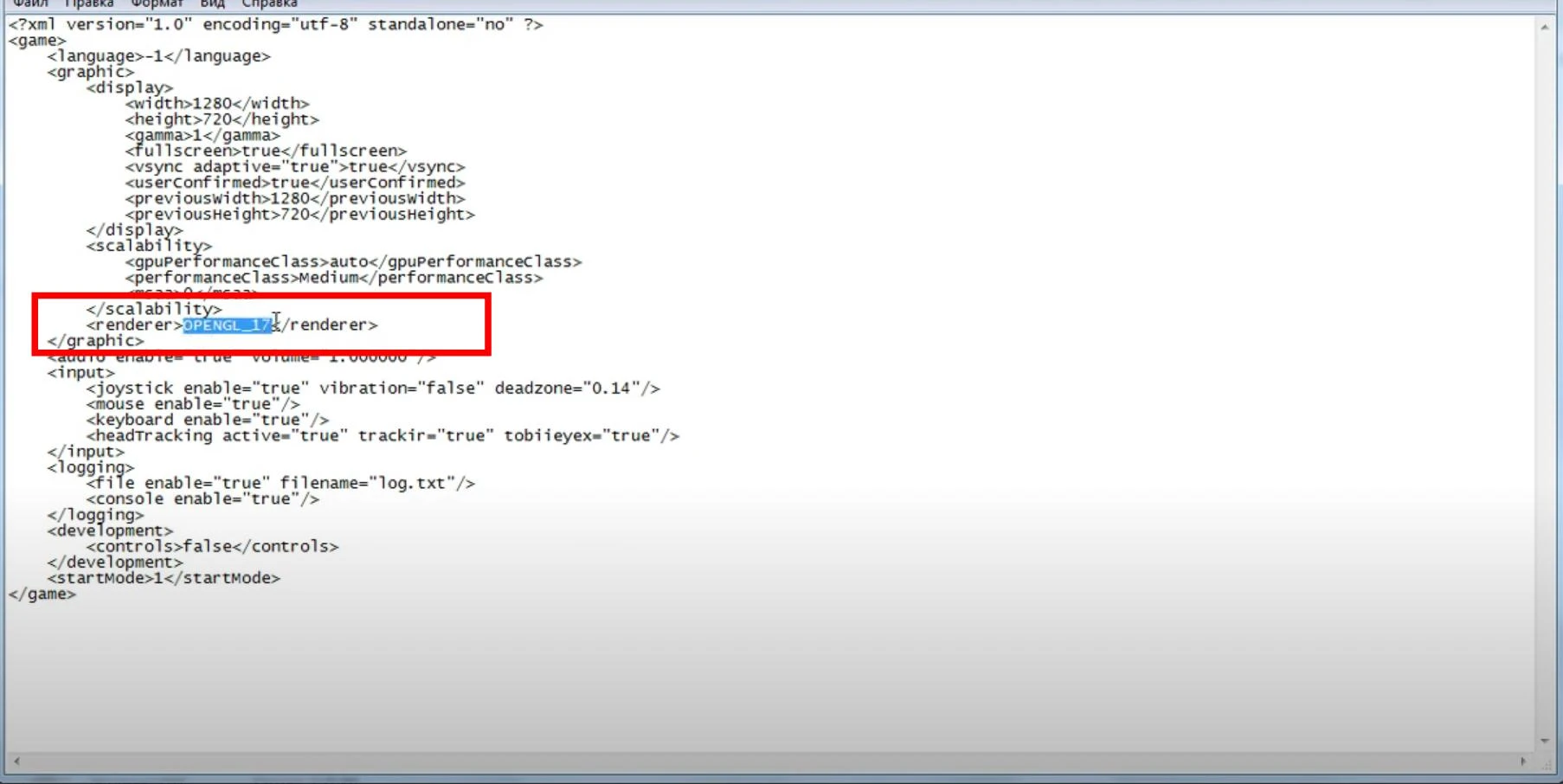
Do not forget to save the changes in the file. After that, try running the game again. Also in some cases saves may not be saved, so it is recommended to make changes using the program Netopad++ and open the file on behalf of the administrator.
Video card driver update
An outdated version of the drivers can also very often contribute to the FS19 startup error. The solution is simple - update your video card driver.
Go to the official NVIDIA or AMD website and download the latest version of the driver for your graphics card.
When installing, do not forget to select the option to delete old driver files if such a feature will be present in the installer. This will remove the remnants of old drivers and install new ones.
Usually, the driver installation instructions are simple. Simply download the driver installer for your graphics card model and follow the steps of the installer.
Running the game via a discrete video card
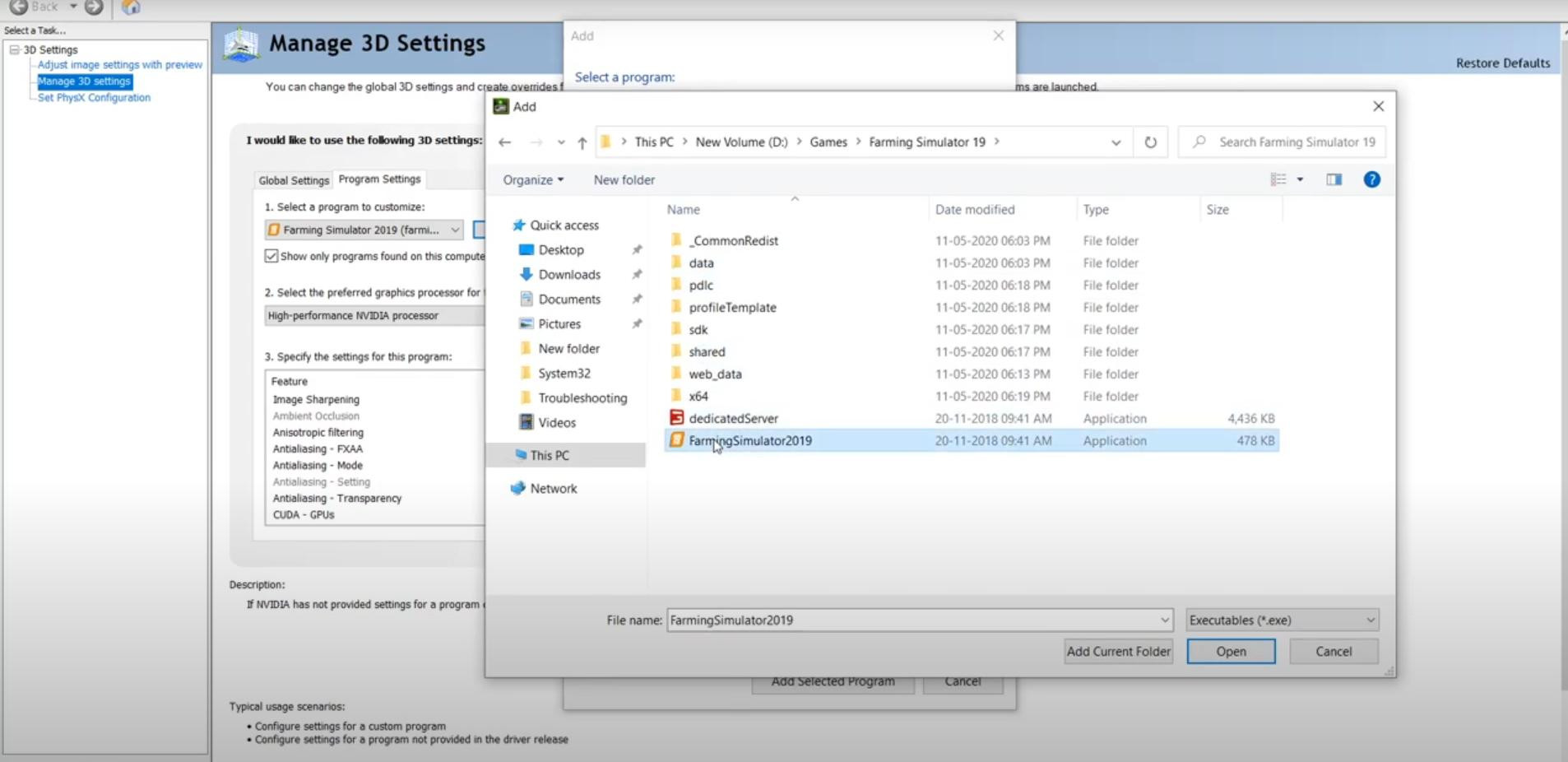
On laptops or computers with two video cards, Farming Simulator 19 sometimes runs through the built-in Intel graphics, which causes flights.
To fix this, in the NVIDIA control panel you need to add FarmingSimulator2019Game.exe to the list of programs and select Run via «NVIDIA High Performance Processor».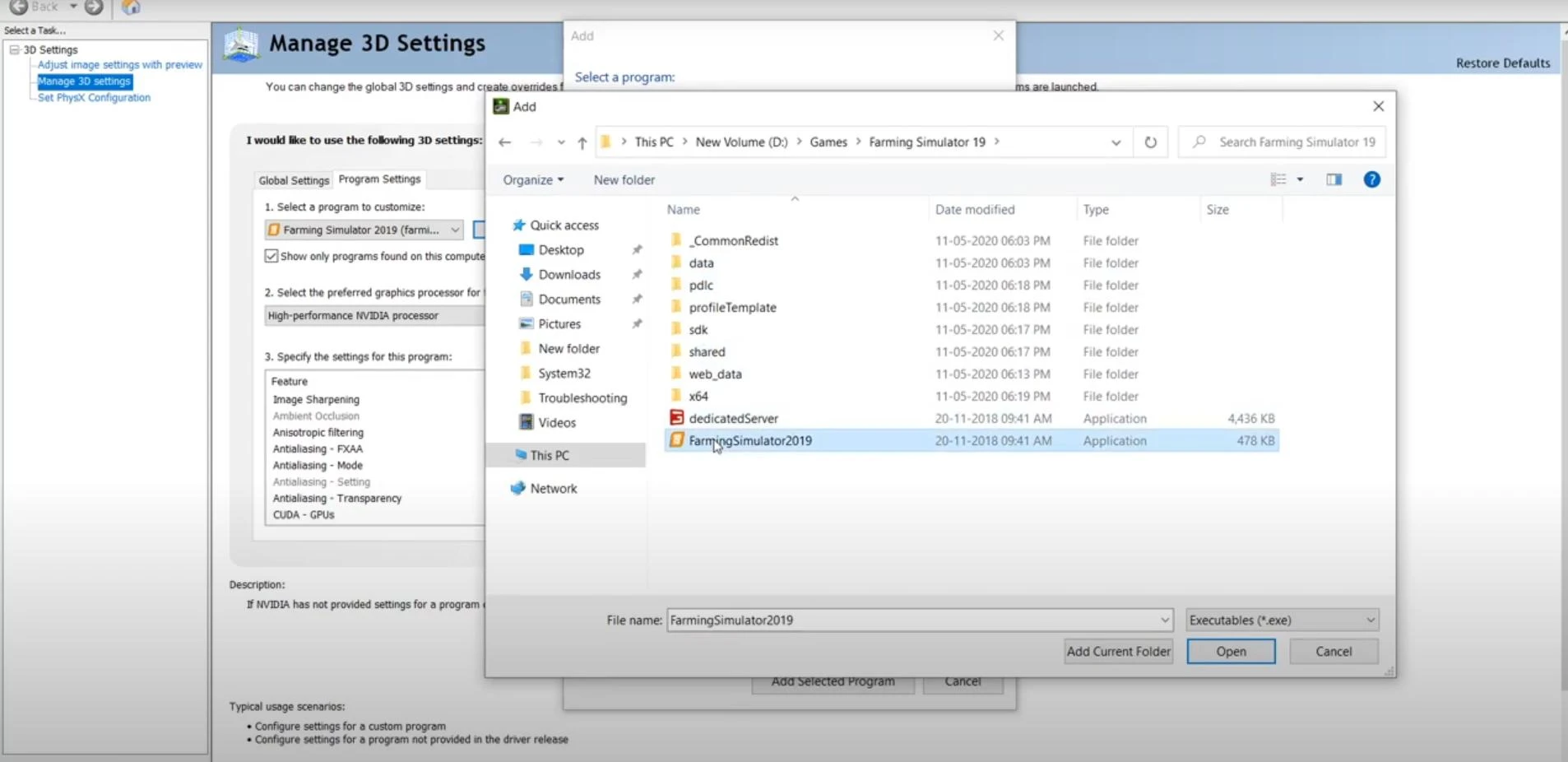
In AMD settings the process is similar, you need to select High Performance mode for FS19.
Windows Clean Boot
Another option that can help is to start Windows with a clean boot.
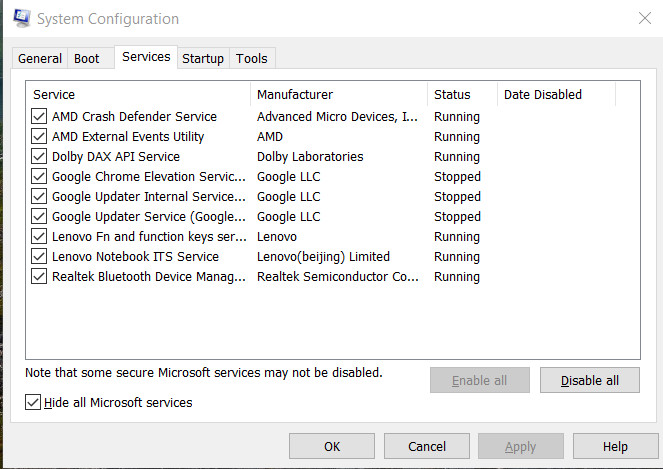
Press Win + R, in the box enter «msconfig» and click OK.
In the window that opens, select «Services» and select «Hide all Microsoft services». Then click on «Disable all».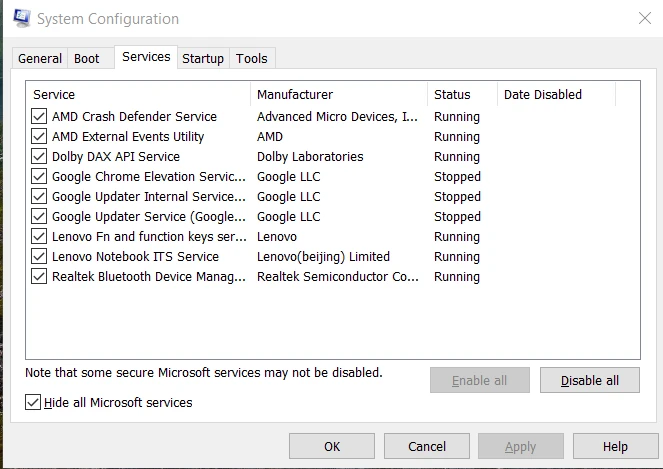
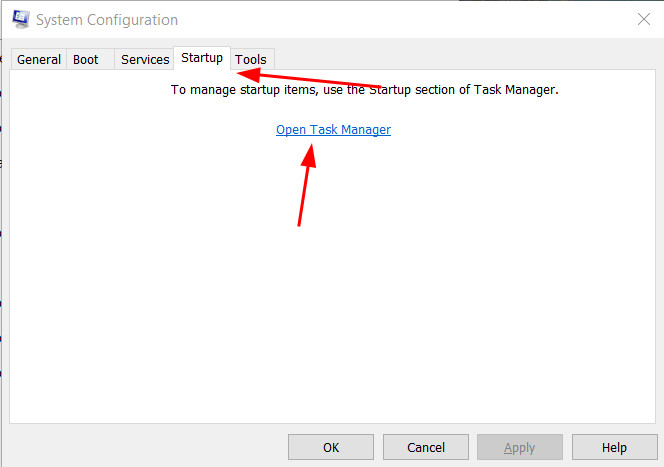
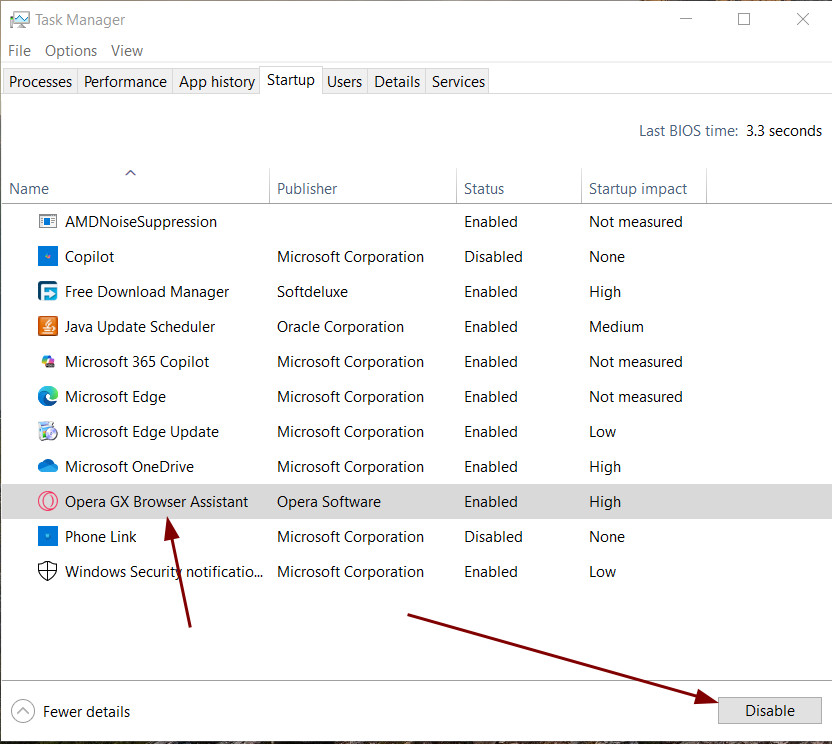
Next, go to the «Startup» tab where you need to open the task manager.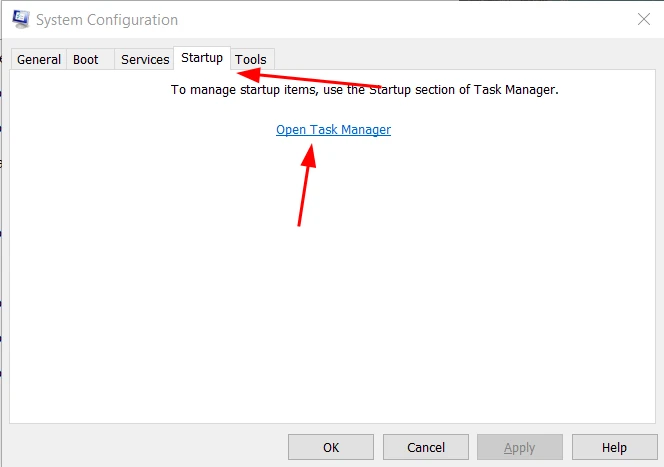
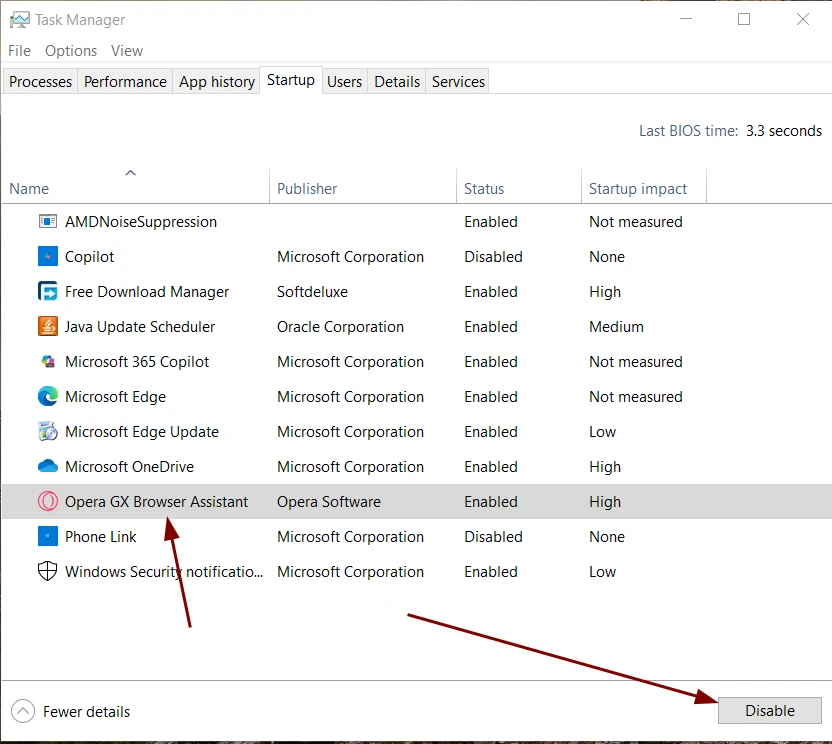
In it, disable all programs that run with the computer.
When all actions are done, save the changes and restart the computer. After restarting, try to open Farming Simulator 19 again and see if the game starts.
To return to normal mode you need to open msconfig again, in section «General» select item «Normal start» and restart the system.
Checking files in Steam
For those who have the game installed through Steam it is not unnecessary to check the integrity of the files.
Open the Steam client, select Farming Simulator 19 from the list of games, open the properties and select «Local files».
Then click «Check file integrity».
If problems are found, the program automatically retrieves the desired or corrupted files.
Complete reinstallation of the game
If you have tried everything described in the guide, you can resort to the most radical methods - a complete reinstallation of the game.
This method helps in most cases. You need to delete the game not from a folder, but through Steam or through the uninstaller.
Videos

Added by