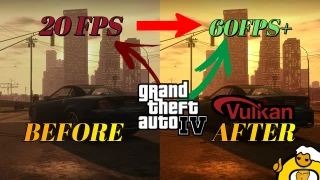
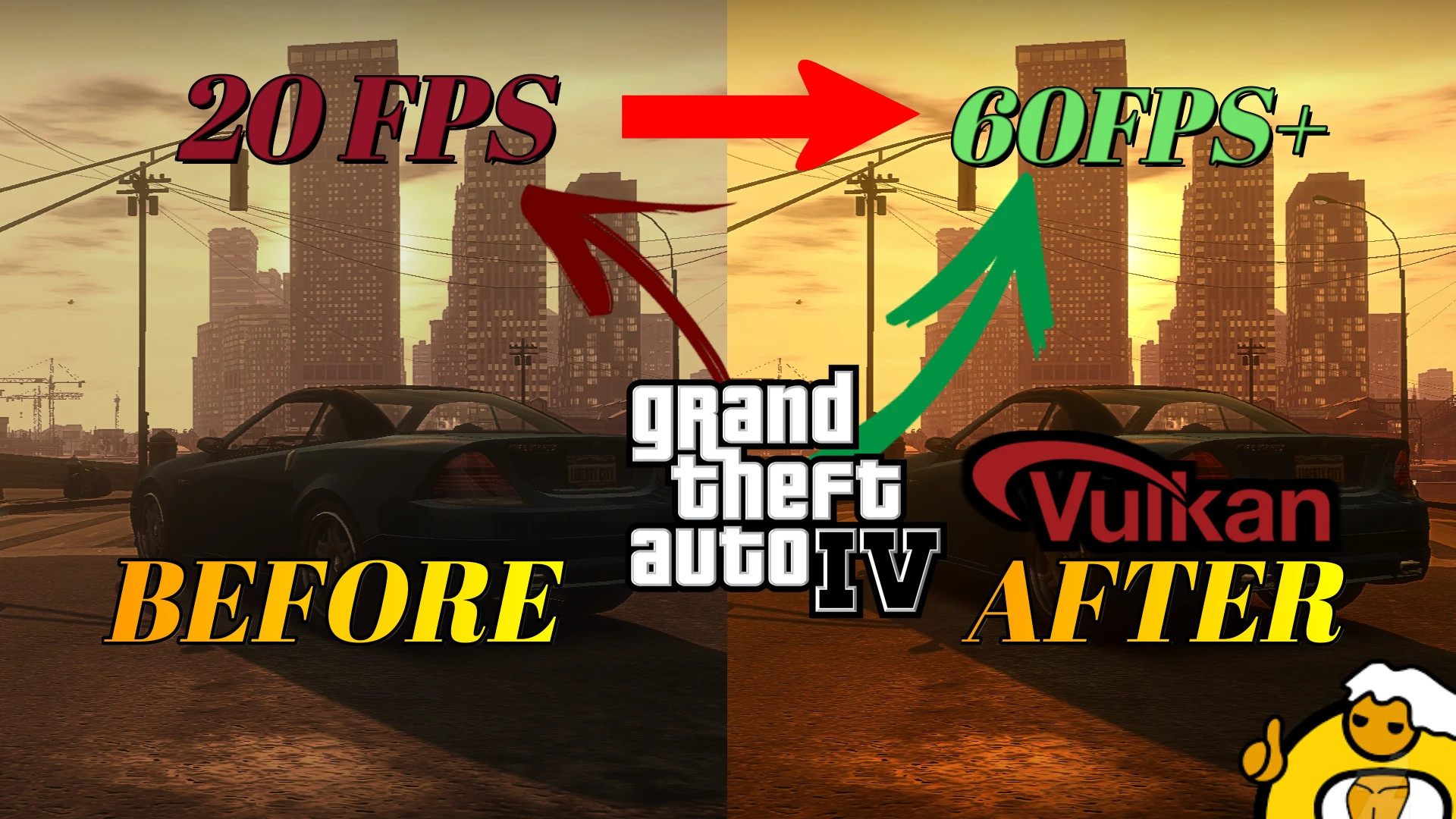
GTA4 DXVK v2.8.1-Stable




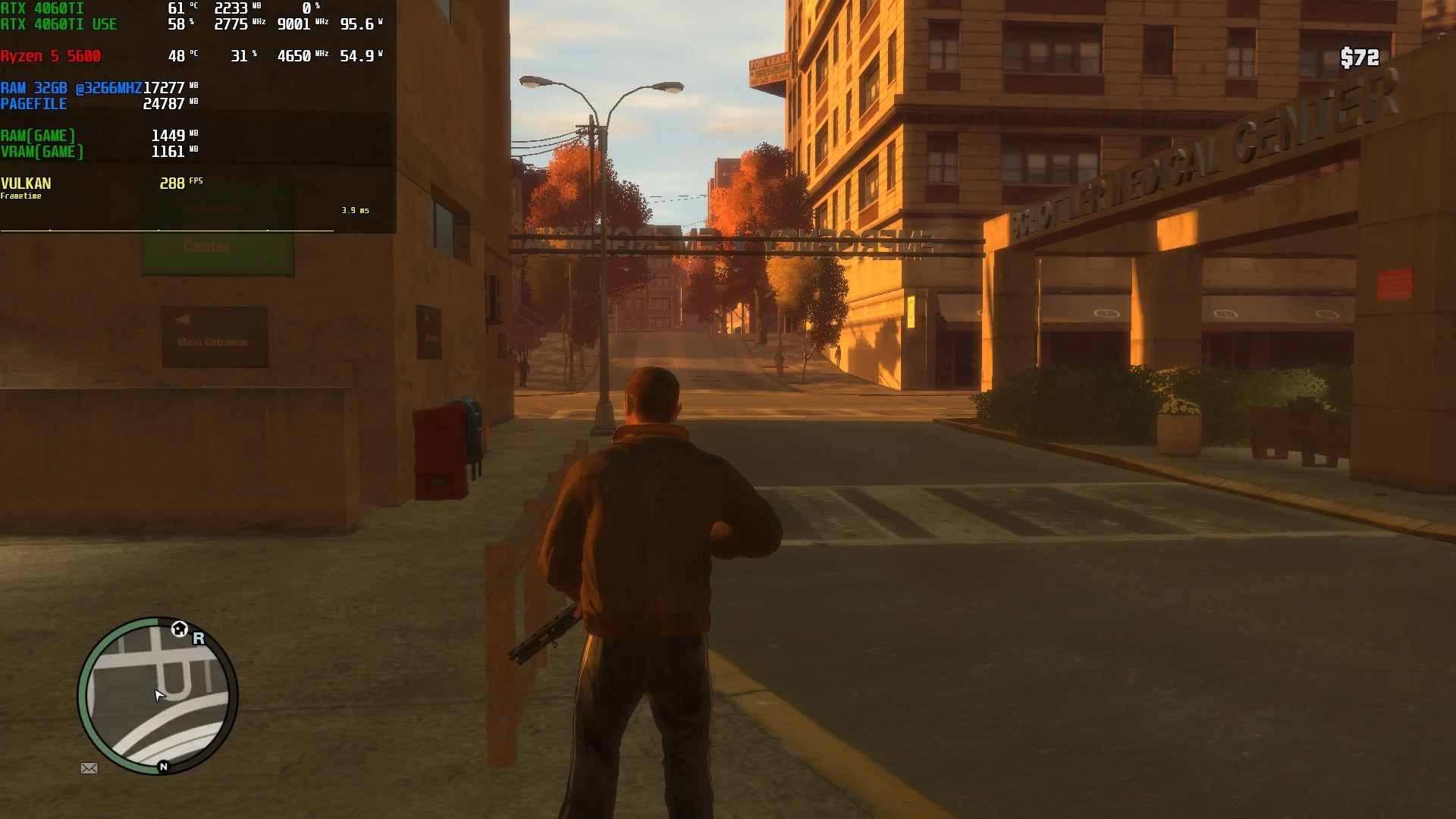
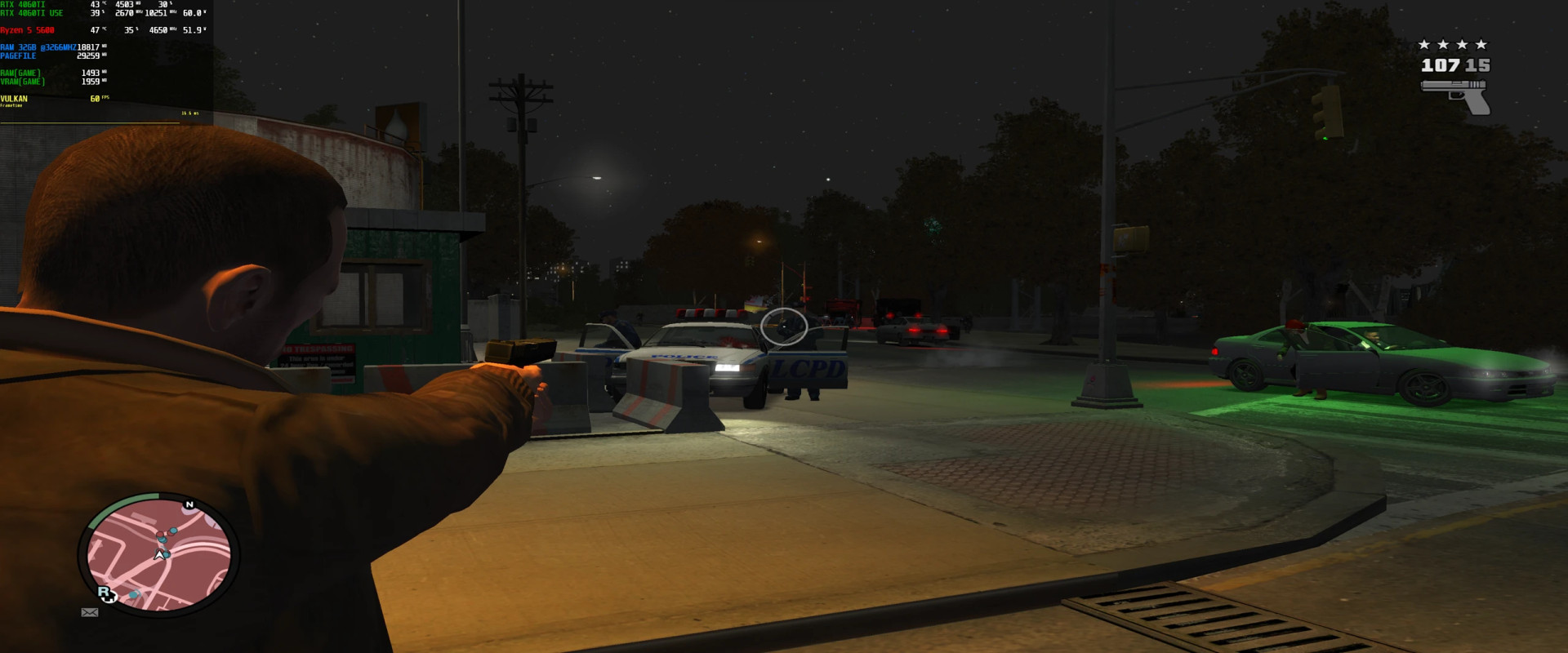
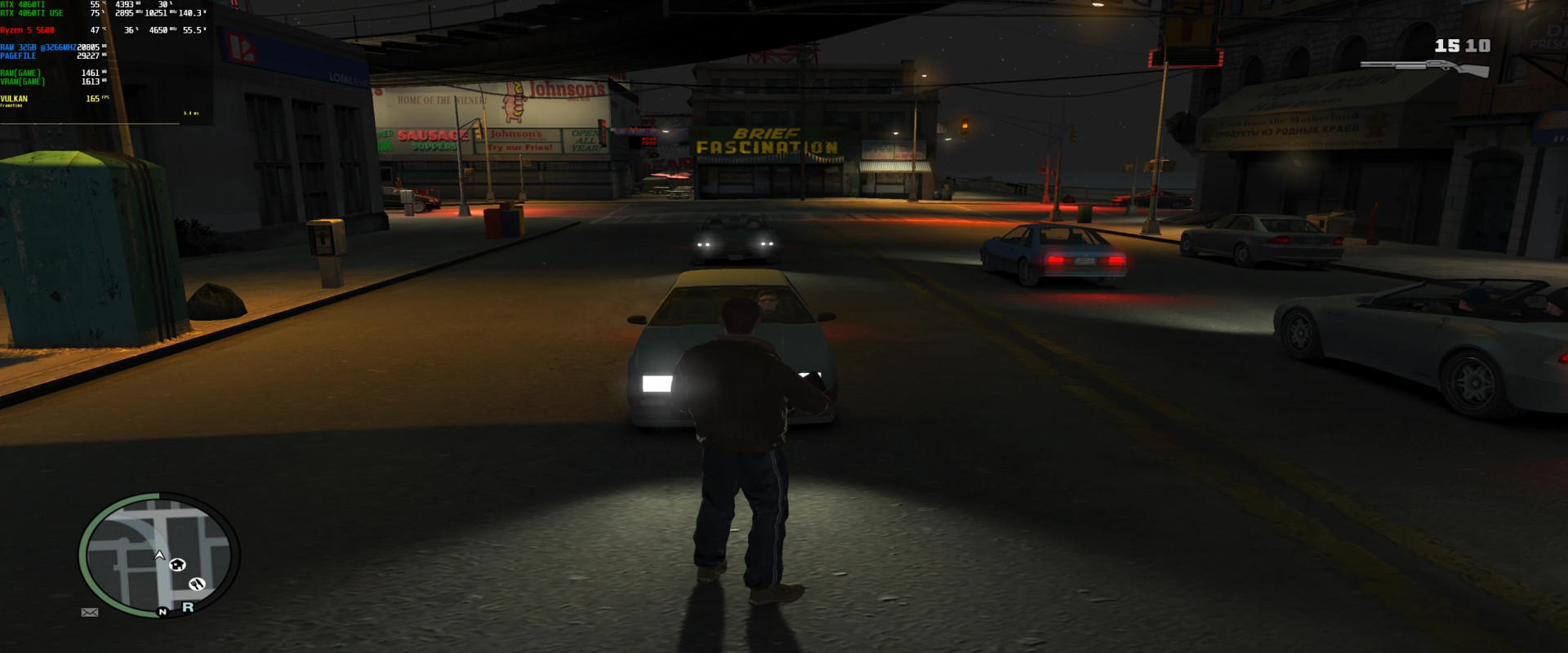
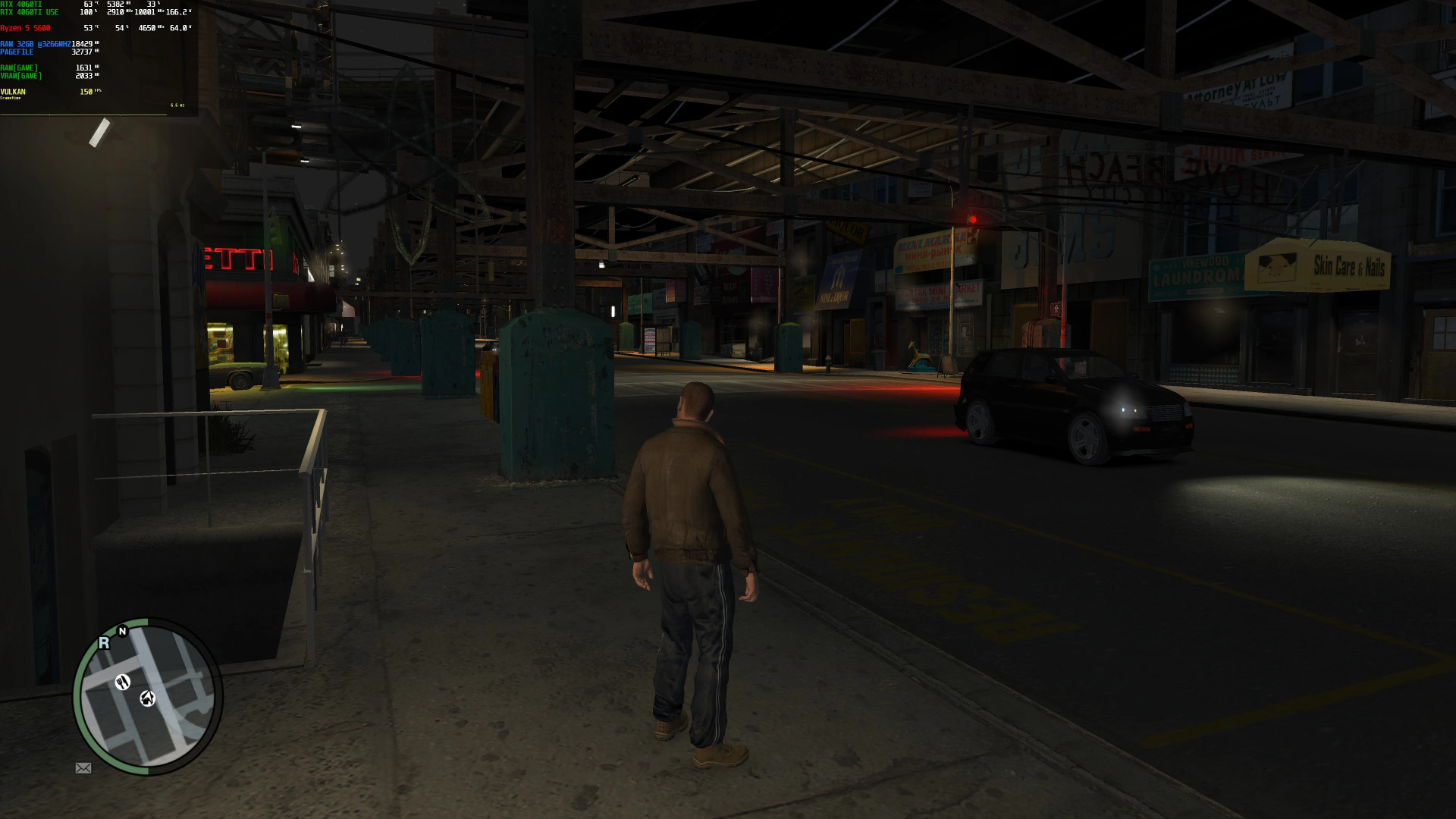
GTA IV – DXVK Setup Guide
DXVK has been updated to version 2.4 with minor improvements. Upgrading is recommended.
Non-Launcher Version:
– Command line should work automatically. If not, add commands to the game shortcut: right-click → Properties → append commands at the end of the target field.
– Full command list: see List of all commandline arguments.
Installation:
- Extract all files from the archive to the main GTA IV directory, next to GTAIV.exe.
- Ensure your GPU supports Vulkan API 1.3. If only Vulkan 1.2 or lower is supported, use DXVK 1.10.3 Legacy.
Checking Vulkan Version:
– AMD: Adrenalin → Settings → System → Hardware & Drivers → Software & Driver Details → Vulkan API Version
– Nvidia: check in driver settings
Commandline Configuration:
– Create commandline.txt in the game directory. Include:
– -availablevidmem xxxx (replace xxxx with your VRAM in MB)
– -nomemrestrict
VRAM Examples:
– 1 GB → 1024
– 2 GB → 2048
– 3 GB → 3072
– 4 GB → 4096
– 6 GB → 6144
– 8 GB → 8192
– 10 GB → 10240
Notes:
– Patches below 1.0.8.0: append .0 for accurate in-game display (e.g., 2048.0). Max usable VRAM is 2 GB.
– For streaming issues on older patches, try: -percentvidmem 0.9
– Optional display commands:
– -width xxxx (e.g., 1920)
– -height xxxx (e.g., 1080)
– -refreshrate xxx (e.g., 60)
DXVK Configuration (dxvk.conf):
– Create in the game folder (remove .txt extension). Optional settings:
– d3d9.maxFrameLatency = 1 → may reduce latency
– d3d9.presentInterval = 1 → enables VSync in DXVK
– d3d9.numBackBuffers = 3 → triple buffering
– dxvk.enableGraphicsPipelineLibrary = False → may improve stability on Nvidia/Intel
Stability Tip:
– Use RivaTuner to lock framerate at 60 FPS for stable performance
ENB Mods:
– Rename d3d9.dll to dxvk.dll
– Use ENB d3d9.dll
– In enbseries.ini:
EnableProxyLibrary=true
InitProxyFunctions=true
ProxyLibrary=dxvk.dll
External Download Links:
Videos


Direct Download Links
About Mod
| Latest Version | v2.8.1-Stable |
| Game | GTA 4 |
| Category | Other |
| Game Version | Definitive Edition |
| Downloads | 2079 |
| Created | 6 months ago |
| Last Virus Scan |
0/92
More Details |
![4K Ultra HD Graphics V 4 Last [Final]](https://i2.modland.net/i/667c09fbb29e9/jsVs6CK76TjfogbFGmzSwPdpiQIaa7BuifA5wchn_modland.webp)