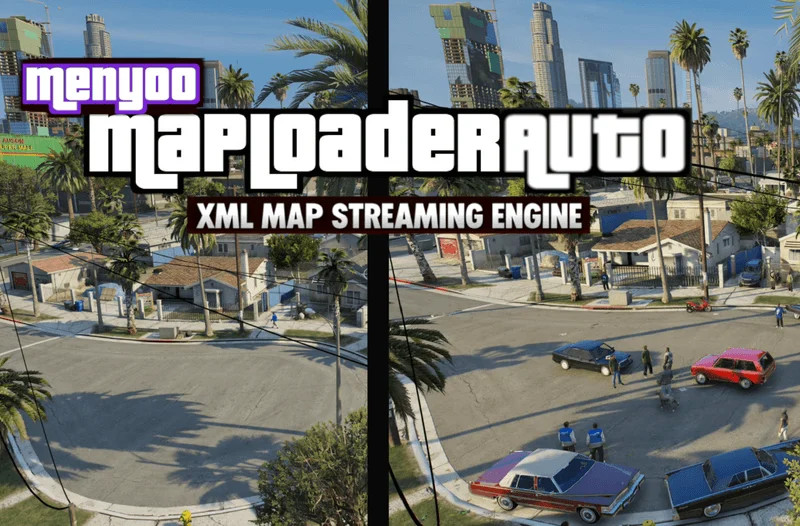
MenyooMapLoaderAuto v1.0.1

MenyooMapLoaderAuto
Early release available due to high demand. Report bugs and they will be addressed in future updates.
MenyooMapLoaderAuto extends the original MapLoaderAuto system and adds support for Menyoo XML maps. It brings the same automatic streaming system, so maps load and unload based on your location.
Unlike MapLoaderAuto, which works with MapEditor XML files, this version is built specifically for Menyoo maps. It removes the need to load maps manually through the menu and avoids performance issues from keeping everything active at once.
What it does
– Enter an area. The map loads automatically
– Leave the area. The map unloads automatically
– Supports large and complex worlds with stable performance
Relationship with MapLoaderAuto
– MapLoaderAuto handles MapEditor XML maps
– MenyooMapLoaderAuto handles Menyoo XML maps
– Install both to use both formats in one world
This allows you to combine:
– MapEditor-built districts
– Menyoo-built scenes
Key features
– Automatic loading and unloading of Menyoo XML maps
– Area-based streaming system
– No manual interaction after setup
– Supports multiple zones and XML files
– Works alongside MapLoaderAuto
– Reduces performance load compared to manual Menyoo usage
– Simple INI configuration with scalable zones
Requirements
– ScriptHookV
– ScriptHookVDotNet
– Menyoo
– MapLoaderAuto (required if using MapEditor maps)
Important notes
– Works only with Menyoo XML format
– MapLoaderAuto is still required for MapEditor maps
– Early release status. Expect:
– Minor bugs
– Loading inconsistencies
– Ongoing updates
Installation
– Open your Grand Theft Auto V directory
– Create a scripts folder if it does not exist:
GTA V\scripts
– Copy files:
MenyooMapLoaderAuto.dll
MenyooMapLoaderAuto.ini
Folder structure:
GTA V
└── scripts
├── MenyooMapLoaderAuto.dll
├── MenyooMapLoaderAuto.ini
Create map folder
– Inside scripts, create:
scripts\MenyooMapLoaderAuto\
Final structure:
GTA V
└── scripts
├── MenyooMapLoaderAuto.dll
├── MenyooMapLoaderAuto.ini
└── MenyooMapLoaderAuto
Installing maps
– Place XML files into:
scripts\MenyooMapLoaderAuto\
Example:
– LittleItaly.xml
– DockDeal.xml
– ConstructionSite.xml
Configuring zones
– Open MenyooMapLoaderAuto.ini
Example:
[Zone1]
Enabled=true
MapFile=ExampleMap.xml
X=0.0
Y=0.0
Z=0.0
LoadRadius=200.0
ClearRadius=250.0
Settings
– Enabled. Turn zone on or off
– MapFile. Exact XML filename
– X Y Z. Center point
– LoadRadius. Distance to load
– ClearRadius. Distance to unload
Rule
– ClearRadius must be greater than LoadRadius
Multiple zones example
[Zone1]
Enabled=true
MapFile=LittleItaly.xml
X=3472.0
Y=-2907.0
Z=25.3
LoadRadius=70.0
ClearRadius=100.0
[Zone2]
Enabled=true
MapFile=DockDeal.xml
X=5185.0
Y=-3727.0
Z=10.0
LoadRadius=200.0
ClearRadius=250.0
[Zone3]
Enabled=true
MapFile=ConstructionSite.xml
X=4185.0
Y=-2031.0
Z=27.4
LoadRadius=60.0
ClearRadius=90.0
Launching the game
– Start GTA V
– Enter Story Mode
– Travel to configured zones
Maps will load and unload automatically without using the menu.
Performance tips
– Split large maps into multiple XML files
– Use balanced load distances
– Avoid too many objects in one zone
– Test transitions while driving
– Reload INI with Numpad *
Troubleshooting
Map does not load
– Check XML location
– Check exact filename
– Check Enabled=true
– Check LoadRadius
Map unloads too fast
– Increase ClearRadius
Example:
LoadRadius=200
ClearRadius=300
Objects appear too late
– Increase LoadRadius
Example:
LoadRadius=350
ClearRadius=450
Final notes
MenyooMapLoaderAuto adds true streaming support to Menyoo maps. It lets them behave like integrated world content instead of manually loaded scenes.
When combined with MapLoaderAuto, you can build large hybrid worlds with smooth streaming and stable performance.