Roadwave — In-Car Music Player with 3D Audio 2.0

Latest Update
Restart the game once after updating. BeamNG keeps Lua it has already loaded, so until you restart you are running the new interface on the old code, and a control can be missing or throw an error that has nothing to do with your install.
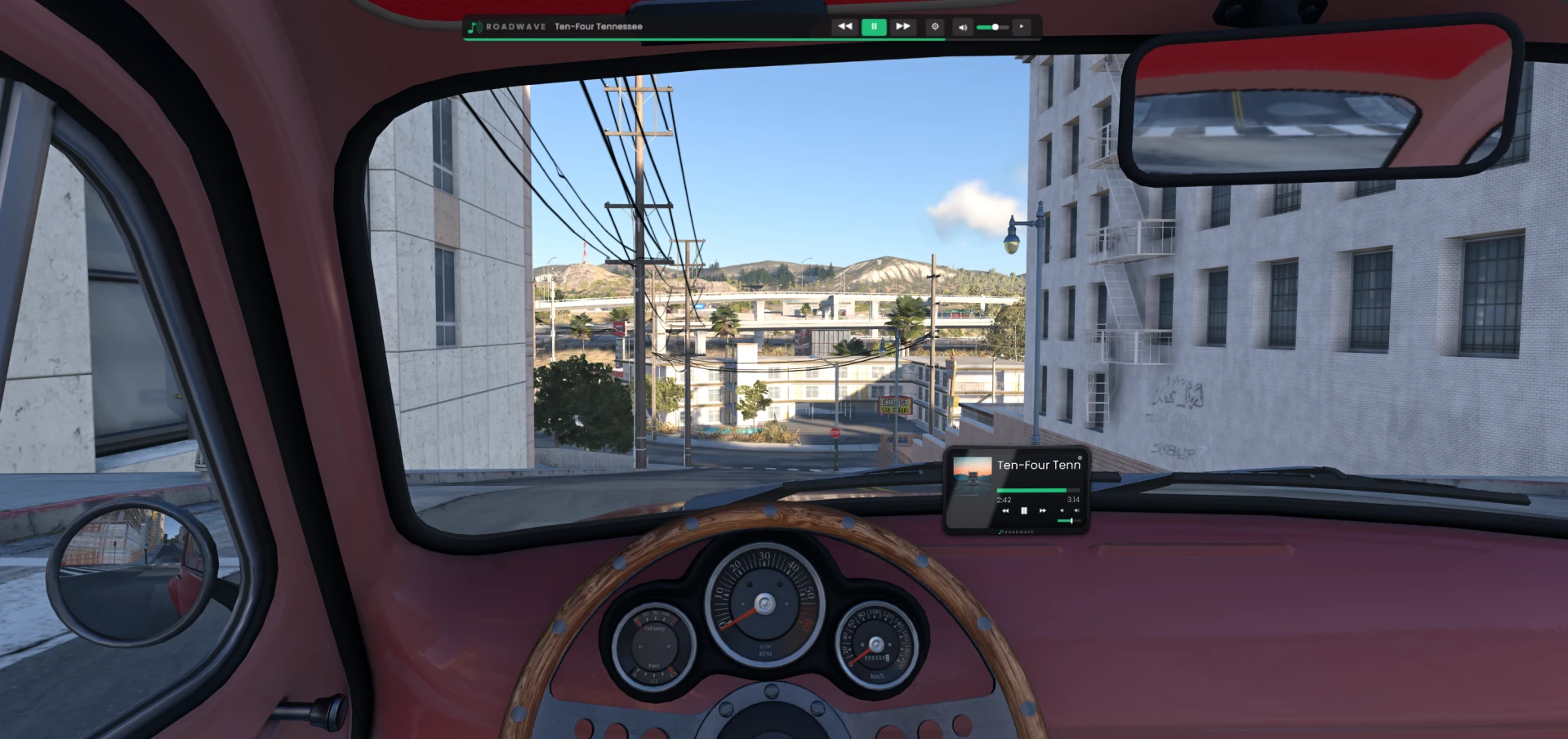
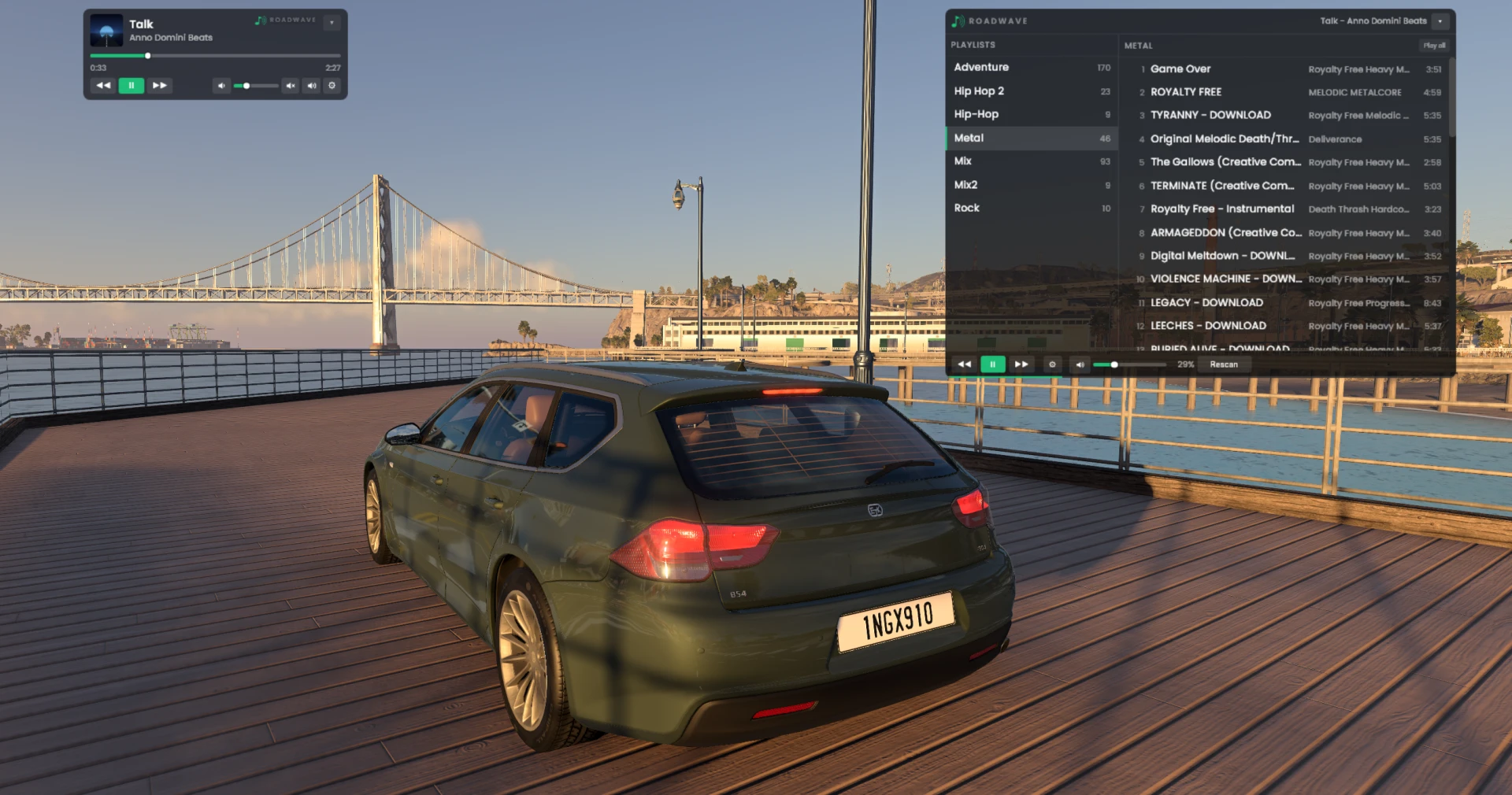
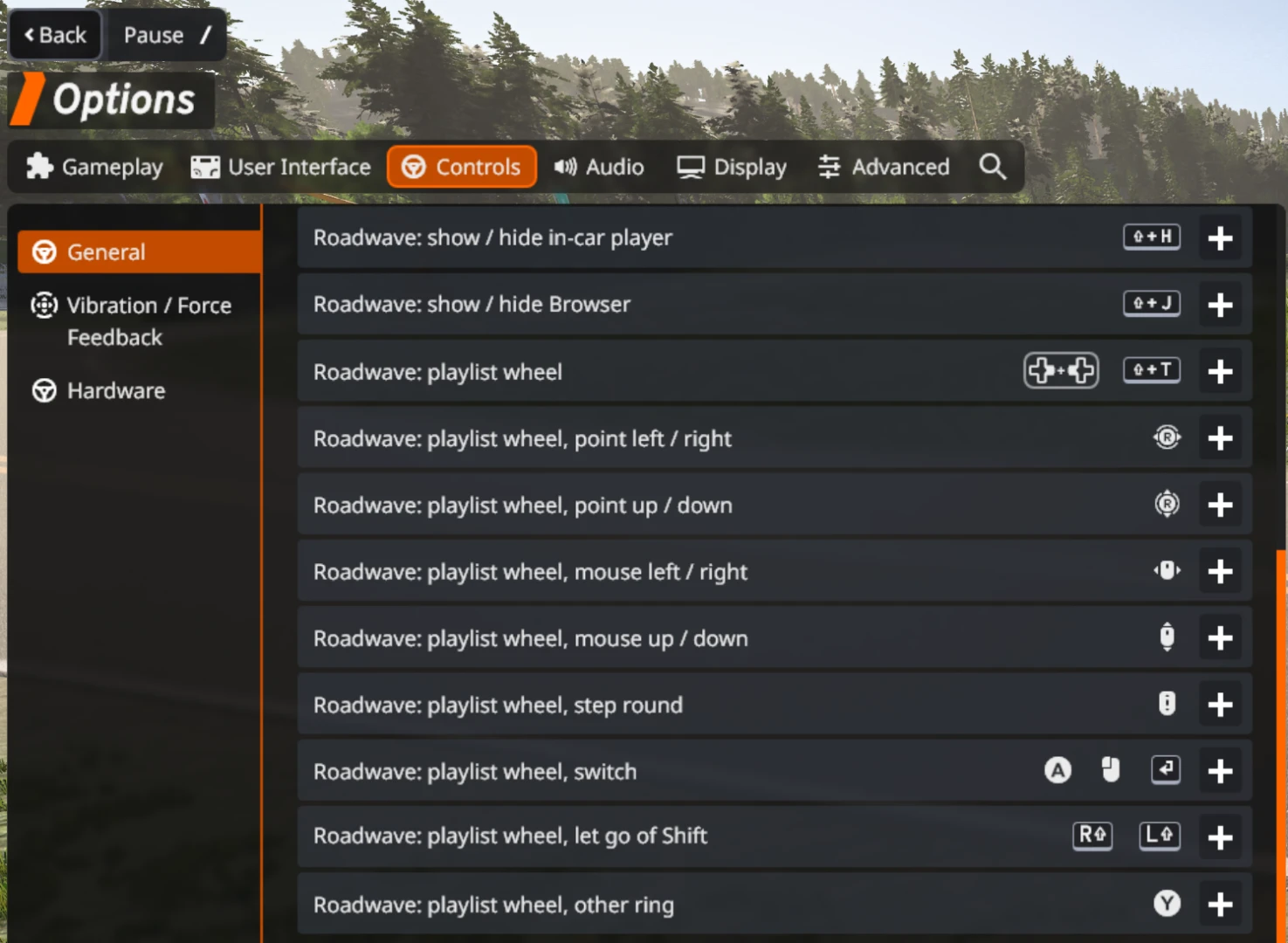
New: the playlist wheel. Hold Shift + T, or LB and D-pad left on a pad, and your playlists sit in a ring round the screen. Point at one with the right stick or the mouse and let go to switch to it. The mouse wheel steps round the ring too, and Off is on it for silence. Tap the key instead of holding it and the wheel stays up until you press it again. As in the game's own radial menu, time nearly stops while it is up, so you can pick one in the middle of a corner. Both keys can be changed in Options under Controls (type roadwave in the search box).
A burst of static when you switch. The wheel and the playlist keys tune over with a short crackle, as loud as the music. Static in the gear panel's Play row turns it off.
New: parking sensor. Reverse slowly toward a wall or another car and the car beeps from 1.5 m, faster as it gets nearer and steady under 30 cm. The beep is the car's own, so muting the music or turning it down leaves it alone. In the gear panel's Car row, Parking sensor: Newer cars beeps in cars the game dates 2005 or later (and in cars it gives no year), All cars beeps in every car, and Off is off.
New: Damage. The car radio now breaks with the car. After a hard crash it cuts out, and in a wreck it goes dead until you reset the car. It is on by default, and Damage sits beside Speed in the gear panel's Sound row if you would rather keep your music whatever you hit.
New: hide the Browser. The gear panel's Browser row has Hide, for driving with the in-car player or the keys alone. Shift + J brings it back.
I make Roadwave on my own and cannot test every car out there, so if something does not work in yours, please tell me which car, in the forum thread or by private message, whichever you prefer. I add and test cars as the reports come in.
Thank you to everyone who wrote something. What you were driving, what happened instead of what you expected, and your beamng.log if something went wrong - that is still where the next update comes from, and feature ideas are just as welcome as bug reports. No idea is too small. The discussion thread on the forum is the best place for either, or a private message on BeamNG or [email protected] if you would rather not post a log in public.
No music files? Roadwave Advanced, an optional paid add-on, plays Spotify, YouTube or any player on your PC through the car, with the playlist controls right in the game. Internet radio too: roadwavemod.github.io/beamng
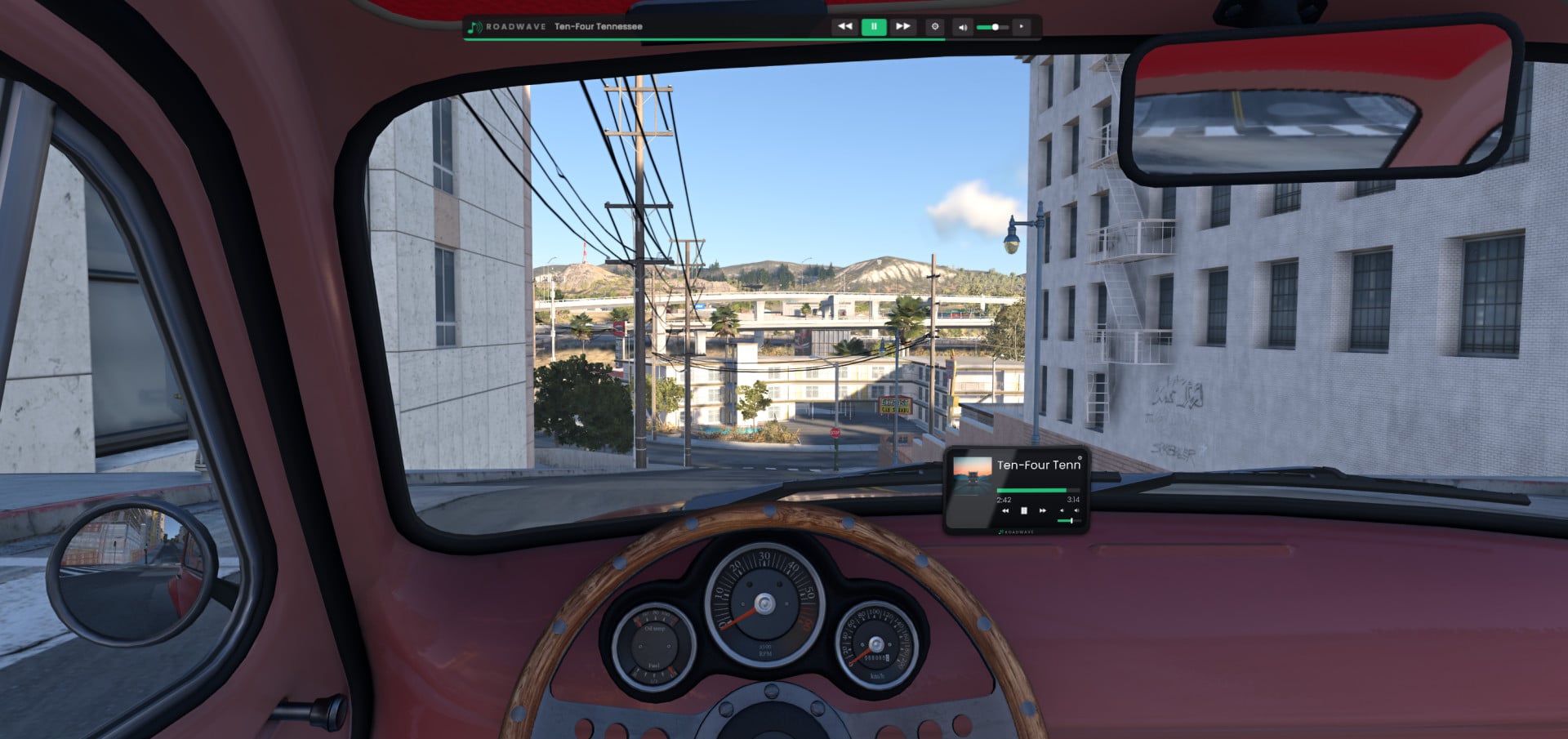
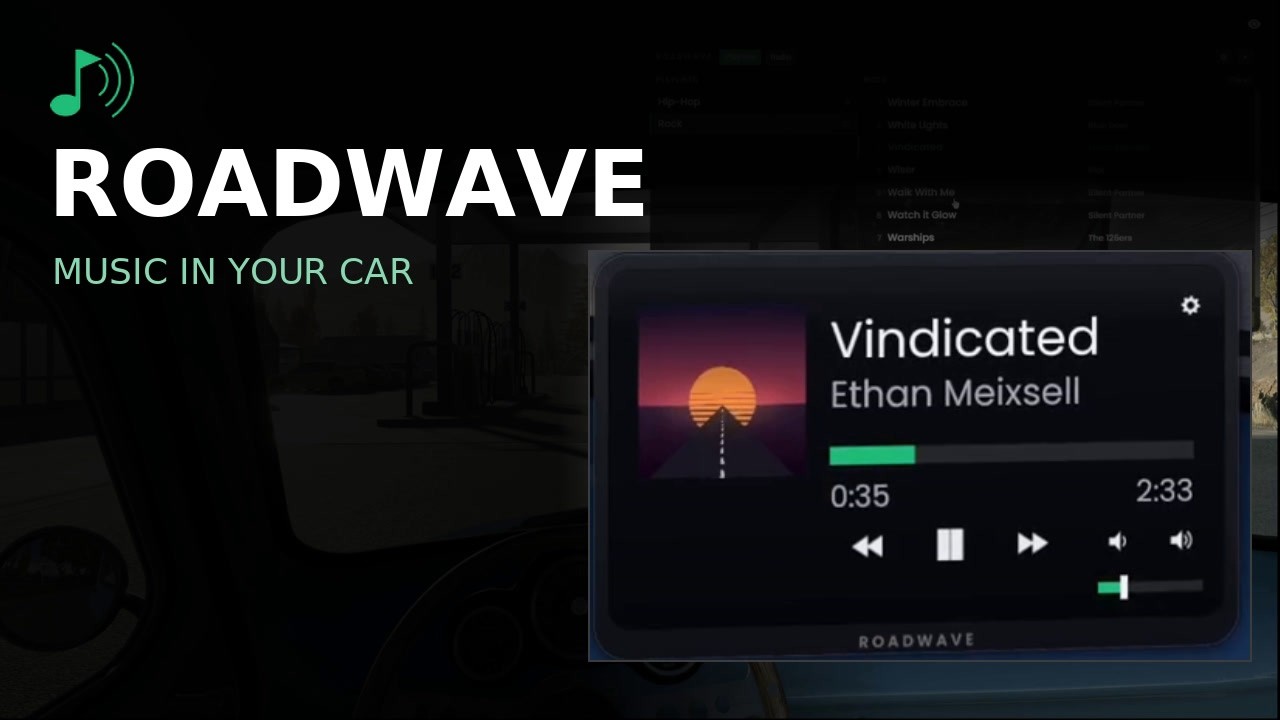
Roadwave puts a music player inside the car you are driving. It is a screen in the cabin, placed and sized where you want it, playing files you already have on your disk. The sound comes from the car, not from you: it goes quieter and duller with distance, the way music from a parked car actually does.
Nothing is built into any vehicle, so it works in every car in the game, including modded ones. Install it once and every car you download gets the player.
NO MUSIC IS INCLUDED. You bring your own files. That is the point: it plays your library, not a soundtrack somebody chose for you.
No music files? Roadwave Advanced, an optional paid add-on, plays Spotify, YouTube or any player on your PC through the car, with the playlist controls right in the game. Internet radio too: roadwavemod.github.io
This mod is free and complete on its own. Everything listed below works without paying for anything, and always will.
THE PLAYLIST WHEEL
Hold Shift + T on the keyboard, or LB + D-pad left on a pad, and your playlists sit in a ring round the screen. Point at one with the mouse or the right stick, or step round with the mouse wheel, then let go of the key to switch to it; a click, Enter or A switches too. Off is on the ring for silence, and time nearly stops while it is up, as in the game's own radial menu.
INSTALLATION
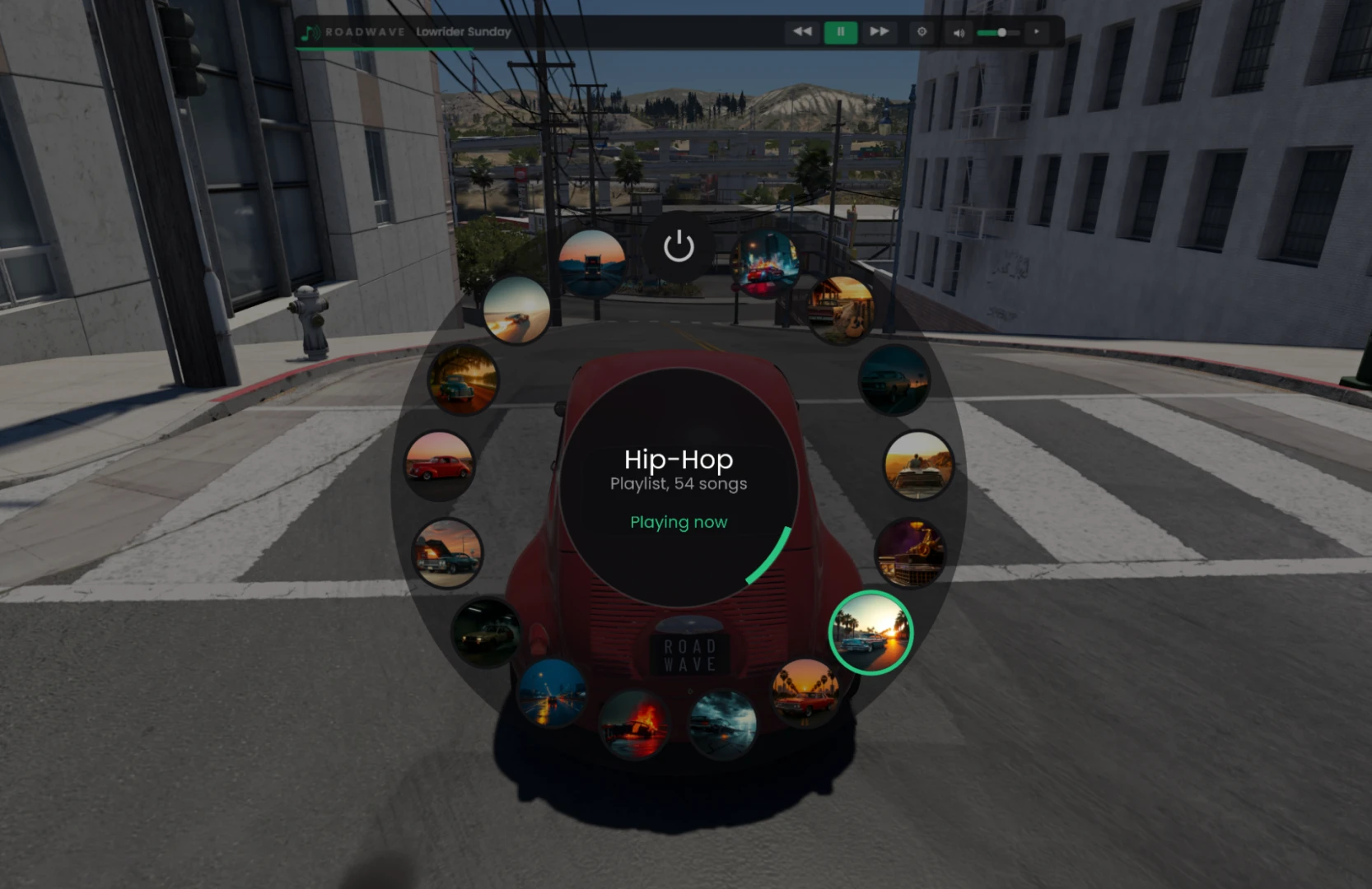
1. Add the Roadwave Browser: pause menu > HUD Apps, search for Roadwave Browser. It is the app you play and add music with. Roadwave Player, a compact player for the corner of the screen, is optional. HUD Apps shows the Browser fully open, never collapsed or hidden, so set its size there: big enough to read the playlist list.
2. Back in the game, open the Roadwave Browser and press Open music folder. The mod makes the folder and Explorer opens in it: mods\unpacked\rw_music\rw_music in the game's user folder. The button shows only while the library is empty.
3. Make a folder in there named after your playlist and put your music files in it. The folder name becomes the playlist name.
4. Press Rescan in the browser. The playlist shows up and plays, no restart. Rescan also picks up anything you add, rename or delete later, with the game running.
No music comes with the mod, and that is deliberate: your library sits outside Roadwave, so updating the mod can never touch it.
No music files? Roadwave Advanced, an optional paid add-on, plays Spotify, YouTube or any player on your PC through the car, with the playlist controls right in the game. Internet radio too: roadwavemod.github.io
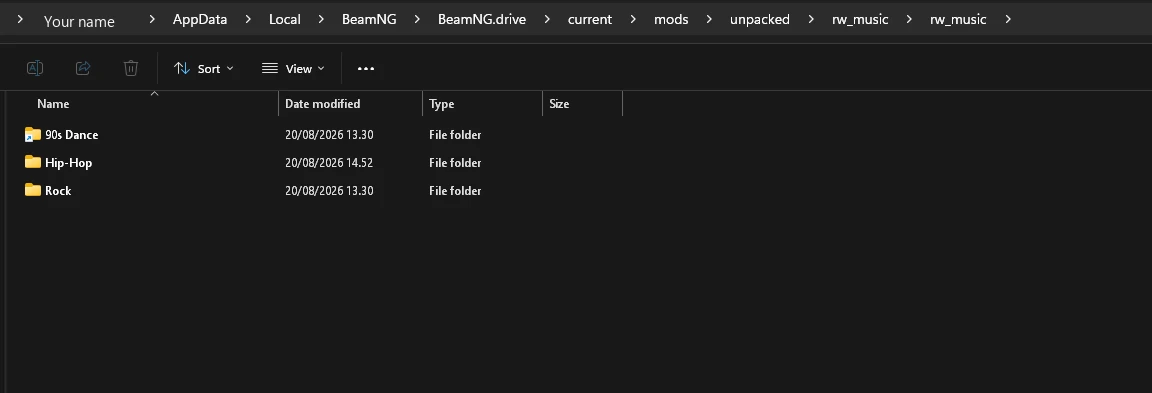
Name your files the way you already name music: "01 - Artist - Title.mp3". The separator is a hyphen with spaces around it, so AC-DC and Jean-Michel Jarre survive it. Keep the leading zeros or track 10 sorts before track 2. A cover.jpg, cover.png or folder.jpg in the folder becomes that playlist's cover art.
Optional, for a large library: instead of copying files, make a folder junction in PowerShell.
New-Item -ItemType Junction -Path C:\Users\YOU\AppData\Local\BeamNG\BeamNG.drive\current\mods\unpacked\rw_music\rw_music\MyMusic -Target D:\Music
Replace YOU and D:\Music with your own paths, wrap them in double quotes if they contain spaces, and press Rescan afterwards.
FEATURES
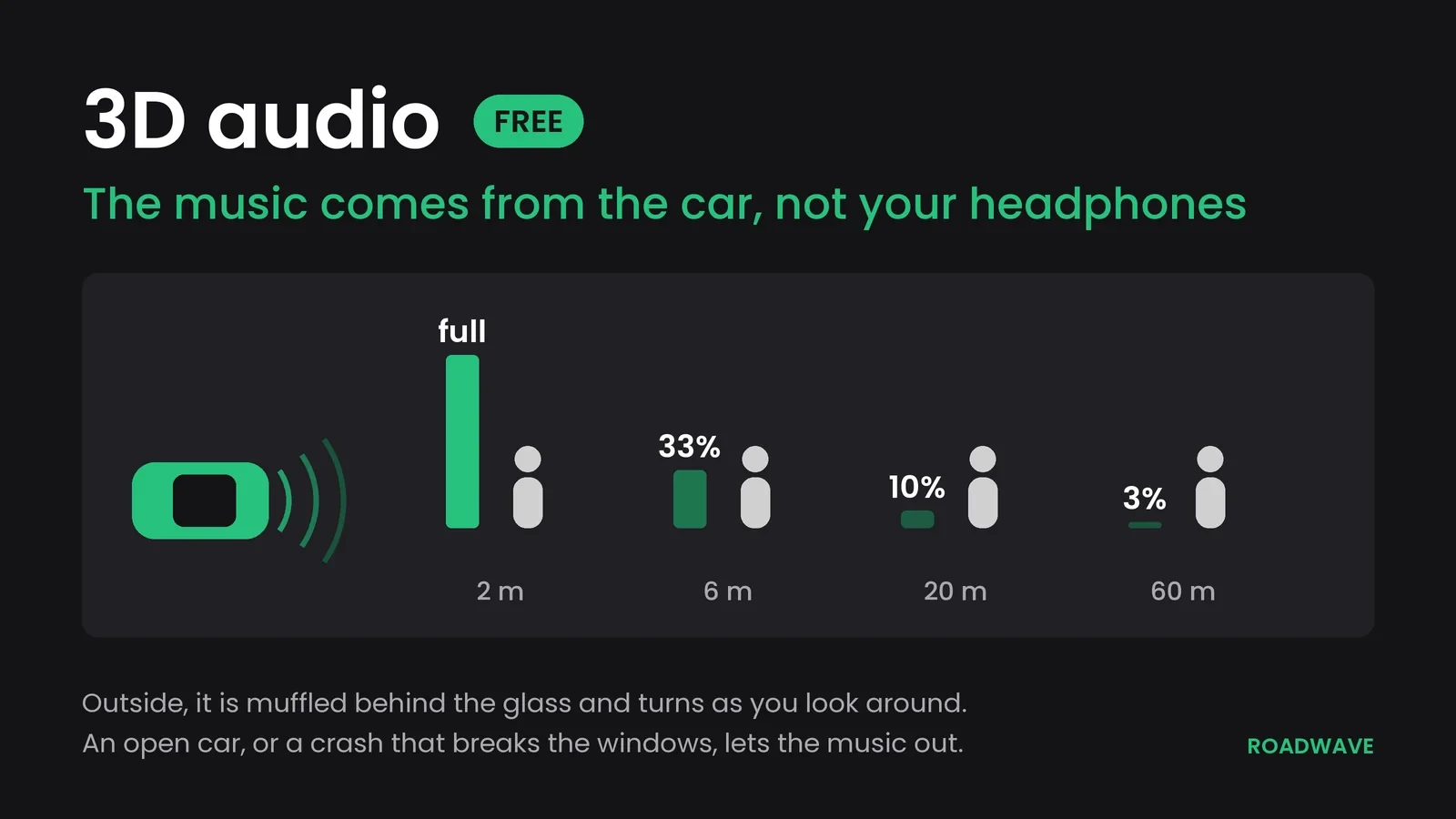
- 3D positional audio. Full volume within two metres of the wheel, falling off with distance, and coming from the car's direction when you look around. Inside the car it comes from the middle of the cabin rather than from one side. One button turns it off if you would rather have it flat.
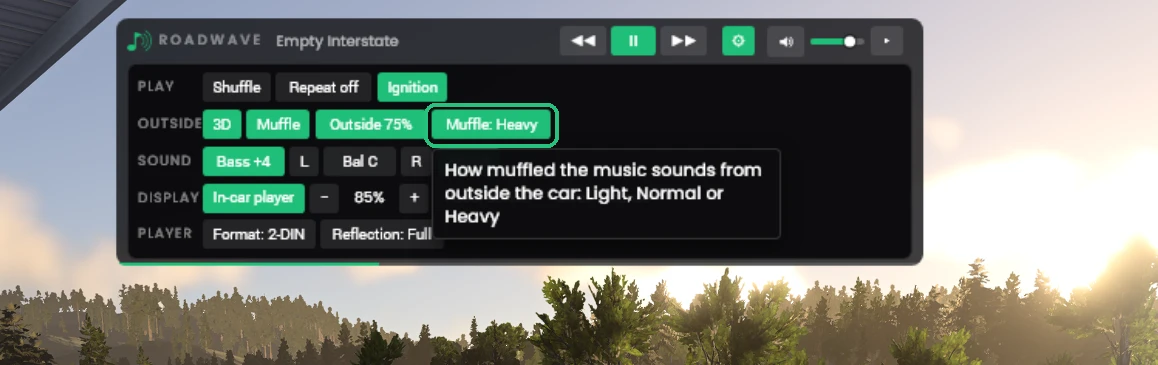
- Muffled audio. The music goes dull when you step out of the cabin, more the further away you get. An open car lets it out: a roadster with the top down, an ATV, a motorcycle, and a crash that breaks the windows or tears off a door. Open a door and it gets clearer. Two buttons on the gear panel's Outside row set how loud it is from outside and how muffled.
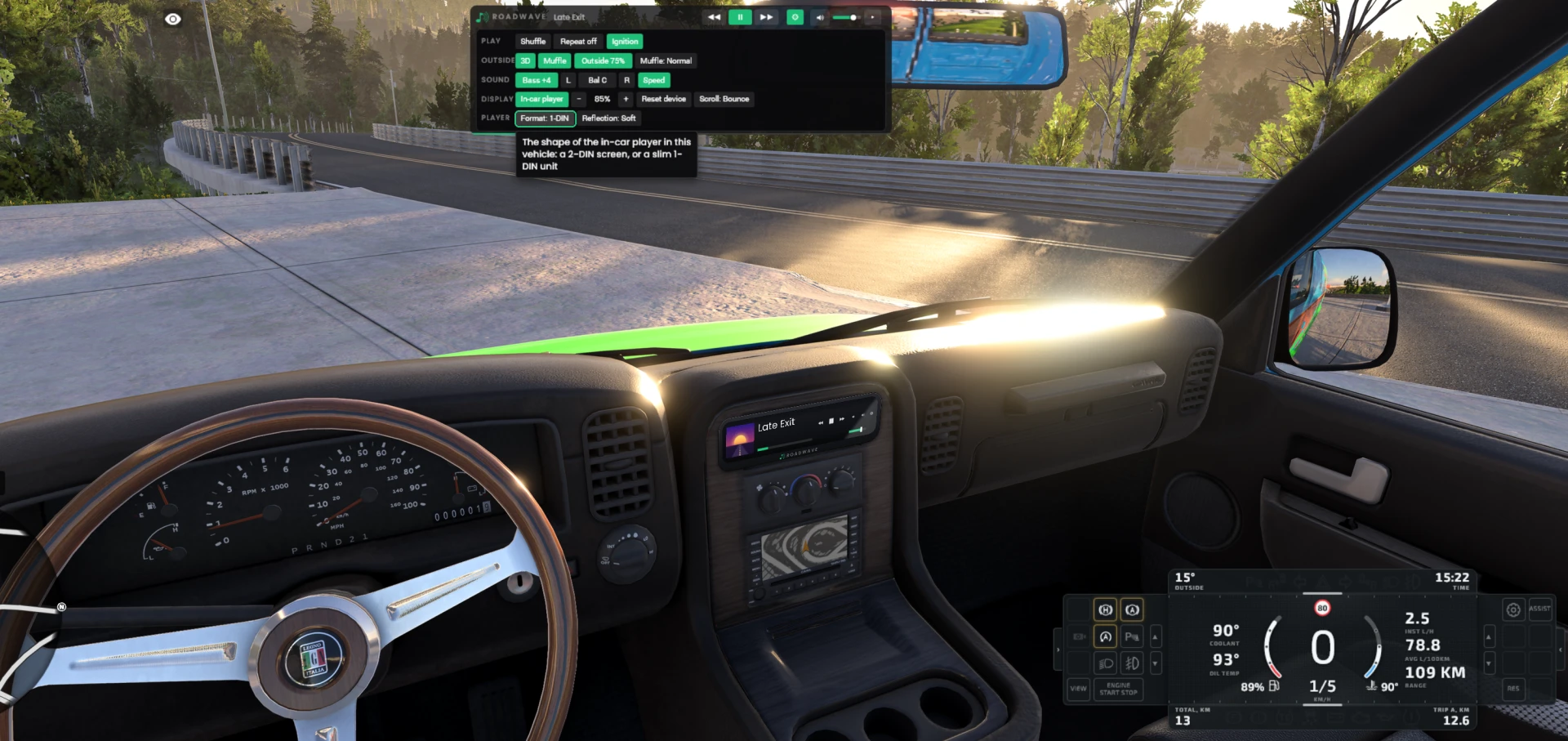
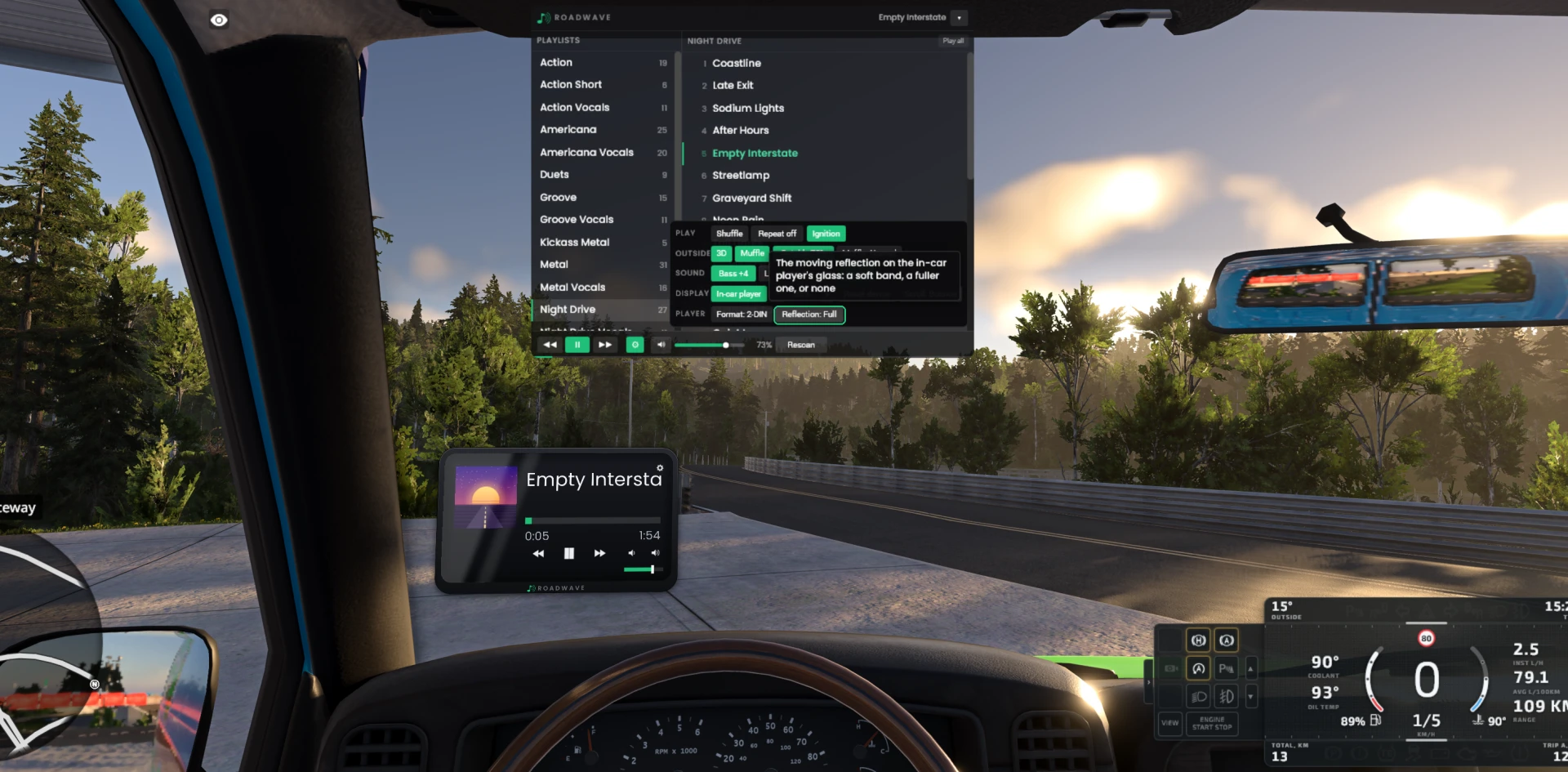
- A customizable in-car screen. Drag to move, scroll to resize, Shift + scroll to push it away or pull it closer. Every vehicle model remembers its own placement, and left- and right-hand-drive versions remember separately. Pick 1-DIN or 2-DIN per car, and the reflection, on the gear panel's Look row. Shift + H shows and hides it while you drive.
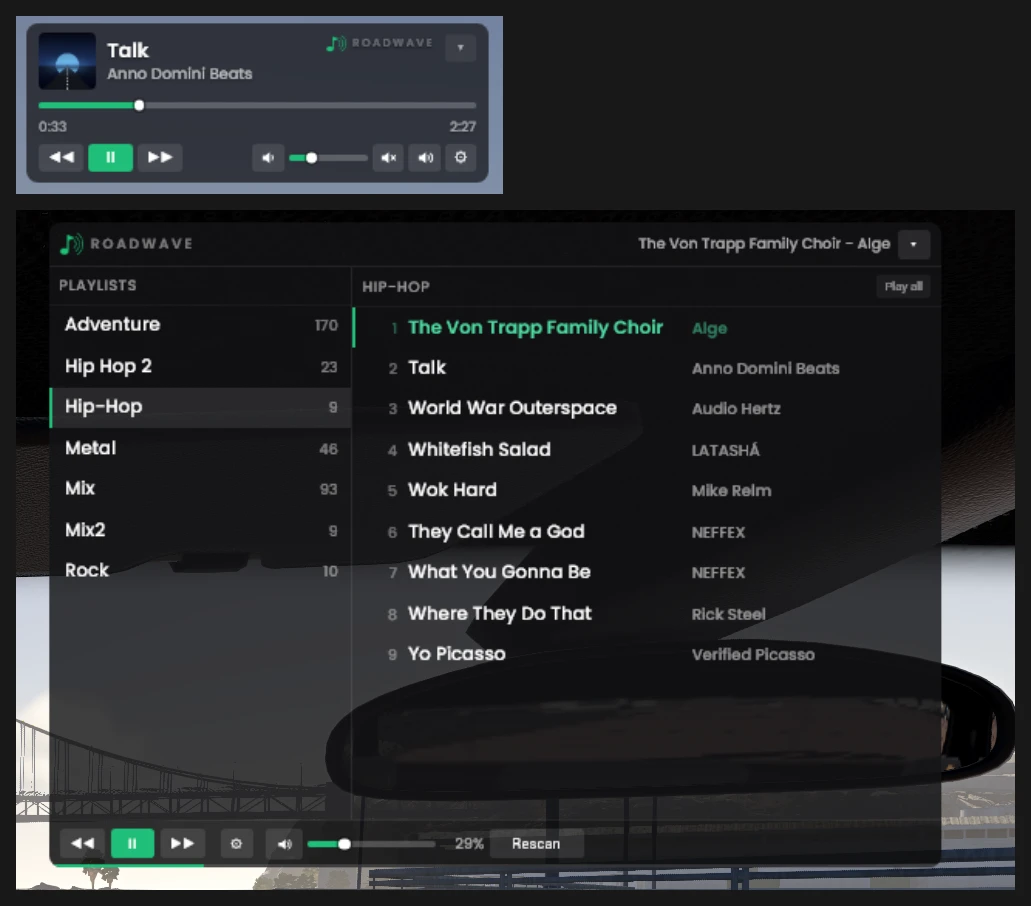
- Two HUD apps. A compact Player for the corner of the screen, and a Browser for picking playlists and tracks.
- Bass. A lowshelf under 120 Hz in four steps: off, +4, +8, +12 dB. Saved with the rest of your settings.
- Balance. L, Bal and R in the gear panel's Sound row, ten steps each way. It turns the far side down rather than moving the sound across, the way a car's head unit does, and it is saved. The middle button shows where it is set and puts it back in the centre.
- Mute. Silences the player without losing your volume level; press it again and the music comes back where it was. Deliberately not saved, so the game never starts up silent for a reason you cannot see.
- One collapse. The browser shrinks to a single line with the track name, previous, play, next, the volume and a gear. Shuffle, Repeat and the settings are behind the gear, one row per subject: Play, Outside, Sound, Browser, Player, Look and Car.
- Hide the Browser. Hide on the gear panel's Browser row puts the app away, for driving with the in-car player or the keys alone. Shift + J brings it back.
- Seek. A thin line along the bottom of the browser shows where the track is; click or drag it to jump.
- Louder with speed, optional. The music comes up over the engine and wind noise as the car goes faster. Off by default.
- Playlists from folders. One folder is one playlist, and the folder's name becomes the playlist's name. Shuffle, repeat all and repeat one.
- Static. Switching playlist tunes over with a short burst of static, as loud as the music. Static in the gear panel's Play row turns it off.
- Damage. The car radio breaks with the car: after a hard crash it cuts out, and in a wreck it goes dead until you reset the car. On by default; Damage in the gear panel's Sound row turns it off.
- Parking sensor. Reverse slowly toward a wall or another car and the car beeps from 1.5 m, faster as it gets nearer and steady under 30 cm. Newer cars (2005 or later, the default), All cars or Off, on the gear panel's Car row.
- Bindable controls, keyboard and gamepad, so you can change track without leaving the wheel.
- Your settings survive a restart, and playback resumes where it stopped.
- The music follows you between cars. Switching vehicle does not restart or interrupt it.
- Optional ignition control. Turn the key fully off and the music stops; turn it back and it picks up mid-song. Off by default.
- Formats: mp3, ogg, wav and flac.

THERE IS ALSO A PAID COMPANION: ROADWAVE ADVANCED
The mod above is free and stays free. Advanced is a separate optional purchase that adds two Windows programs alongside it. You do not need it for anything on this page.
What it adds:
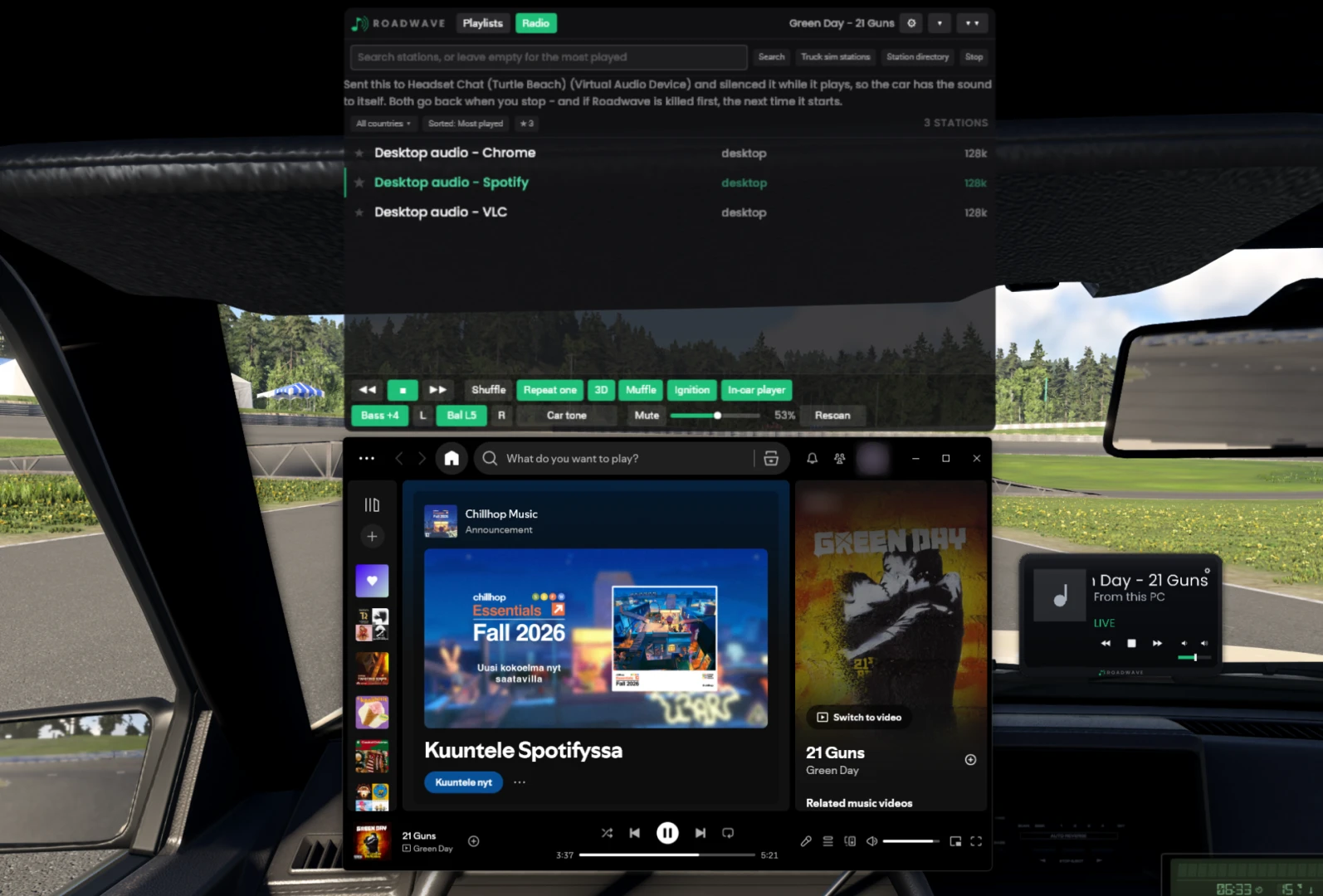
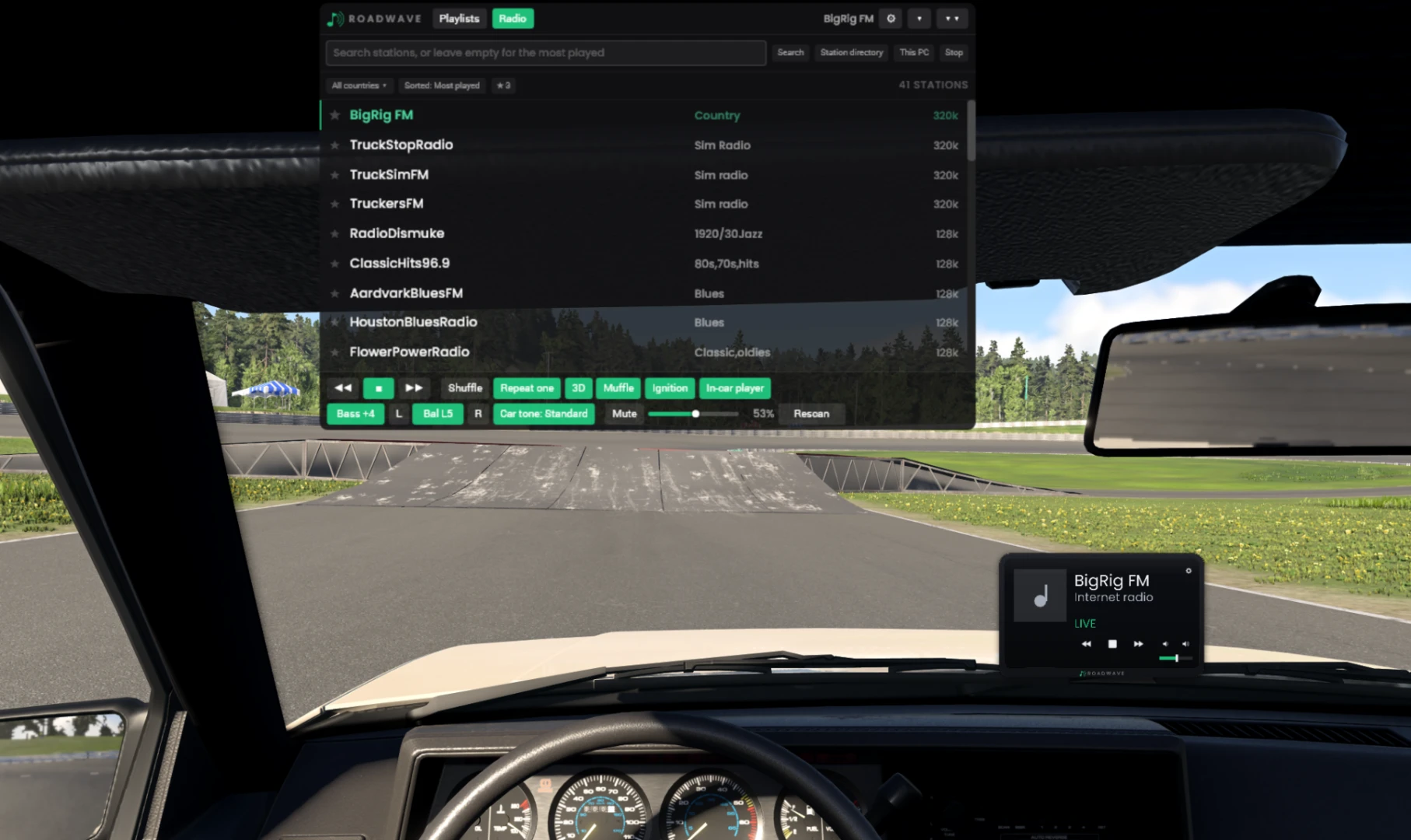
- Play what your PC is already playing, through the car. Press play in a browser, a music player, a livestream - anything the machine is making sound with - then press This PC in the game's Radio tab, and the sound comes out of the car instead of your speakers, with the same distance fall-off and muffling as your own files. The car's own next, previous and play buttons control that program too. No folders, no converting, no packs.
- Internet radio in the car. Real stations, searchable by name or tag, filterable by country, with station logos on the in-car screen. The list opens on the country of the map you are driving, and stations of your own sit at the top. Optionally imports the stations from your own ETS2 or American Truck Simulator install.
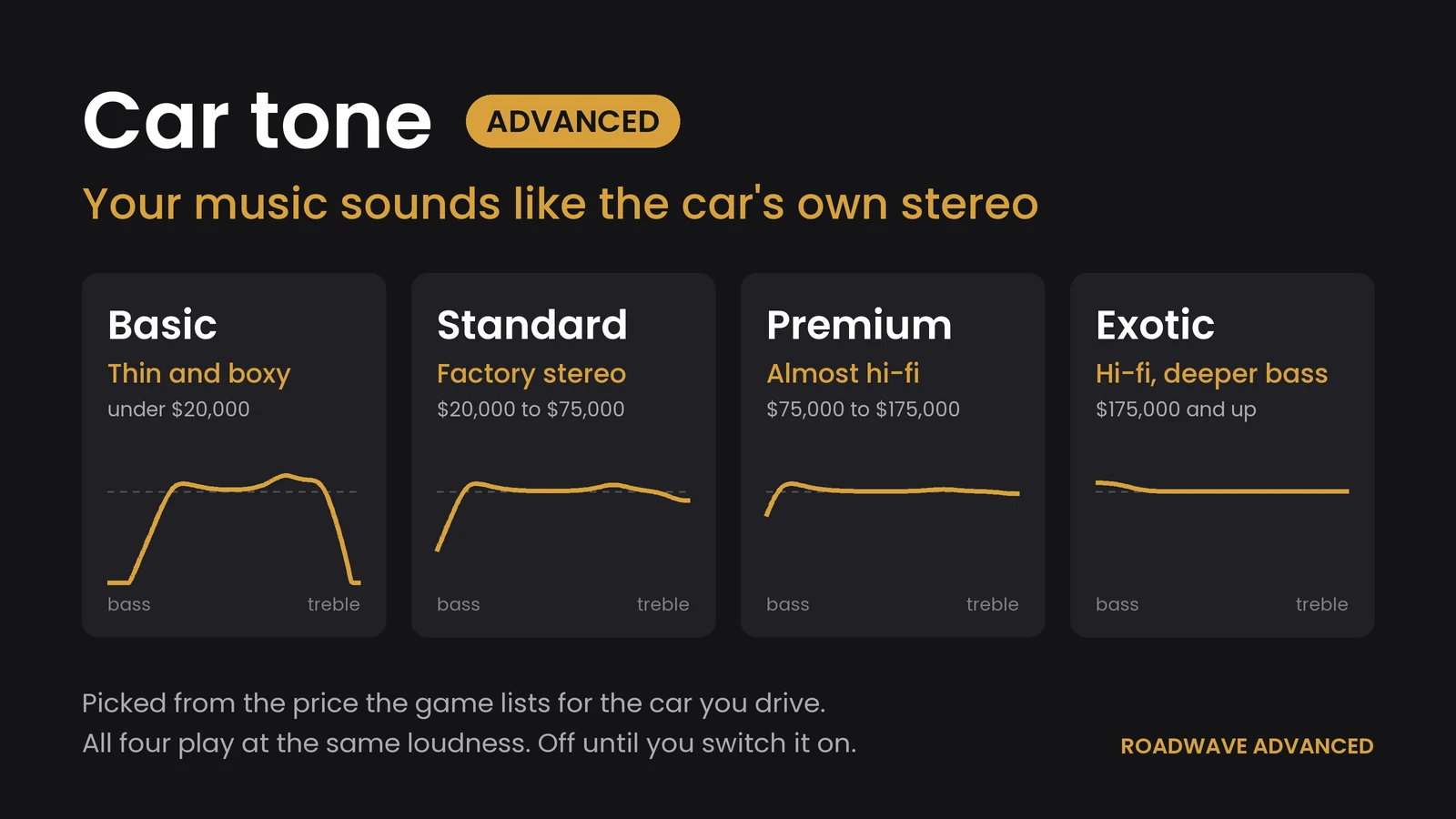
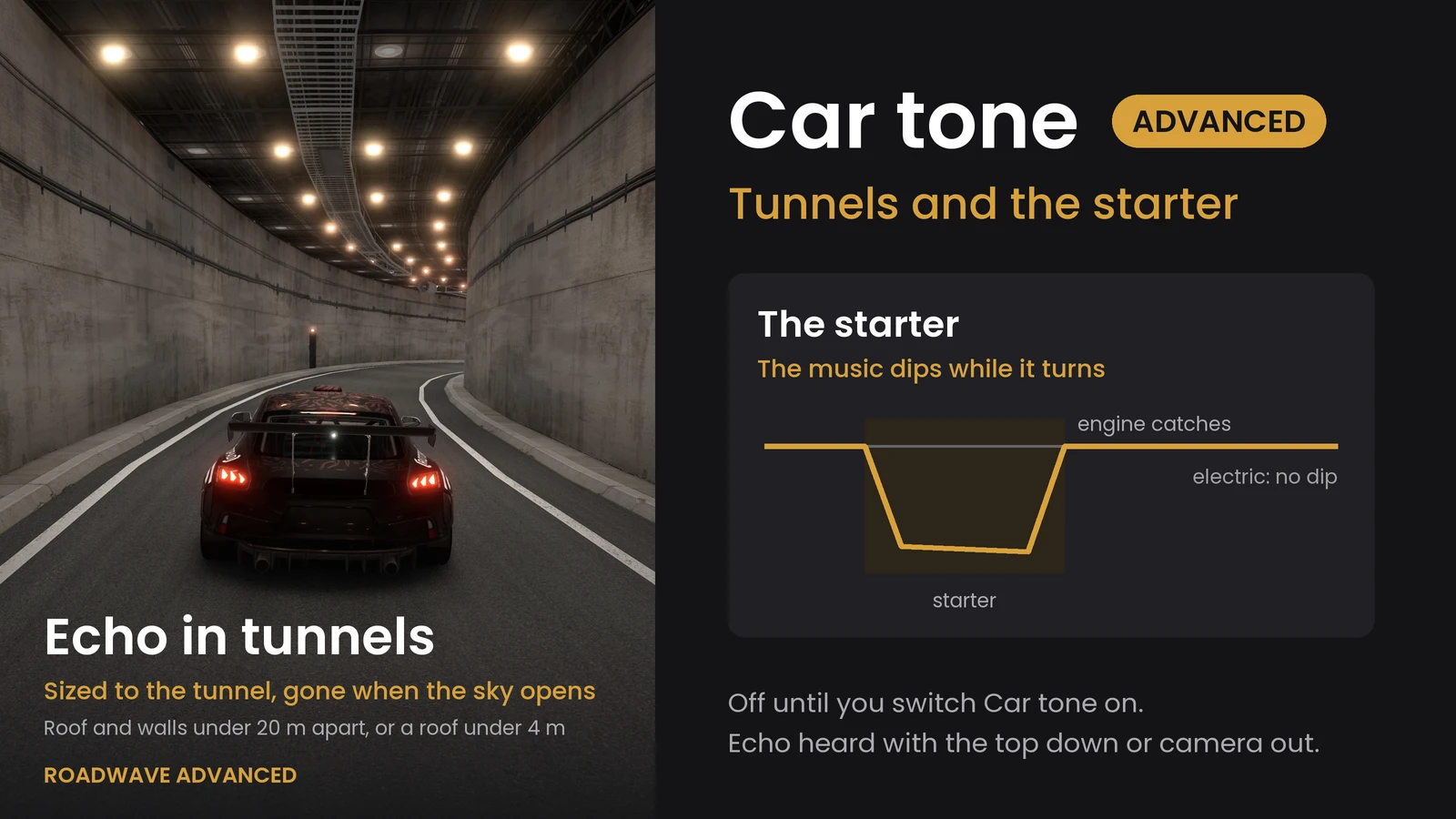
- Car tone. Your music takes the sound of the car you are driving. Roadwave reads the price the game publishes for the configuration you are in and shapes the music to match the stereo that car would have: thin and boxy in a cheap one, a factory stereo in the middle of the range, and the dearer the car, the closer it stays to the music as it was recorded. The button names the tier it picked, so you can hear the difference and see why. The price is what the game lists and not a verdict on the car, and it is a tone curve on the music rather than a second set of speakers. With Car tone on, the music also dips while the starter turns, and a tunnel gives it a short echo you hear with the top down or the camera outside.
- More looks for the in-car player. Glass + spectrum adds a spectrum analyser that moves with the music, and Classic is an early-2000s head unit with amber text and a full-width analyser. Corners go round, small or square, and the bezel full, slim or none. The looks need Advanced's Link program running; without it the player keeps the free look.
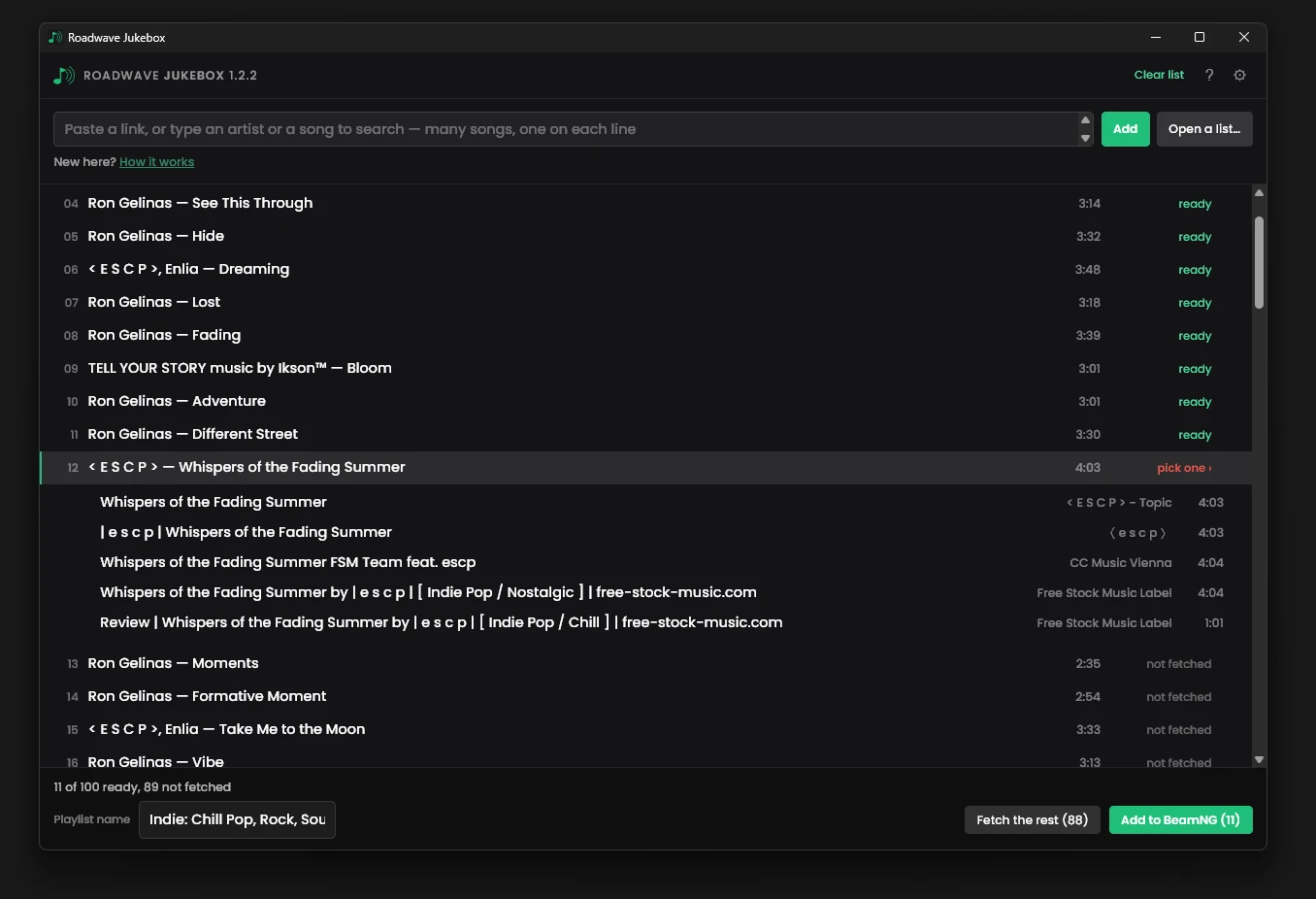
- A playlist builder. Paste a Spotify or YouTube link, or just type artist and song names, and it builds a playlist folder this mod reads. Your own music folders are searched first, so anything you already own is copied rather than downloaded. Or point it at a music folder you already have, on any drive: it plays in the car and nothing is copied.
Worth knowing before you buy: to give the car the sound to itself, Roadwave moves the program you are listening to onto another output on your PC while it plays, and puts it back when you stop. That needs a second output to exist. On a PC with only one, the music comes out of your speakers as well as the car. Everything else works the same either way. Windows only. No licence key, no activation, no phone-home.
Tested in game with Chrome, the Spotify desktop app and VLC. Other players appear in the list; those three are the ones verified personally.
What it is, what it costs and what it does not do, on one page:
https://roadwavemod.github.io/
CONTROLS
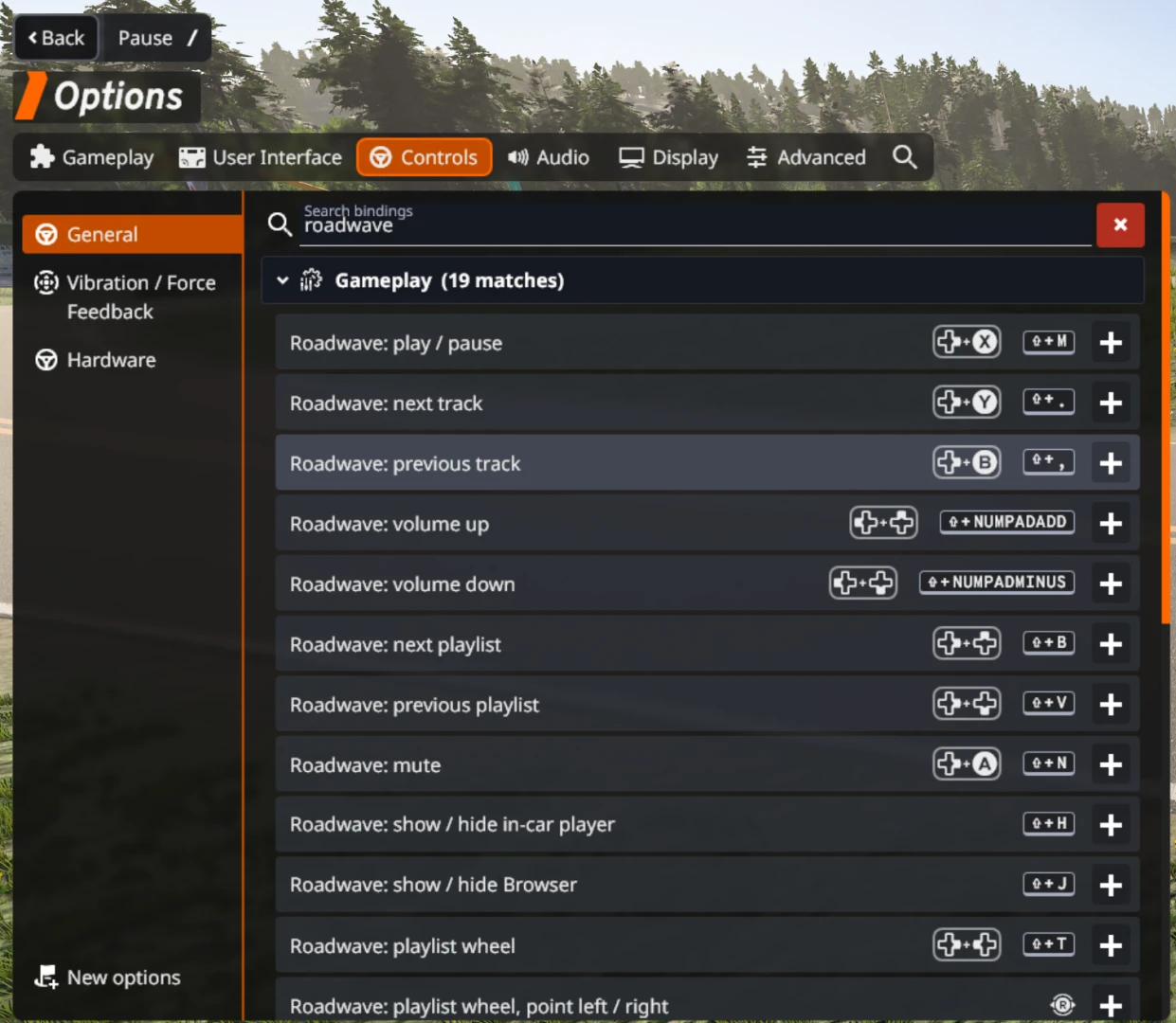
All controls are in Options > Controls, search for "roadwave". Defaults:
- Play / pause: Shift + M
- Next track: Shift + .
- Previous track: Shift + ,
- Volume up: Shift + Numpad +
- Volume down: Shift + Numpad -
- Mute: Shift + N
- Next playlist: Shift + B
- Previous playlist: Shift + V
- Playlist wheel: Shift + T
- Show / hide in-car player: Shift + H
- Show / hide Browser: Shift + J
Gamepad bindings ship for play/pause, next and previous track, mute, playlist switching and the playlist wheel (LB + D-pad left). While the wheel is up, point with the mouse or the right stick, step round with the mouse wheel, and switch with a click, Enter or A.
KNOWN LIMITS
- No track times on a loose folder. The mod reads filenames, not tags, so titles, artists and order come from the filename and length cannot.
- No m4a or aac support.
- The in-cabin screen needs the interior camera. From a chase or orbit camera there is no cabin to draw in, and the HUD apps cover that case.
- Not tested with BeamMP.
- I make Roadwave on my own and cannot test every car. If something does not work in yours, please tell me which car, in the forum thread or by private message, whichever you prefer. I add and test cars as the reports come in.
- Built and tested against BeamNG.drive 0.40.
CREDITS
Villahousu
Not affiliated with or endorsed by BeamNG GmbH.
Videos
Frequently Asked Questions
From 1.7 on: open the Roadwave Browser and press Open music folder. The mod makes the folder itself and opens it in Explorer. Make a folder in there for each playlist, copy your music in, press Rescan. No restart. Setup video, 80 seconds: https://youtu.be/58WQjBk1c0Q
On 1.6 or older: restart the game once. It only looks for new folders under mods\unpacked while it is starting up, so a folder made mid-session stays invisible however many times you press Rescan. After that one restart, Rescan alone picks up anything you add or rename.
Also check the path has rw_music twice: mods\unpacked\rw_music\rw_music\ - the game mounts the contents of the outer folder, so the inner one is where the mod looks.
The mod on this page is free and complete, and stays that way. There is a separate optional companion, Roadwave Advanced ($6, one-off), which plays anything your PC is playing through the car in 3D, adds internet radio and a playlist builder, gives the in-car player more looks with a spectrum analyser, and gives your music the sound of whatever car you are driving. You do not need it for anything on this page.
What it is, what it costs and what it does not do, on one page:
Roadwave Advanced
Direct Download Links
Version: 2.0Updated: 2 days ago
Total Size: 1.41 MB roadwave_music_player_modland.zip direct download · 1.41 MB · added 2 days ago
About Mod
| Latest Version | 2.0 |
| Game | BeamNG.drive |
| Category | Other |
| Game Version | 0.40.x |
| Tags | Gameplay UI |
| Downloads | 3433 |
| Forum Thread | Visit forum thread |
| Created | 1 month ago |
| Last Updated | 2 days ago |
![Ford Bronco [PACK]](https://temp2.modland.net/i/6abb8bc6ce51c/0_modland.jpg)
![Mack Anthem / Pinnacle [PACK]](https://temp2.modland.net/i/6aa50a7184eaa/6ab9344368d3b/0_modland.jpg)
@Villhousu how do I find the the music folder?
Hi, Open the Roadwave Browser app (pause menu > HUD Apps), press Open music folder and Explorer opens right in it. Make a folder in there named after your playlist, put your songs in it and press Rescan. Enjoy the music
so fried I thought ts said rod wave
@hhrec Haha fair :D Different kind of wave, but it does play Rod Wave if you put him in your music folder ;)
How do I disable the mini player when I am inside the car. I play in VR and it just floats when I move my head. I can shrink it but can't remove it.
@JJDean Hi, Thanks for asking! You can hide player selecting gear icon and push In-car player button in display row.
I recently purchased Roadwave Jukebox, but I am unable to complete the installation. Every time I launch the roadwavejukebox setup tool, it fails to download the required components at startup and throws the following error:
ssl.SSLCertVerificationError: [SSL: CERTIFICATE_VERIFY_FAILED] certificate verify failed: unable to get local issuer certificate (_ssl.c:1010)
@Villahousu 100/10
@Villahousu does this new update fix me problem
@b Thank you again for reporting the setup error, and for your patience. Roadwave Advanced 1.6.0 is out now and fixes it: the setup carries its own list of trusted certificates, so it downloads its components on PCs where it failed before. Use the same download link as before, close Roadwave Link, and run the new installer over the old one. Your settings stay. If it still fails, tell me here and I will look at it straight away.
@b Thank you for reporting this. It is a certificate problem on some PCs, and it is fixed in the next Roadwave Advanced update (1.6.0), coming soon. If you want help before that, send me a PM on BeamNG (Villahousu) or email [email protected].
Is it works on multiplayer. (i did not read the thing if any of you guys say "Read the description")
@YeaIDontWantToGiveMyName Good question, and no need to read the description for this one. It has not been tested with BeamMP yet, so I cannot promise it works there. If you try it on a server, I would love to hear how it goes. Thank you!
When I use it in a modded car, the sound comes from the right side 95% of the time. In factory cars it is flawless.
@bambulaSTAR Thank you for reporting this!
Narrowing it down to modded cars is the useful part. 1.5 moved the music to the middle of the cabin, and to do that it asks the game whether your camera is in the driver's seat. Factory cars answer that the same way every time. A modded car can set up its driver camera differently, and if the answer comes back no, Roadwave falls back to the car's own centre point - which in many cars sits to the right. That would sound exactly like what you describe, so I think I know where to look, but I would rather check it on the cars you actually drive than guess.
Could you tell me which modded cars do it? The mod names are enough. And whether you drive with the game's own driver camera or with a camera mod.
Until it is fixed: the 3D button in the browser turns positional audio off, and then the music plays centred in every car.
even the latest version on the forums *1.5* keeps only playing the first couple of seconds of each song and then randomly stopping after 3-6 tracks.. im so sick of clearing the cache to wait an hour for the game to load to hope it actually plays the songs again.... yes every song is a mp3 to keep it simple and ive removed any songs with even non letter charachters in the name even though it would play ones with japanese kanji by itelf.. just fine... i dont know what to do its been 3 days of spending hours trying to fix this nonsense.
@IT REPEATS ONLY FIRST FEW SECONDS Thank you for writing all that out - three days of it is miserable, and the detail you gave is what makes it findable.
What you are describing is the player being told each track failed a second or two in. It skips to the next one, and after three failures in a row it stops the whole playlist on purpose, so that one broken file cannot walk a library. That is why it goes quiet after a few songs. Your files are almost certainly fine, and so is mp3 - the failure happens after the track has already started playing.
There is one thing that would tell me exactly which failure it is, and the game writes it down already. Play until it stops, then send me %LOCALAPPDATA%\BeamNG\BeamNG.drive\current\beamng.log - the whole file, or the lines that start with rw_audio and rw_radio. It says which file, and it says which of four different things went wrong. Without it I would be guessing, and you have done enough of that.
One thing you can stop doing meanwhile: clearing the cache will not help this one, and an hour of loading for nothing is a rough way to spend an evening.