-lg_modland.jpg)
If you want to play Minecraft with a friend without external servers and complicated setup, LAN is the best option. The main thing is that both computers should be connected to the same Wi-Fi network or cable. Only in this case, the LAN connection will work correctly.
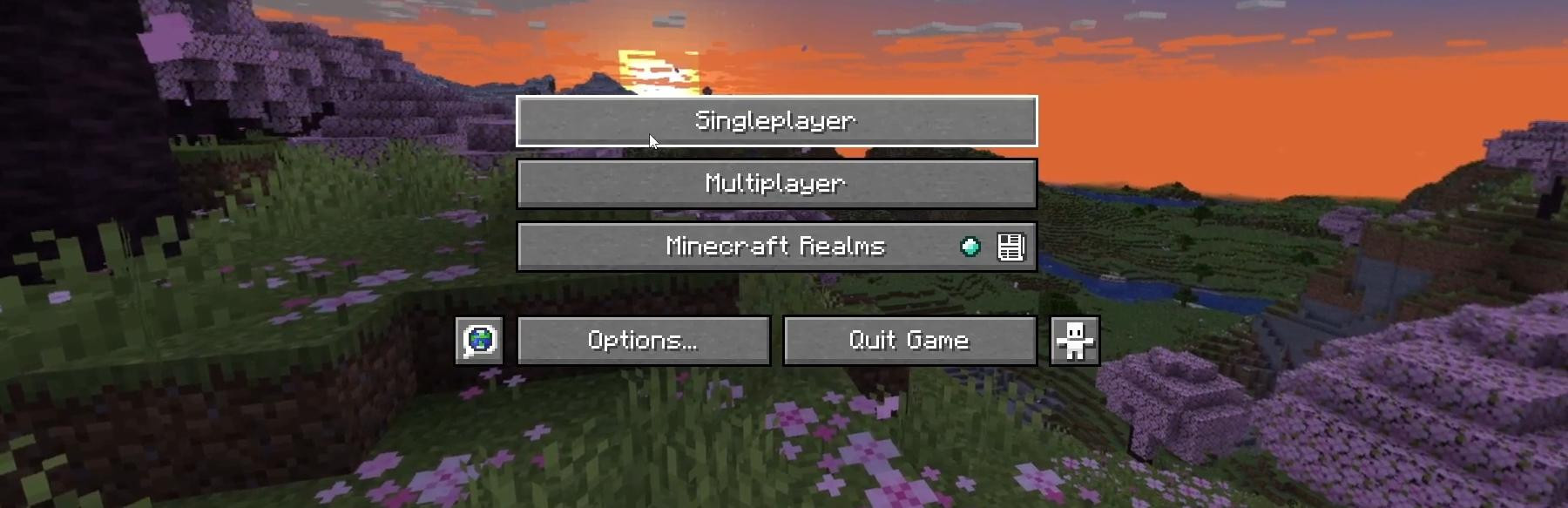
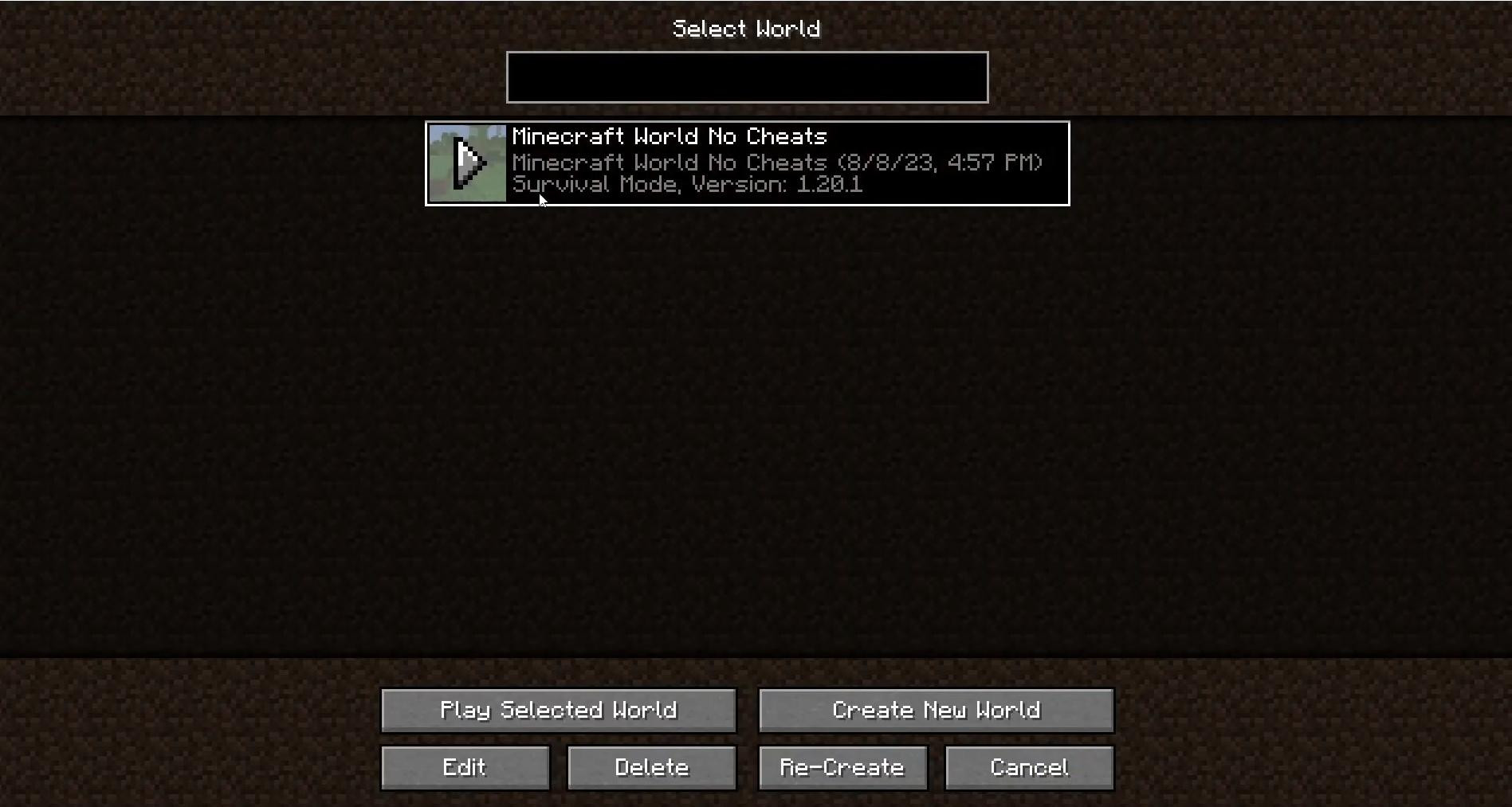
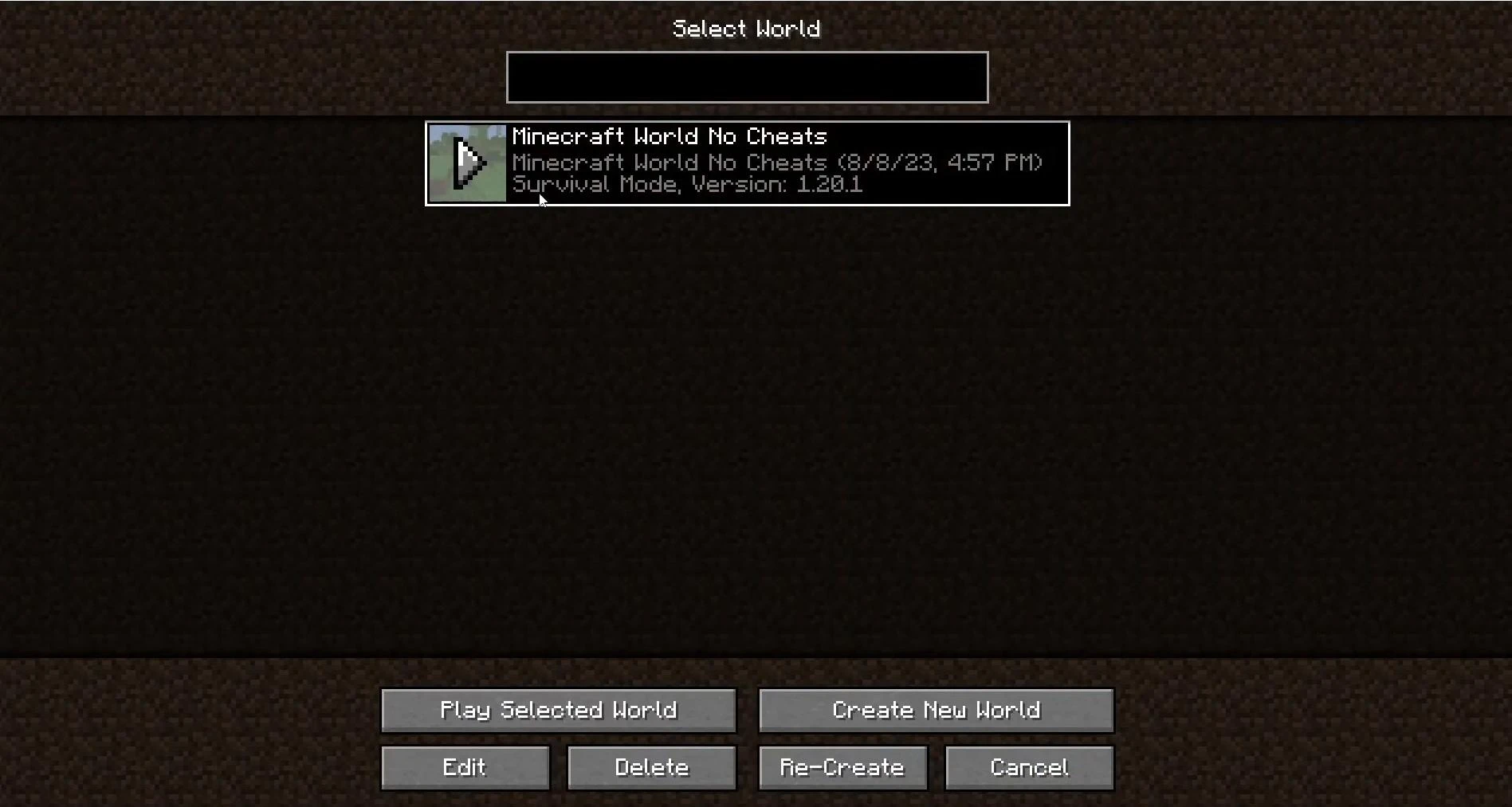
Let's not hesitate and get down to business. First, on the computer (the one where the server will be hosted), open Minecraft. In the main menu, select “SinglePlayer” and either load an existing world or create a new one by selecting “Create New World”. Then wait for the game to fully load.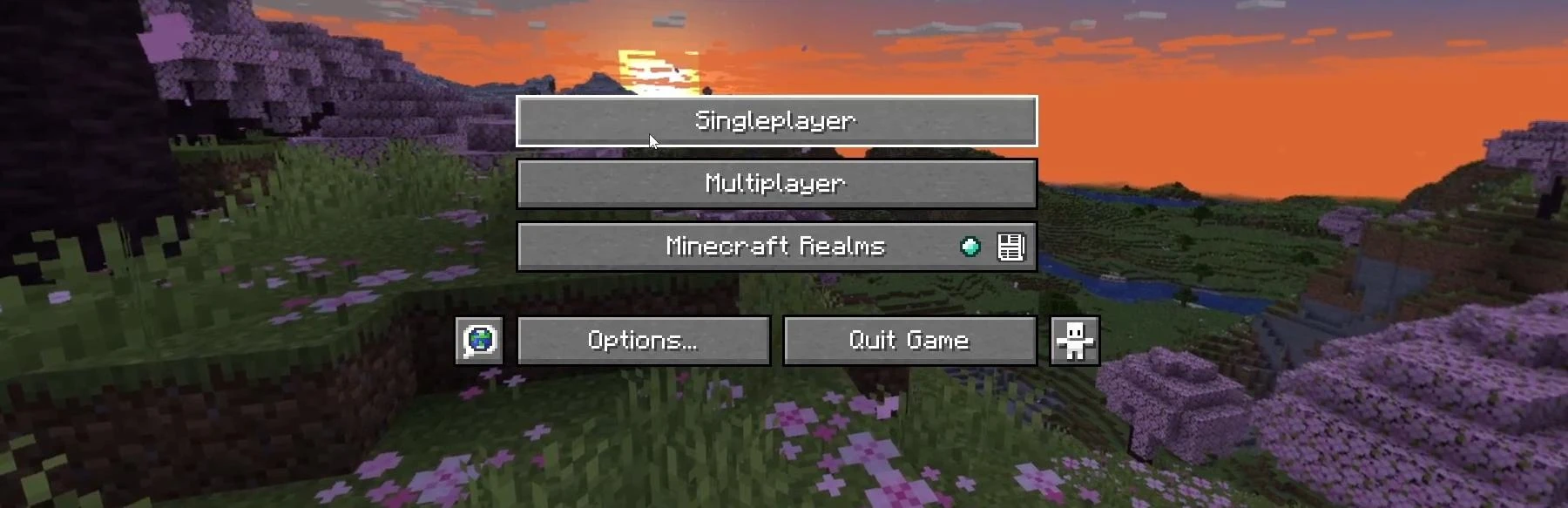
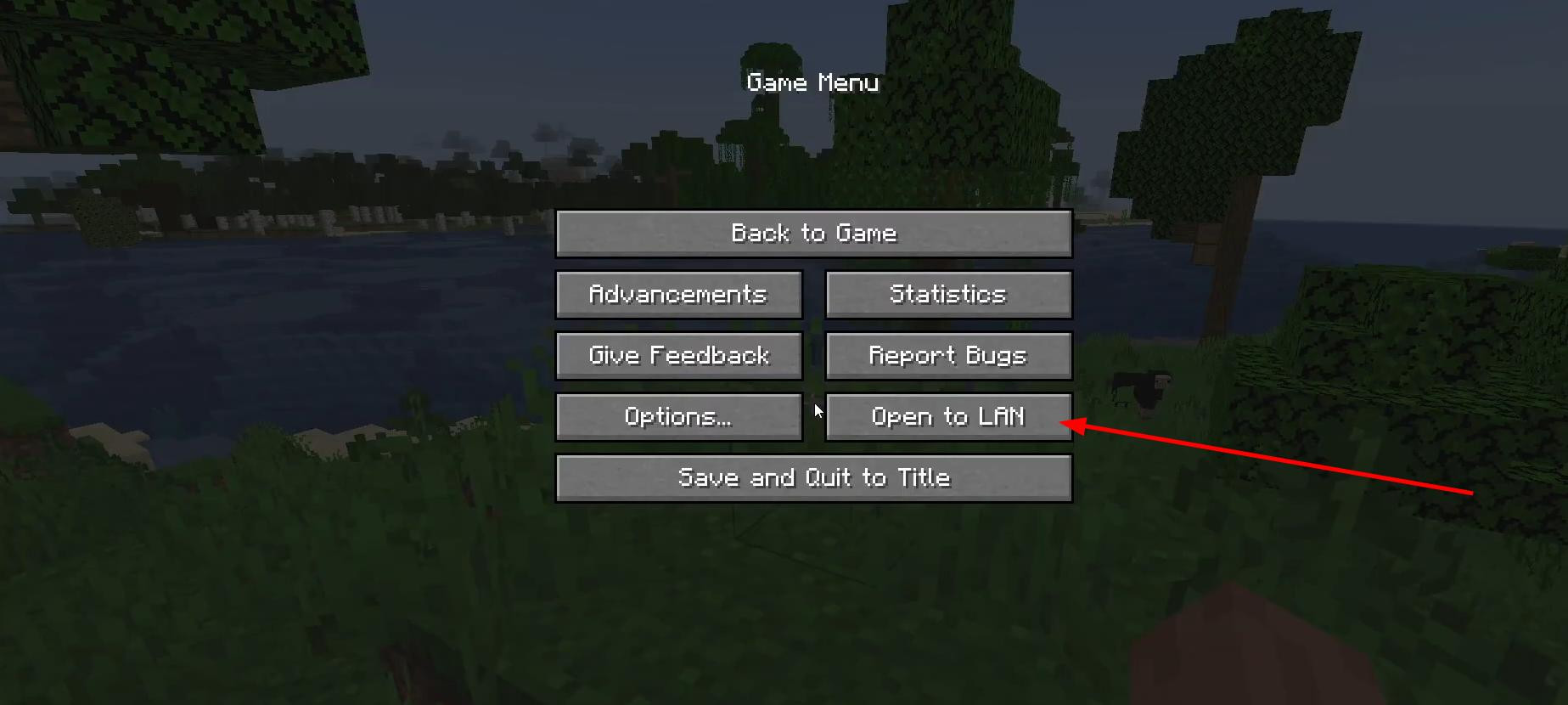
When the game is running, press the Esc key to open the menu. Then press the “Open for LAN” button.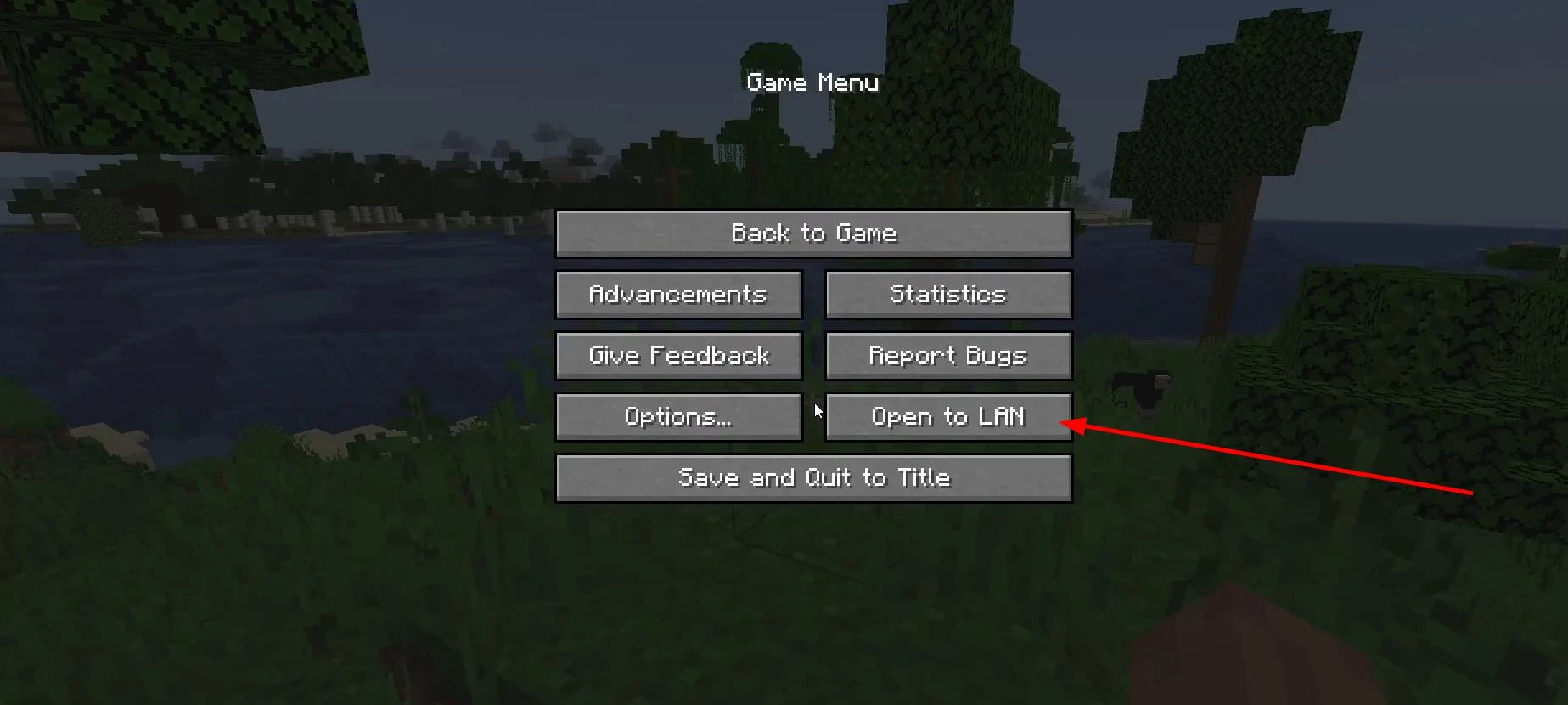
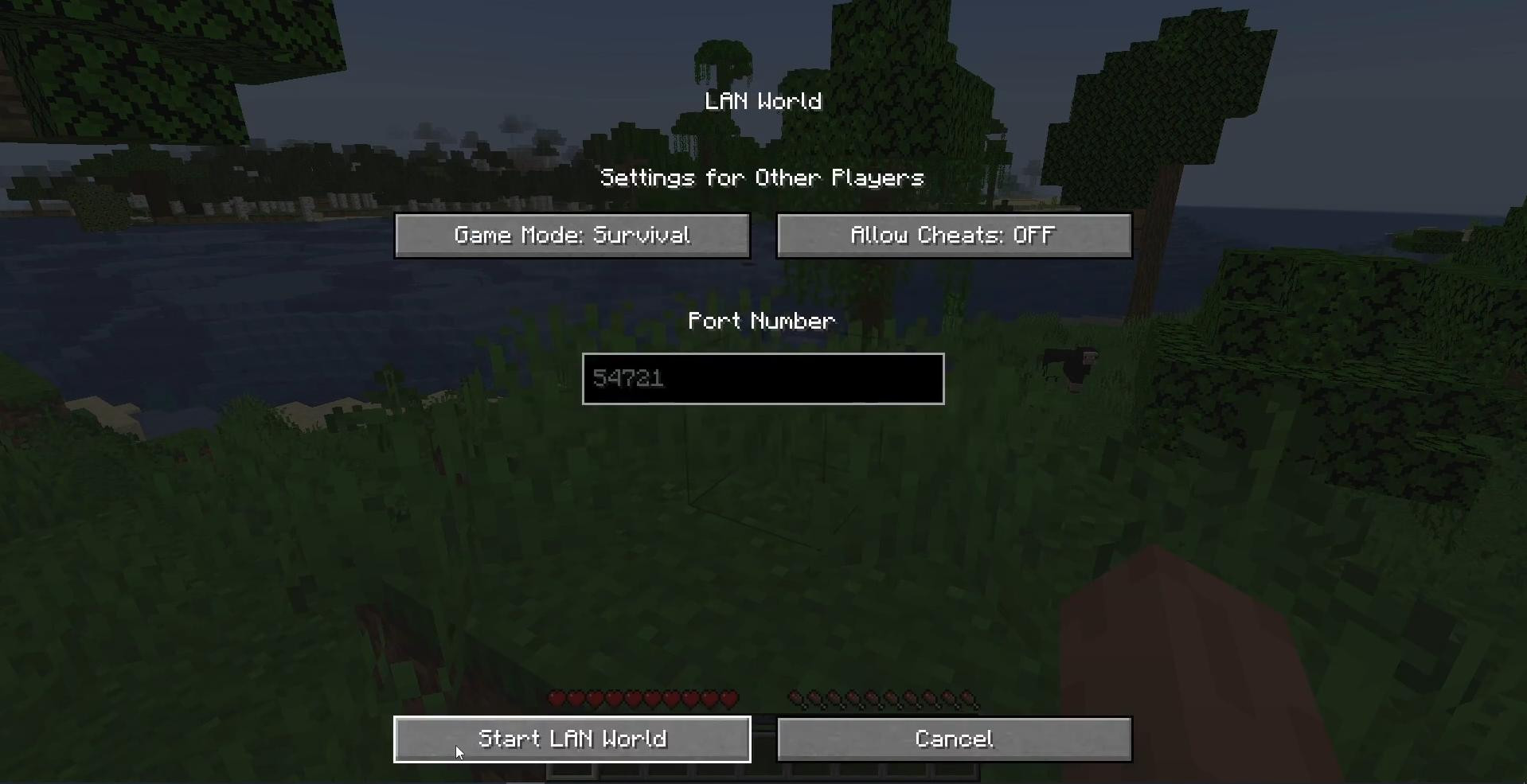
Here you can select a mode - such as survival or creative - and enable or disable cheats. After customization, click “Open the world for the network”.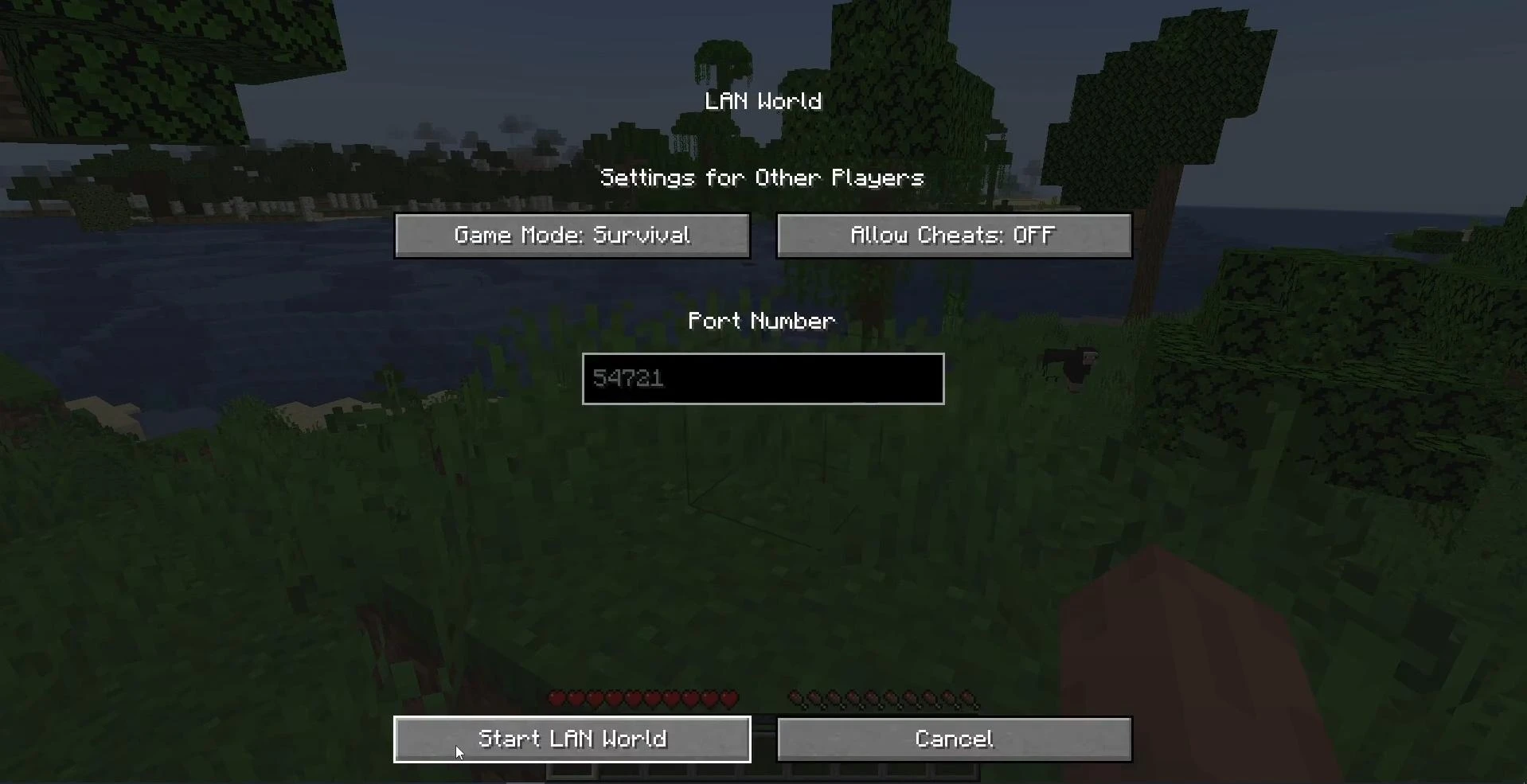
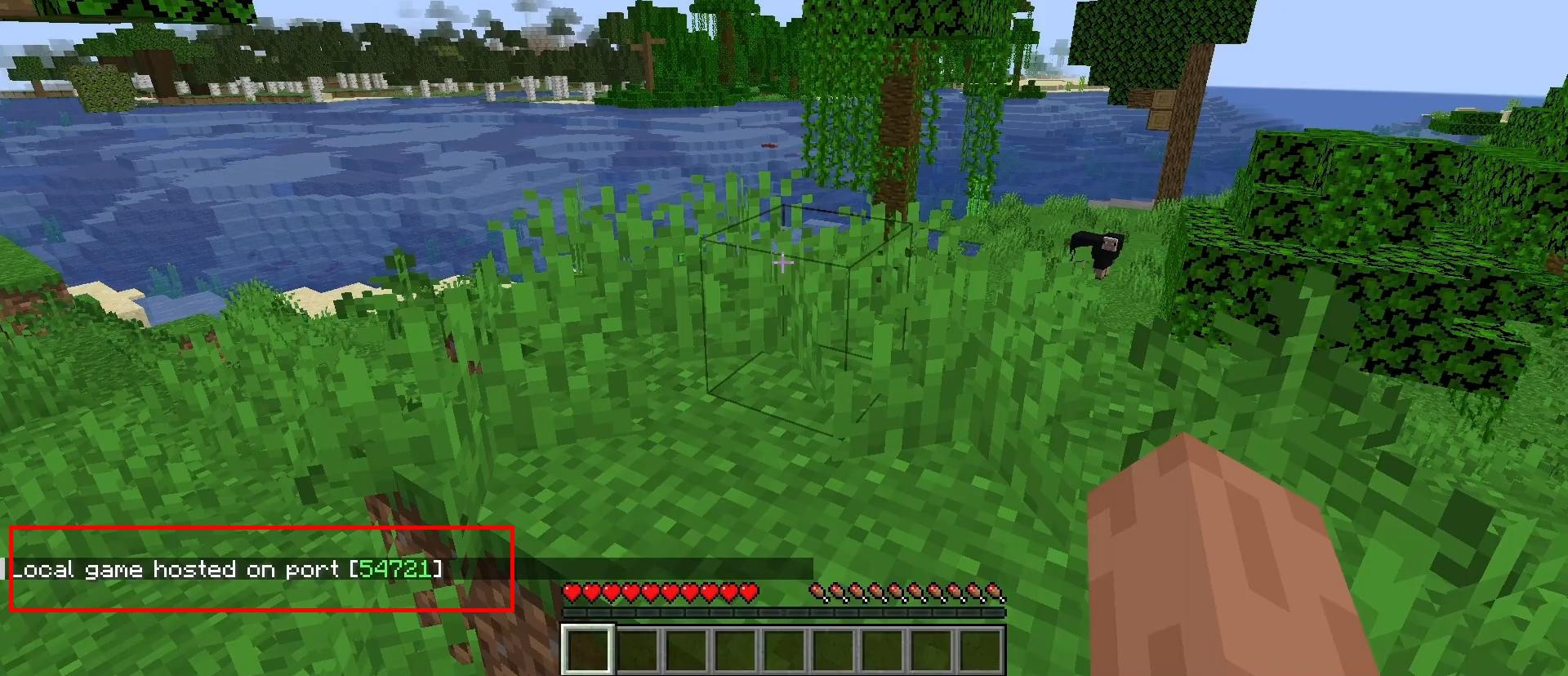
In the lower left corner of the screen you will see “Local game is running on port XXXX”, where XXXX is the port number.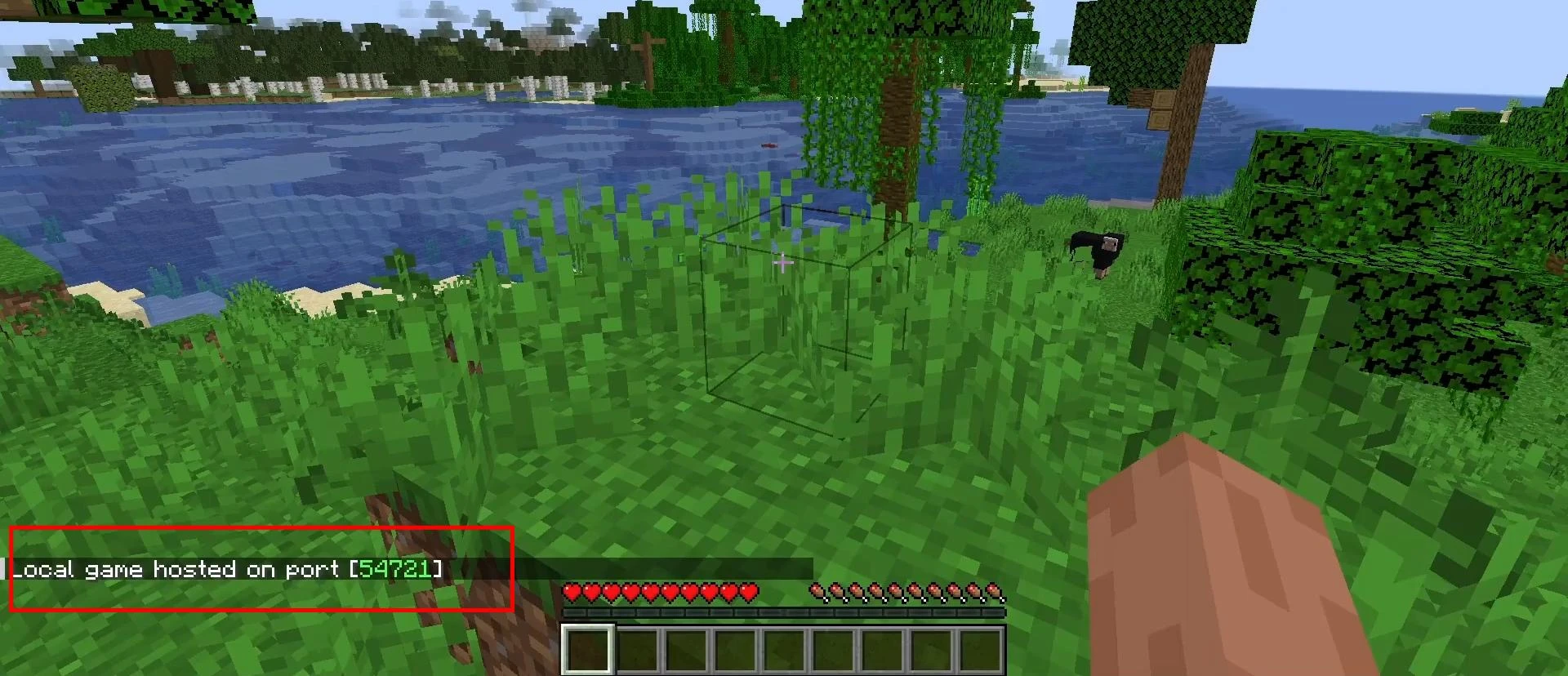
Memorize or write down this number, you will need it later.
How to connect to a LAN server from another computer
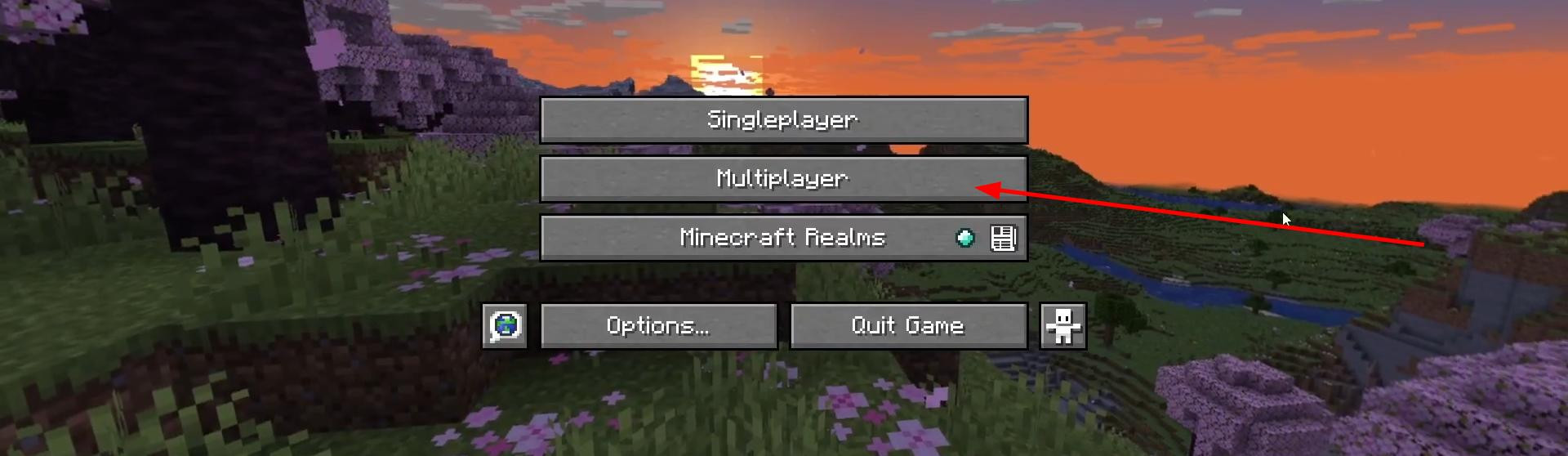
Now you need to go to the second computer. Make sure it is also connected to the same network as you. Start Minecraft, then open “Multiplayer” in the main menu.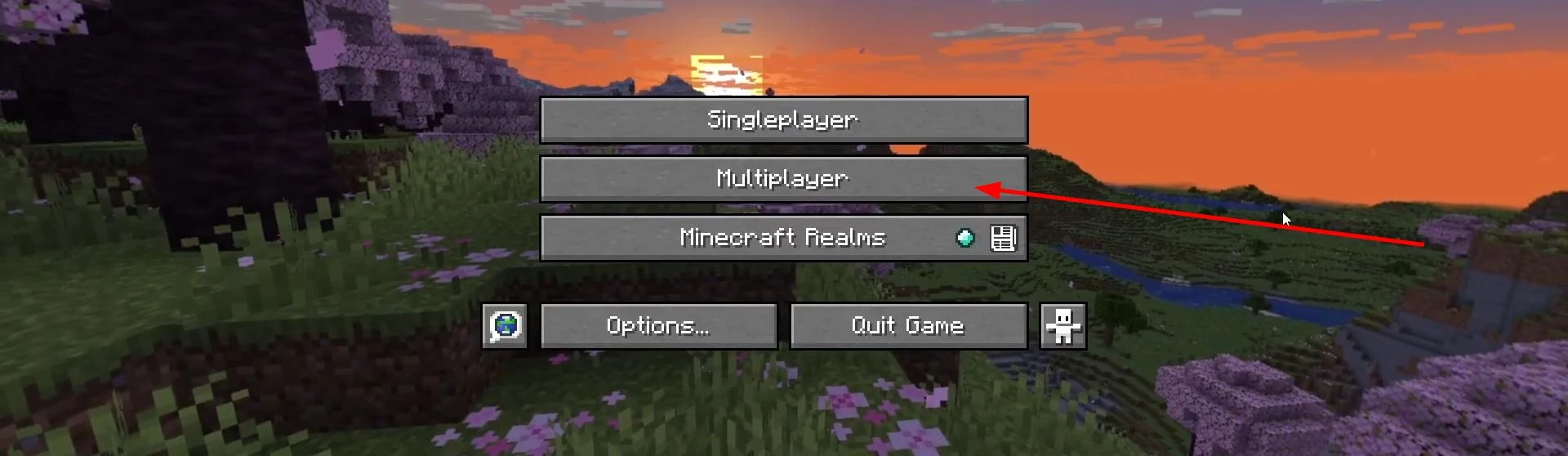
If everything is working correctly, after a few seconds, the server list will display something like “LAN World: Player Name - World Name”. Just select that server and click “Connect”. The game will automatically connect you to the local server.
However, sometimes the server may not be displayed. This can happen due to network peculiarities or system settings. In this case, you will have to connect manually via IP address and port.
How to do this - read below.
How to connect to a LAN server manually via IP and port
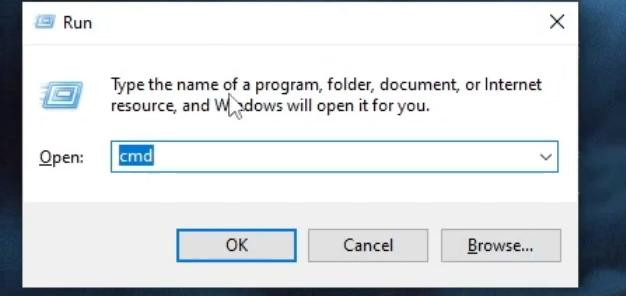
If automatic connection to a LAN server does not work, you will have to enter the address manually. To do this, you need to go back to the computer where the world was opened. Press Win + R or click on the search icon at the bottom of the screen and type cmd. Then press Enter - a command prompt window will open.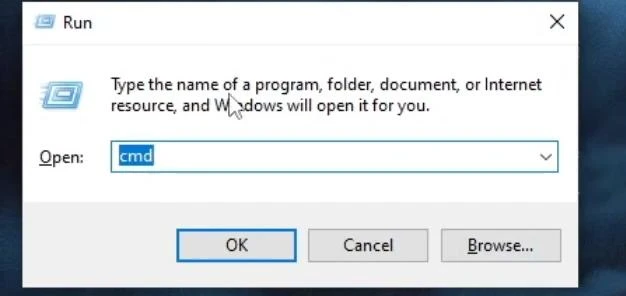
In the window that opens, type the command ipconfig and press Enter. After a second, a list of network settings will appear. Find the line labeled “IPv4 address” - next to it will be a numeric address, such as 192.168.1.5. Copy or write it down.
Now go back to the second computer (where your friend is playing).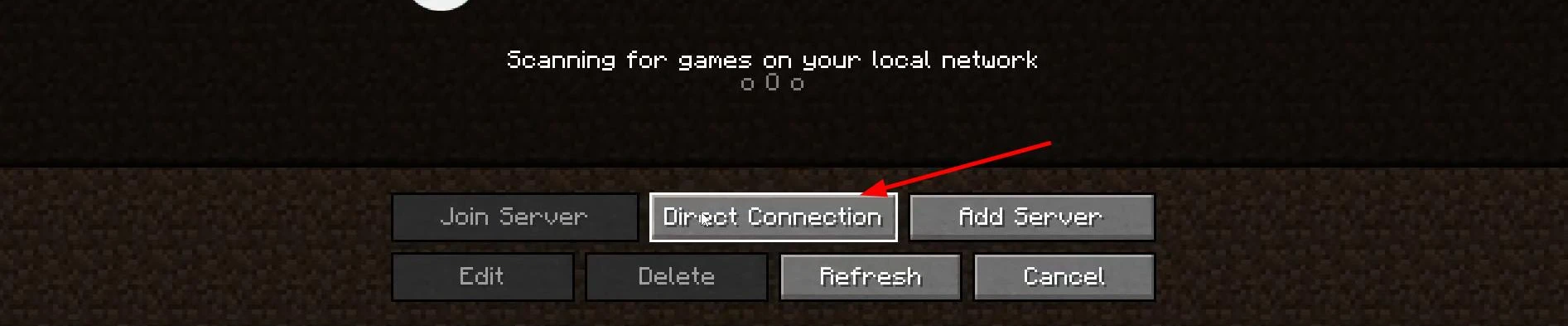
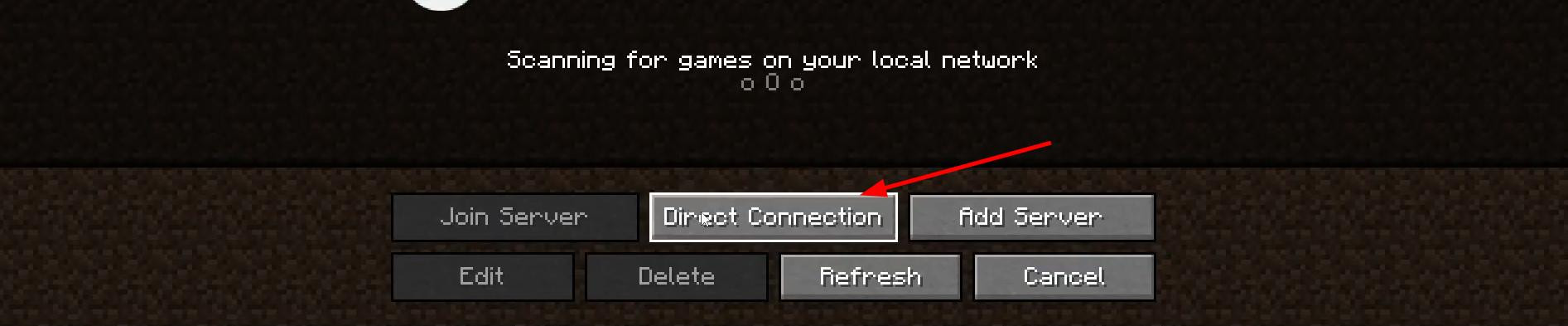
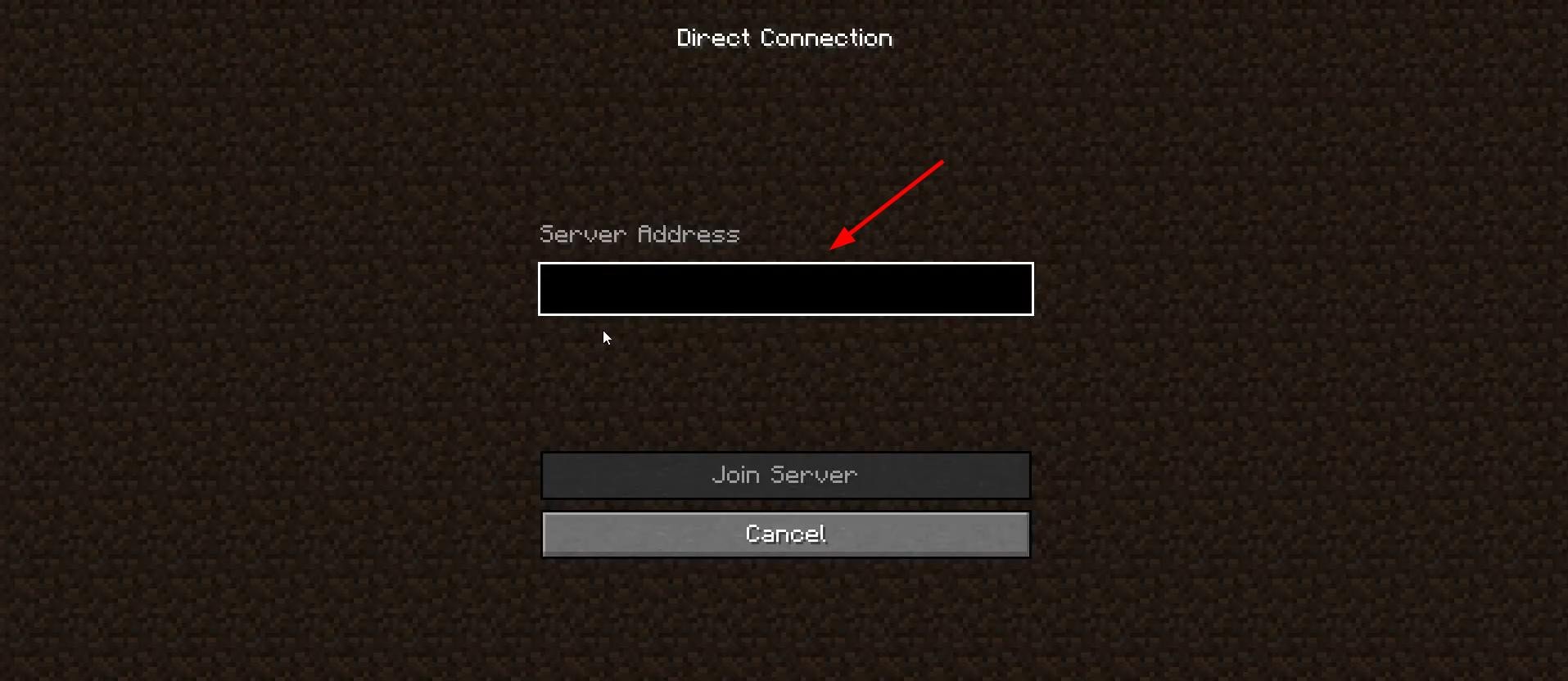
In the Minecraft menu, select “Network Game” again, then click “Direct Connection” and enter the IP address you just learned.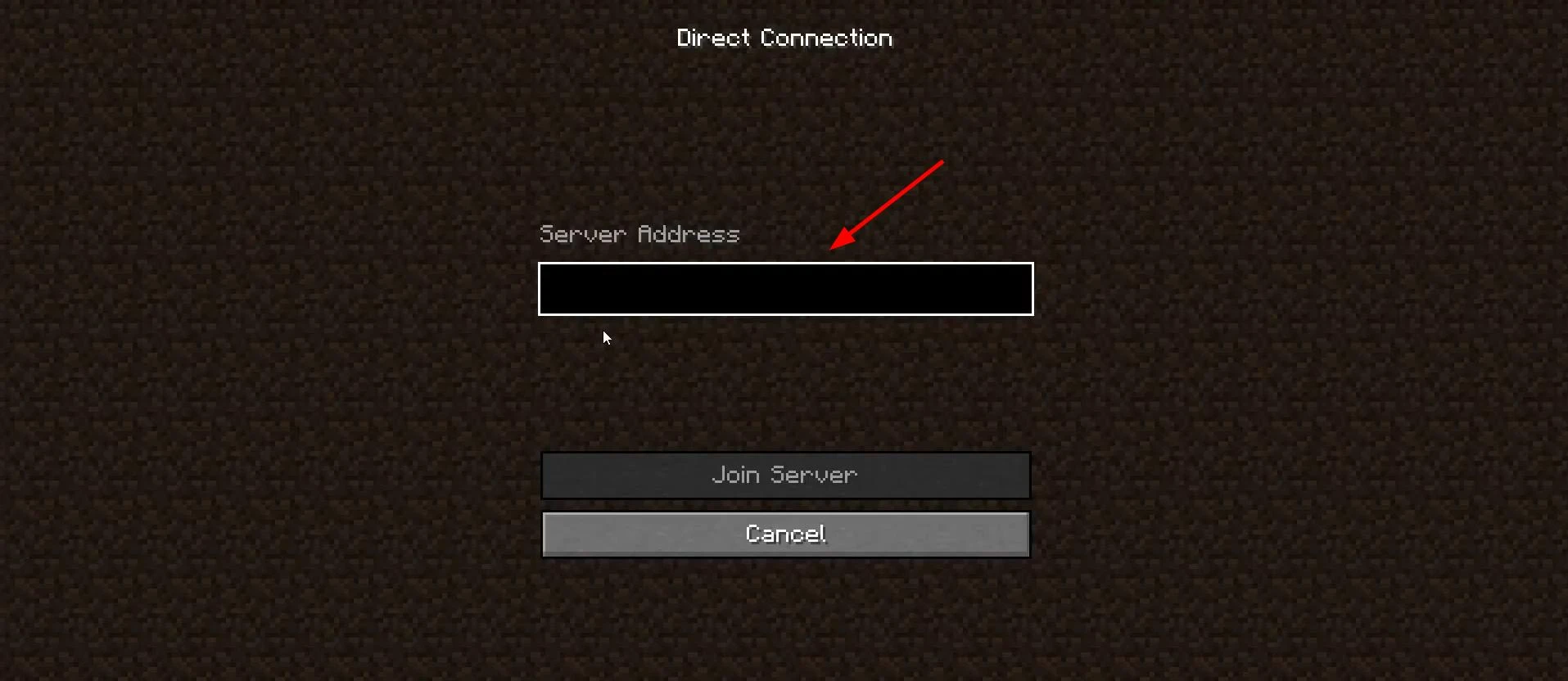
After it, through a colon, add the port number you got when you started the world (for example: 192.168.1.5:53723).
Once entered, click “Join.” If everything is entered correctly, the connection will be established and you will be in the same world.
What to do if the LAN server doesn't connect
If after all the steps your friend still can't connect, the connection is probably blocked by a firewall. To fix this, go back to your main computer - the one with the world open.
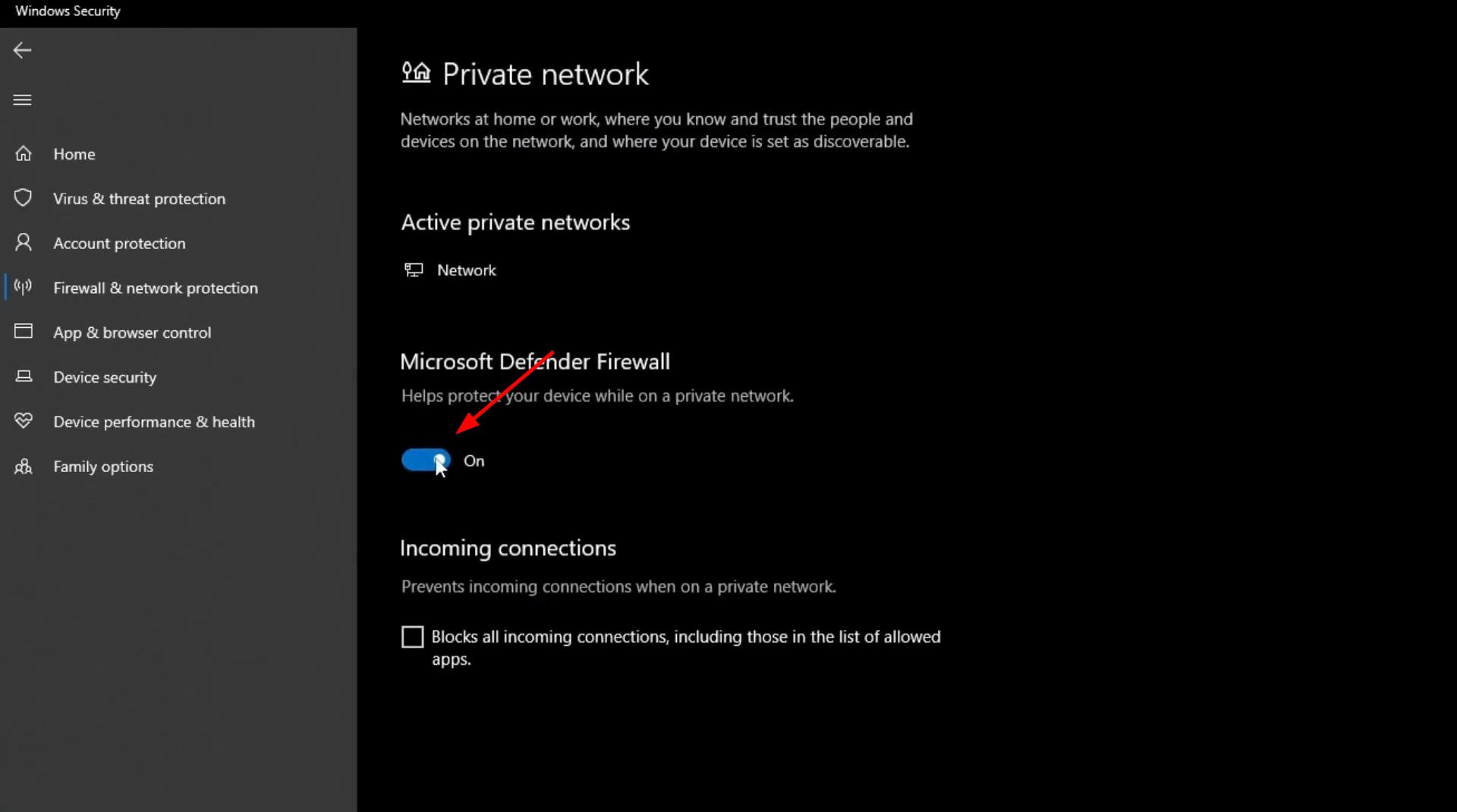
Click the search button at the bottom of the screen and type in “Firewall” Open “Firewall and Network Security”, then select “Private Network.” In this section, temporarily disable the firewall by clicking on the toggle switch. Do the same on the second computer to eliminate blocking from the network side.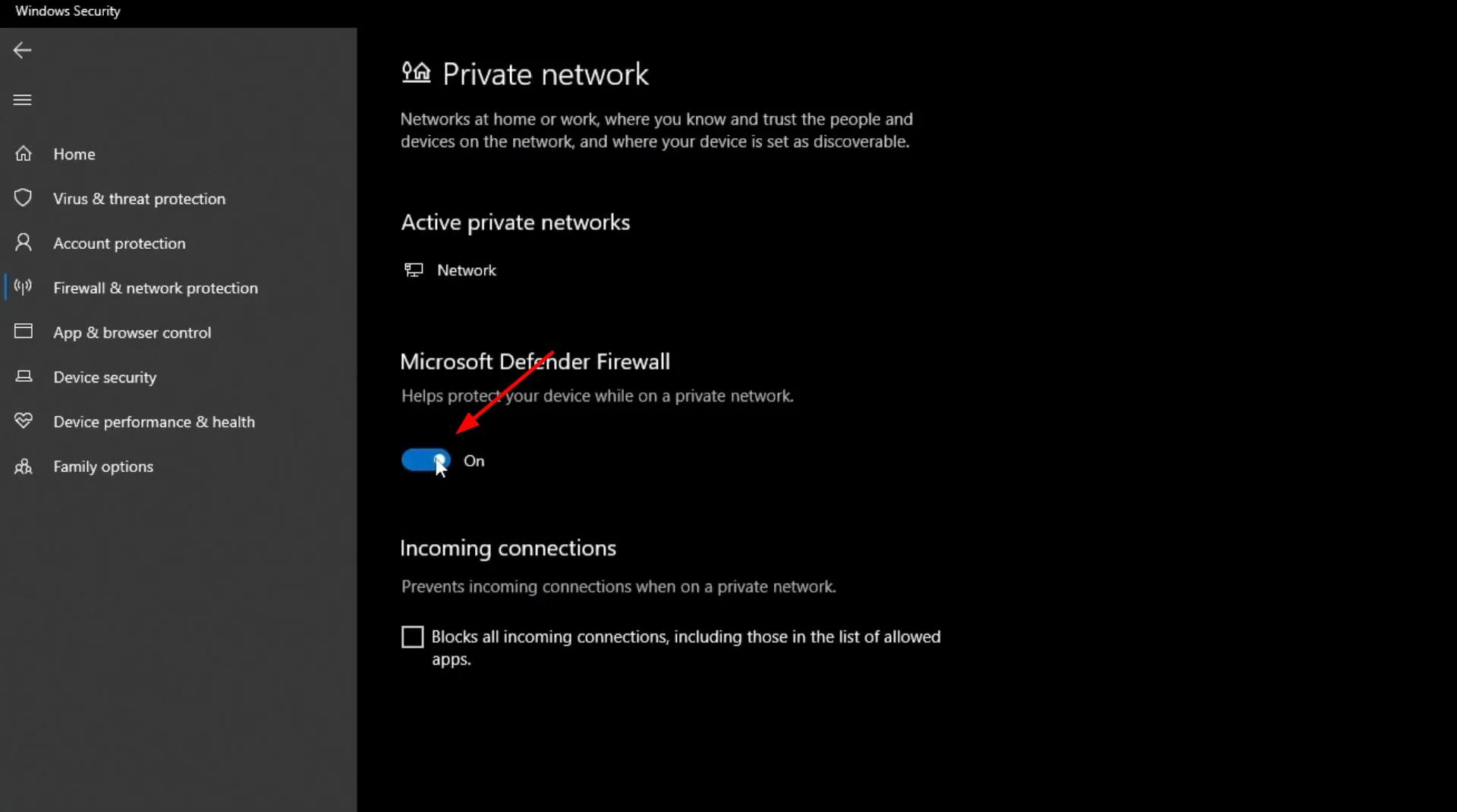
Important: disabling the firewall is a temporary measure. Make sure to turn it back on after the game is over so that you don't expose your system to threats.
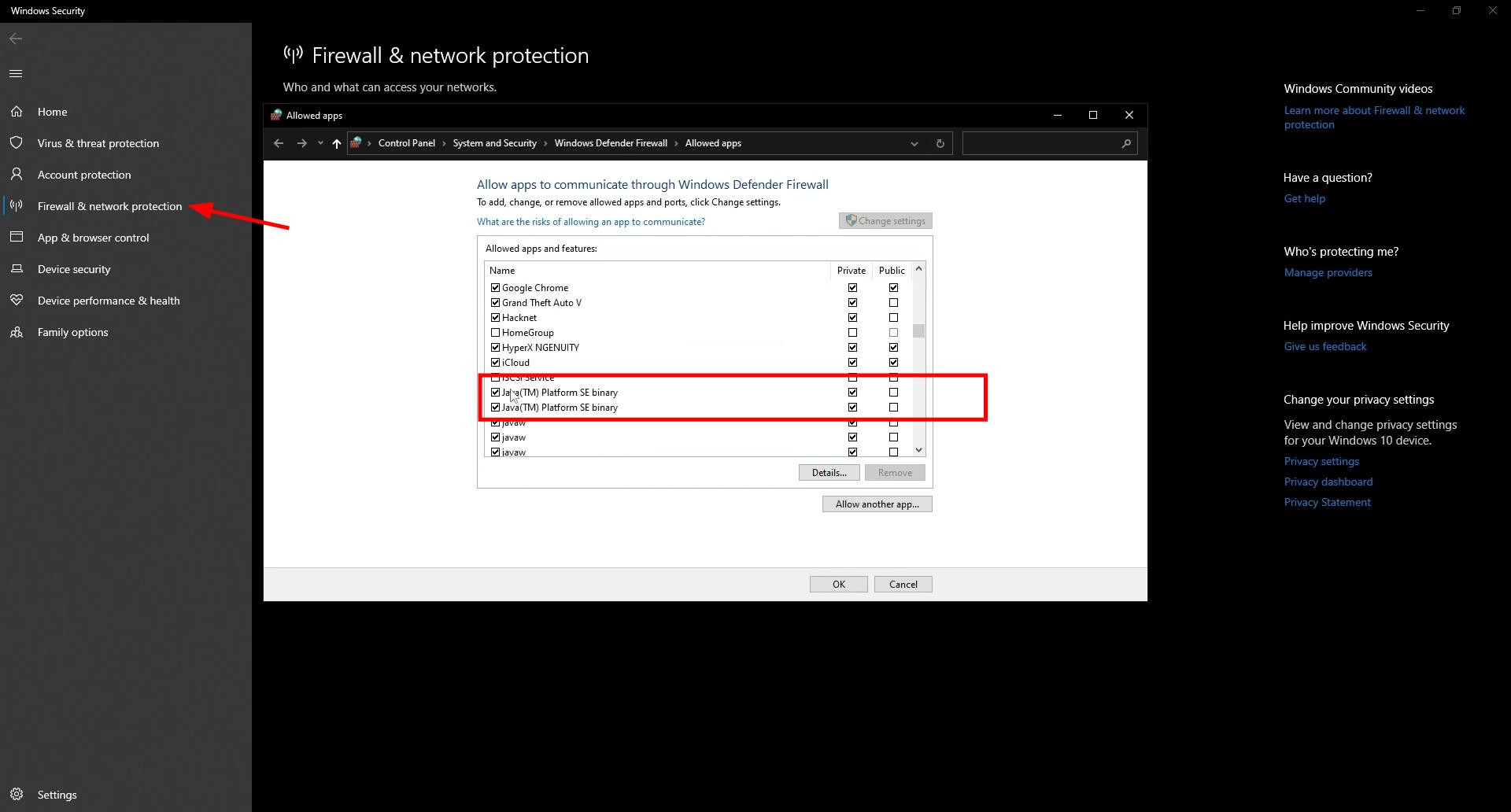
If disabling it doesn't help, check if Java access is allowed through the firewall. Go back to the firewall menu, select “Allow Application Interaction through Firewall”, then click “Change Settings”.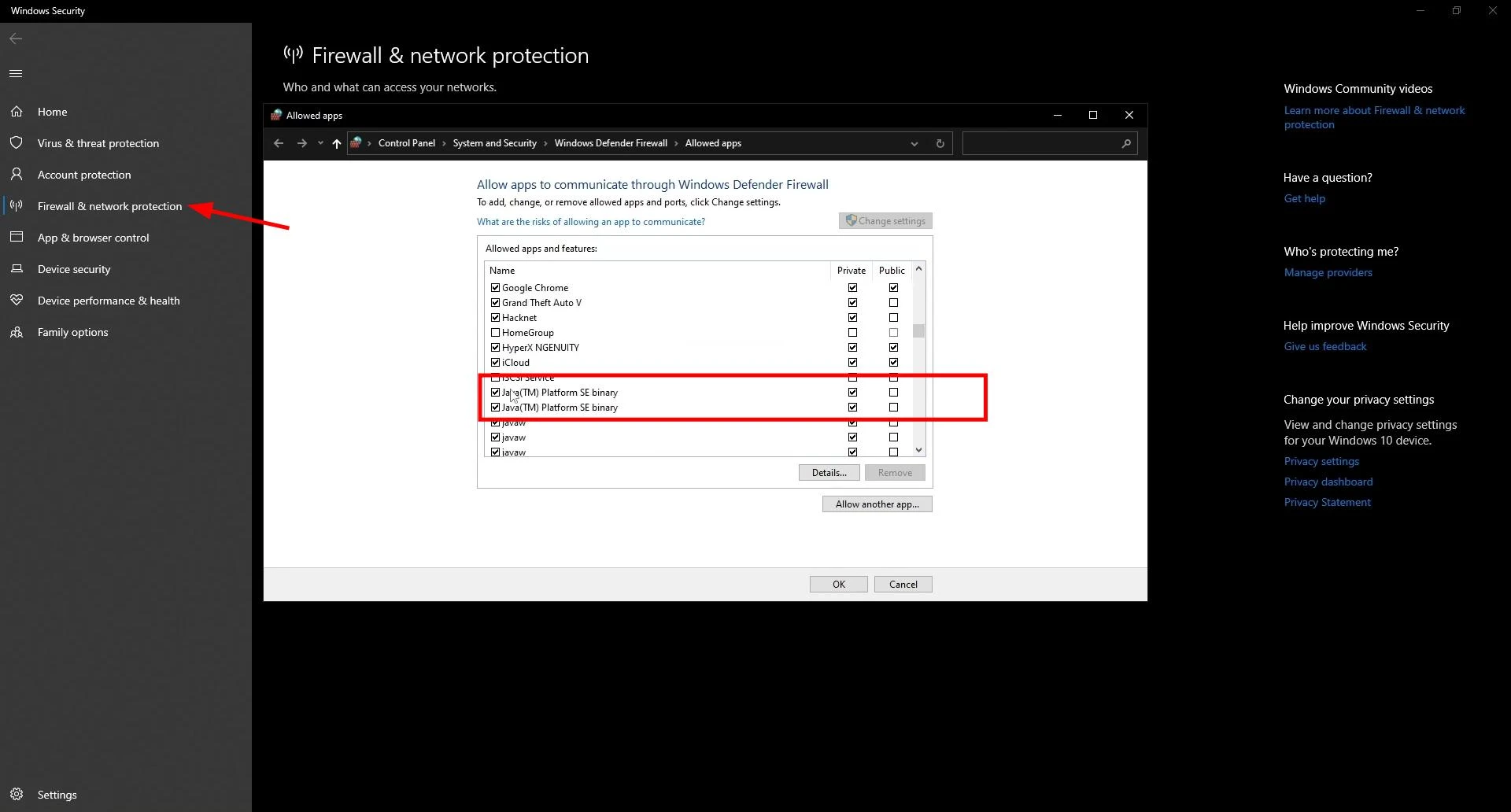
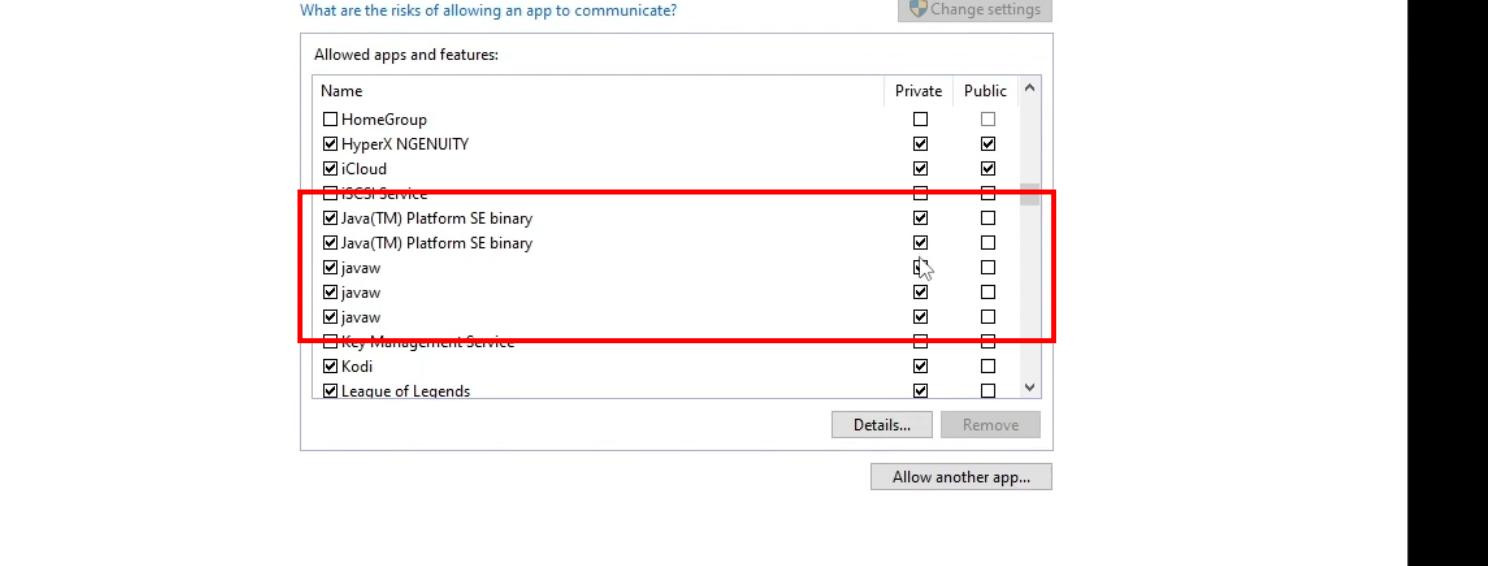
Locate Java(TM) Platform SE Binary and Javaw in the list. Make sure both programs are checked in the “Private Network” column. After that, click “OK”.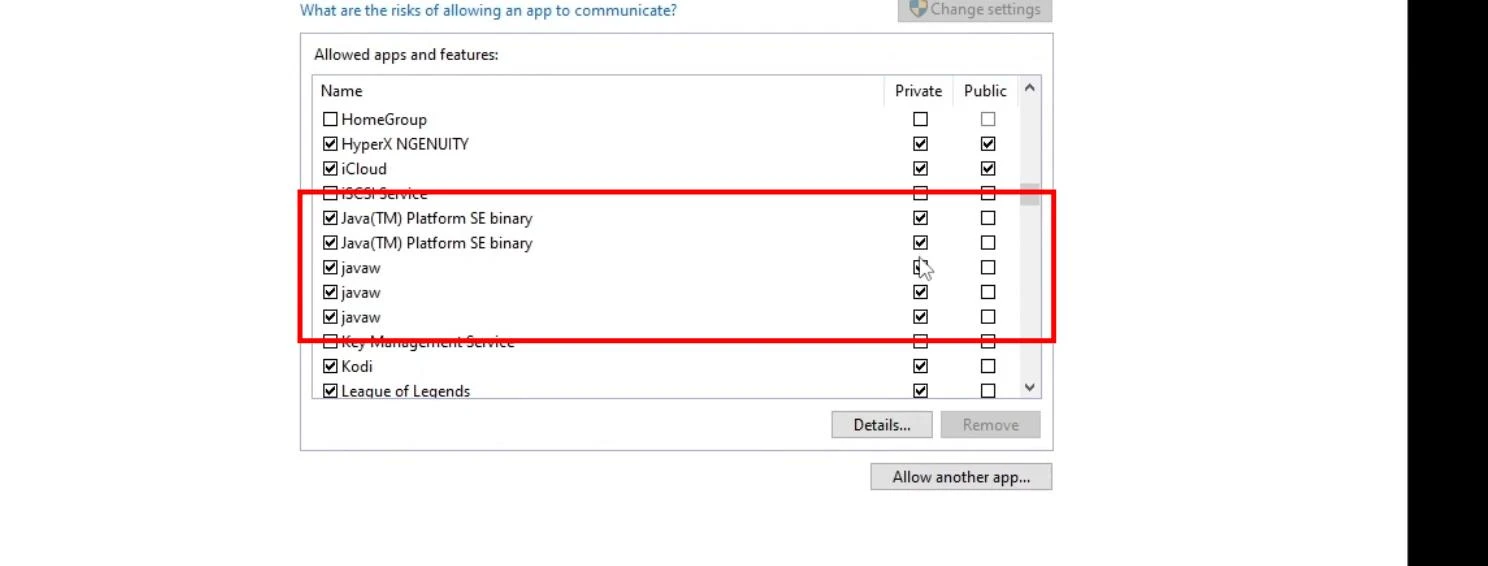
Try again to connect to the LAN server via “Network Game” or “Direct Connection”.
You can also write down the IP address and port in a separate file or text document so that you don't have to search for them every time.
It is also advisable to run Minecraft as an administrator to avoid unnecessary restrictions from the system.
If you often play with a friend over LAN, it is better to use an Ethernet cable. Connection via it will be more stable than via Wi-Fi.
Enjoy your game!
Videos


Added by

![NeoForge Installer [Minecraft 1.21.1, 1.20.6 - 1.20.1]](https://i2.modland.net/i/66c5cbeb7e5ee/neoforge_modland.jpg)
![Timeless and Classics Zero (TaCZ) [Minecraft 1.20.1, 1.19.2, 1.18.2]](https://i2.modland.net/i/669683678b42d/description_0ac47139-8e79-4b76-8a0c-d79bcb9039df_modland.jpg)
![Armor Durability HUD [Minecraft 1.21.4, 1.21.3, 1.21.2, 1.21.1, 1.21]](https://i2.modland.net/i/674bc2c2c404b/190618141923060623_modland.jpg)
![[1.5] THE DROPPER](https://li1.modland.net/minecraft/maps/thumbnail/th_ModLandNet_1.jpg)
_modland.jpg)

_modland.jpg)