How to Make Your First Minecraft Resource Pack
-lg_modland.jpg)
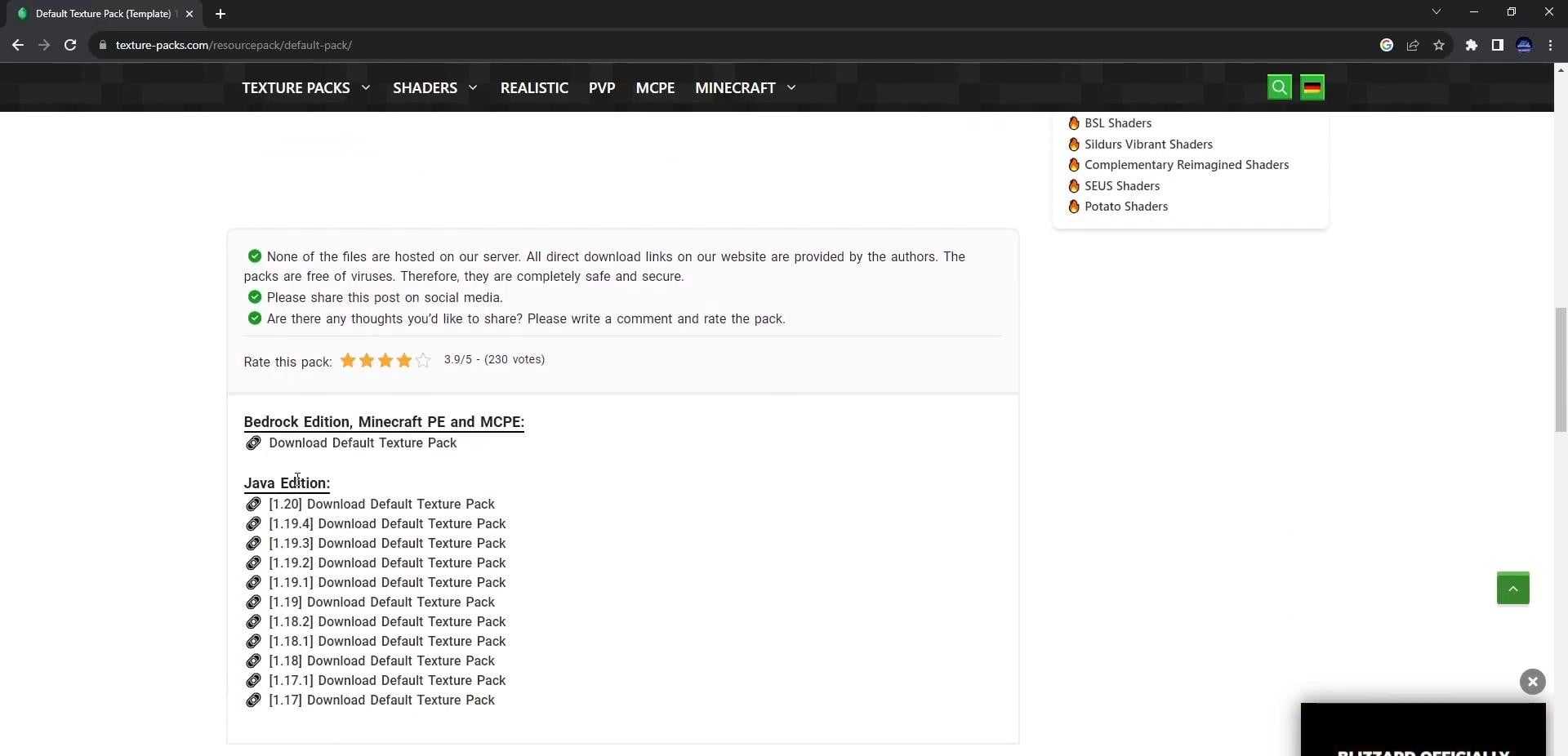
In the search bar, enter Minecraft default texture pack and go to the first site on the list.
On the page that opens, scroll down to the block with available versions. Select the current one, for example, 1.20, and download the archive with textures.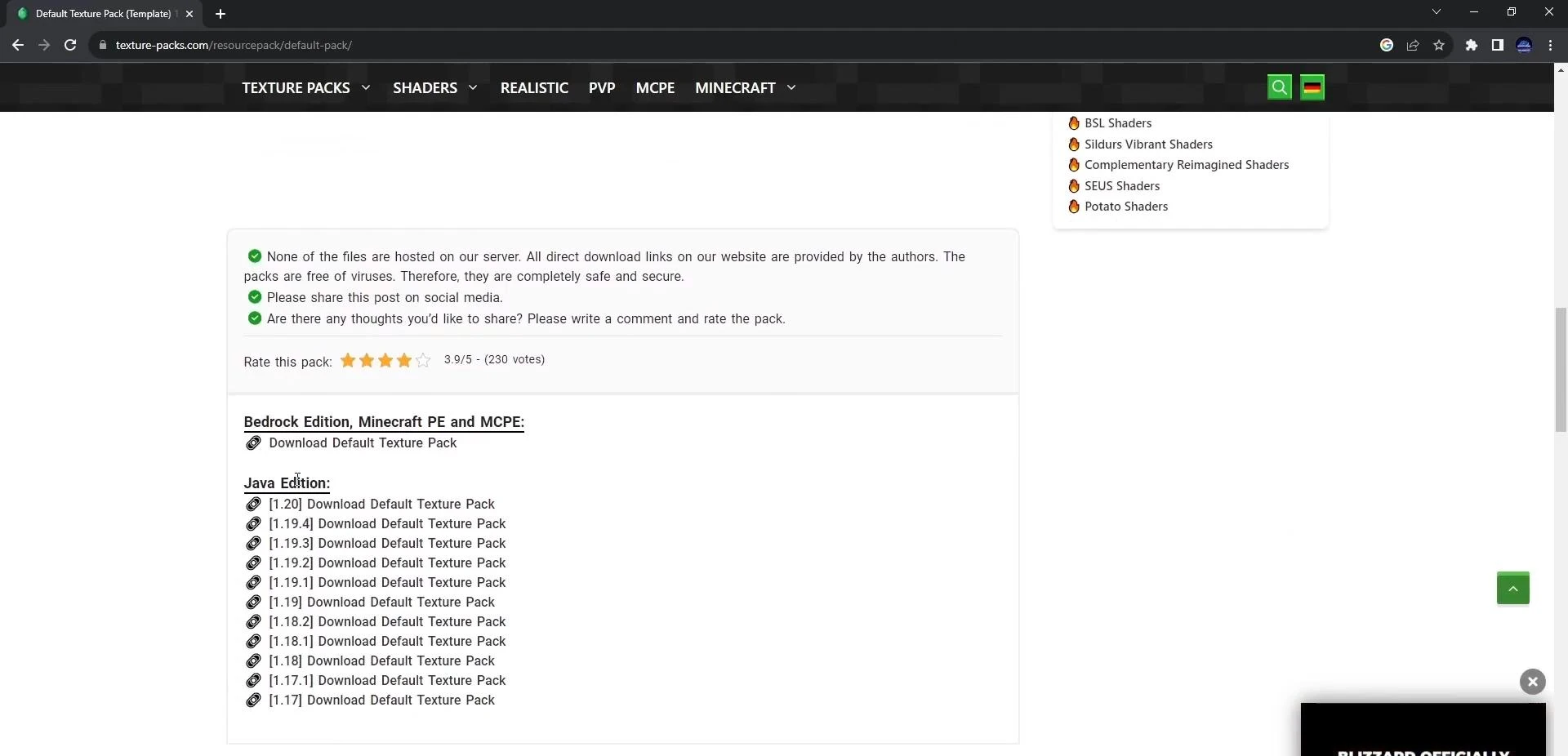
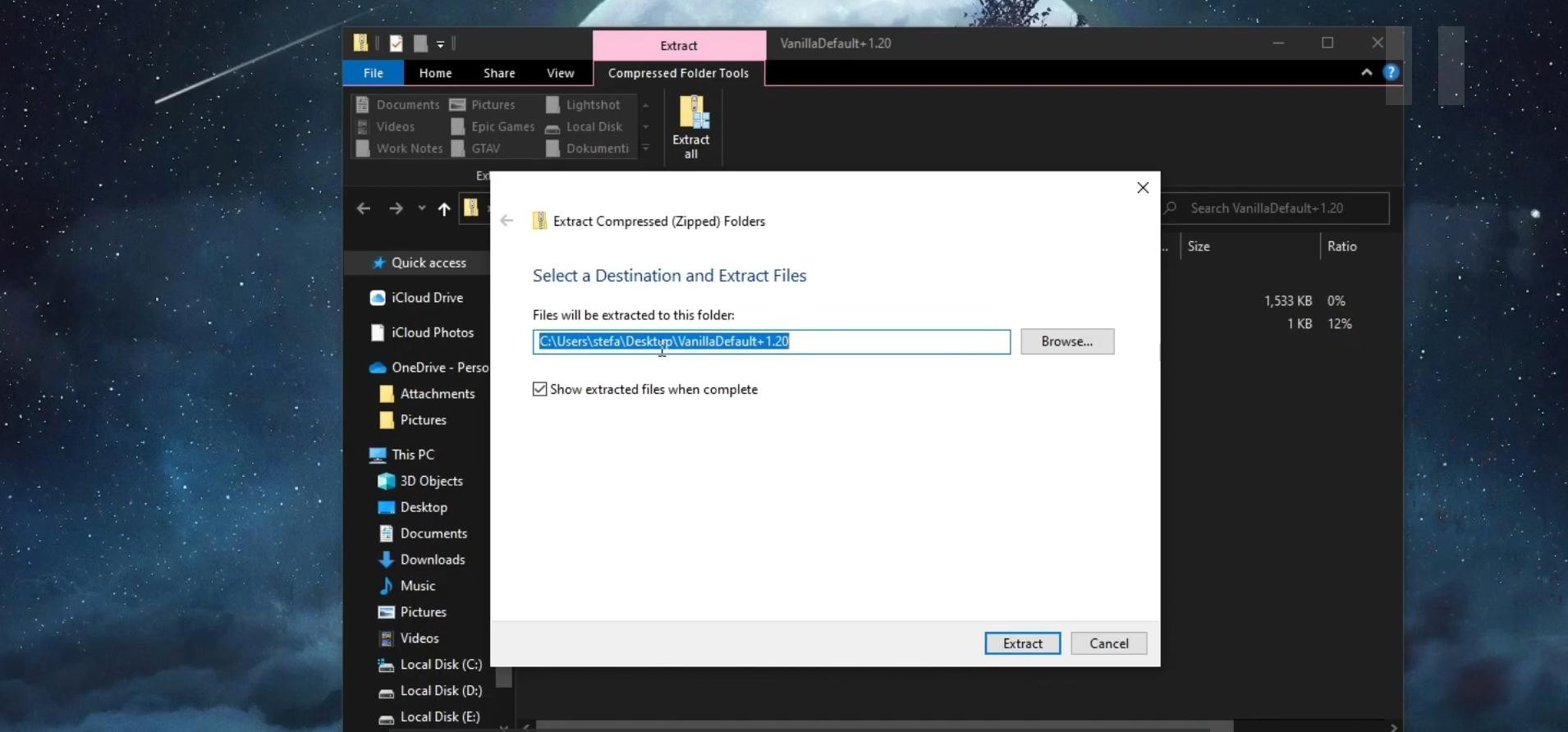
After downloading, open the “Downloads” folder, find the archive, and drag it to the desktop. Then extract the contents of the archive to a separate folder.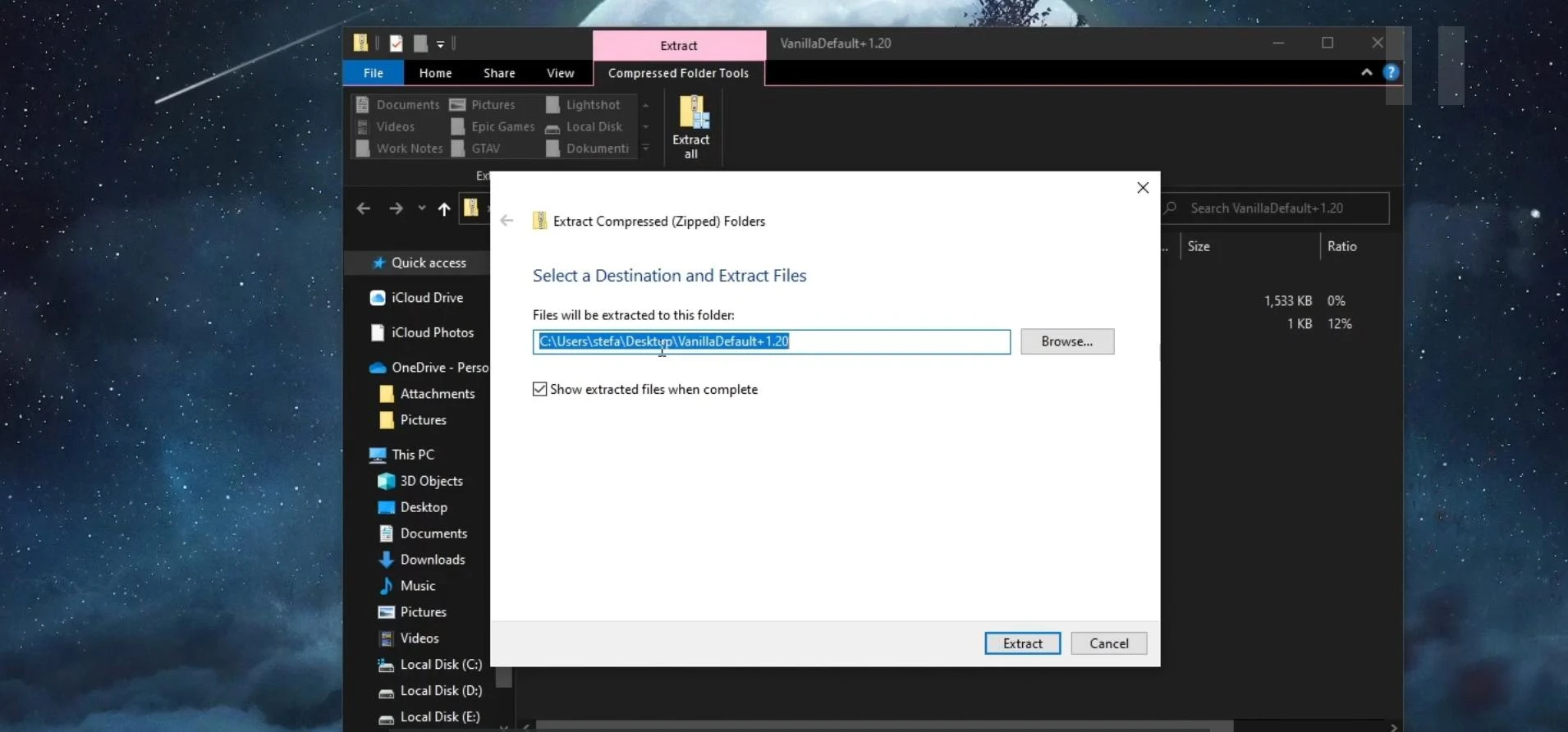
Editing textures in Paint 3D
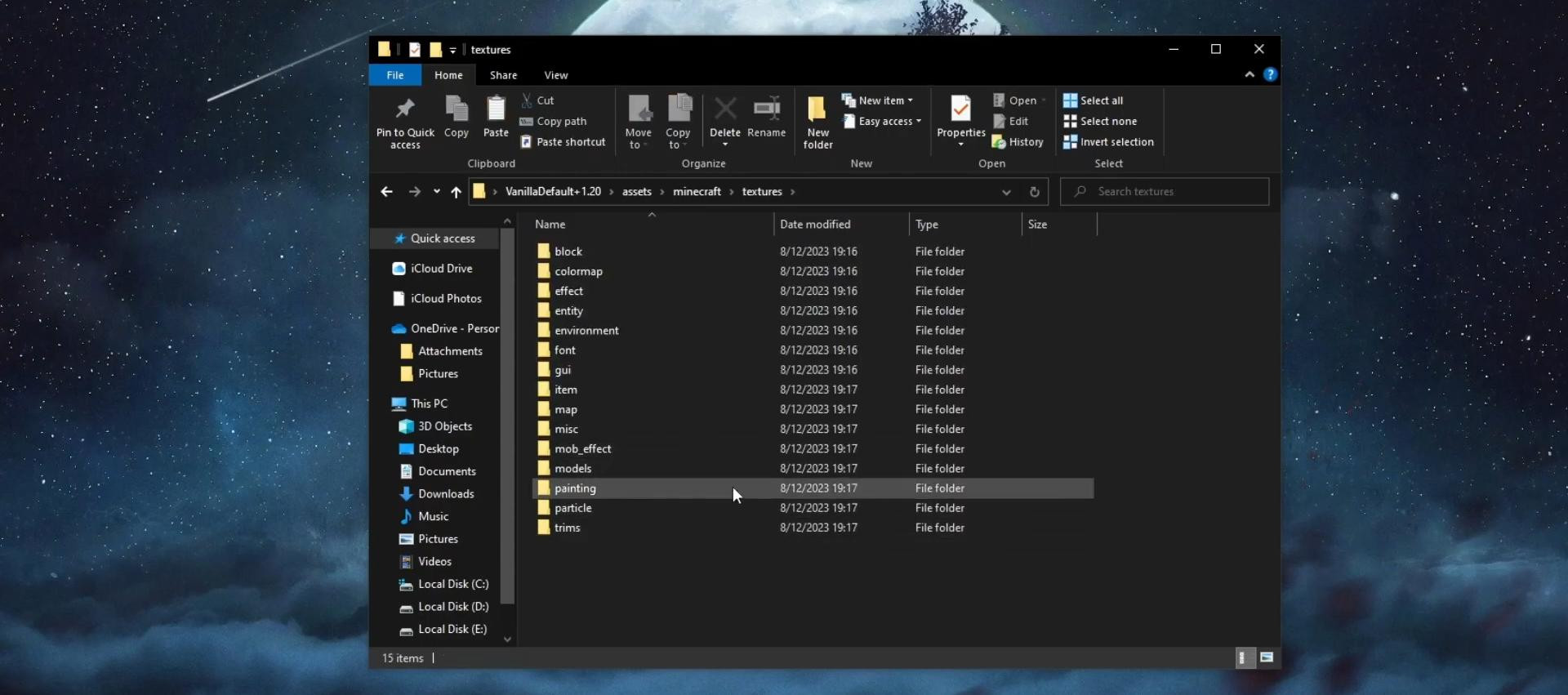
Open the extracted folder and go to: assets → minecraft → textures.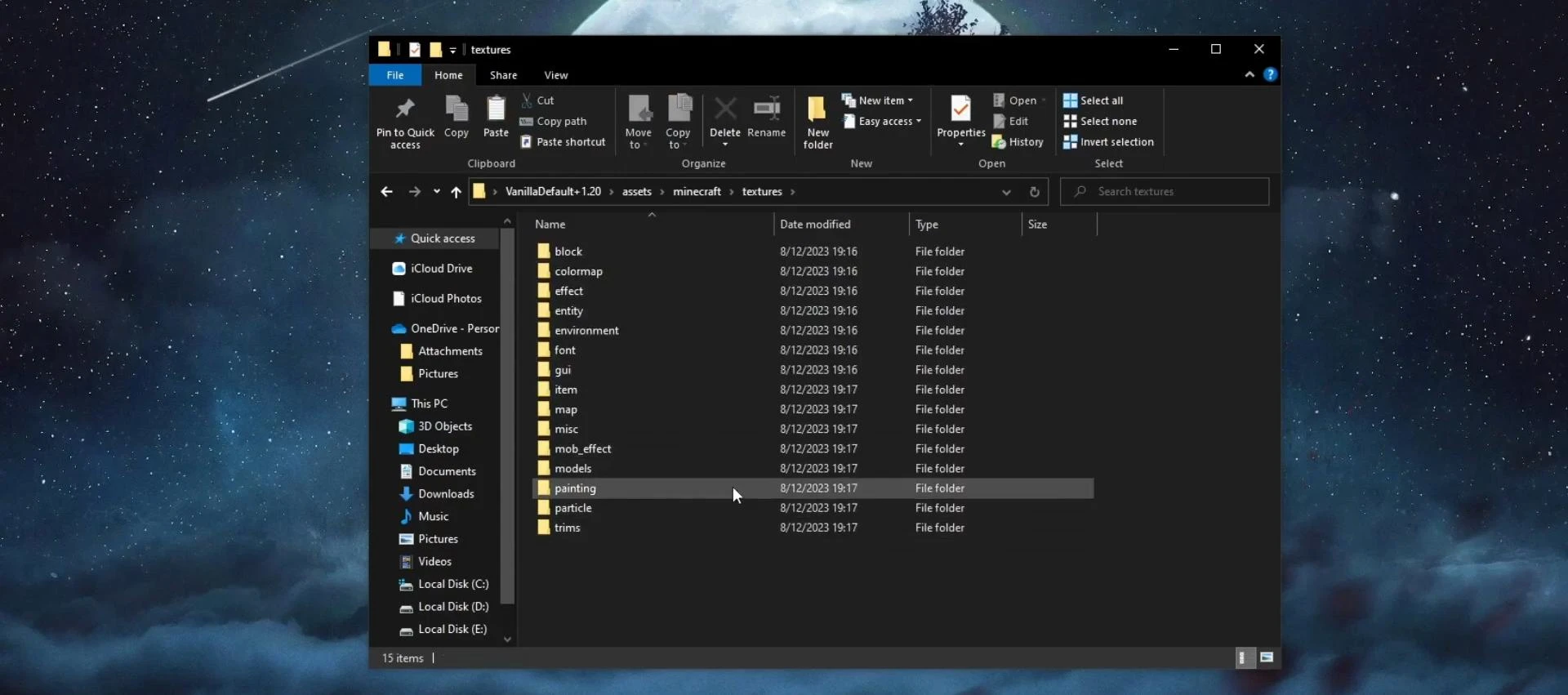
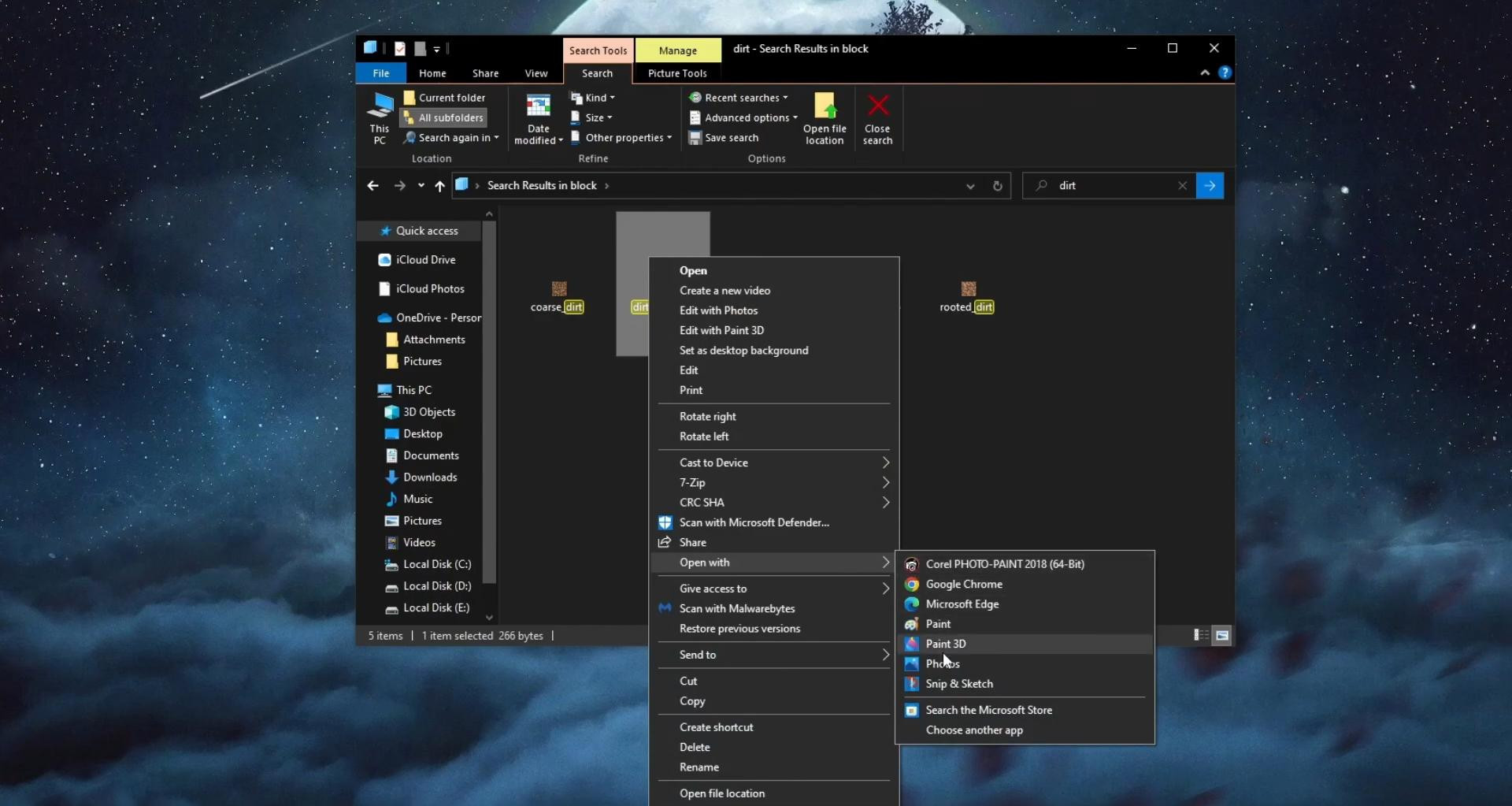
This is where all the game objects are located. To change the texture, for example, of the ground, find the file dirt.png in the search.
Then right-click on it, select “Open with” and specify Paint 3D.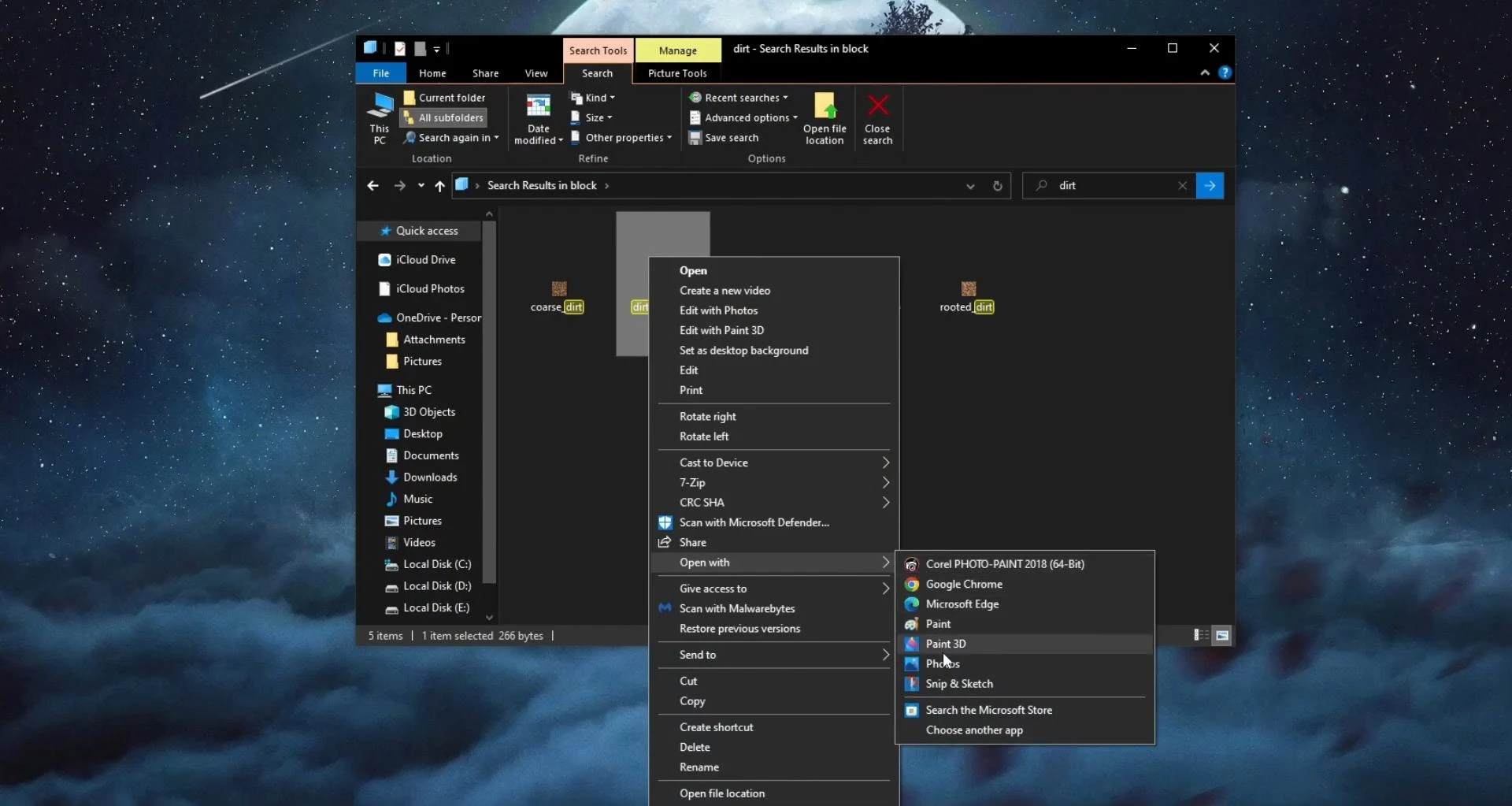
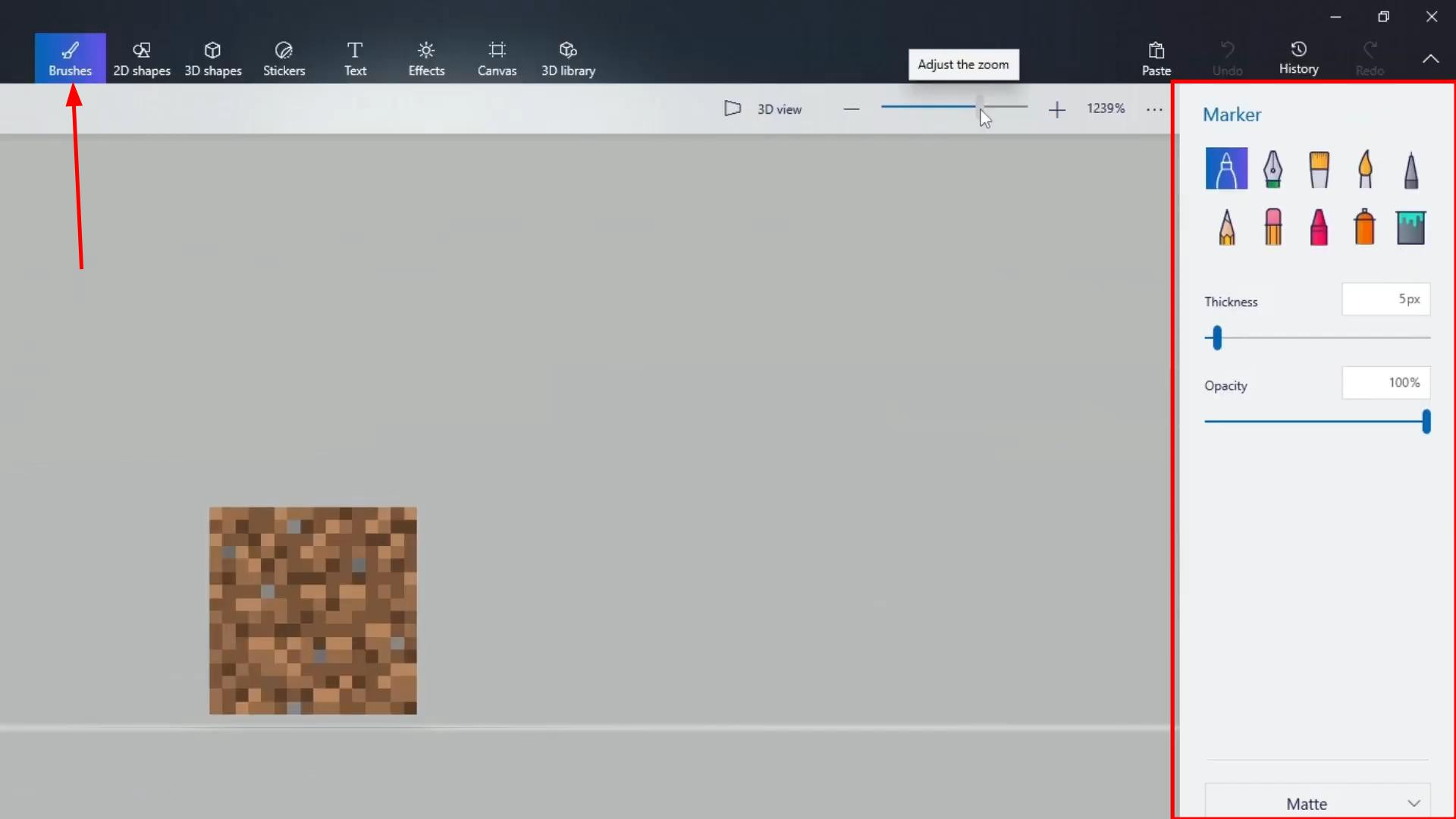
In Paint 3D, zoom in, click on the “Brushes” tab, and adjust the parameters: color, thickness, and transparency.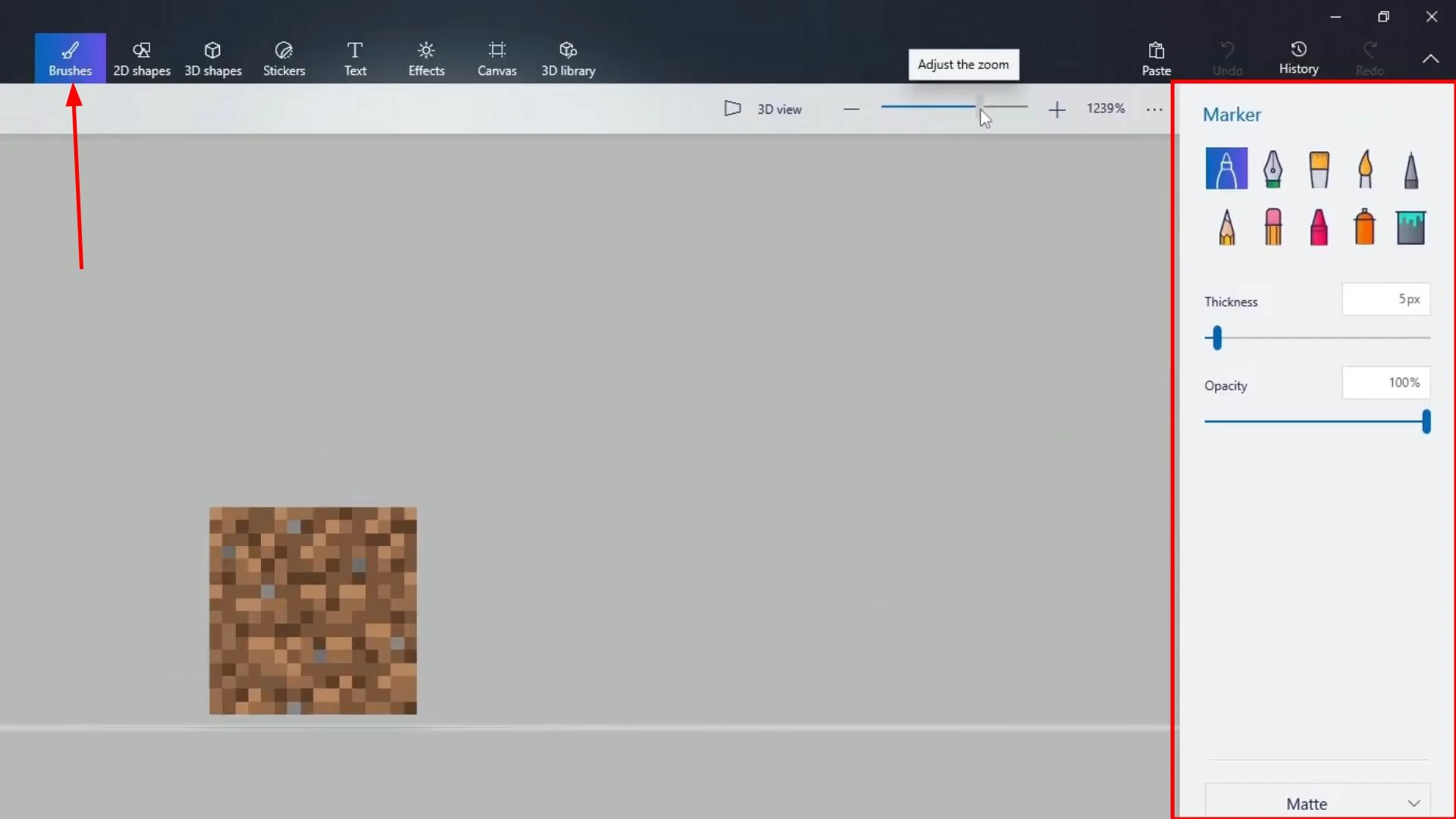
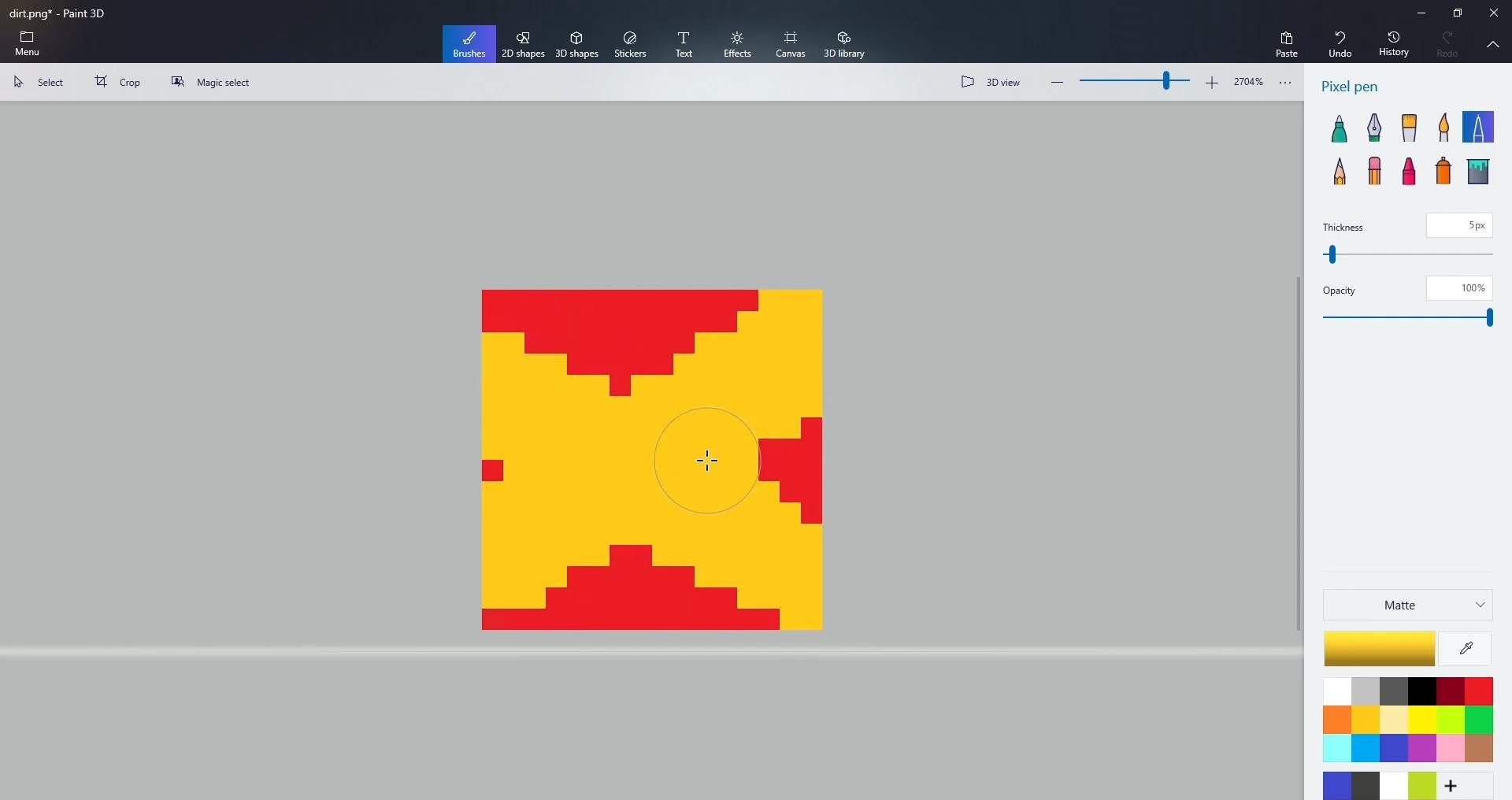
After that, make changes, for example, repaint the texture red.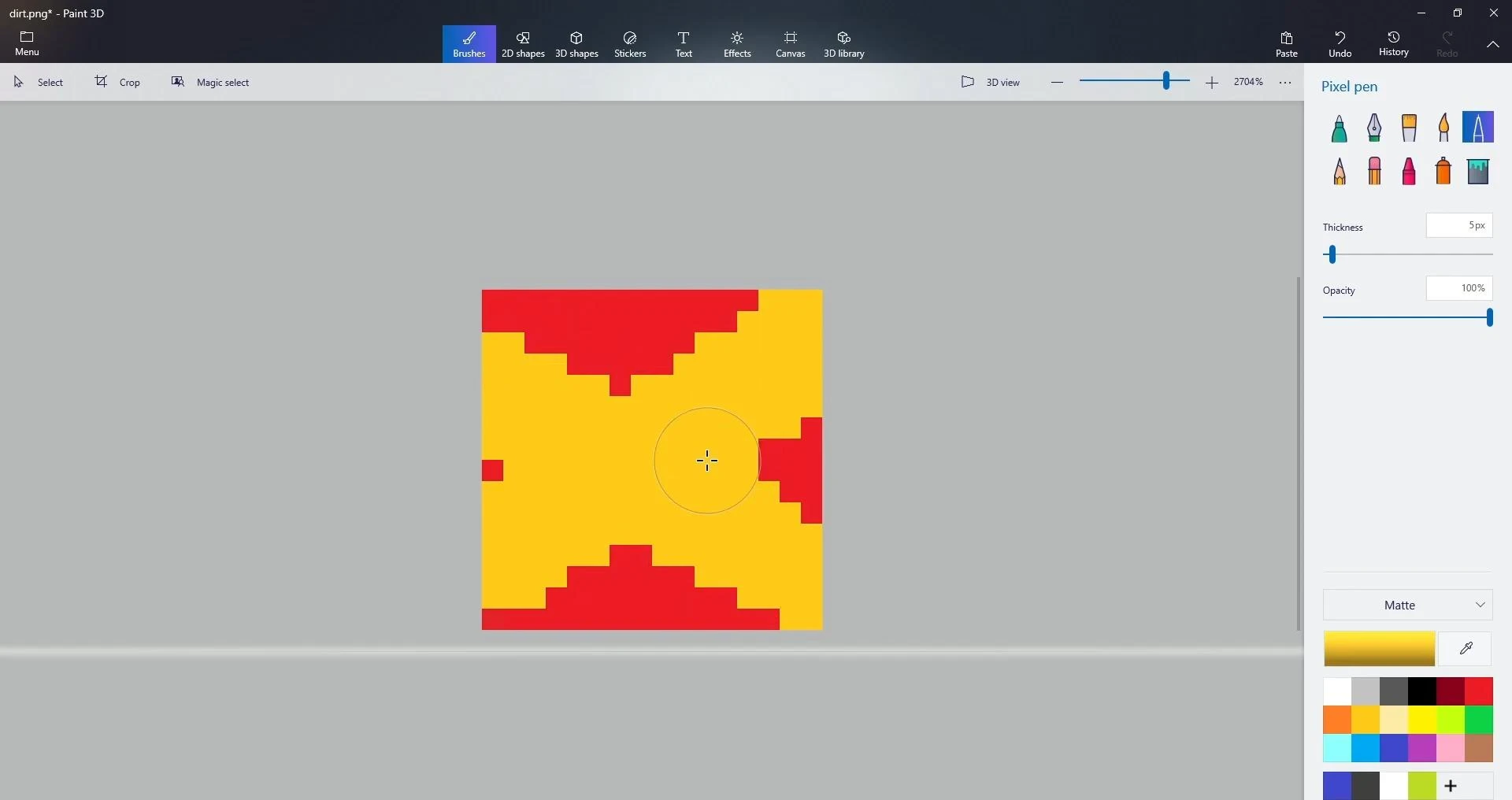
Save the result via the menu and close the editor.
Setting up the icon and description of the pack
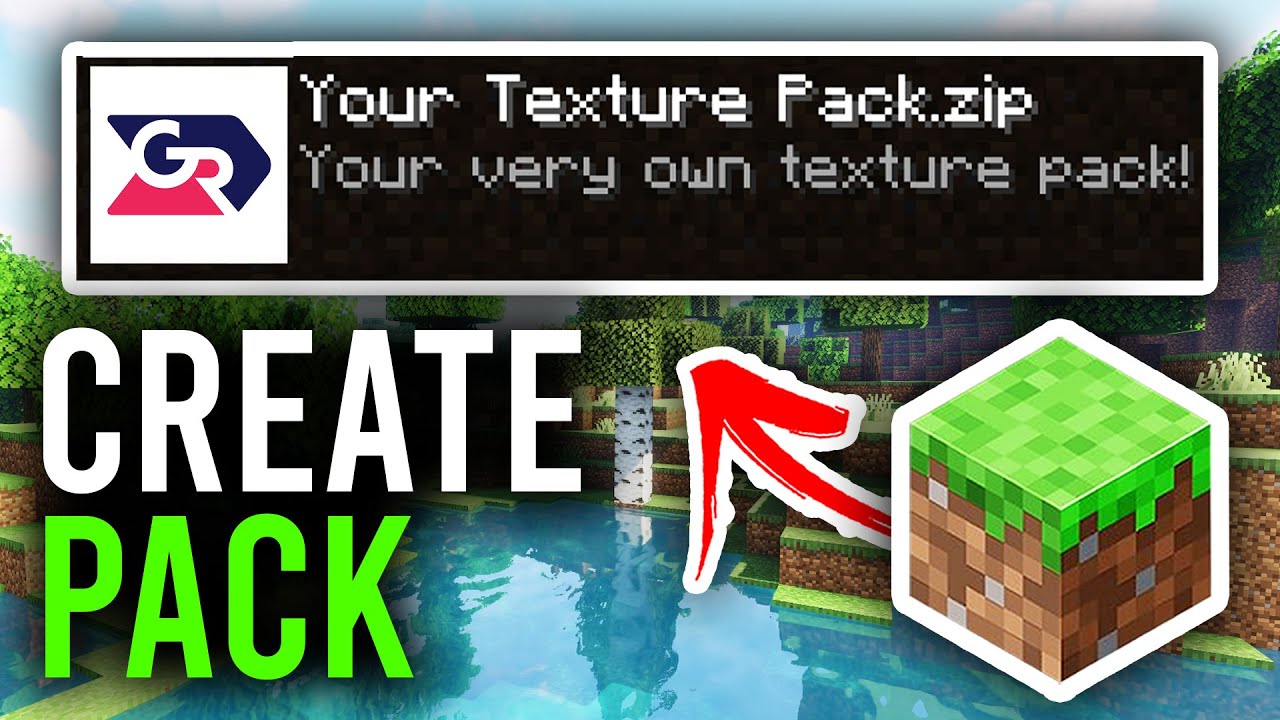
After editing the textures, rename the folder with the resource pack, choosing a unique name, which will be displayed in the Minecraft menu. Next, delete the default image named pack.png and add your own, prepared in advance. The main thing is that the file is in PNG format and is named pack.
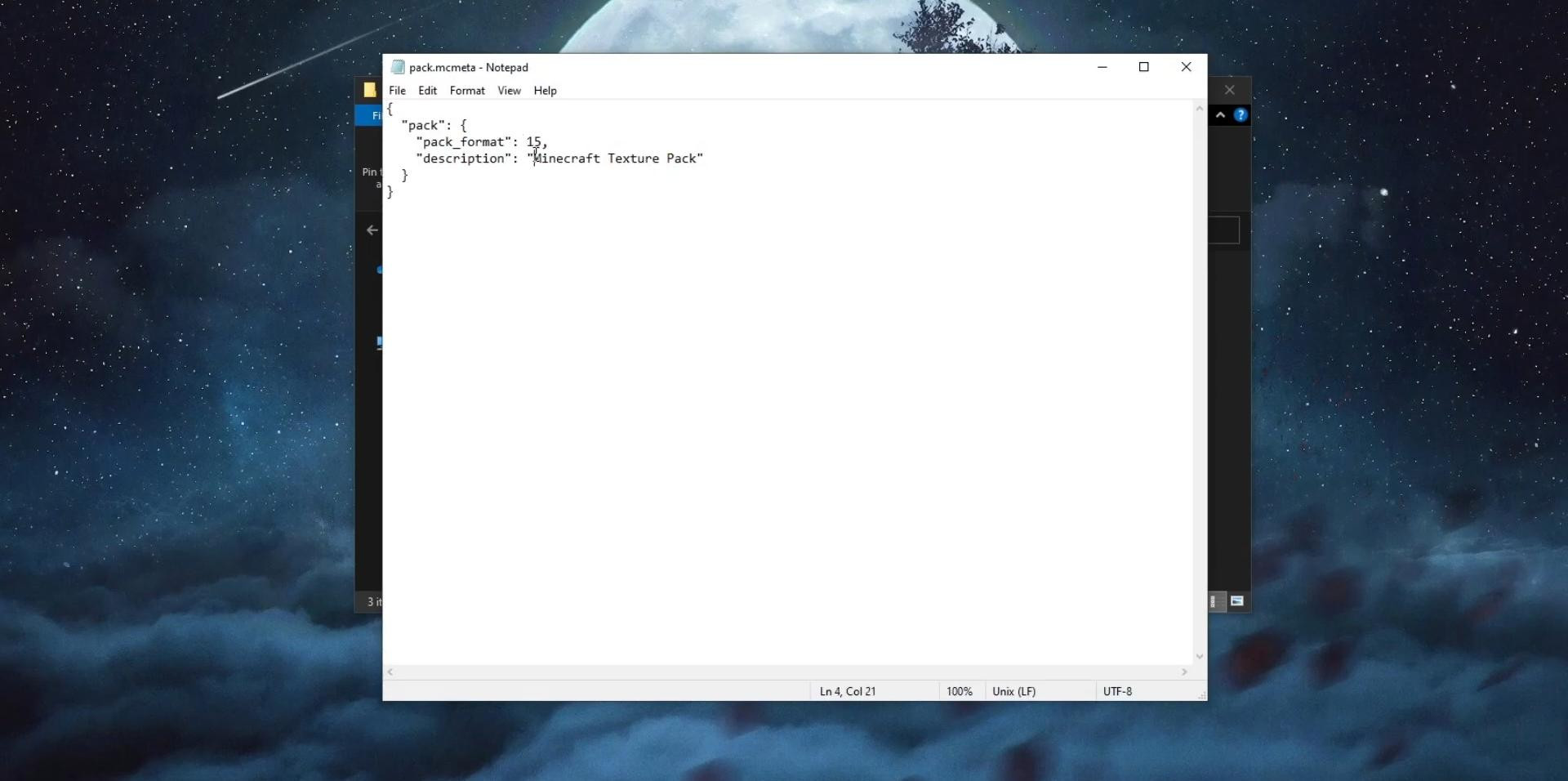
To change the description of the pack, find the pack.mcmeta file, right-click on it, select “Open with”, then Notepad.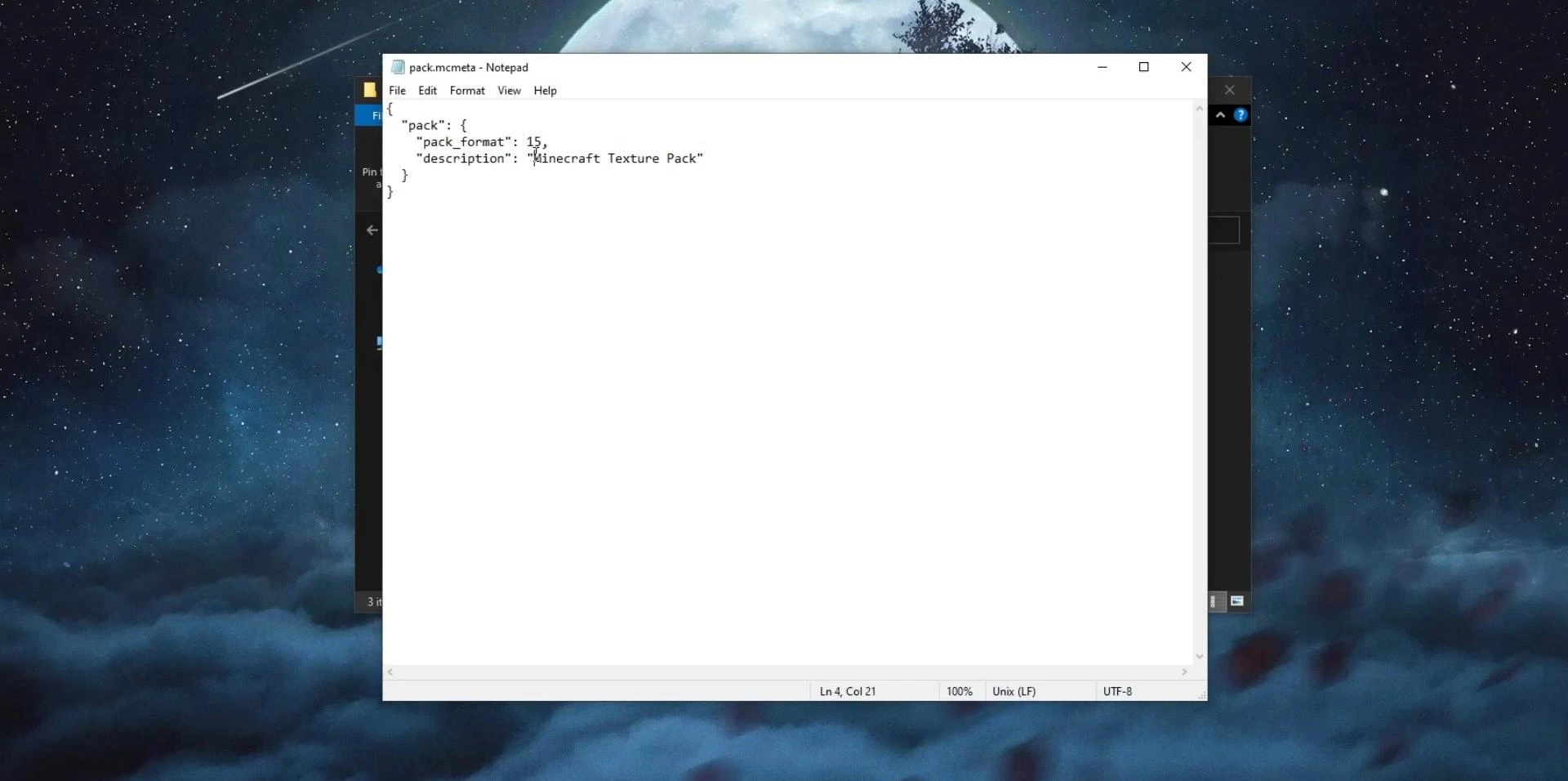
In the window that opens, edit the “description” line by entering your text.
Save the changes and close the file. This description will be displayed in the game when selecting a texture pack.
Installing a resource pack in Minecraft
Launch the official Minecraft launcher, select the desired version, and click the “Play” button.
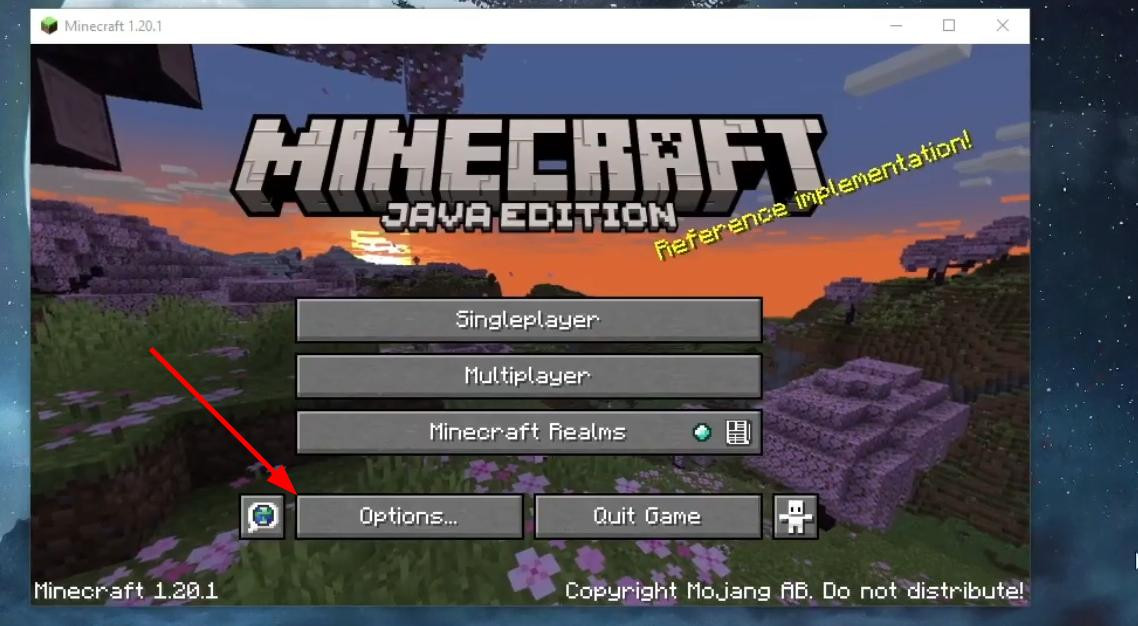
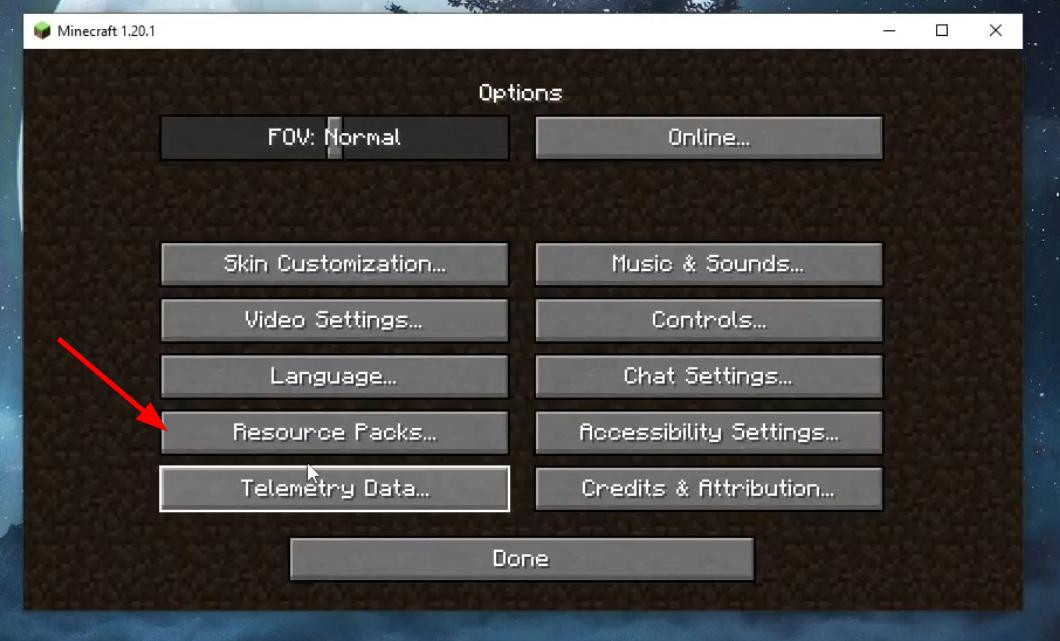
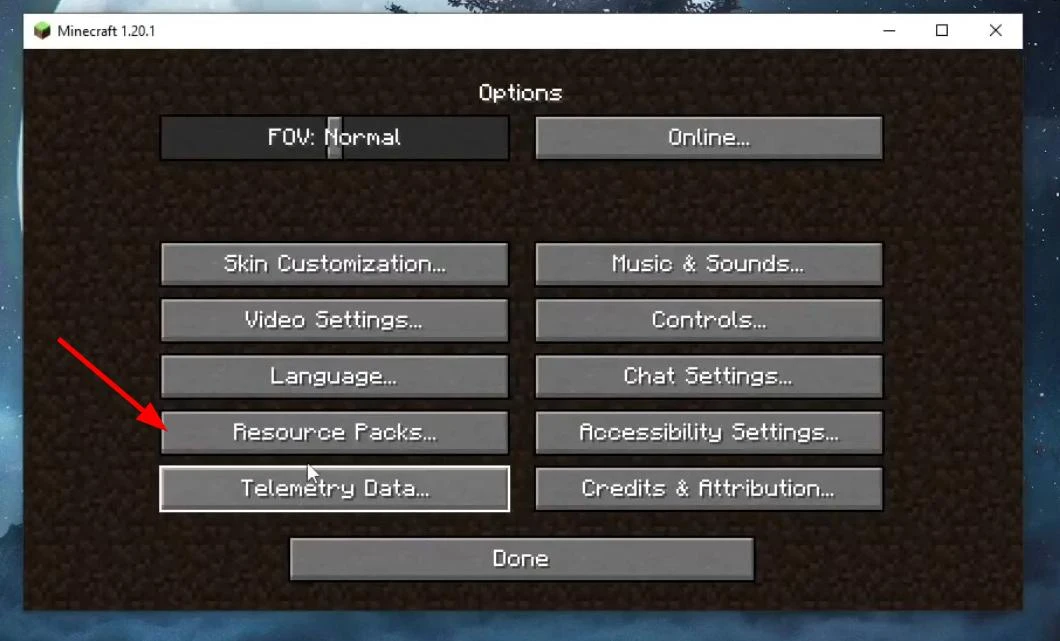
In the main menu, go to settings, then to the “Resource Packs” section.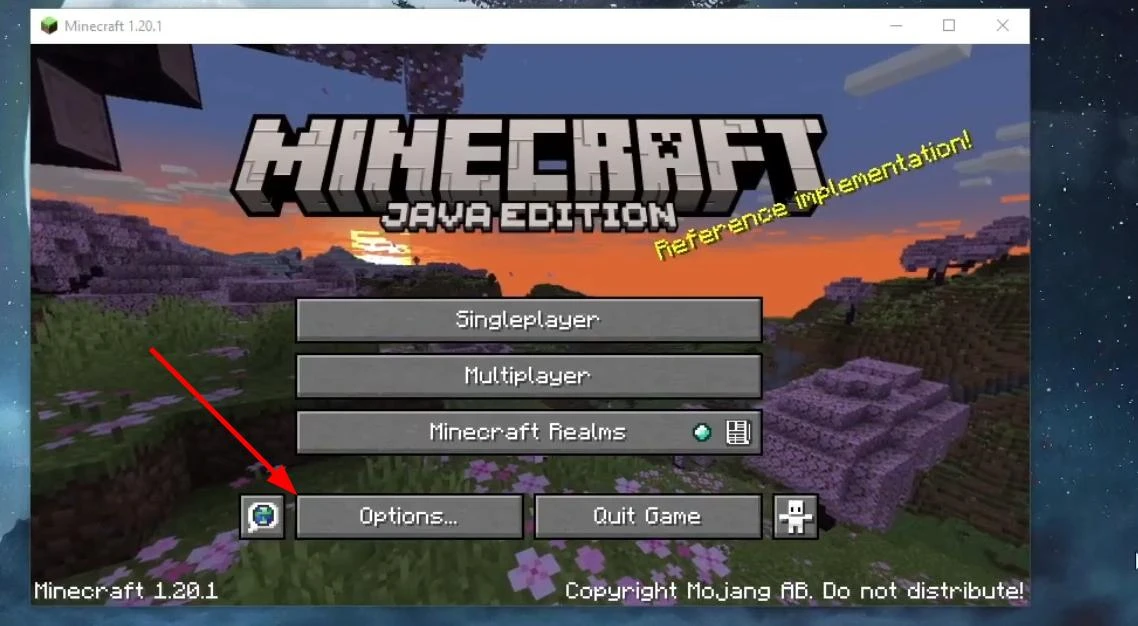
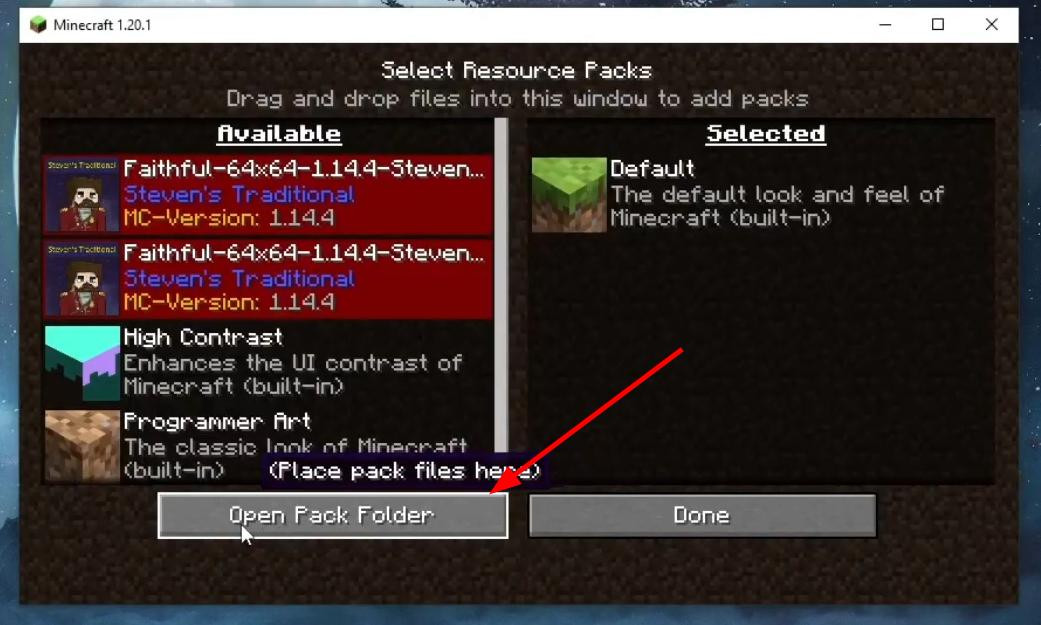
Click the “Open Folder” button, then drag the created texture pack into the directory that opens.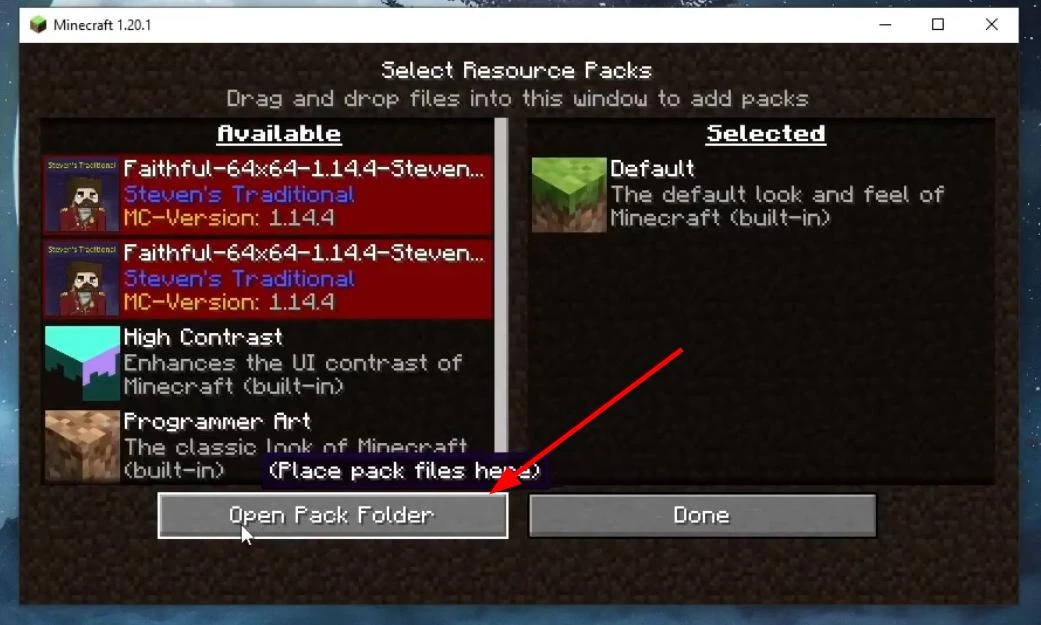
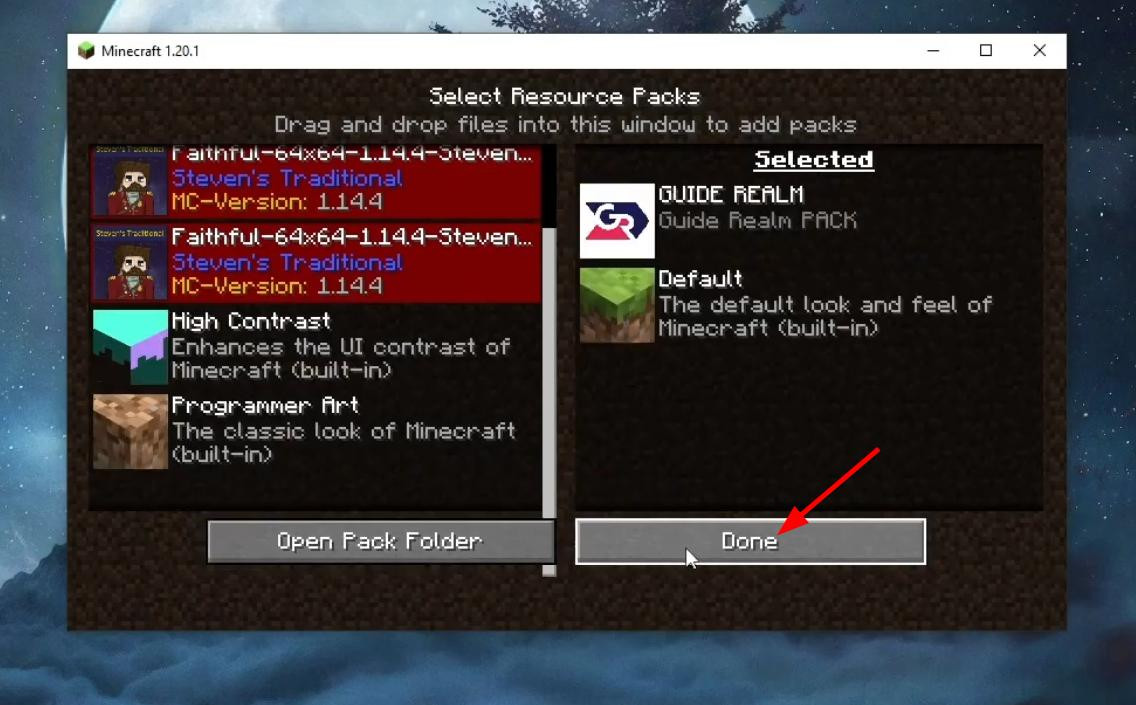
Close the explorer and return to the game. Now our pack will appear in the list of available packs. Activate it by clicking on the arrow, then confirm your selection.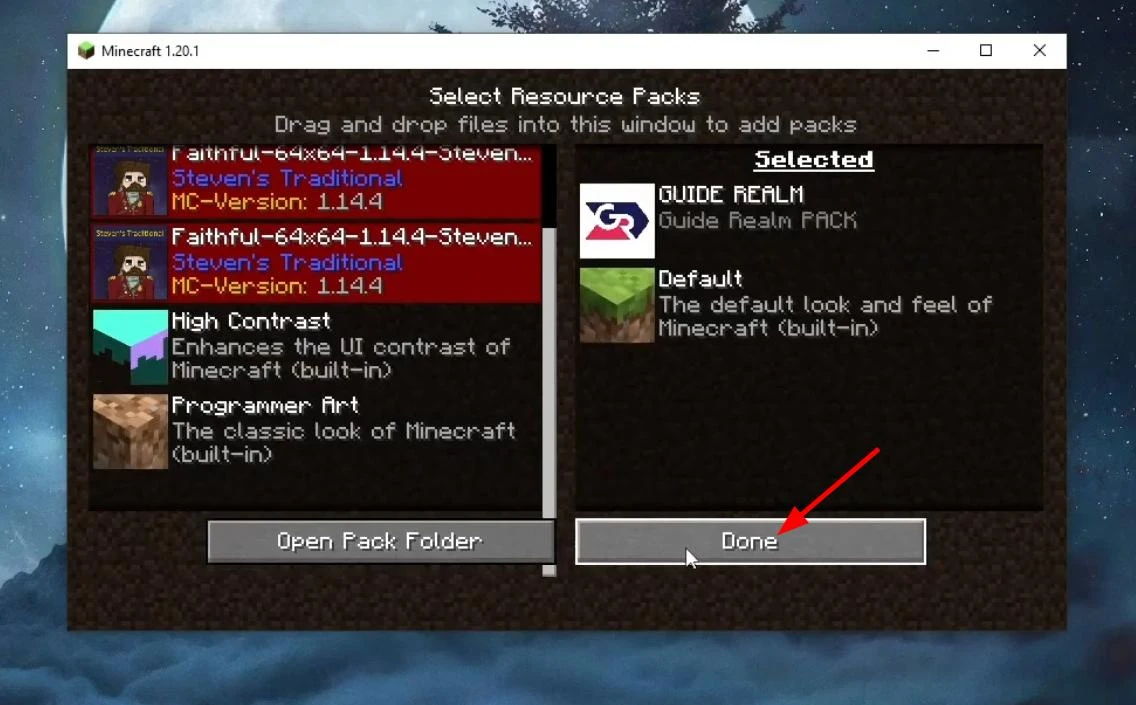
After loading the world, you can check the changes, for example, find a block of earth in your inventory.
If the texture is displayed in a new form, then the resource pack is installed and working correctly.
Videos
Added by
![Timeless and Classics Zero (TaCZ) [Minecraft 1.20.1, 1.19.2, 1.18.2]](https://i2.modland.net/i/669683678b42d/description_0ac47139-8e79-4b76-8a0c-d79bcb9039df_modland.webp)
![NeoForge Installer [Minecraft 1.21.1, 1.20.6 - 1.20.1]](https://i2.modland.net/i/66c5cbeb7e5ee/neoforge_modland.webp)
![[1.5] THE DROPPER](https://li1.modland.net/minecraft/maps/thumbnail/th_ModLandNet_1.jpg)
_modland.webp)
_modland.webp)
![Mod Menu [Minecraft 1.21.1 - 1.14]](https://i2.modland.net/i/670844d8dfaa0/220113162237010137 (1)_modland.webp)